

Overview :
On this screen we will cover all the basic options we see under products and services area .
To manage your "Products", click on "Products/Services" on the top menu bar.
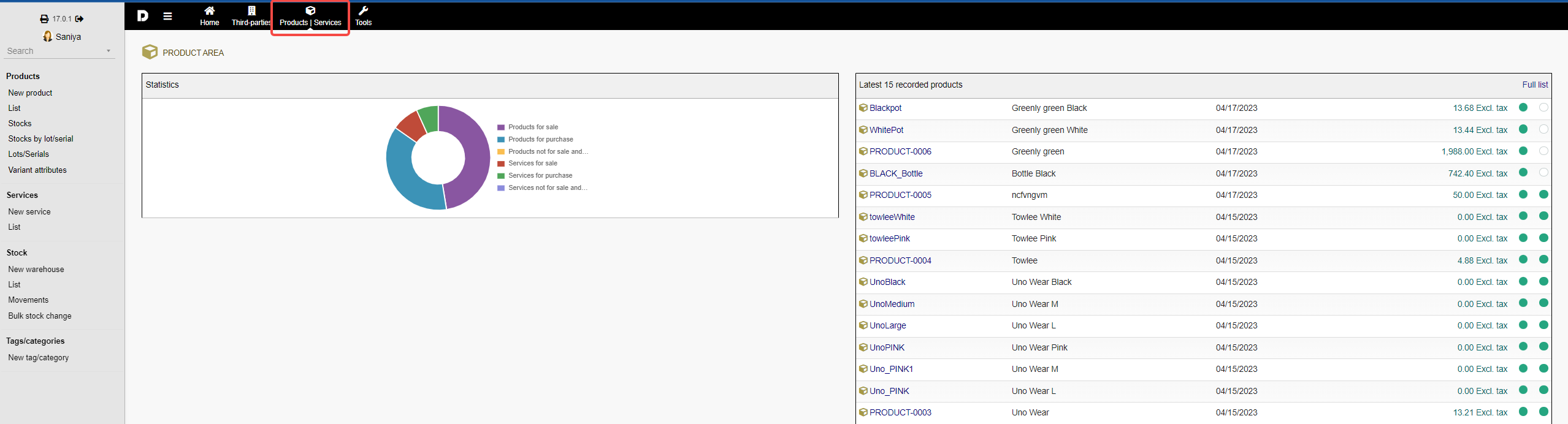
on the left hand side of the screen you can see the menus which we are going to cover next .
Products section :
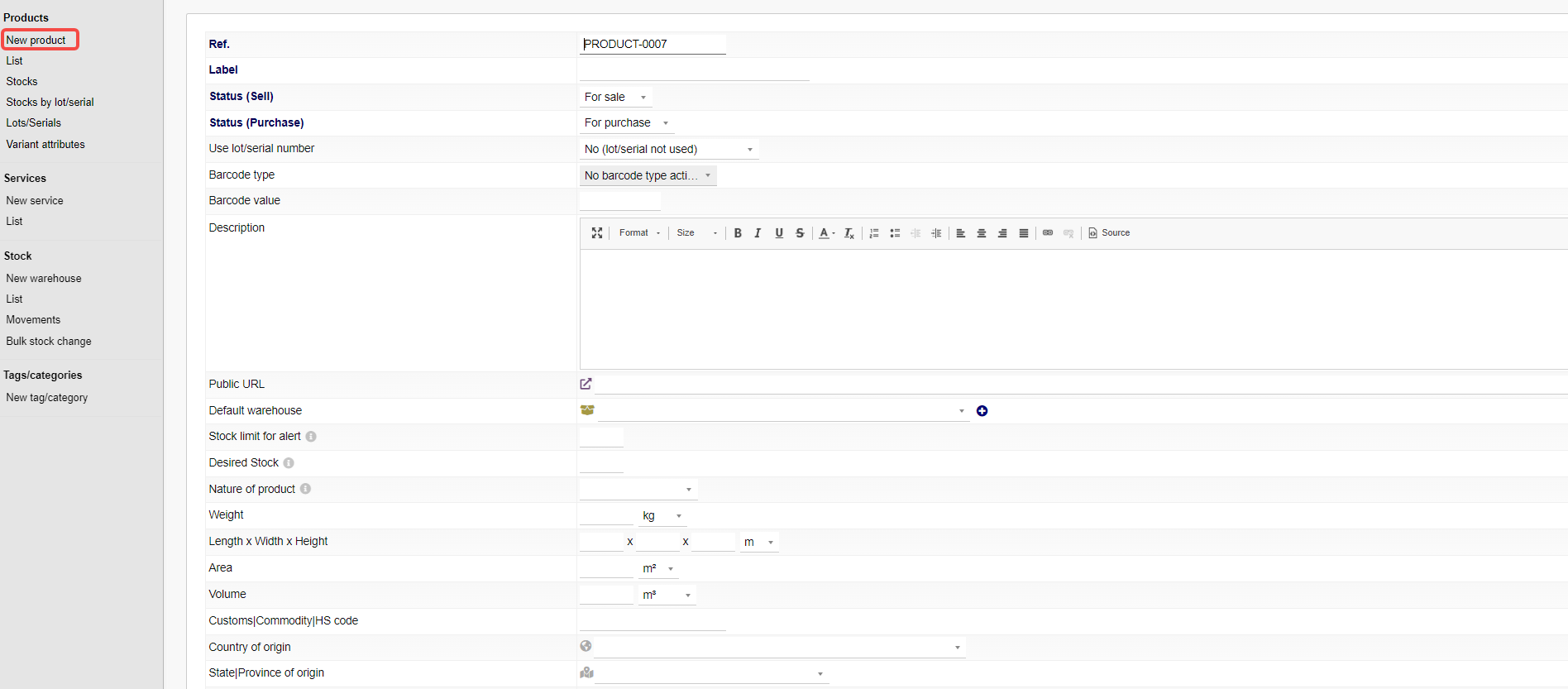
1. To create a new product : you can click the "New product " form the left -menu item . It shall take you the product creation page. To create a new product , follow this article.
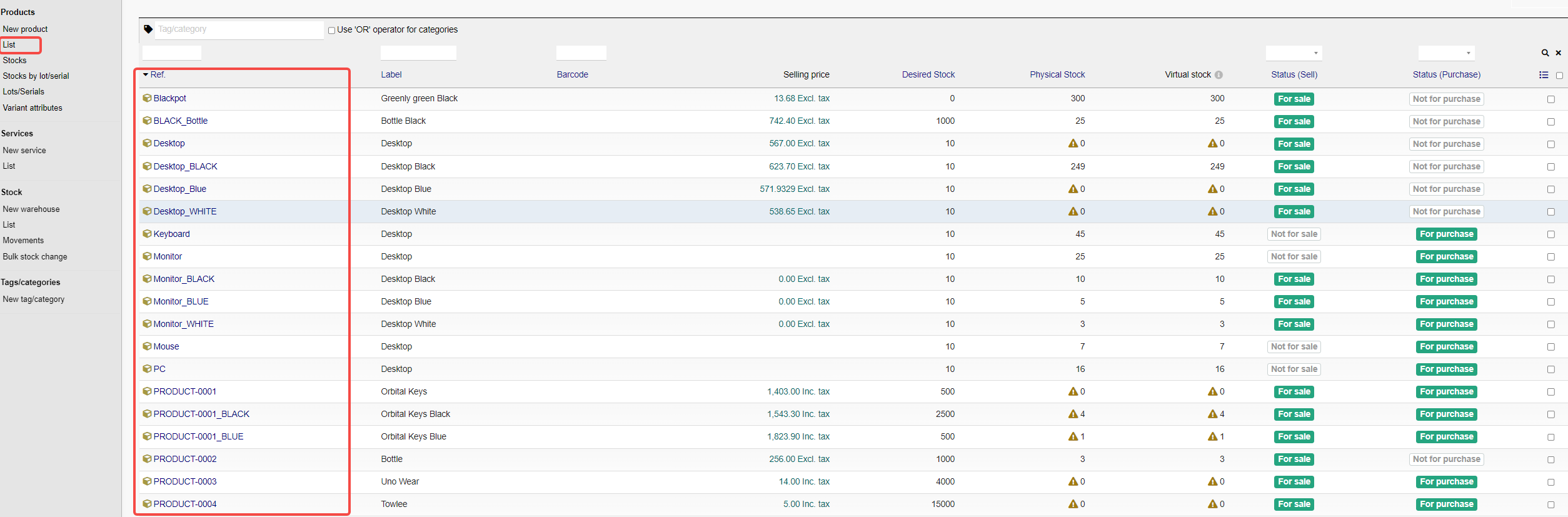
2. List : Clicking on "List" option will show you the entire list of products you have added.
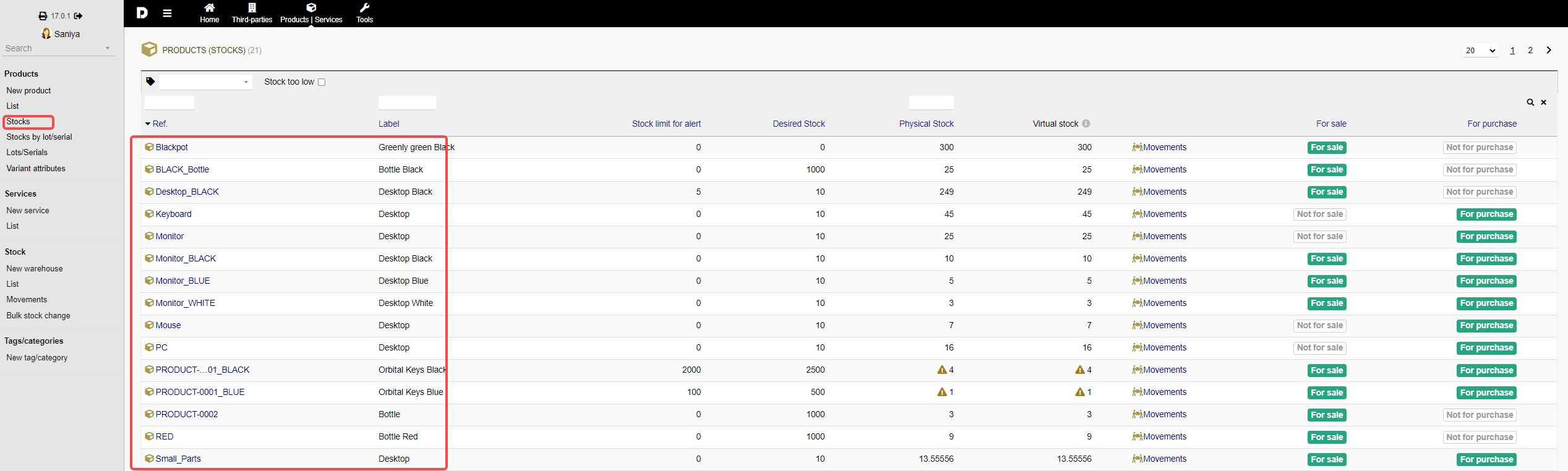
3. Stocks : This helps you keep a track of your stocks of each product.
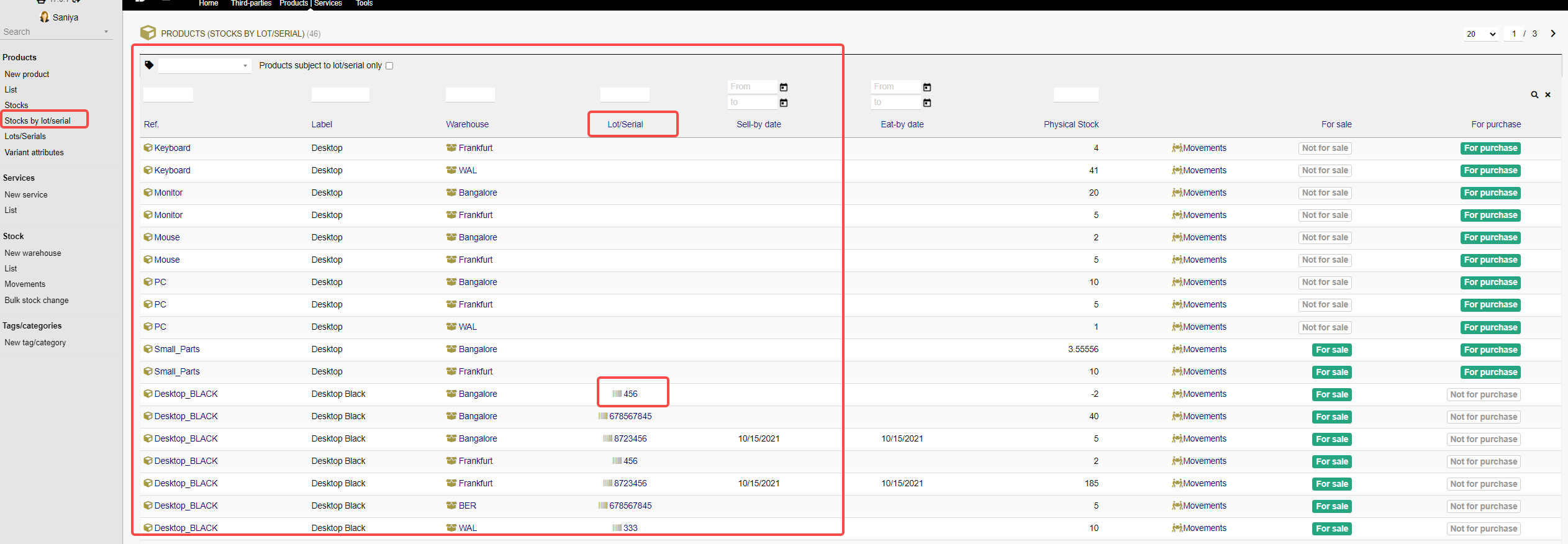
4. Stocks by lot/serial : on this screen you will see all the stocks which are created by lots/serial number.
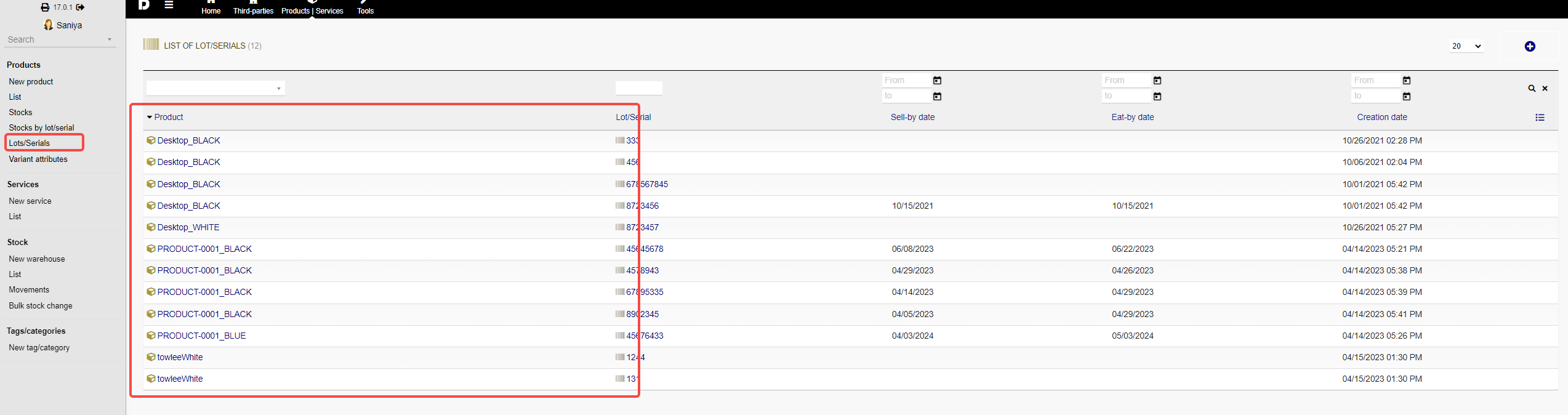
5. Lots/serials: All the product that are create with unique serial number will be displayed here :
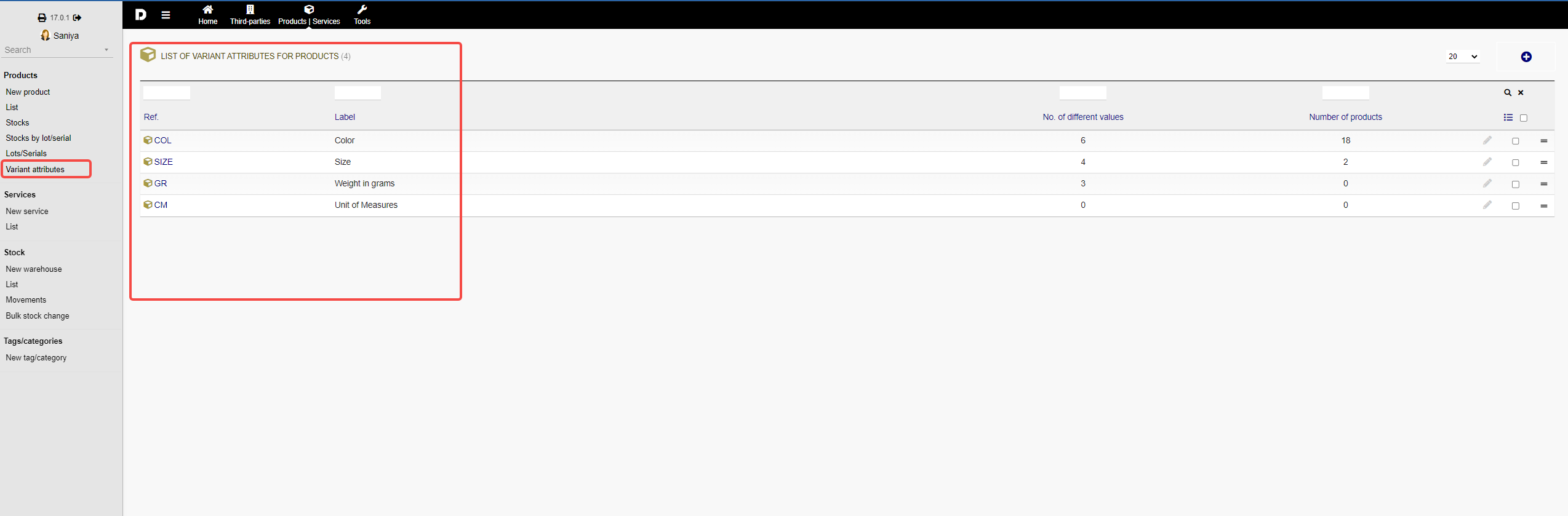
6. Variant attributes : Each product have some variants based on what product we added.
Service section :
On this screen we will cover all the basic options we see under products and services area .
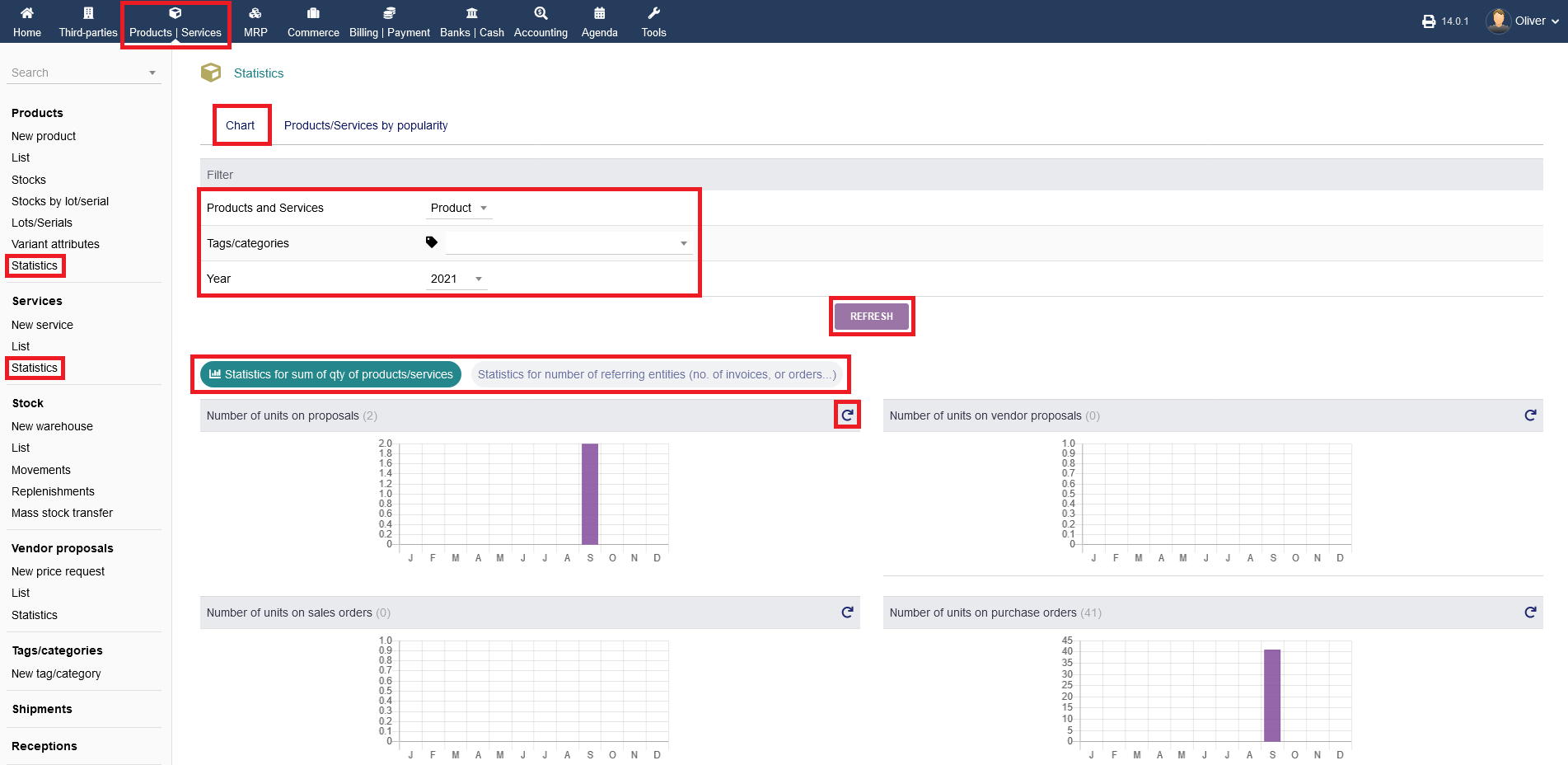
To manage your "Services", click on "Products/Services" on the top menu bar.
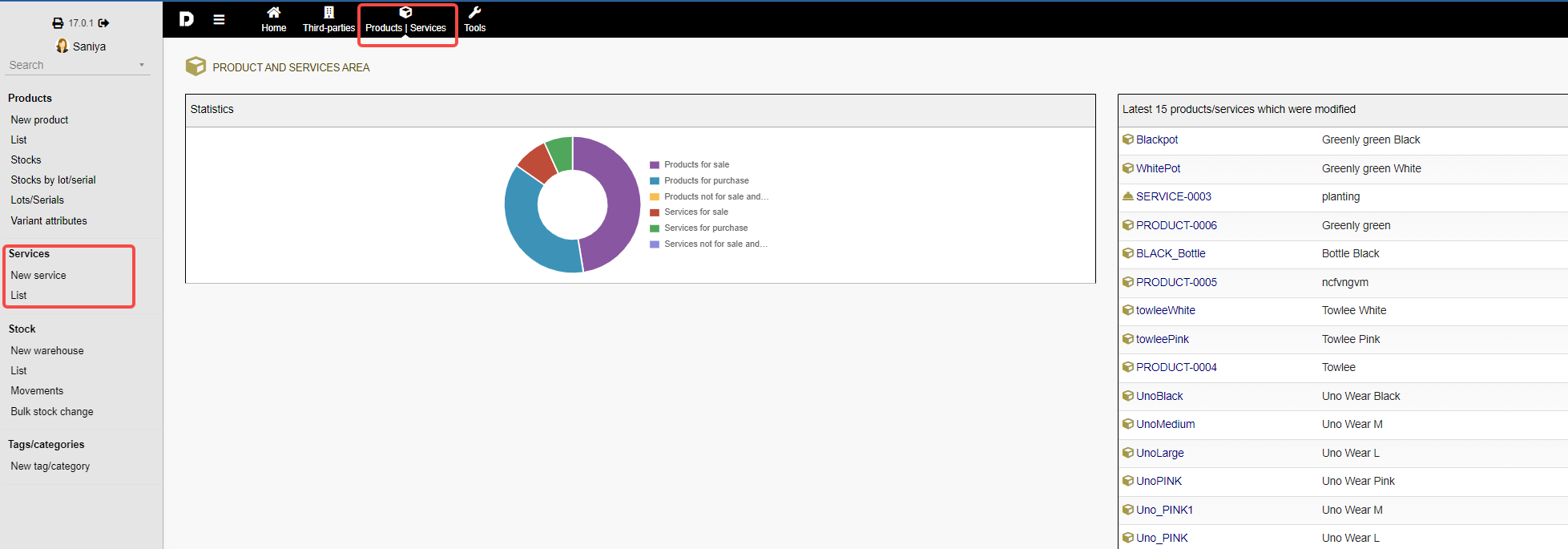
1. New services : You can click the " New service." form the left -menu item . It shall take you the service page. To create a new service follow this article.
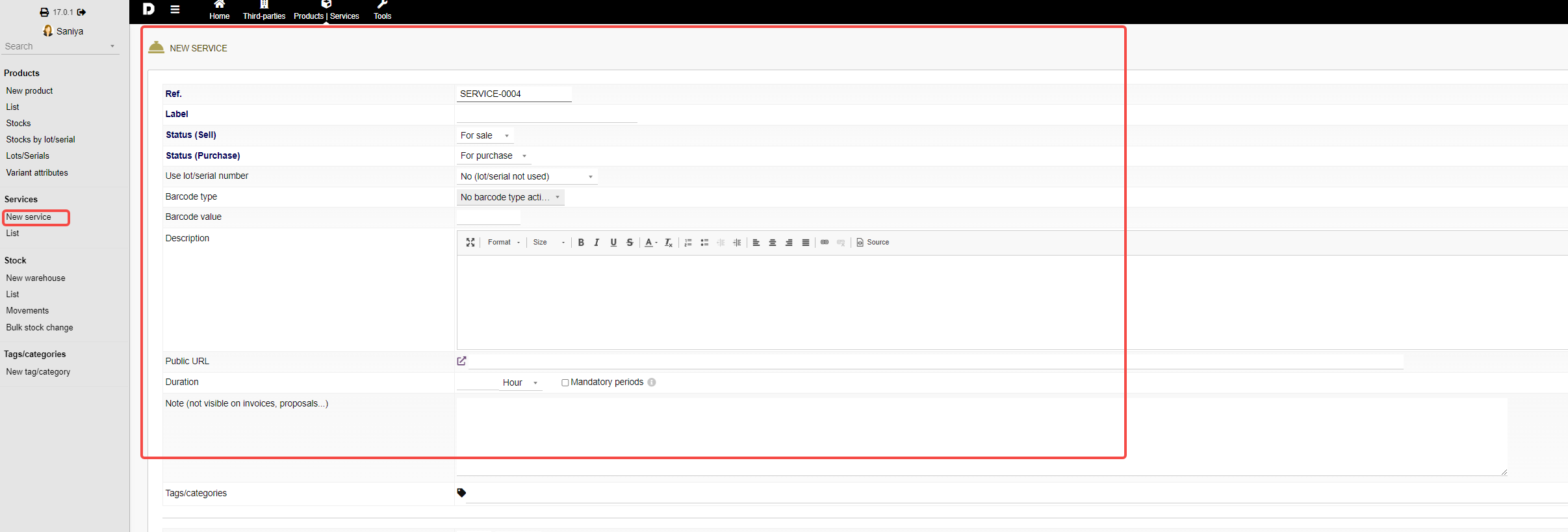
2. List : Clicking on "List" option will show you the entire list of services you have added .
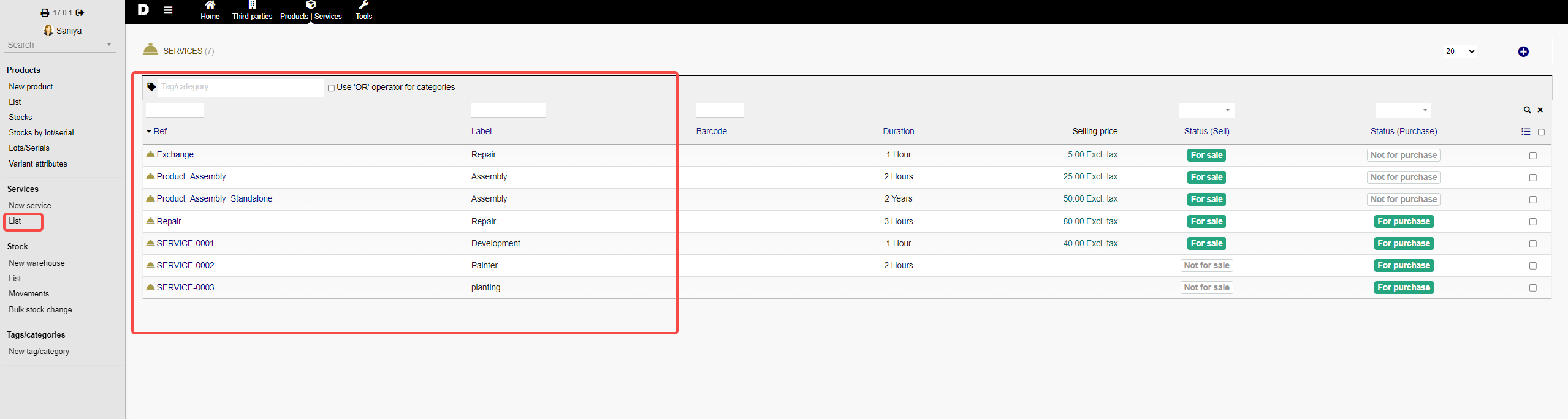
3. Statistics: Further insides/statistics can be had by clicking on "Statistics" under the respective section on the left side menu. There, you can sort after tags/categories and year. Click "REFRESH" to proceed with your chosen options. Finally, you can see the statistics for sum of quantity of products/services or the statistics for number of referring entities, by clicking on the respective fields just above the charts. To refresh each chart, click on the "circular arrow" icons.
Stock :
On this screen we will cover all the basic options we see under products and services area .
To manage your "Stocks", click on "Products/Services" on the top menu bar.
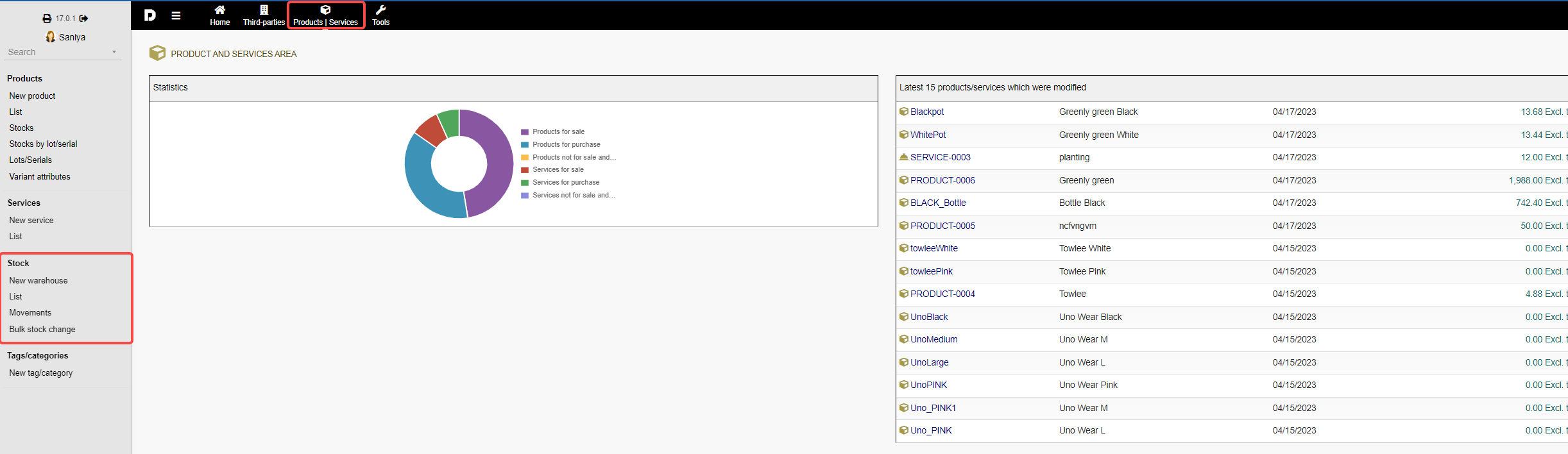
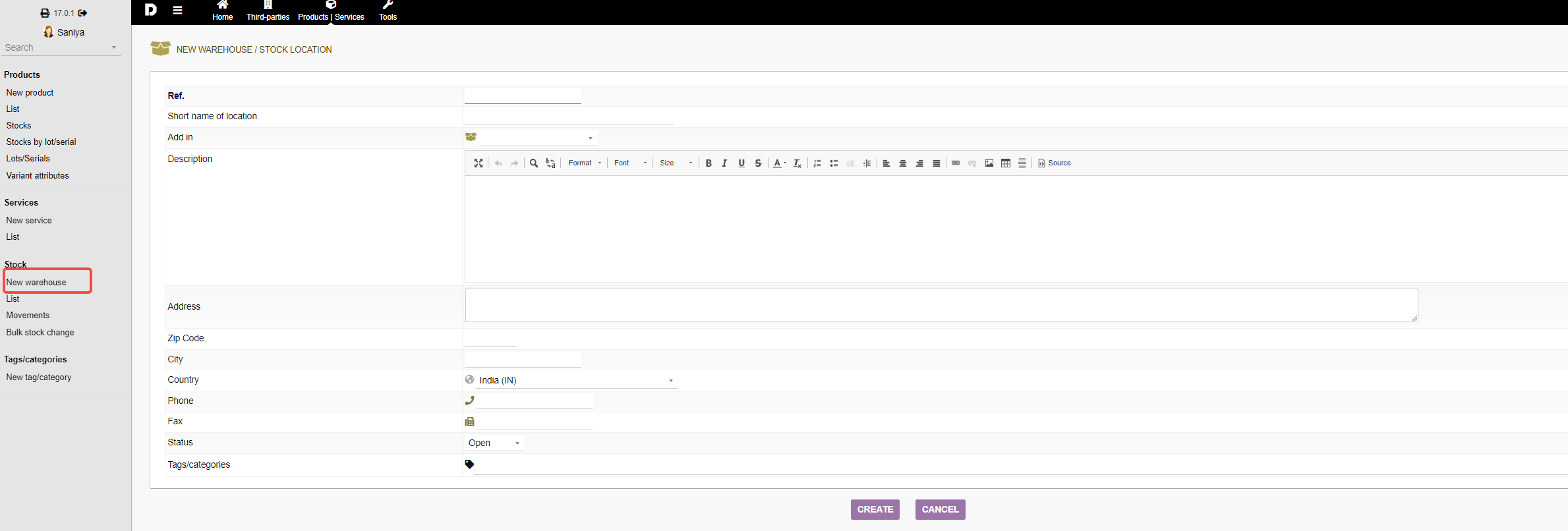
1. New warehouse : You can click the " New Warehouse." form the left -menu item, which will allow you to add new warehouse to add your stocks. To know how to add a new warehouse, read this article.
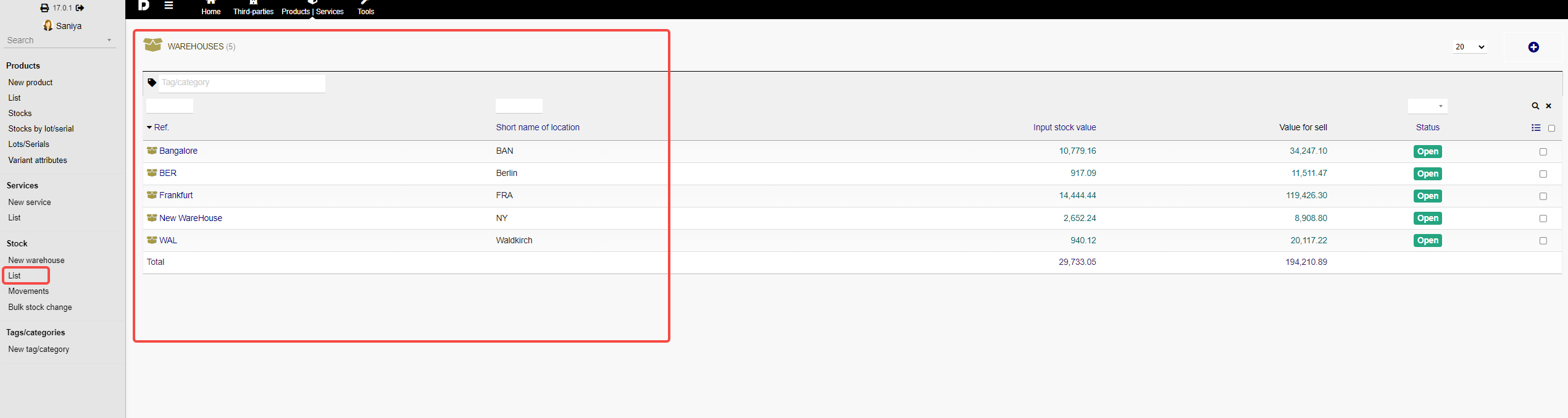
2. List : To check your list of stocks, warehouses click on "List" .
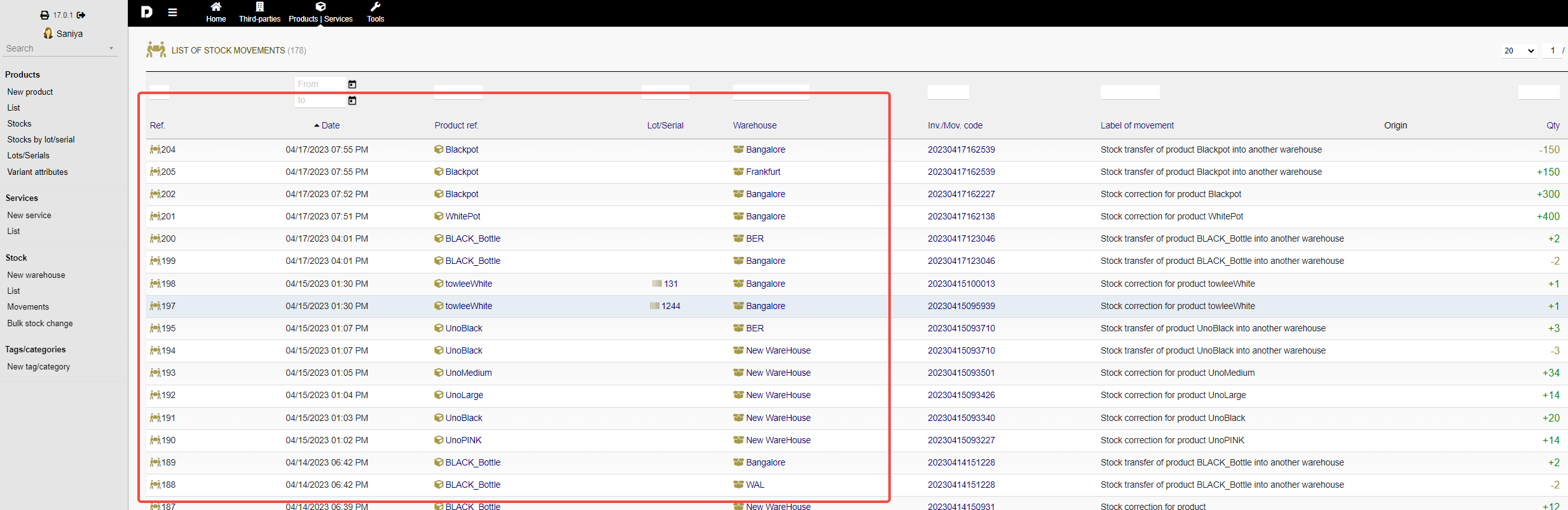
3. Movements : Under movements you can have look on what item was moved from where to where ( Source and destination).
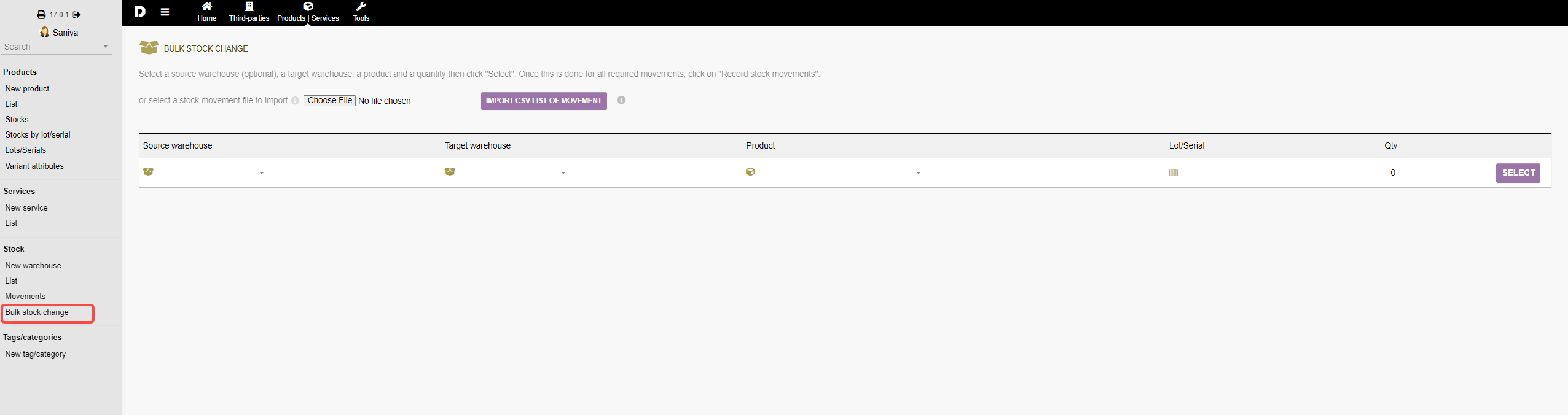
4. Bulk stock change : To do bulk stock change, you can click on "Bulk stock" option. This will allow you to move stocks form one warehouse to another in one go. You can import using .CSV file or you can move it using the interface.
Tags & category :
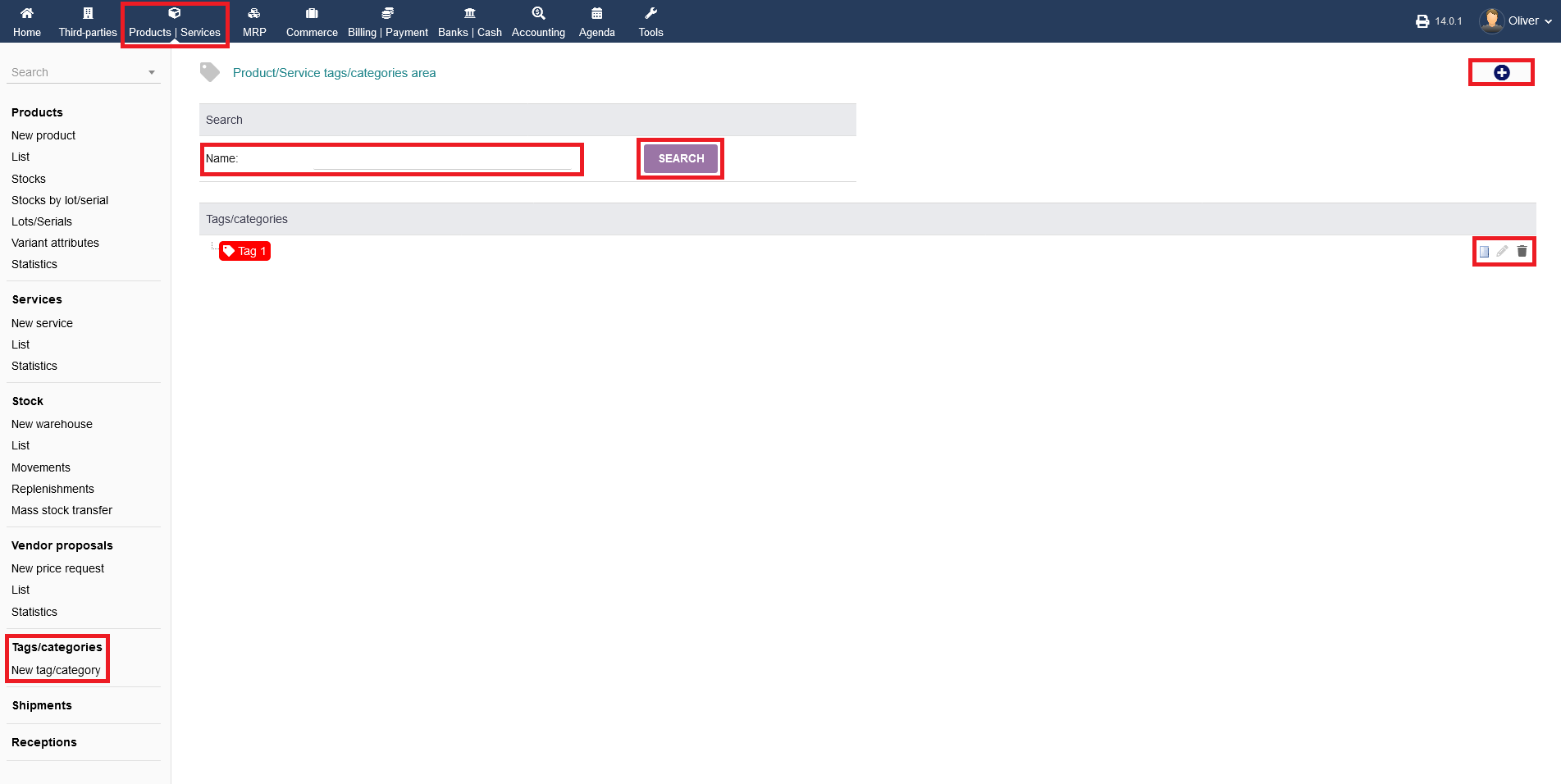
In intERP, you can create and use tags/categories. You can use them to sort/group services, products etc. by giving a tag a parameter or description of your choice. To create a tag, go to "Products/Services -> Tags/categories". You will get an overview of your existing tags. Additionally, you can search for a tag by typing in the name an hit "SEARCH". Click the "plus" icon on the top right corner. Alternatively, you can click on "Products/Services -> New tag/category". To edit or delete a tag, click the small symbols on right side of the tag.
Any sections in that module, that are related to business transactions will be covered in the documentation regarding "Business Transactions". Regarding the ordering process for materials to manufacture a product is covered under "Bill of material" (BOM).
