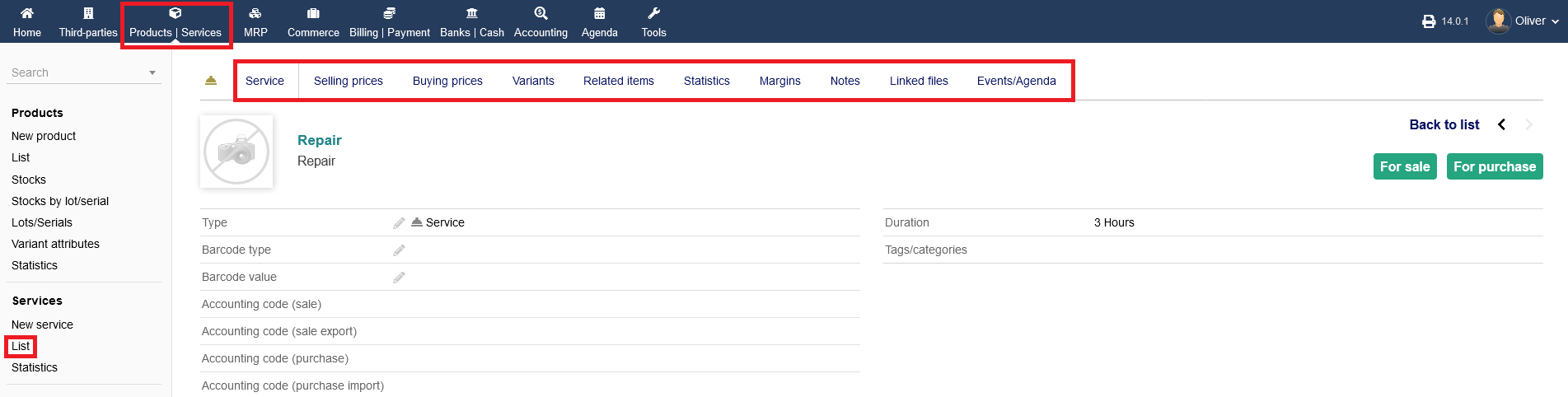
Adding a new service :
To create a new service, click on "New service". Fill out all necessary details. Choose if the service is for sale, for purchase or both, using the drop down menu saying "Status (Sell)" and "Status (Purchase)". Choose a duration time for the specific service under the section "Duration". You can fill out the rest of the form to your desire, especially adding tags, prices, tax rate and accounting codes under the respective fields. Click on "CREATE" to finish adding your service.
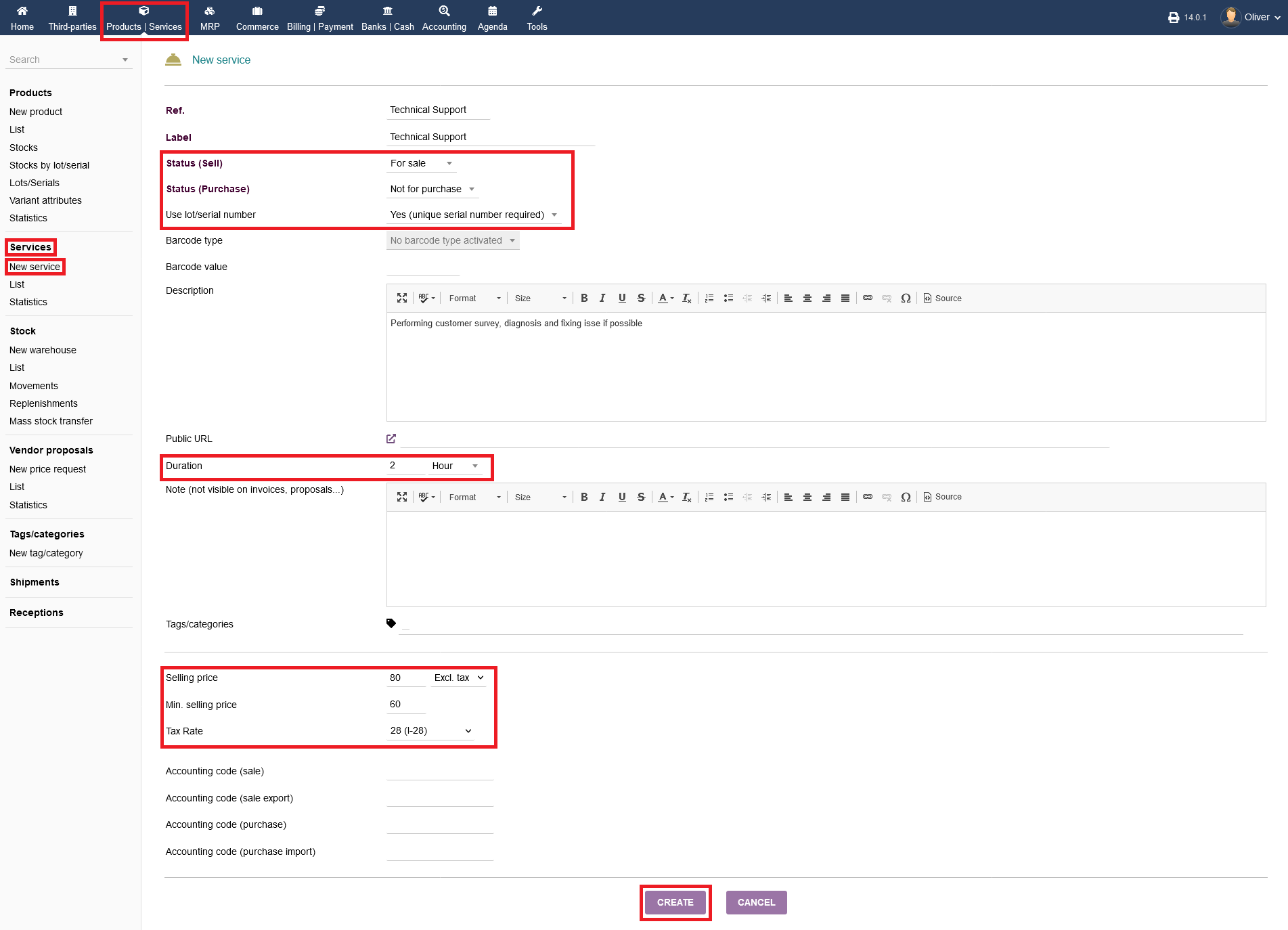
Please note, that service numbers are created in different manners, either automatically or by a manually predefined scheme. You can find further information under the documentation section "Modules" and in the article "Products Module (Configuration)". The filled "Ref." will show the respective number automatically.
Editing services
You can manage your services via the services listing under "Products/Services -> Services -> List". Click on the service name which you want to edit. You can edit any details by clicking "MODIFY", clone the service if you want to create a similar service by clicking "CLONE" or delete the service by clicking on "DELETE". More information are shown below like any linked files to that service and a log of the last 10 events/changes that were made to that service. To add a new event manually, click on the "plus" icon on the right side. If you want to quickly change the type/barcode type, click on the "pen" icon.
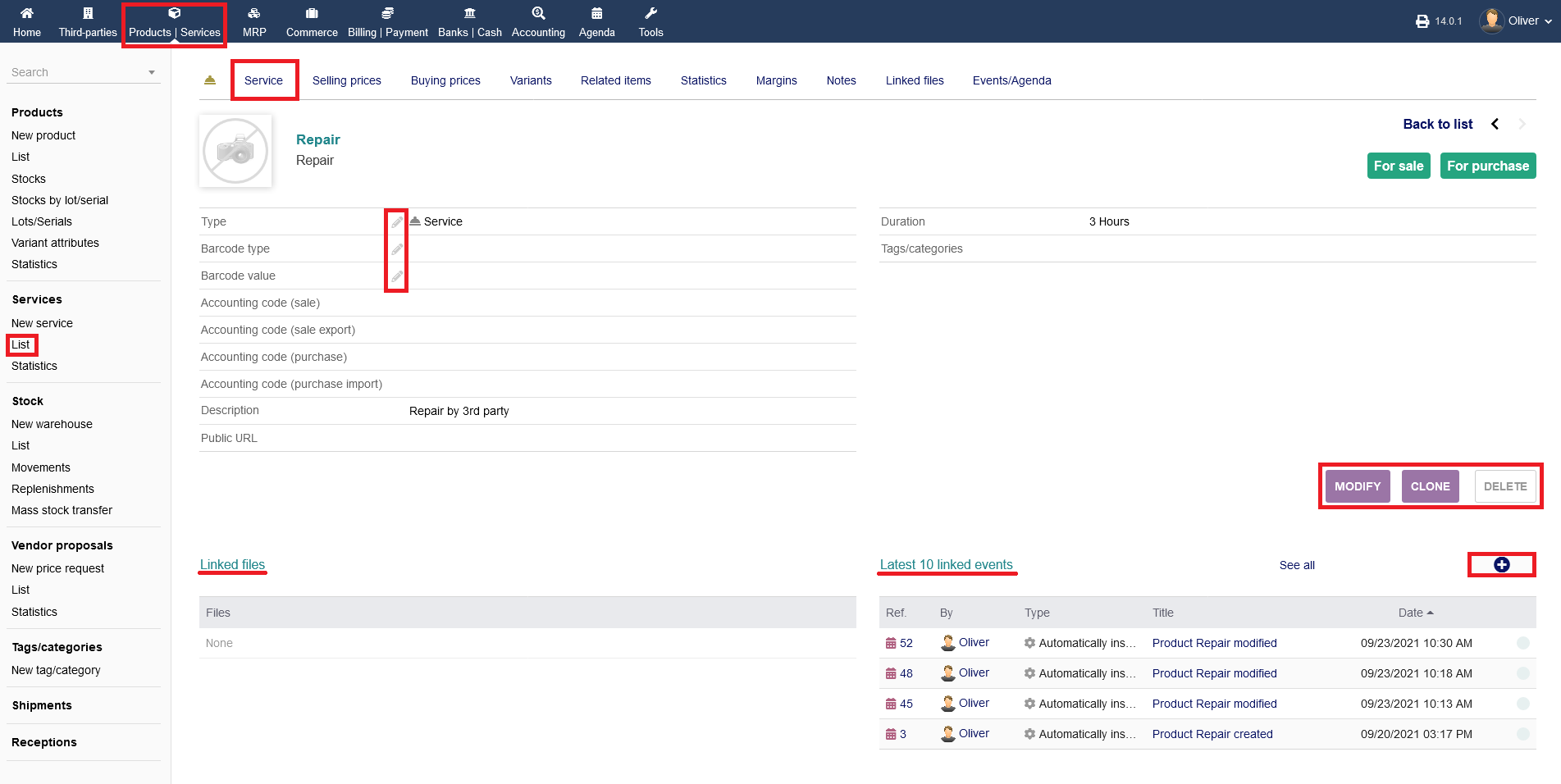
Further options (services)
More options can be found in the same tab menu where you can edit your service at. Covering selling and buying prices, variants, related items, statistics, margins, notes, linked files and events/agenda. Please refer to the Products documentation, since the steps will be the same for services as well .