Creating Contracts:
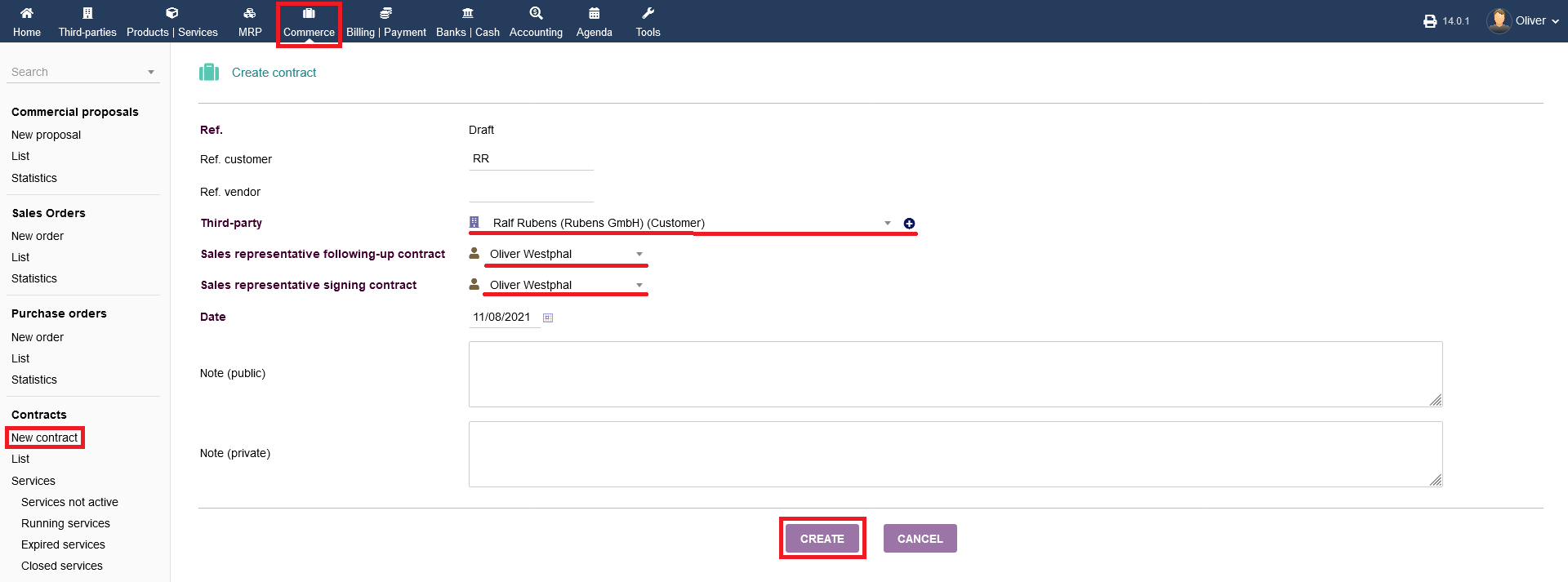
To create a contract regarding a service, click on "Commerce -> New contract". Choose a Ref. Enter the name and most importantly a select whether customer/vendor from the drop down menu "Third-Party".
In the following, choose a staff member as a who is following up on the contract from the drop down menu under "Sales representative following-up contract". Next,
Choose a staff member who is responsible for the contract signing from the drop down menu "Sales representative signing contract".
Note: that they don't have to be the same. Usually, you have different staff members with certain authorities.
Lastly, choose a date or leave it as is and click "CREATE" to create the draft contract.
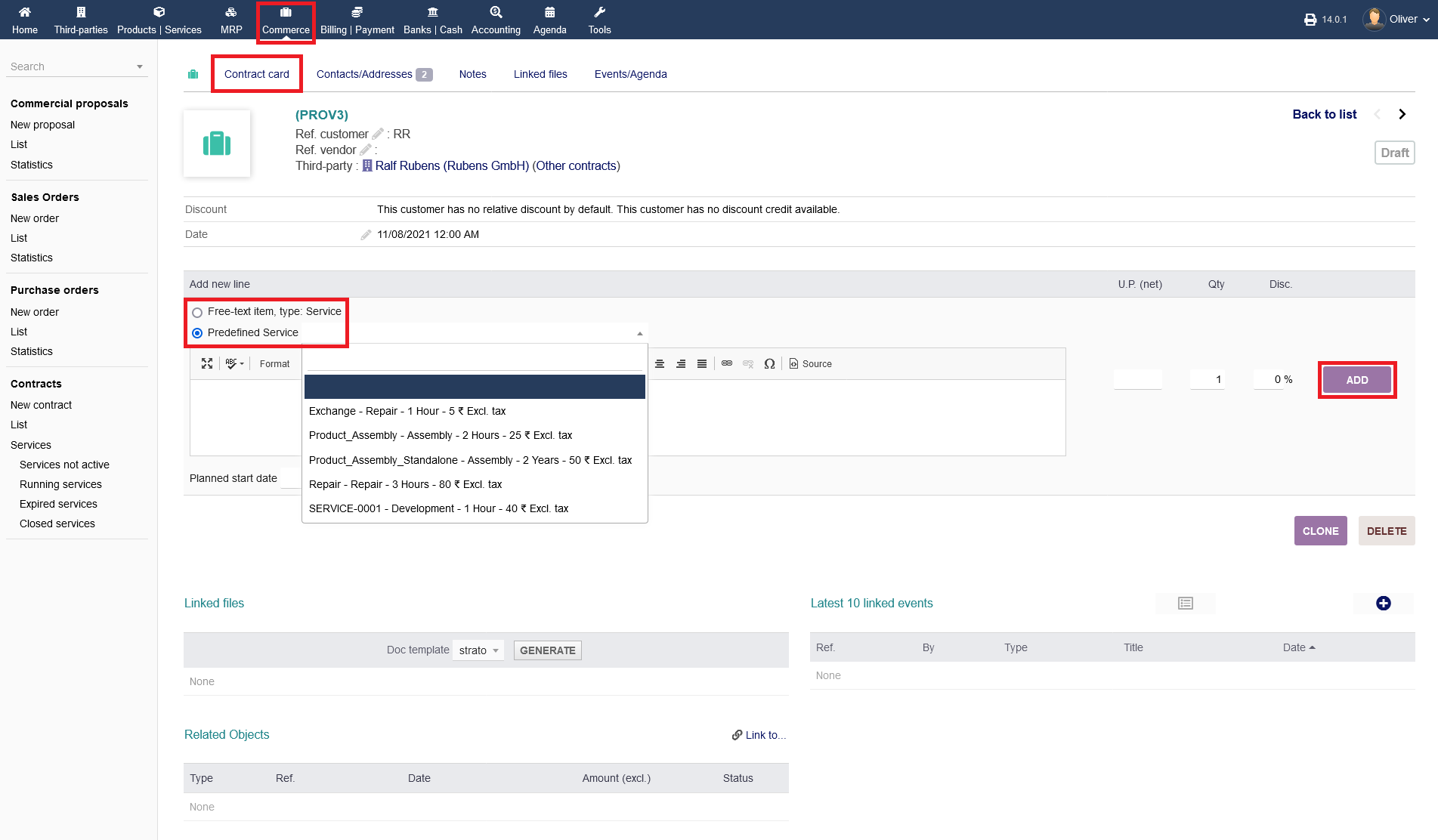
After creating the initial draft, you need to add the services you want to provide you can select from the drop down or just enter the text . Click "ADD" to add the service offer to the listing.
Validating :
After populating the draft contract with the respective services, the draft needs to be validated.
Click on "VALIDATE" to perform the confirmation. Before, you still can edit or delete each service by clicking on the "pen" or "trash" icon.
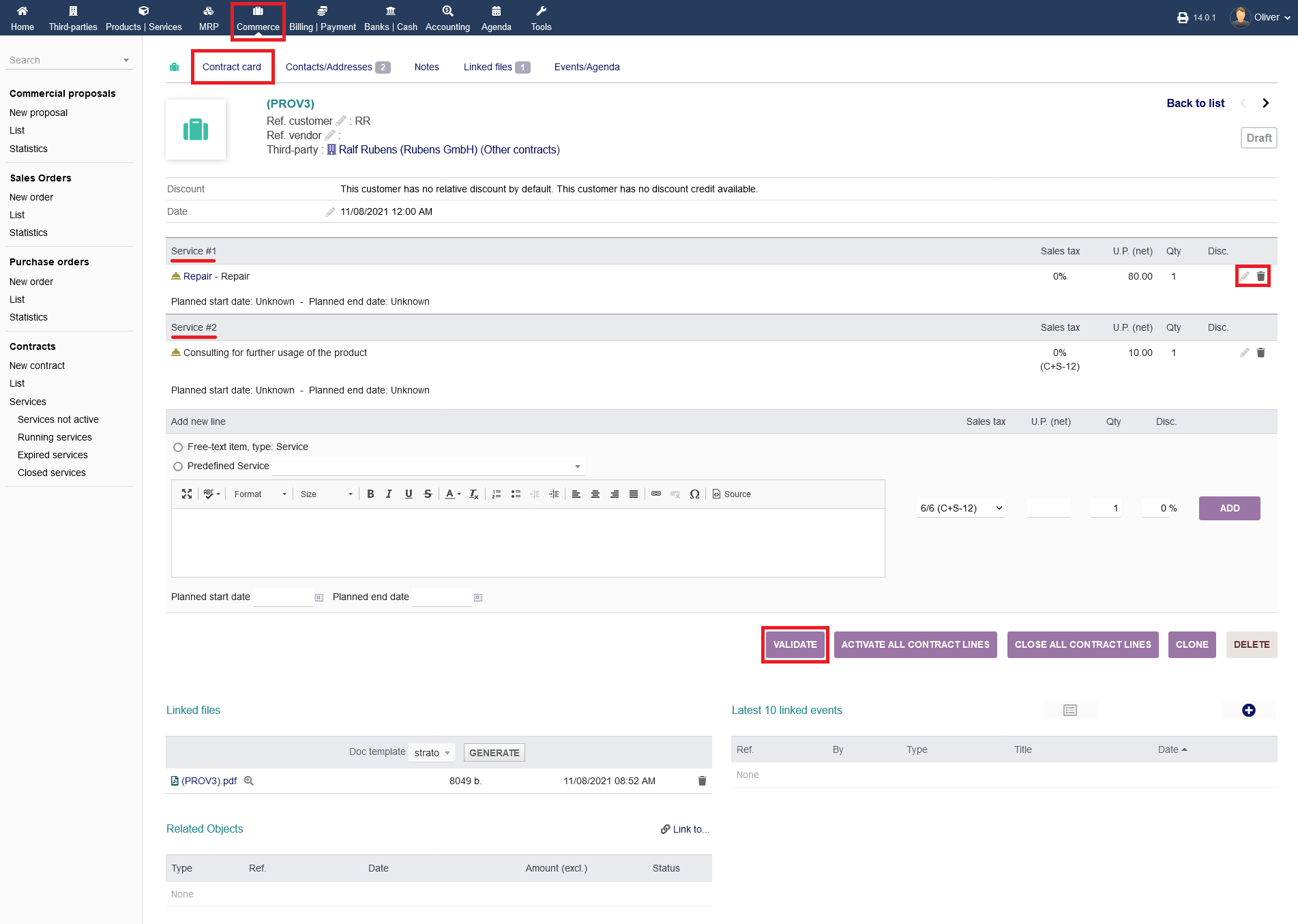
As soon as you have validated the contract internally, the contract will show as "Not running" in you list overview.
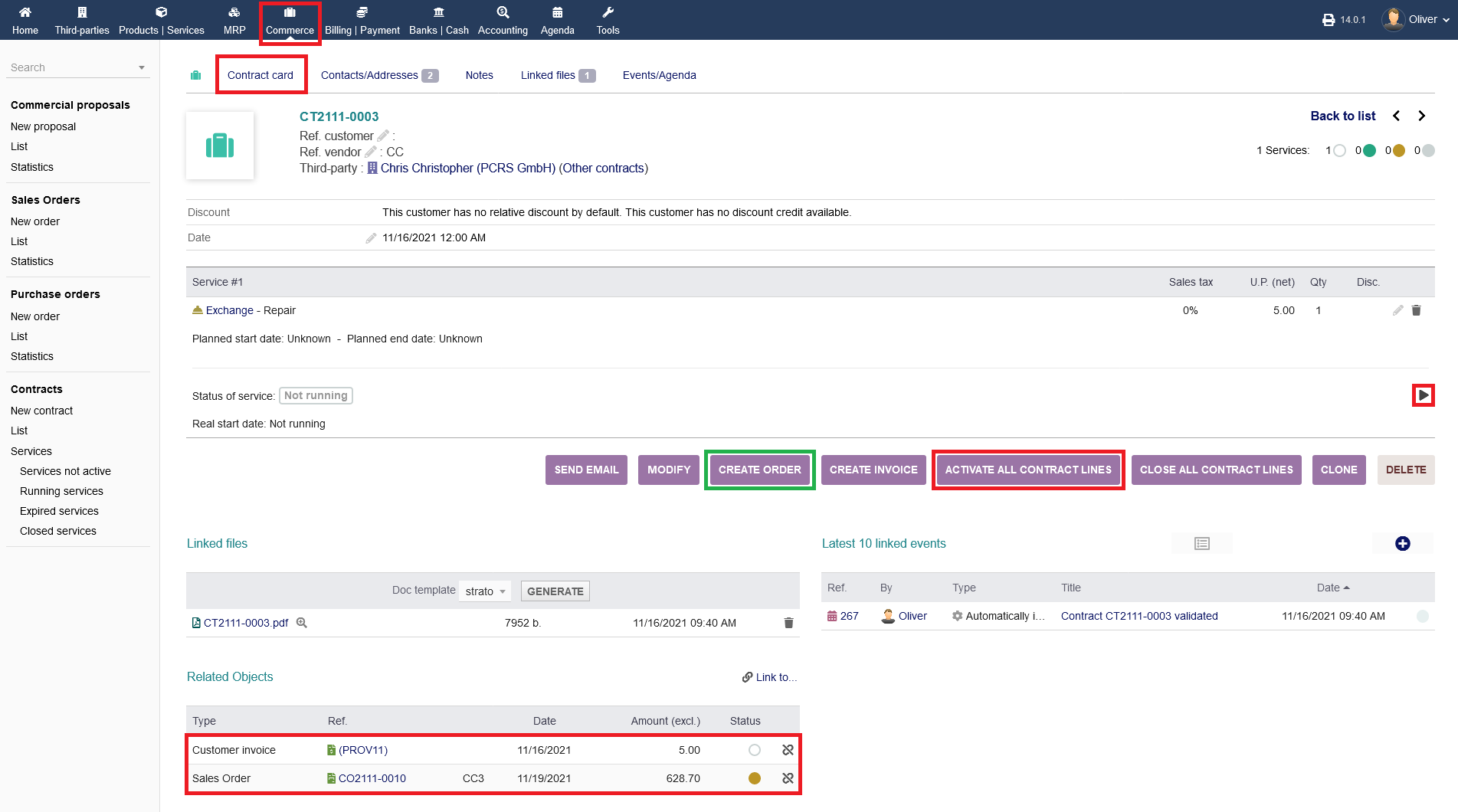
Now, you need to go to your "Third-Party". You can set the contract/services as "Running" for each service separately by clicking on the "play" icon. You can set all services as running with a bulk action by clicking on "ACTIVATE ALL CONTRACT LINES".
Note, that you can inform your third party by sending an E-Mail or creating orders for needed materials by clicking on the respective buttons.
Also, you can create an invoice prematurely by clicking on the respective button. As usual, you can clone or delete the whole contract by clicking on "CLONE" or "DELETE".
Please note, that you have the option to create an sales order from within the contract. It will show later as an related object in the Contract card below. For any details on sales orders, please refer to the respective documentation.
Closing a contract :
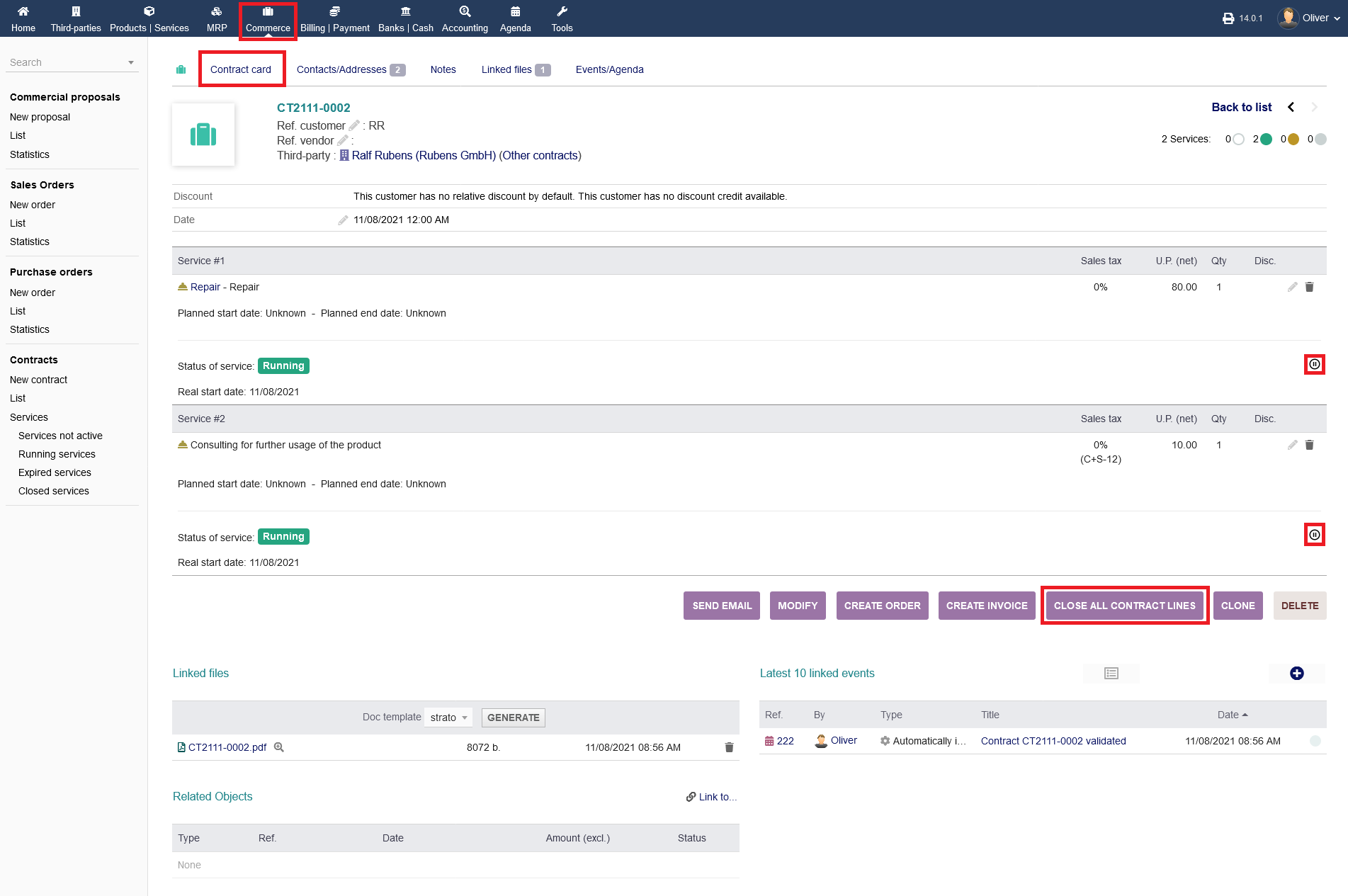
After performing your service to your third party, you can stop the process for each service by clicking on the "pause" icon. If all services where provided successfully, you can bulk close the process by clicking on "CLOSE ALL CONTRACT LINES". It will set all services from "Running" to "Closed".
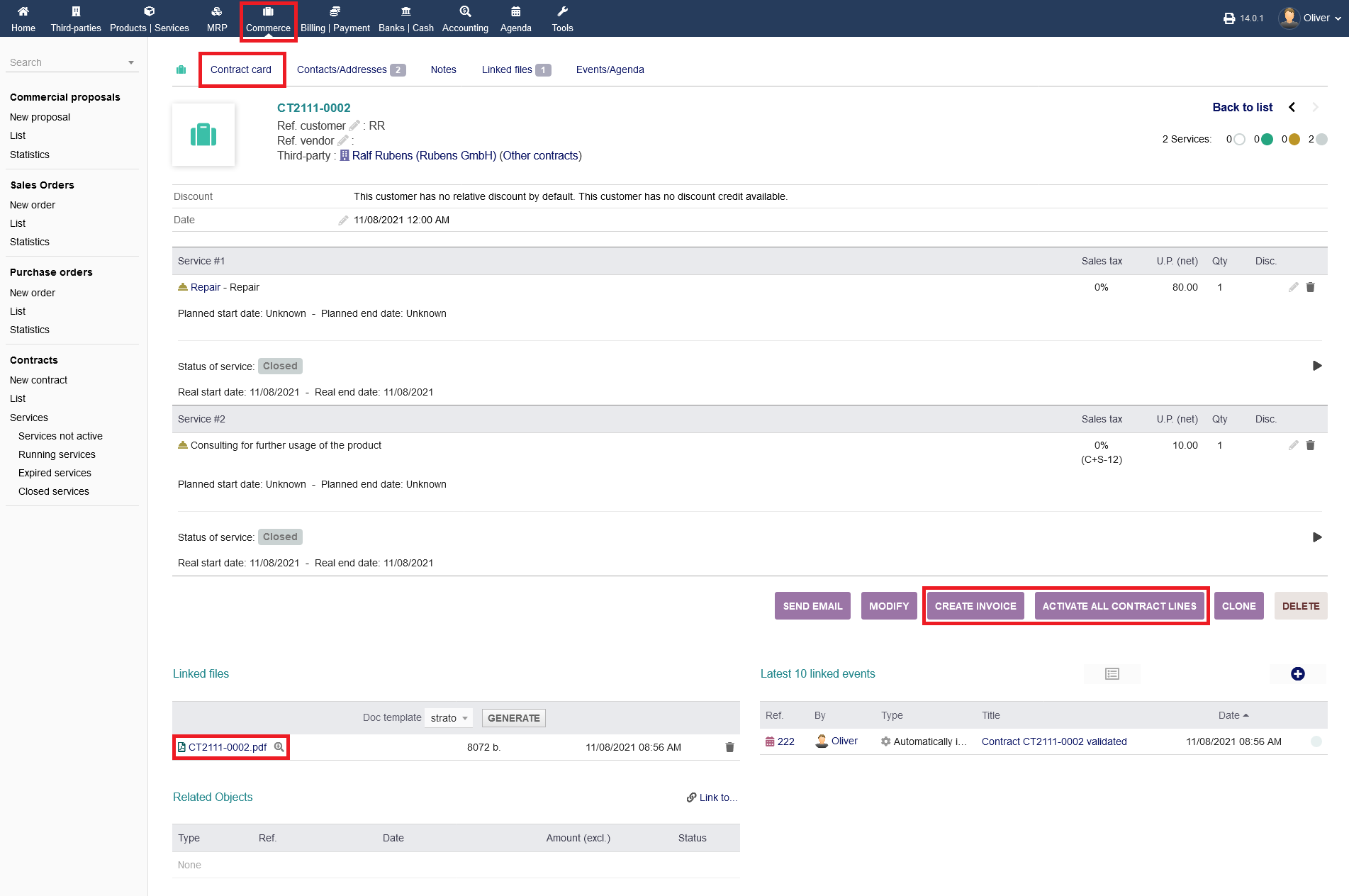
After closing the service process, it is now time to create an invoice by clicking on "CREATE INVOICE". If you need to re-open the services, click on "ACTIVATE ALL CONTRACT LINES". You also can see and/or print a service listing sheet under "Linked files" by clicking on it or on the "magnifier" icon. It is NOT the invoice. For further details regarding the invoicing process, visit the respective documentation on invoicing.
You service contract process is complete at this point.
Further options :
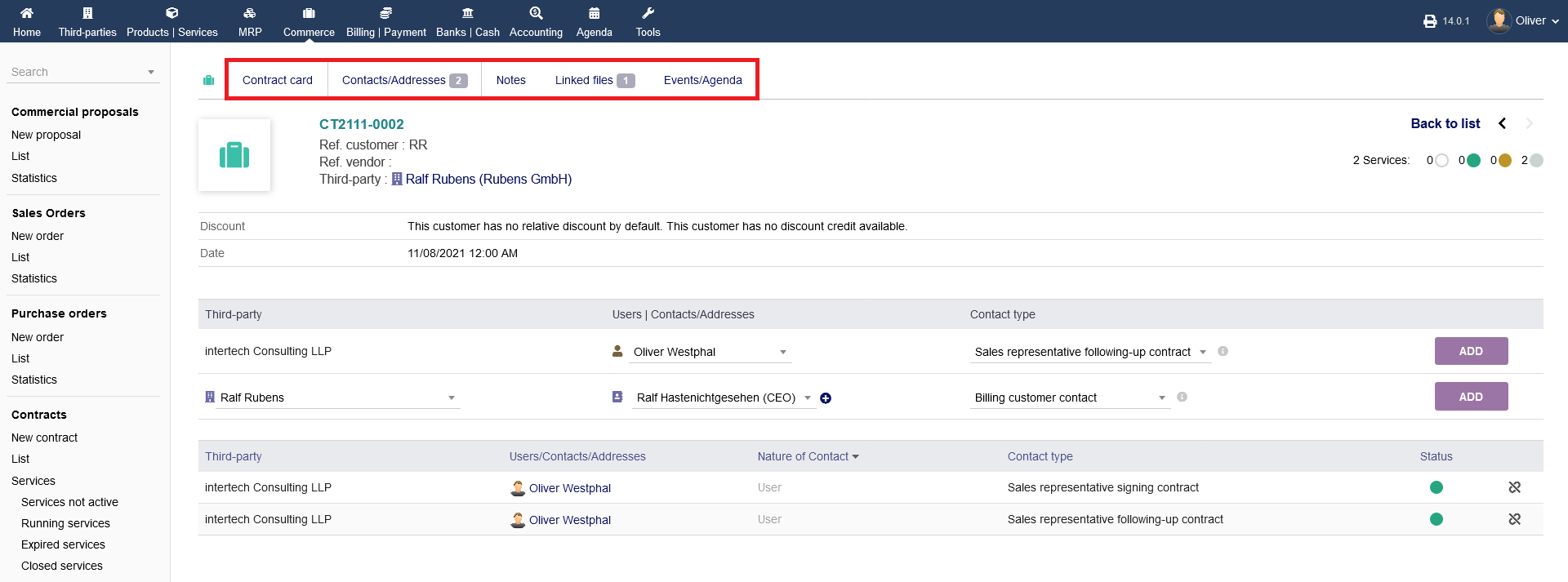
You find further options in the contract details as a tabbed menu on top. These options have been covered before. Please refer to the earlier documentation.