Adding products to the material/manufacturing list
Right after setting up a new BOM, you will be redirected to the further options of that specific BOM. Under the menu tab "BOM", you can add all components/products, that are required for that manufactured good, you were setting up the BOM about. Alternatively, you can continue editing a draft BOM by getting to the further options in the way that is stated.
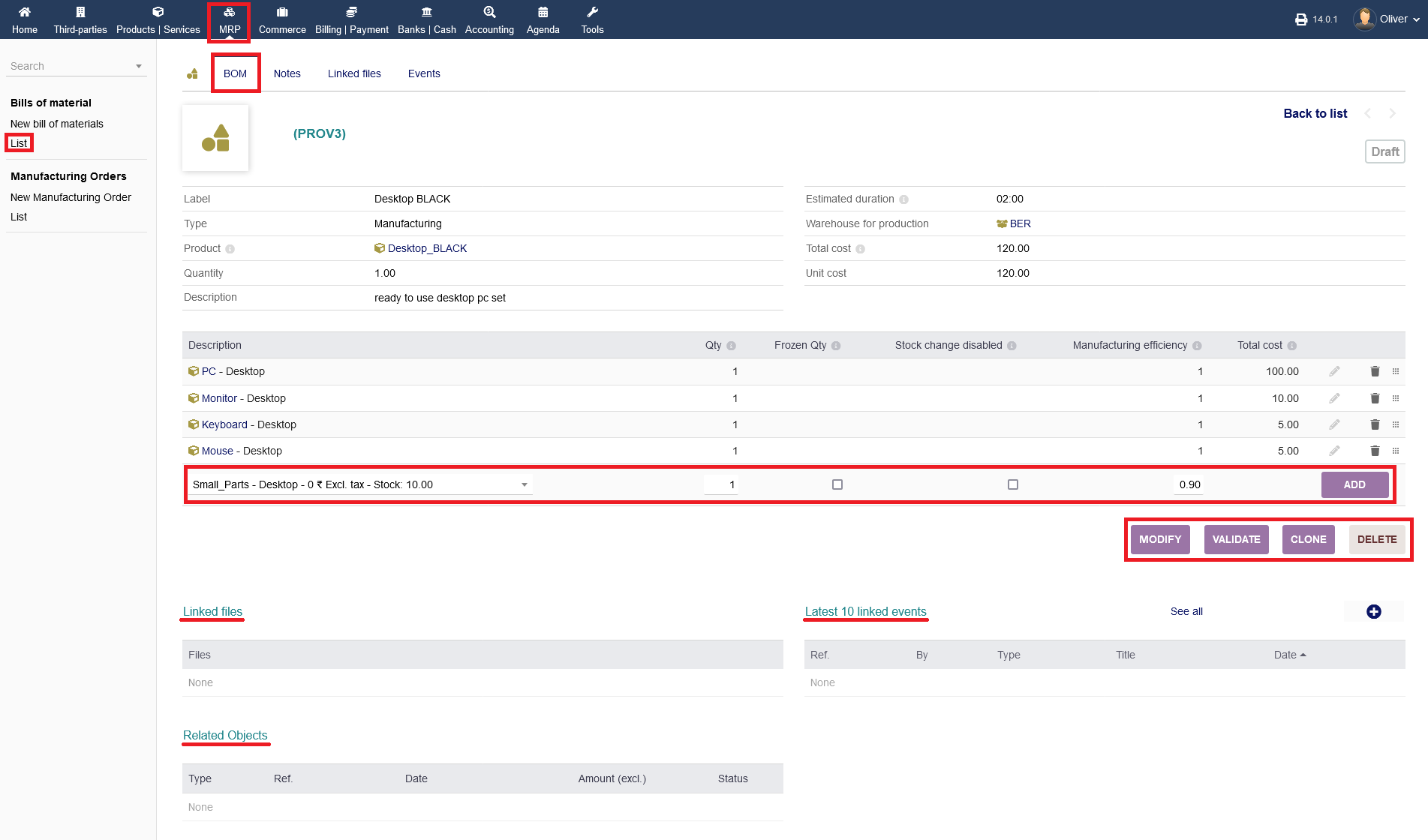
To add additional products to the BOM list, select an item vom the drop down menu under the section "Add new line" and select a quantity. The option "Frozen Qty" will set the before chosen value as a fix value. The option "Stock change disabled" will disable the stock change for that product (e.g. one item is used to manufacture the final product but the stock for the product part remains the same). The option "Manufacturing efficiency" will factor in any loss in the manufacturing process in percentage value (e.g. due to potential damage to the selected item in the manufacturing process). The value "1" means no loss, a value of "0.90" means a loss of 10%. Click "ADD" to add the item to the product list. Note, that the validation of the BOM, with all necessary product items for manufacturing, can be done only when products are added to the item list. Click "VALIDATE" when you want to finalize the BOM and bring it out of draft mode.
Furthermore, you can modify/edit the BOM entry in itself by clicking on "MODIFY". Click on "CLONE" when you want to set up a similar BOM. Finally, you can delete that BOM altogether by clicking "DELETE".
On the bottom of the screen, you find the usual (as multiple times explained before) overviews regarding "Linked files", "Latest 10 linked events" and "Related Objects" with their respective options.
Further options:
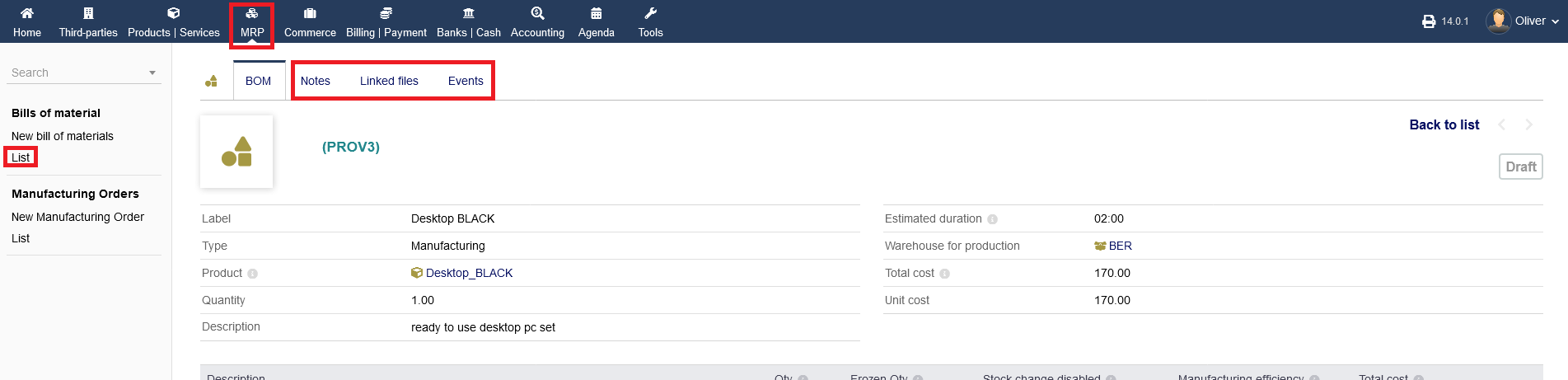
On the tabbed menu, you find additional options for "Notes", "Linked files" and "Events". These are the same as in the documentation mentioned in products creation.