

Drafting an order via vendor proposals:
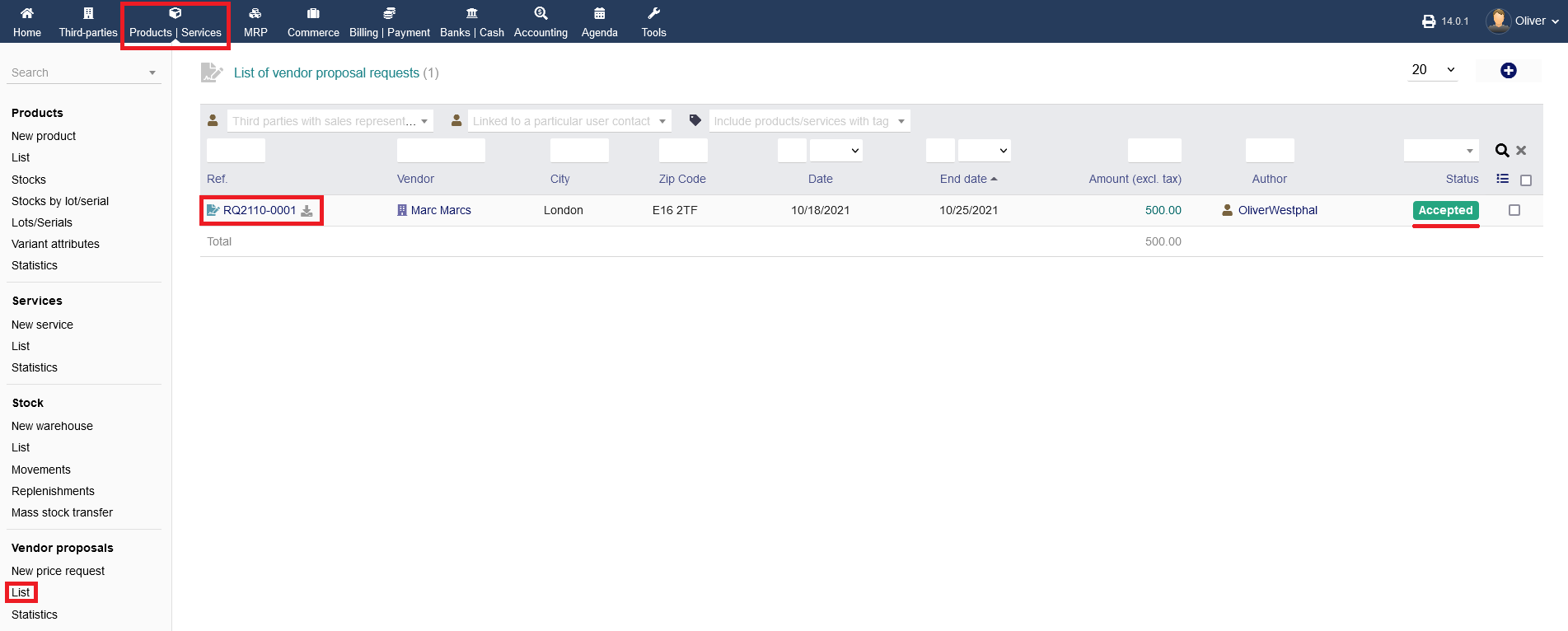
Go to "Products/Services -> Vendor proposals -> List" and click on the vendor proposal reference name. The proposal status needs to be "Accepted". If the proposal is not accepted, refer to the vendor proposal documentation to know, how you accept the vendor proposal.
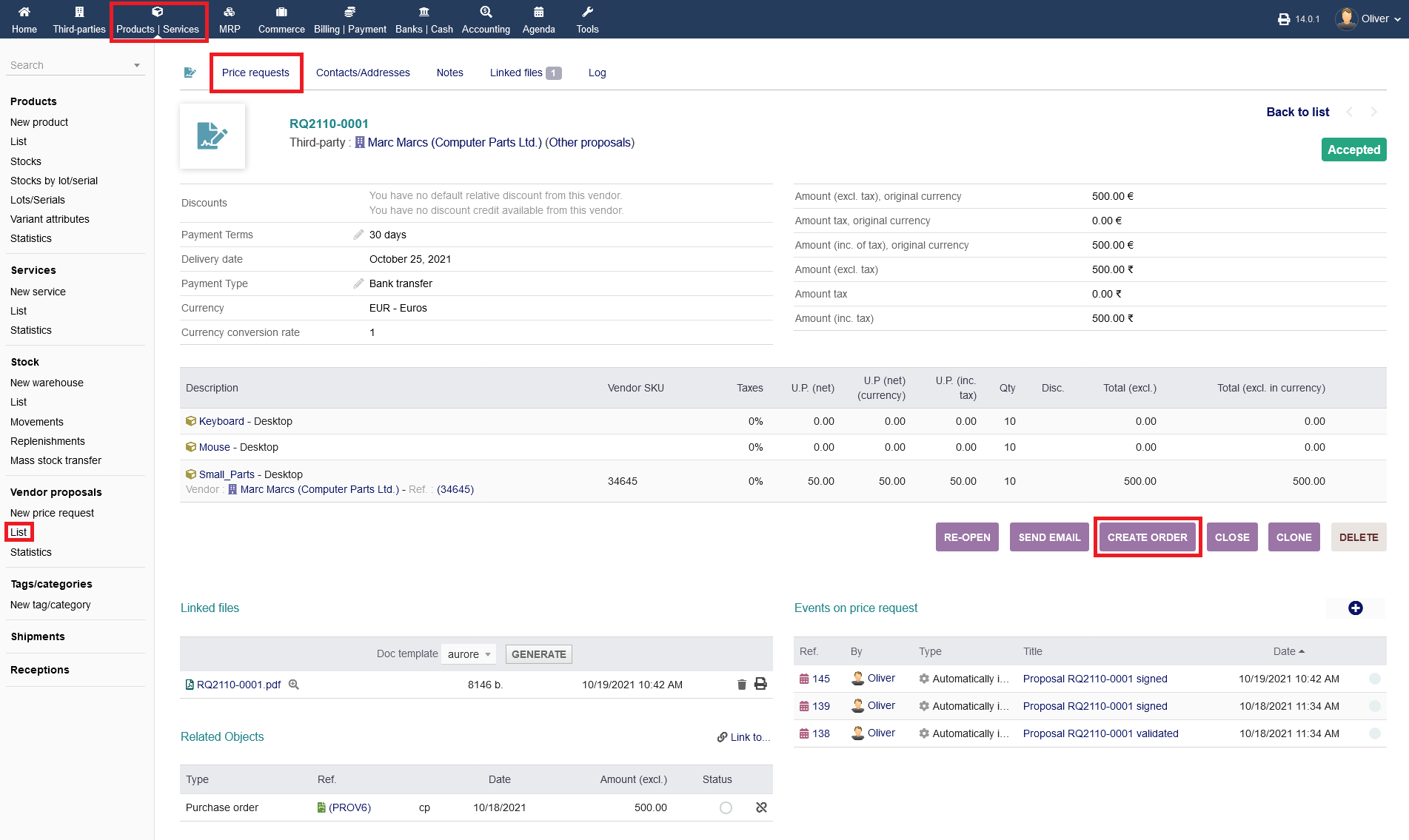
In the next screen, check all details of your items you want to order and whether it is the right vendor you want to order from. Click on "CREATE ORDER" to continue.
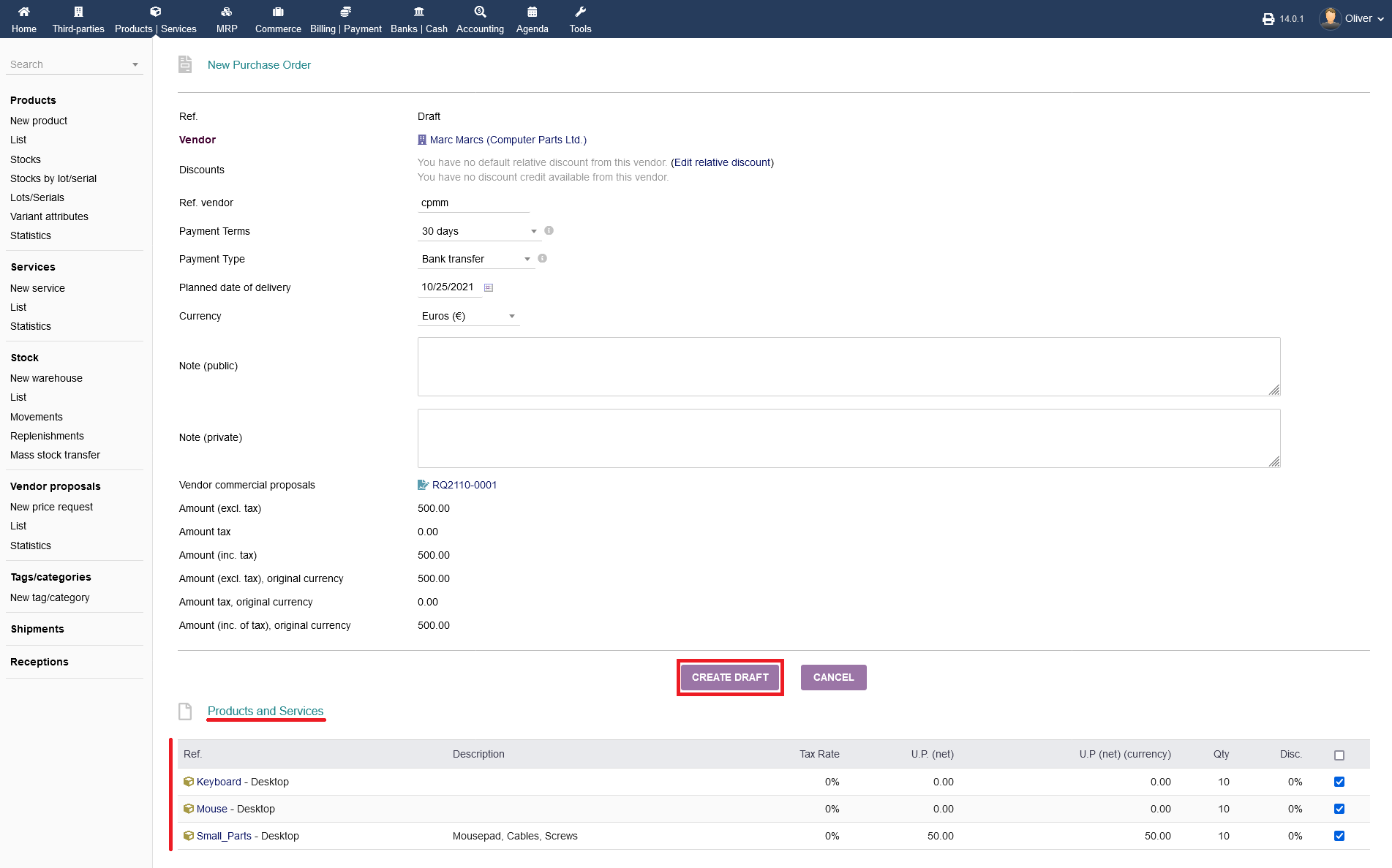
On the bottom of the upcoming form, you will see the product items that will be ordered. Fill out all necessary fields and click on "CREATE DRAFT" to finish the process. Note, that you only crate a draft order that needs to be validated internally (see next step).
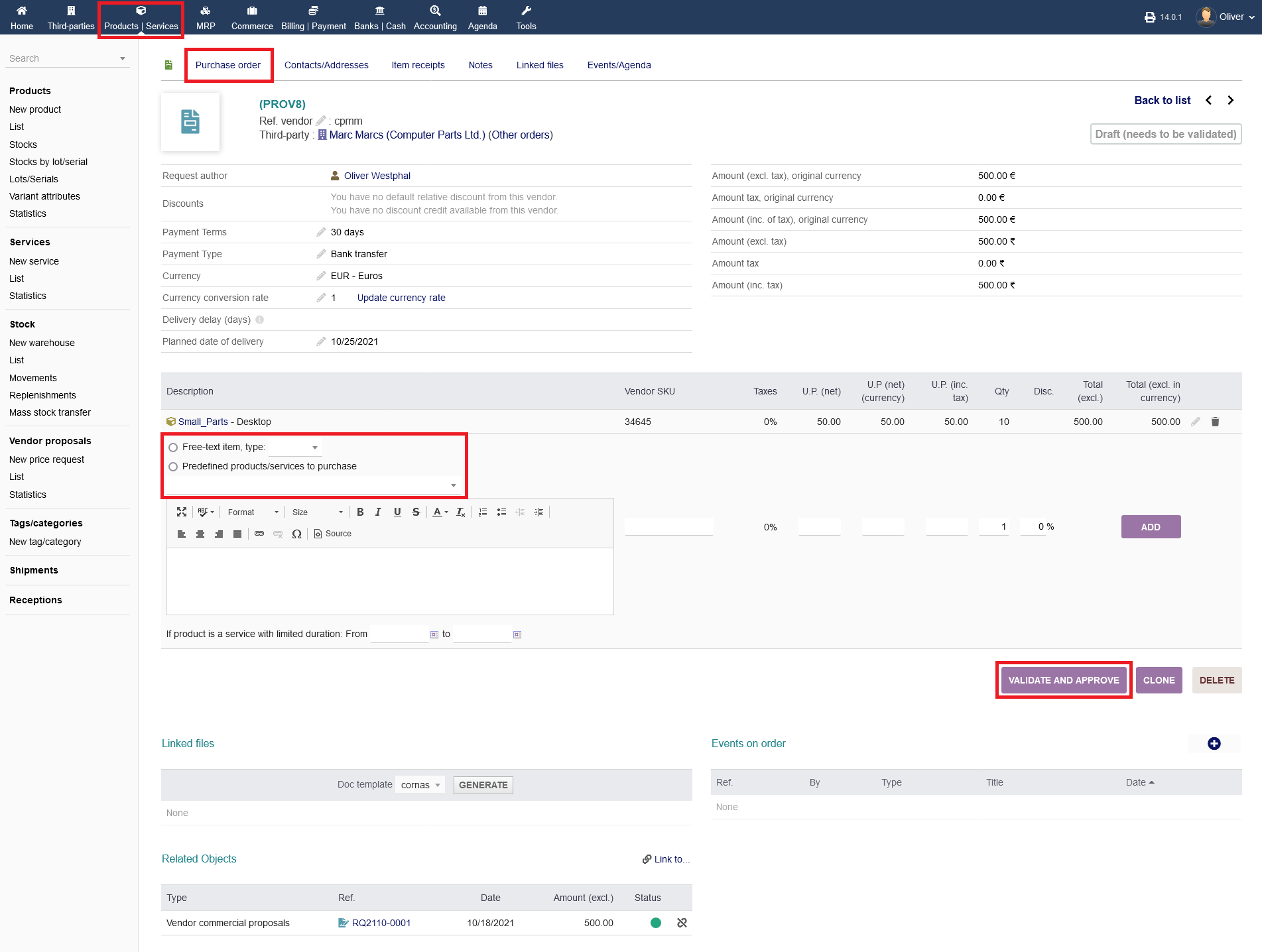
Validating and finalizing an order
In the following screen, you can "VALIDATE AND APPROVE" the drafted order by clicking the respective button. If you have to approve drafts later, you can get to that option via the following module "Commerce -> Purchase orders -> List". Click one the purchase order reference name to get to further details. In the screen where you can validate and approve the drafted order, you can add additional products/services, if you like.
After clicking on "VALIDATE AND APPROVE", click in the next screen "MAKE ORDER", to go further in the process of sending of an order to your chosen vendor. To go back to the drafting stage, click on "DISAPPROVE".
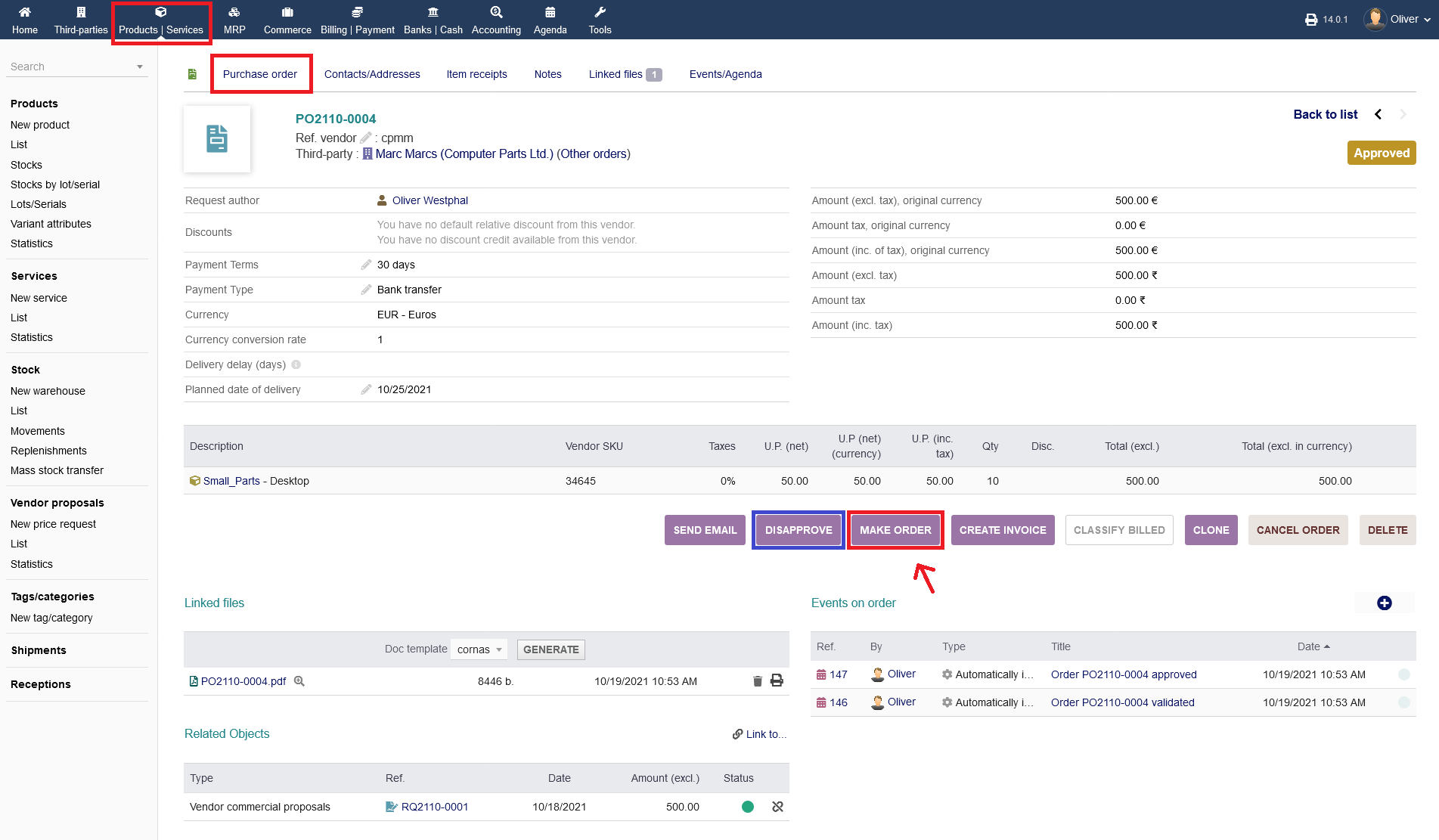
After clicking "MAKE ORDER", a small form will appear on the bottom, where you can set an "Order date", an "Order method" (via E-Mail, Phone etc.) and an optional "Comment". Click "MAKE ORDER" again to finalize the process.

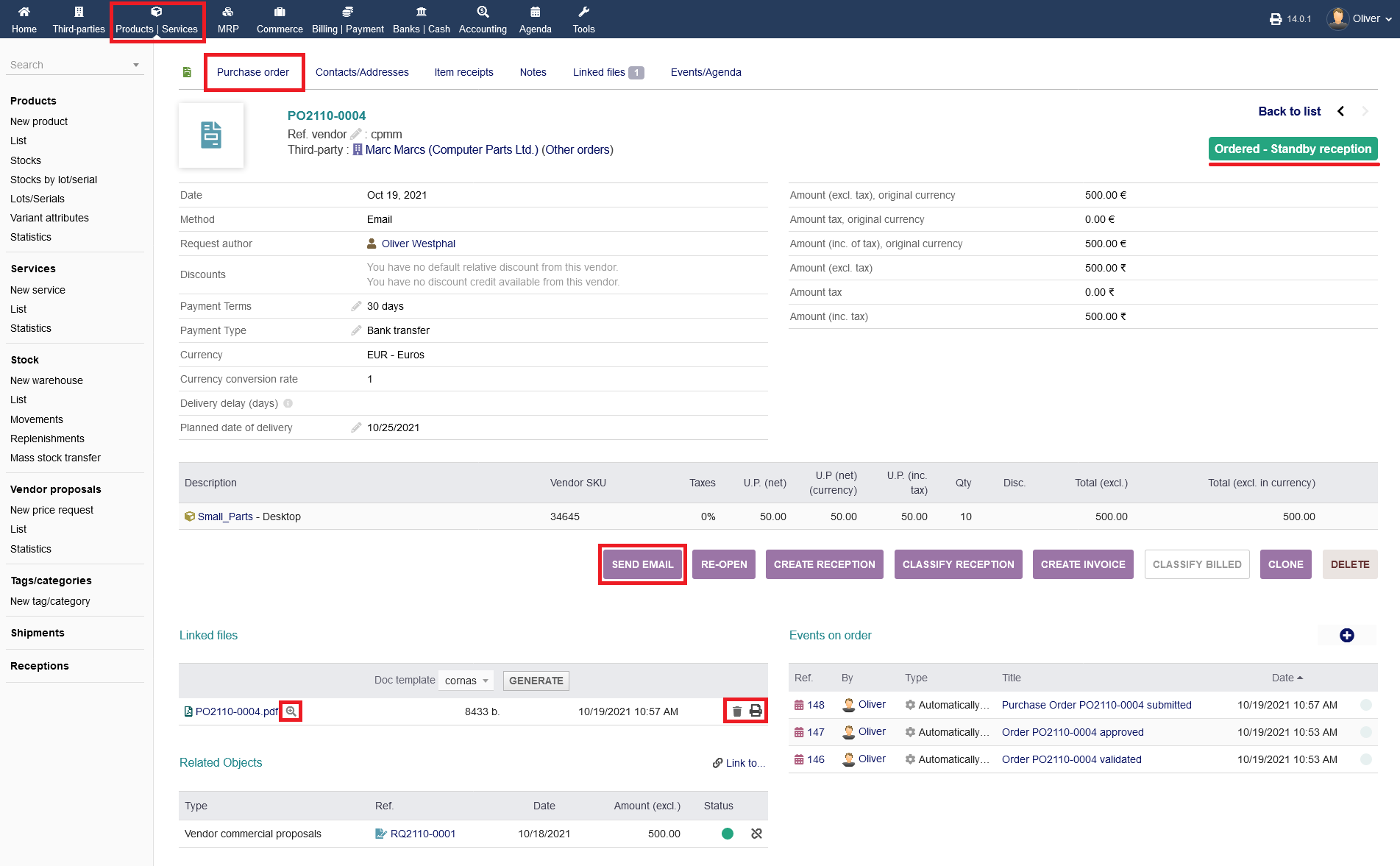
Now you can reach out to the vendor according to your chosen method of ordering. If you wanted to reach out via E-Mail, you have the option "SEND EMAIL" in the following screen, where you can send off an E-Mail with your order PDF attached. Under the section "Linked files" is your order PDF document. You can preview it by clicking on the "magnifier" icon. To print the order, click on the "printer" icon. Click the "trash" icon to delete the file. Note the status, which has changed from "Draft" to "Ordered"
Creating an order via the commerce module
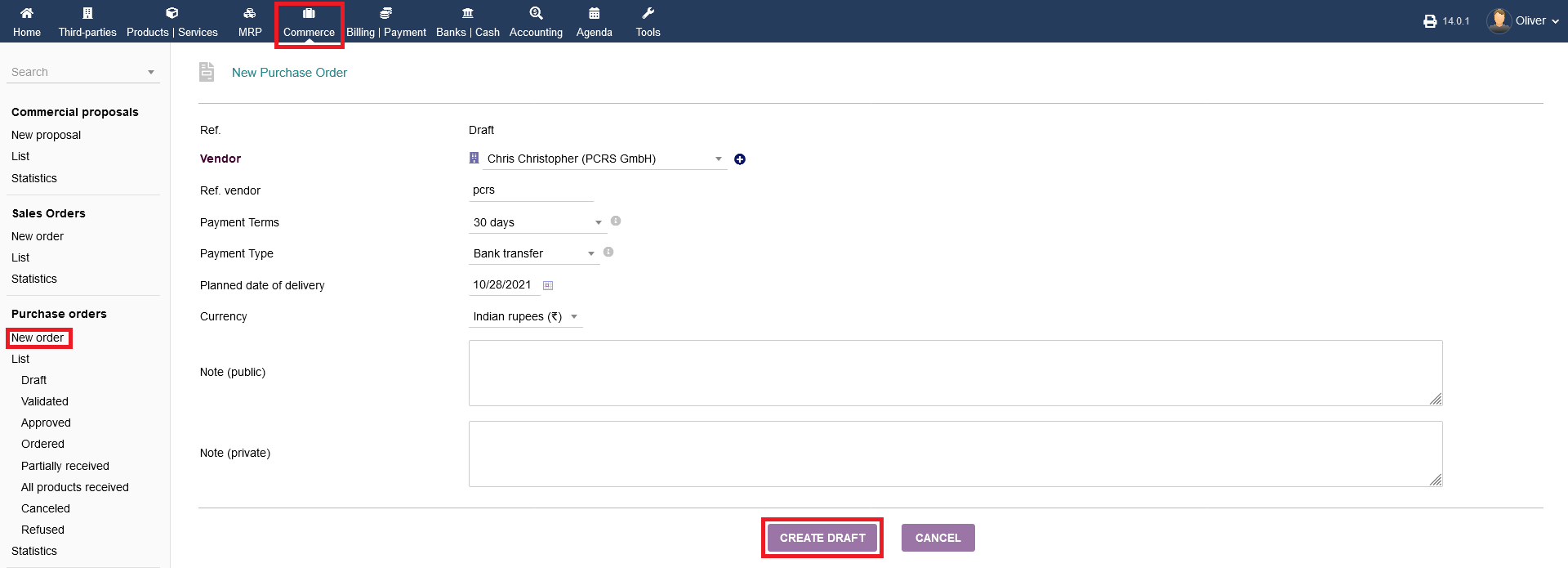
Alternatively, you can create a purchase order by clicking on "Commerce -> Purchase order -> New order". Fill out all necessary fields, especially the vendor you want to order from. Click "CREATE DRAFT" in the end. In the next screen you will be able to choose your products for your purchase order. It follows the same procedure as it was mentioned in the vendor proposal documentation. From here, you can follow the same steps from validating to the finalizing stage of an order creation, as mentioned in the paragraph above.
Also, you can continue with a drafted purchase order, by clicking on the reference name under "Commerce -> Purchase order -> List". The following process is the same as mentioned above.
