

Creating a vendor proposal/price request :
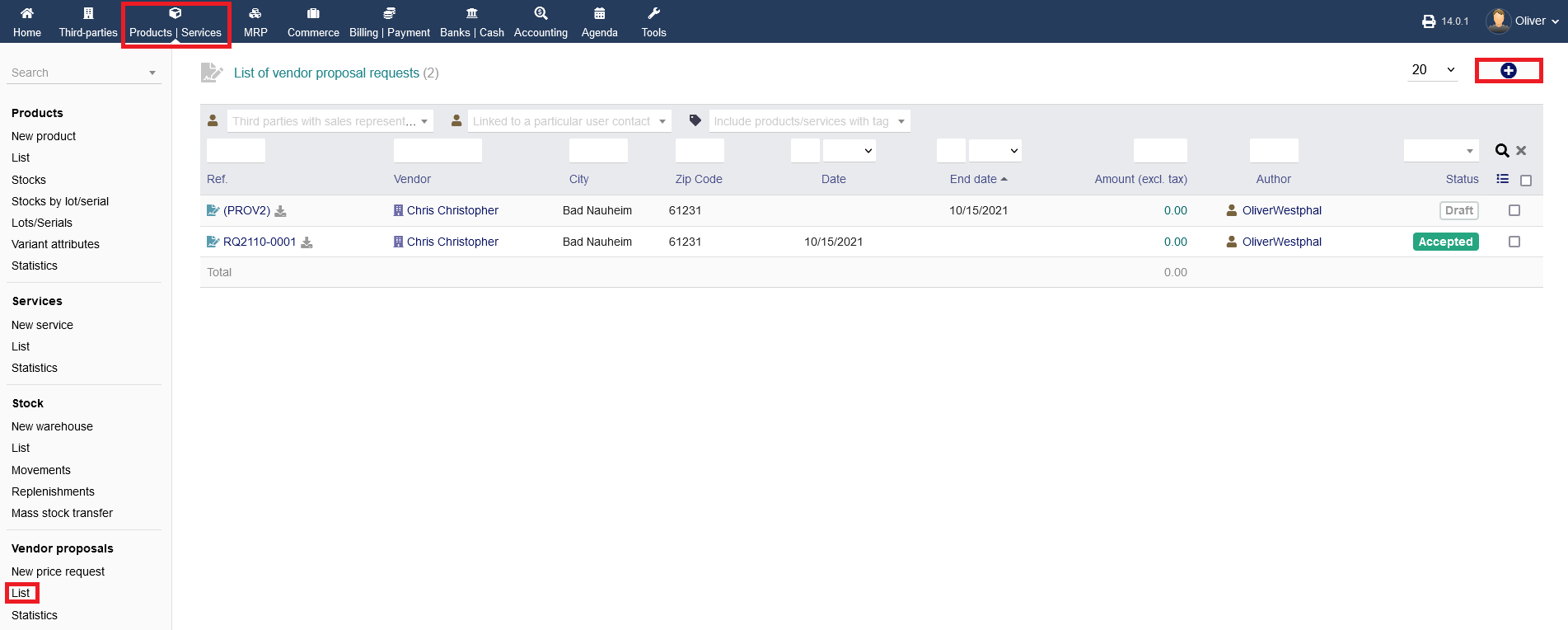
New price request : To create a new price request go to "Products/Services-> Vendor proposal ->New price request" . Alternativity you can also create a new price request by going to "Products/Services-> Vendor proposal ->List" , Then click on the "Plus" icon on the top-right-corner of the screen.
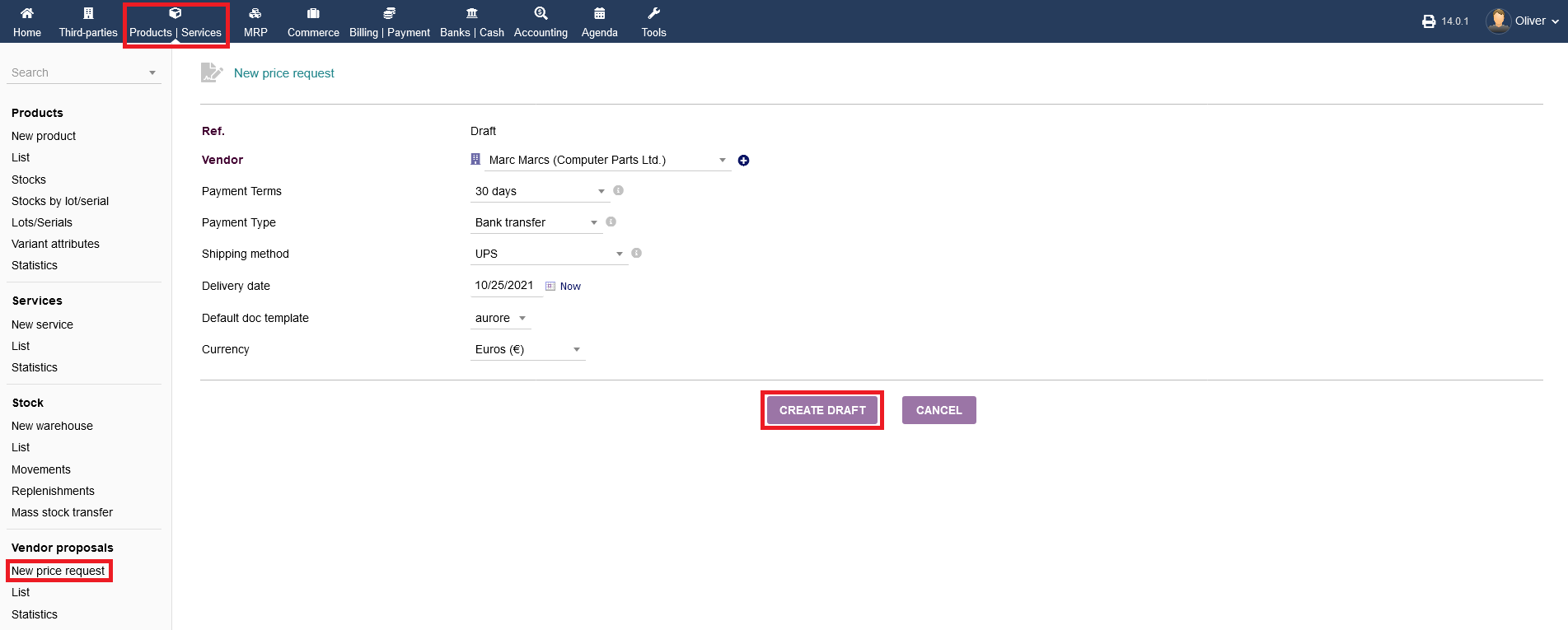
Fill out the form accordingly and click on "CREATE DRAFT" in the end. This step is just creating a draft for internal validation, before it becomes a vendor proposal, actually. In the following screen, you will see the further details and setup options, indicated by menu tab "Price request". The other menu tab options are familiar at that point and wont be discussed further.
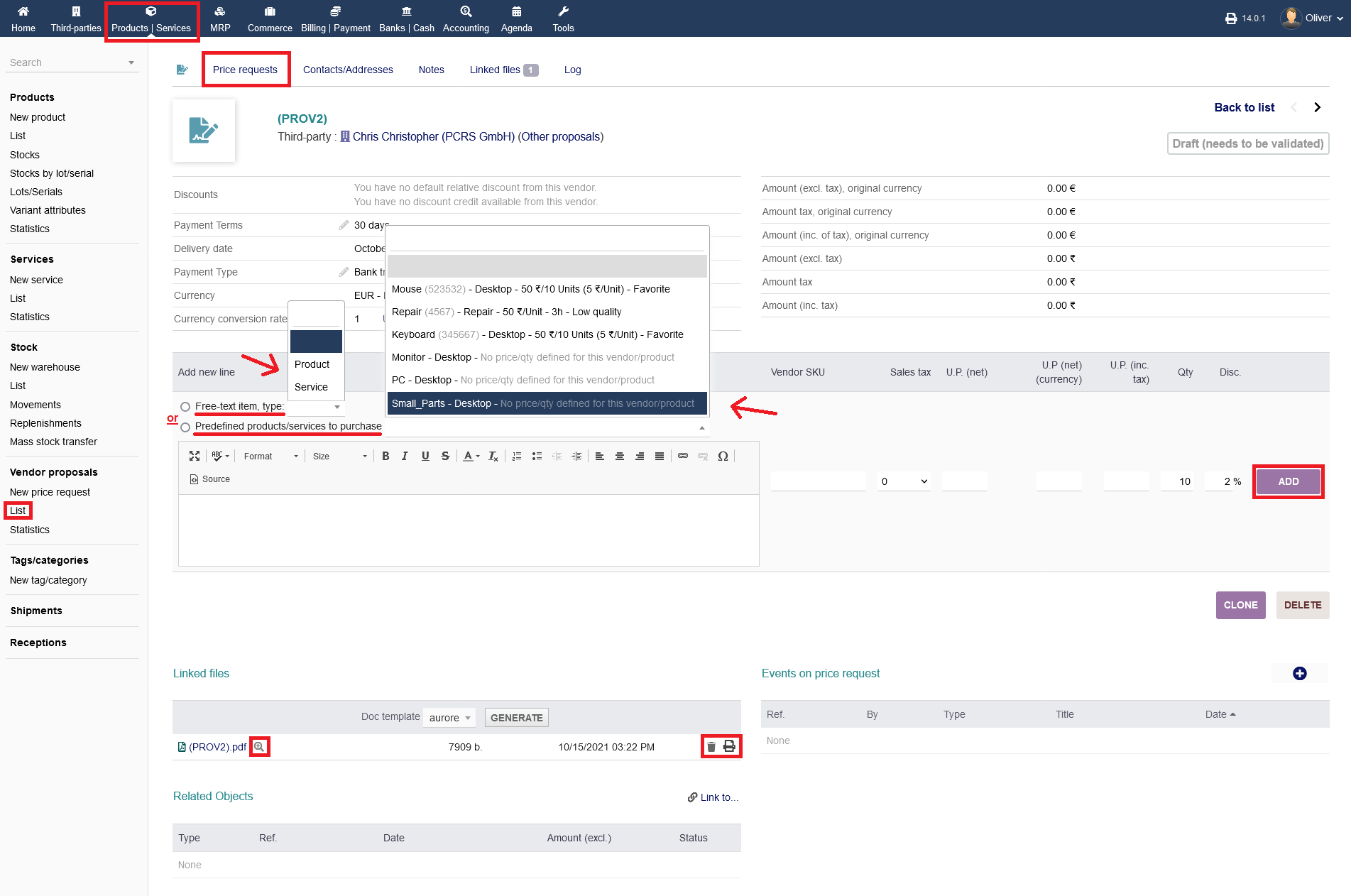
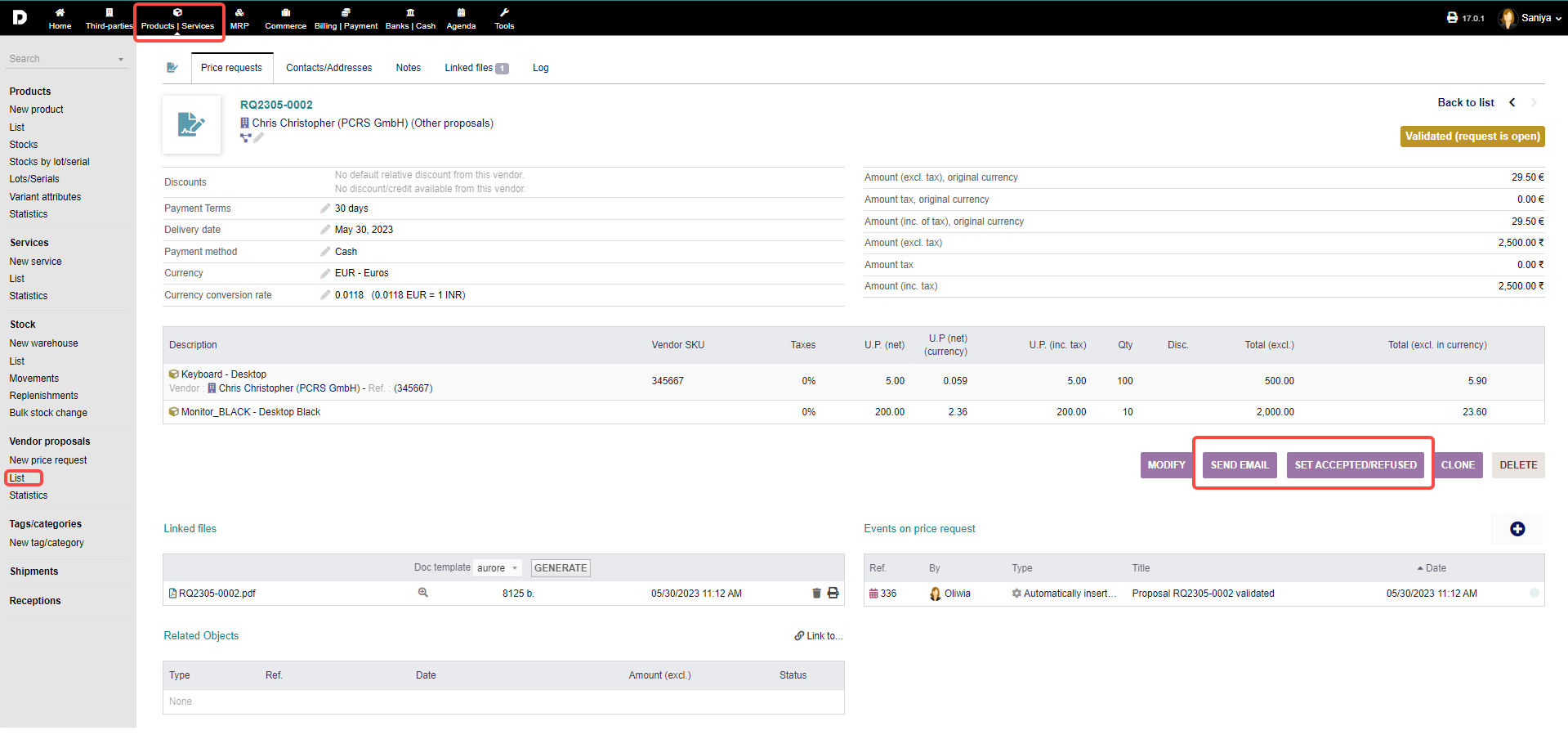
 Next, you need to add new lines of products which you want to make a proposal for. Add either a "Free-text item" (choosing from "Product" or "Service") or a specific "Predefined products/services to purchase" from the drop down menu next to it. Select any quantity and discount and click "ADD". When you are done creating the products list for the proposal, you can see a PDF preview of the proposal below under the section "Linked files". Click on the "magnifier" icon next to .pdf file name to preview the document. You can download the proposal document by clicking on the file name. Click the "trash" icon to delete the PDF or click the "printer" icon to print the PDF document. Note, that you are only at drafting stage. The proposal draft needs validation, before it can go to the vendor.
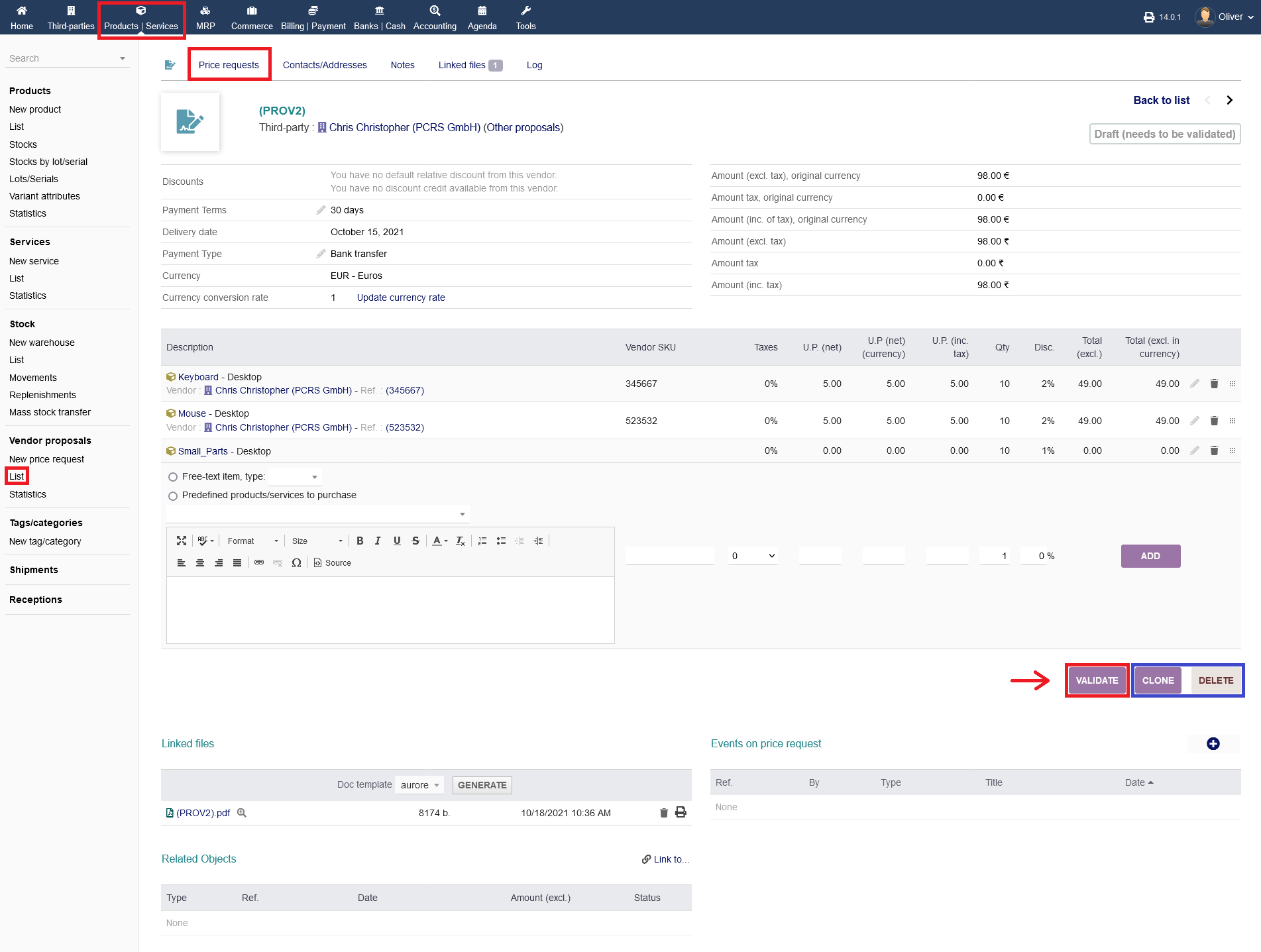
To validate the proposal draft, click on "VALIDATE". Can clone the draft to setup up a similar draft for a different proposal by clicking "CLONE". You can delete the draft altogether by clicking "DELETE".
After validation, you can reach out to the vendor either by printing the proposal and mailing it via postal service or directly send it via E-Mail by clicking on "SEND EMAIL". Depending on the response of the vendor, you can set the proposals status as accepted or refused by clicking "SET ACCEPTED/REFUSED".
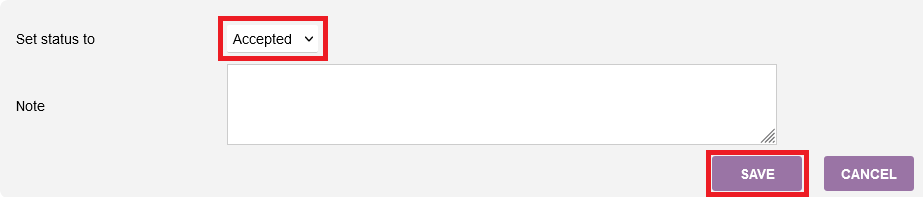
In the following screen, you can choose the status accordingly, write down any notes and click "SAVE" to update the status. If the proposal was refused and you set the status accordingly, you have the option afterwards to "RE-OPEN" the proposal. The same option is present, if you set the status to accepted.
After your proposal was accepted, you can continue creating the actual order. For that, please refer to the separate documentation on "Purchasing orders".
