

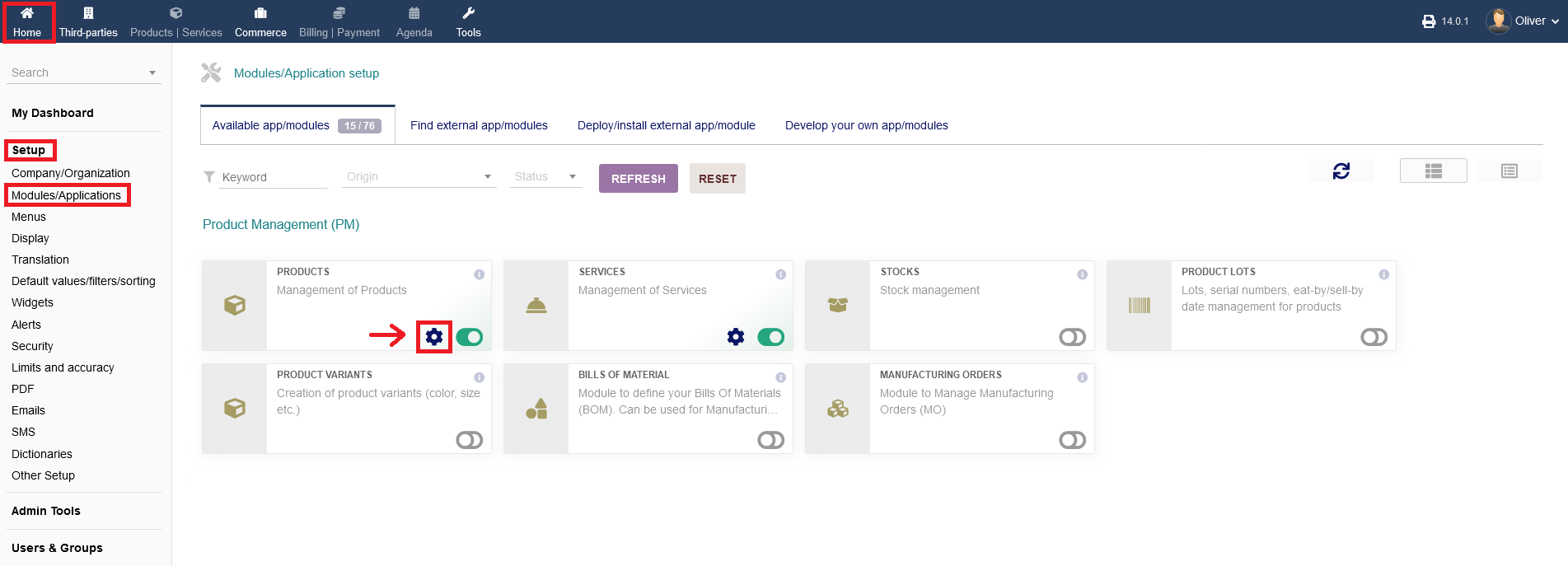
To reach the products module configuration, click on "Home -> Setup -> Modules/Applications -> Product Management (PM) -> Products".
To activate the module, click on the module toggle switch, so it turns green.
To configure the module functionality, click on the "gear" icon.
x.1 Parameters
All major settings regarding the module configuration will be found under the tab "Parameters". You will see multiple categories.
x.1.1 Module for product code generation and checking (product or service)
Under "Module for product code generation and checking (product or service)" you can have to settings for product/service code generation.
1. The option "Leopard" creates a code without any custom rules, so it gets created freely. You can change the created code at any time.
2. The option "Elephant" gives you the ability to set certain number rules, which you can type in the empty field next to the "MODIFY" button. The mask differentiates between products (hardware items) and services (task related offerings e.g. repair, consulting, assessments etc.). A suggestion on how to create a numbering mask can be found by hovering the cursor over the "i" icon. When you are done, click "MODIFY".
To activate an option, click the toggle switch under the header "Status". Futher information for each option can be found under the "i" icon on the far right hand side.

x.1.2 Document templates to generate product document
Under "Document templates to generate product document" you find all options to manage document templates for product document generation. It uses the PDF format.
1. The option "standard" lets you choose the standard, not customizable document creation.
2. The option "ODT template" lets you upload/manage your own templates. You can give a path and click "MODIFY" when you are done. Please not, that for your own templates, only ODT files are accepted.
To activate/diable an option, click the toggle switch under the header "Status". You can set an option as default by clicking the radio box under the header "Default". Further information is shown for each option when you hover over the "i" icon on the right hand side. Lastly, you can have a PDF preview, by clicking on the last icon on the far right hand side.

x.1.3 Product / Service configuration
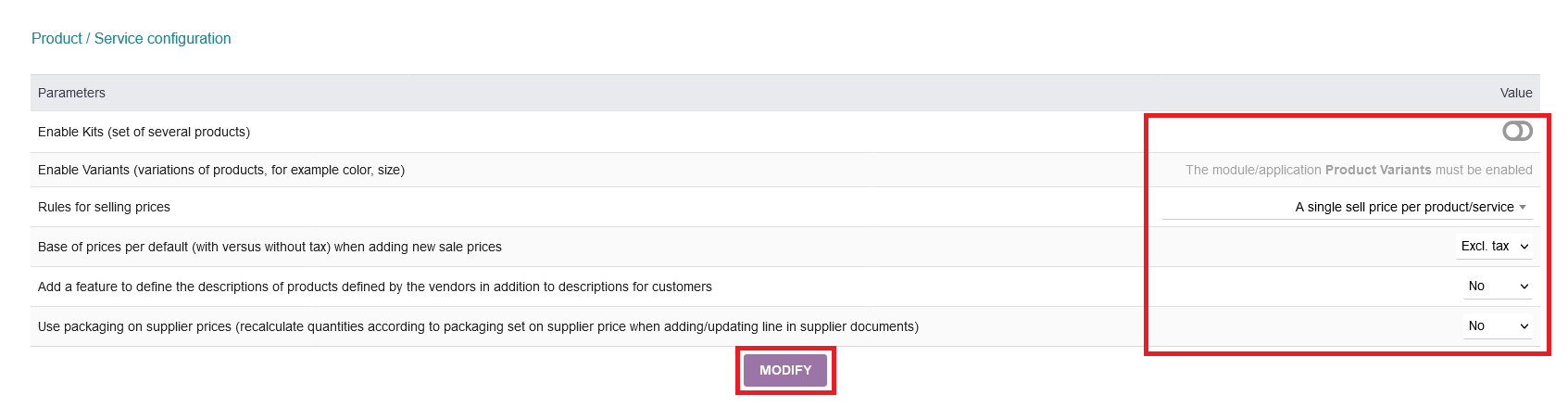
Under "Product / Service configuration" you can set different parameters for your products/services.
1. You can enable kits of products/services, so you can bundle certain offerings together. To enable/disable that option, click the toggle switch.
2. Also, you can have variants of one product/service (e.g. one specific product but in different colours or sizes). You must enable/disable the module "Product Variants" under "Home -> Setup -> Modules/Applications -> Product Management (PM) -> Product variants", if you want to enable/disable that option. If you have done so, under "Value" it will simply say "Yes".
3. Additionally, you can set rules for selling prices by clicking on the option field under the header "Value". The following rules are available:
a) "A single sell price per product/service" just keeps the price the same, disregarding the amount of the order that will take place by a customer.
b) "Multiple price segments per product/service" divides customers into price segments (e.g. end users order as a b2c or business order as b2b)
c) "Different prices for each customer" is giving each customer a separate price on the product/service.
4. You can set a base price as default. As a price you can choose "Excl. tax" or "Inc. tax" under the header "Value".
5. You can add a feature to define the descriptions of products, defined by the vendors in addition to descriptions for customers. Choose "yes" or "no" under the header "Value".
6. Lastly, you can use packaging on supplier prices (recalculate quantities according to packaging set on supplier price when adding/updating line in supplier documents). "yes" or "no" under the header "Value".
When you are done, click "MODIFY".
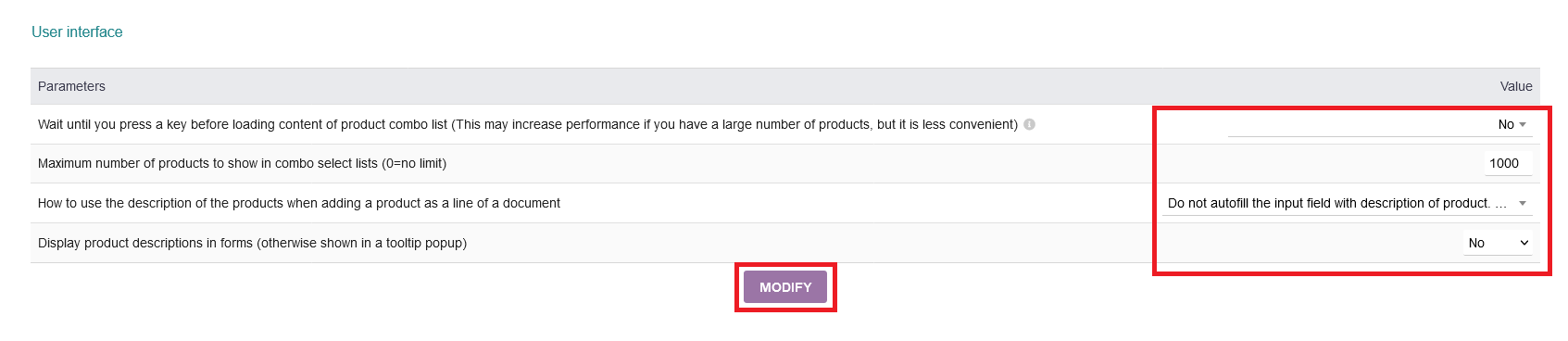
The last segment lets you modify the user interface.
1. You can set to wait until you press a key before loading content of product combo list (This may increase performance if you have a large number of products, but it is less convenient). To enable/disable that option, click the toggle switch under the header "Value".
2. You can set a maximum number of products to show in combo select lists (0=no limit). Set your desired number in the field under the header "Value".
3. Furthermore, you can choose, how to use the description of the products when adding a product as a line of a document.
a) First option does not auto-fill the description of a product/service. Select it by clicking the field under the header "Value".
b) Second option allows auto-filling the desciption. Select it by clicking the field under the header "Value".
c) Third option will exclude a product description. Select it by clicking the field under the header "Value".
4. Lastly, you can display product descriptions in forms (otherwise shown in a tooltip popup). Choose "yes" or "no" under the header "Value".
When you are done, click "MODIFY".
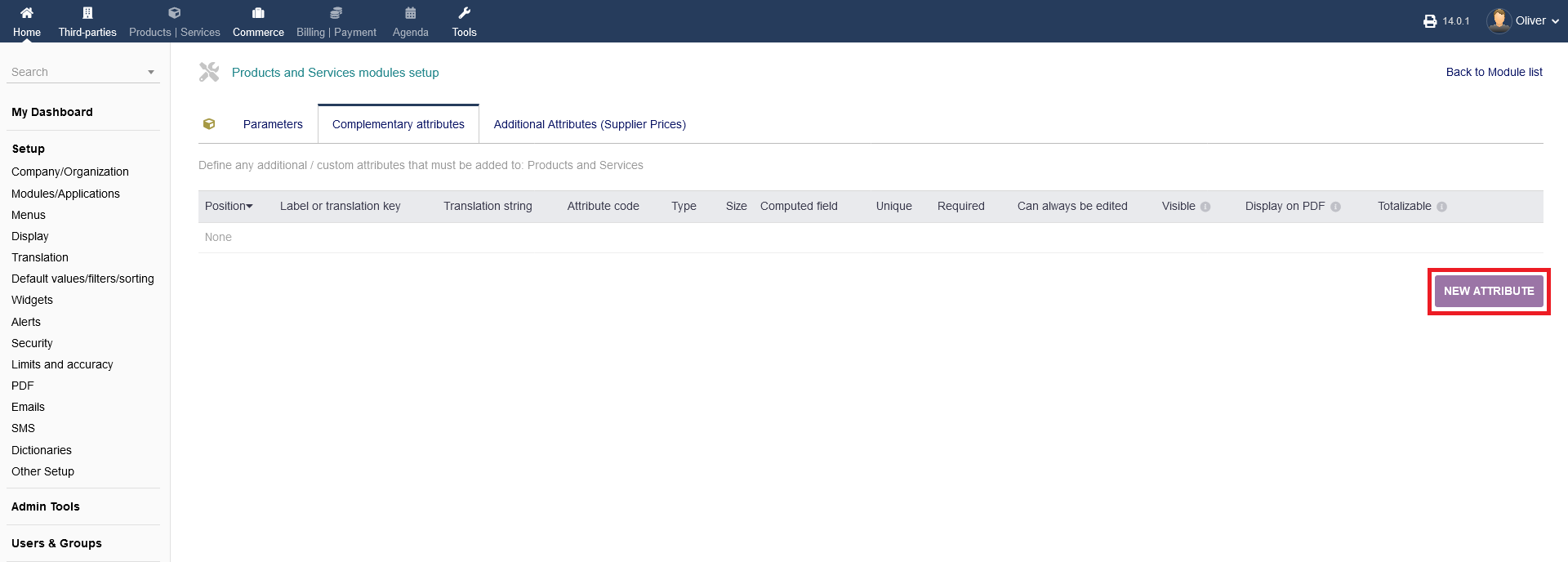
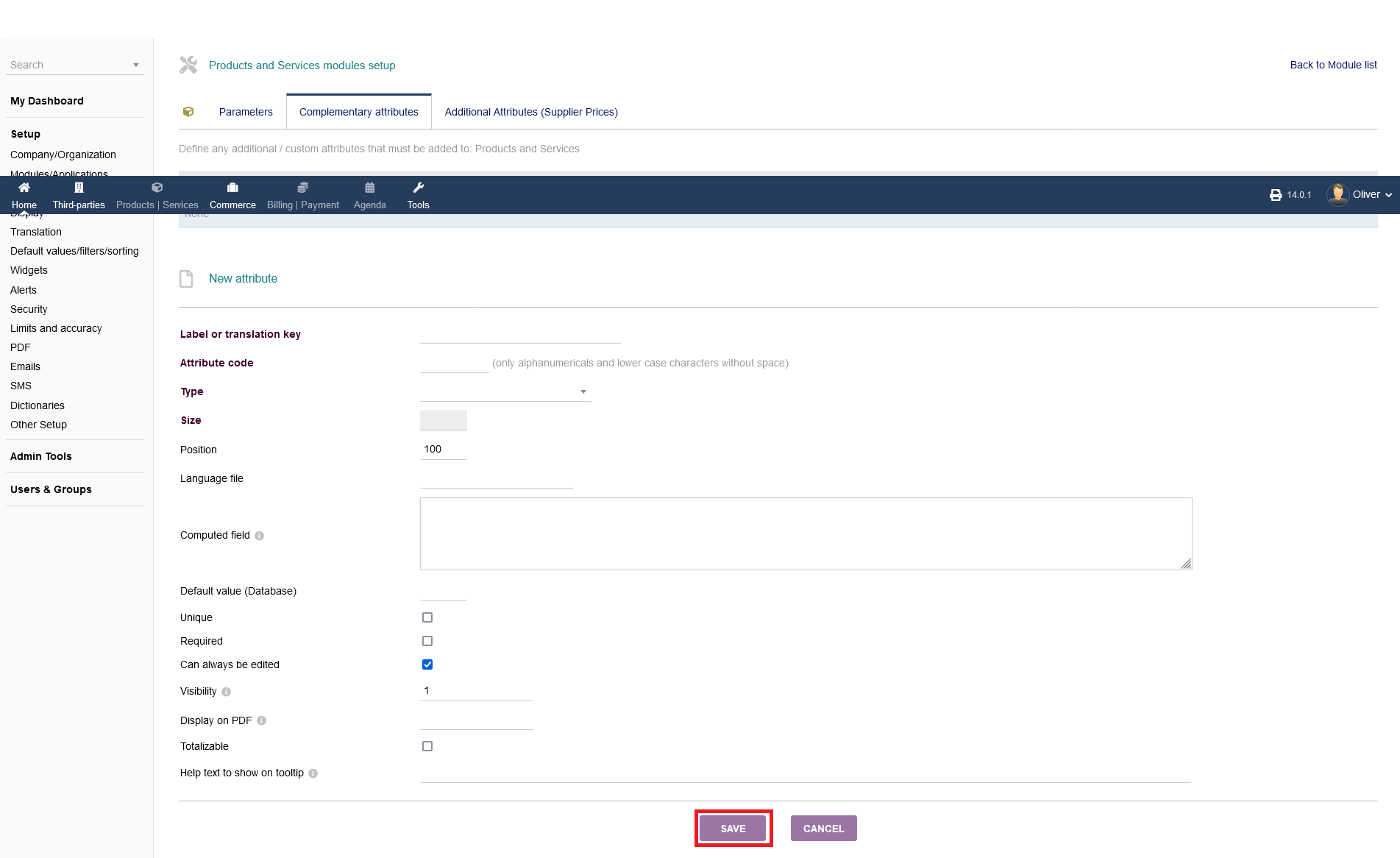
x.2 Complementary attributes
Under "Complementary attributes " you can efine any additional/custom attributes that must be added to Products and Services. To add a new attribute, click on "NEW ATTRIBUTE".
Fill out the form with all necessary details and click "SAVE" to finish the process.
x.3 Additional Attributes (Supplier Prices)
Under "Additional Attributes (Supplier Prices)" you can define any additional/custom attributes that must be added to Products and Services regarding only supplier prices.
The list and attribute form will be the same as the step before. Please refer to the screenshots above.
