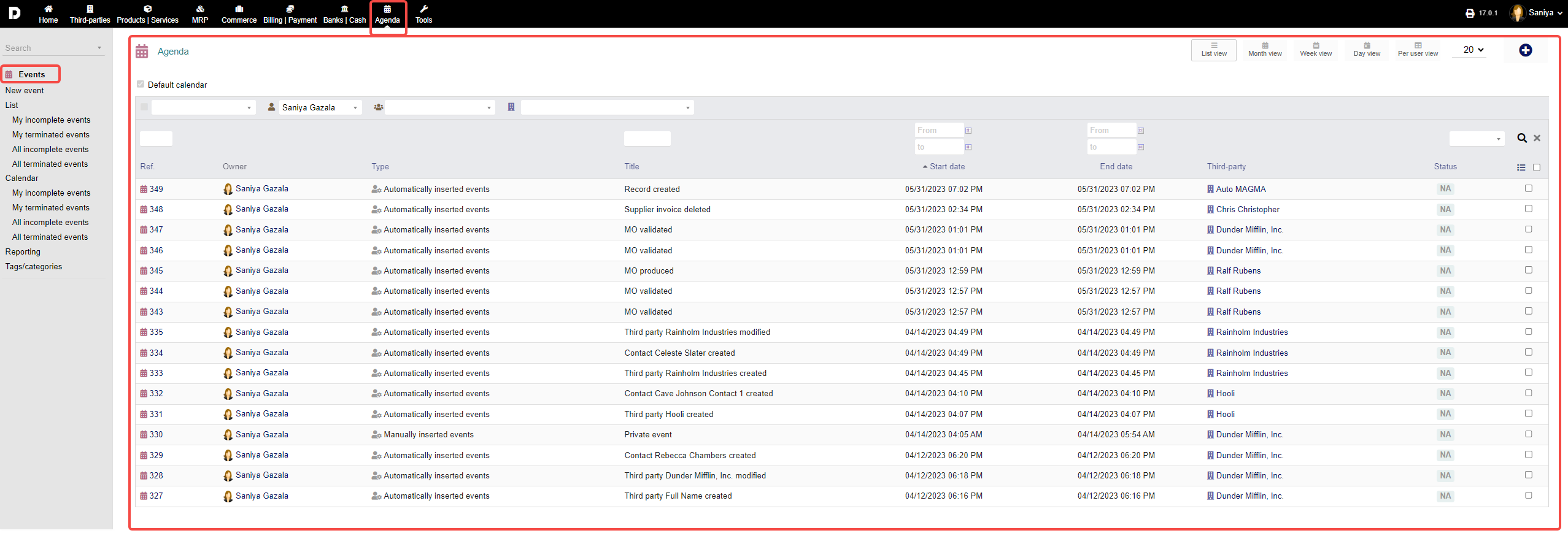
In this screen you will see how to create an event to do so go to "Agenda->Events". You will see all the events that are added in the system as shown below :
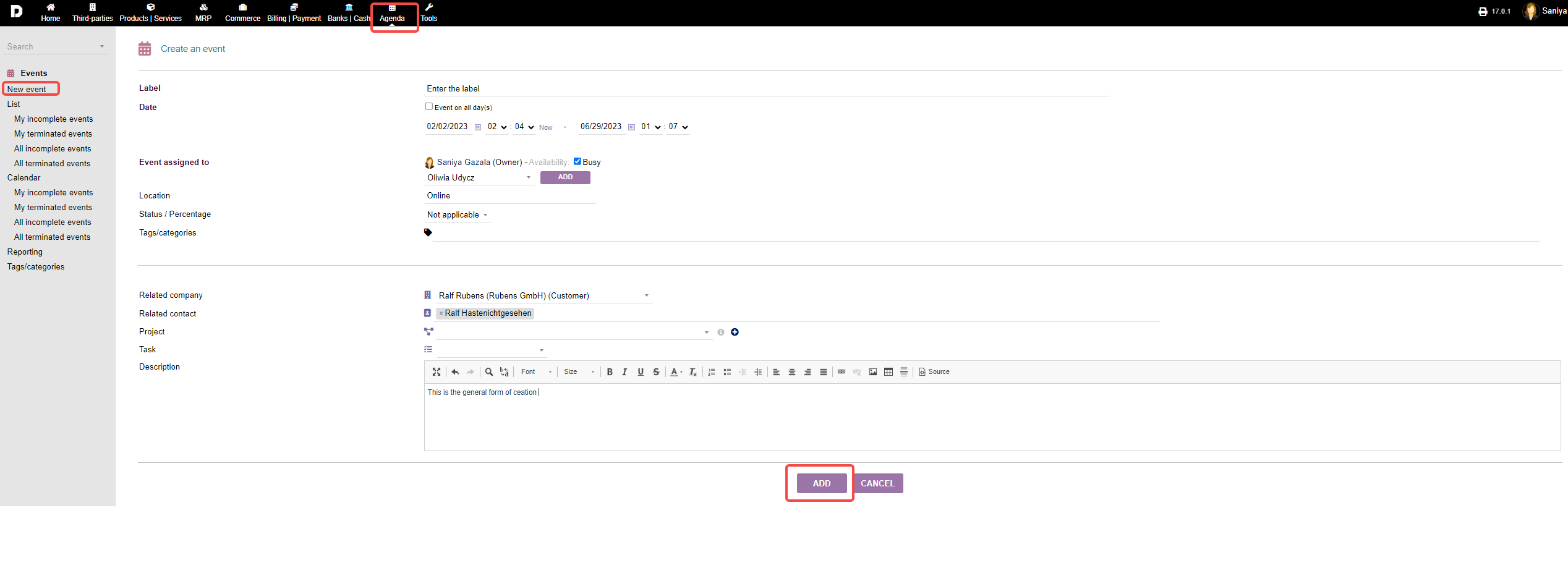
New Event : To create a new event go to " Events/Agenda ->Events -> New events " enter the details like "label" , "Date" , add related company , add related contact for which you are going to create the event for . Then click on "Add".
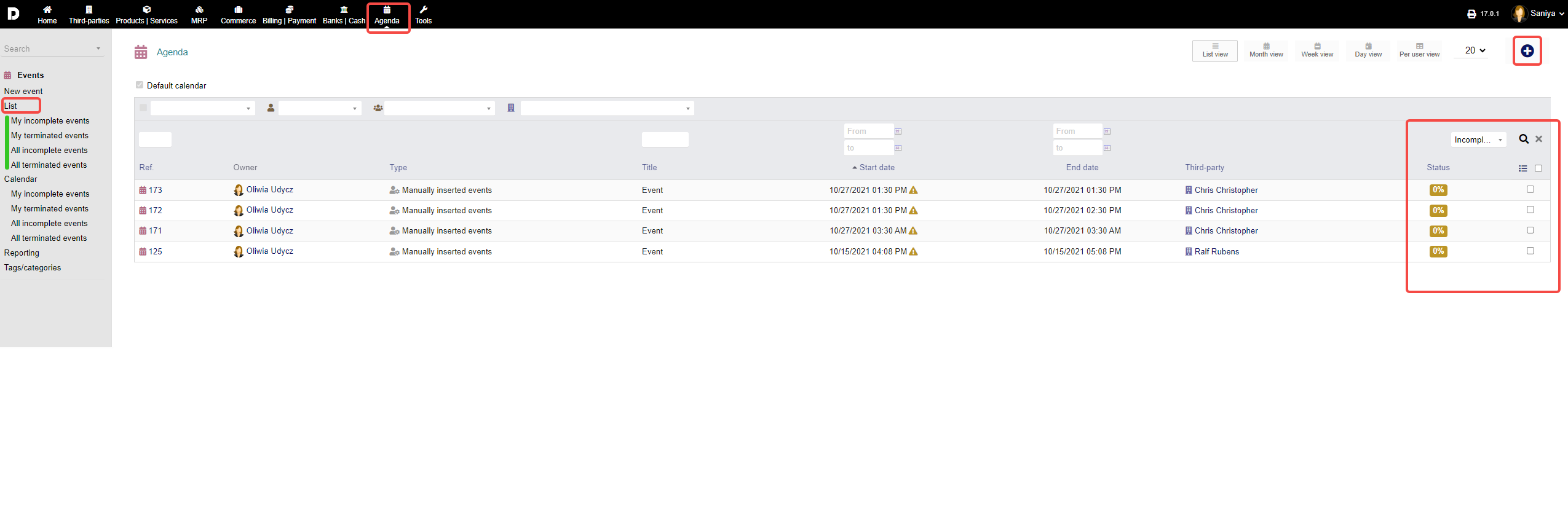
List : You can view all the events that you have created under "Agenda->Events->List" , you can filter them based on any status . To create a event from the list view click on the "Plus" icon from the top-right corner of the screen.
Calendar : You can view your events planned in calendar view, go to " Agenda->Calendar " you can see the particulate month planned , scheduled events as shown in the image below : You can change the month form the drop-down option on the top-right-corner or by click on the "Forward and Backward" arrow. To create an new event click on the "Plus" icon ,
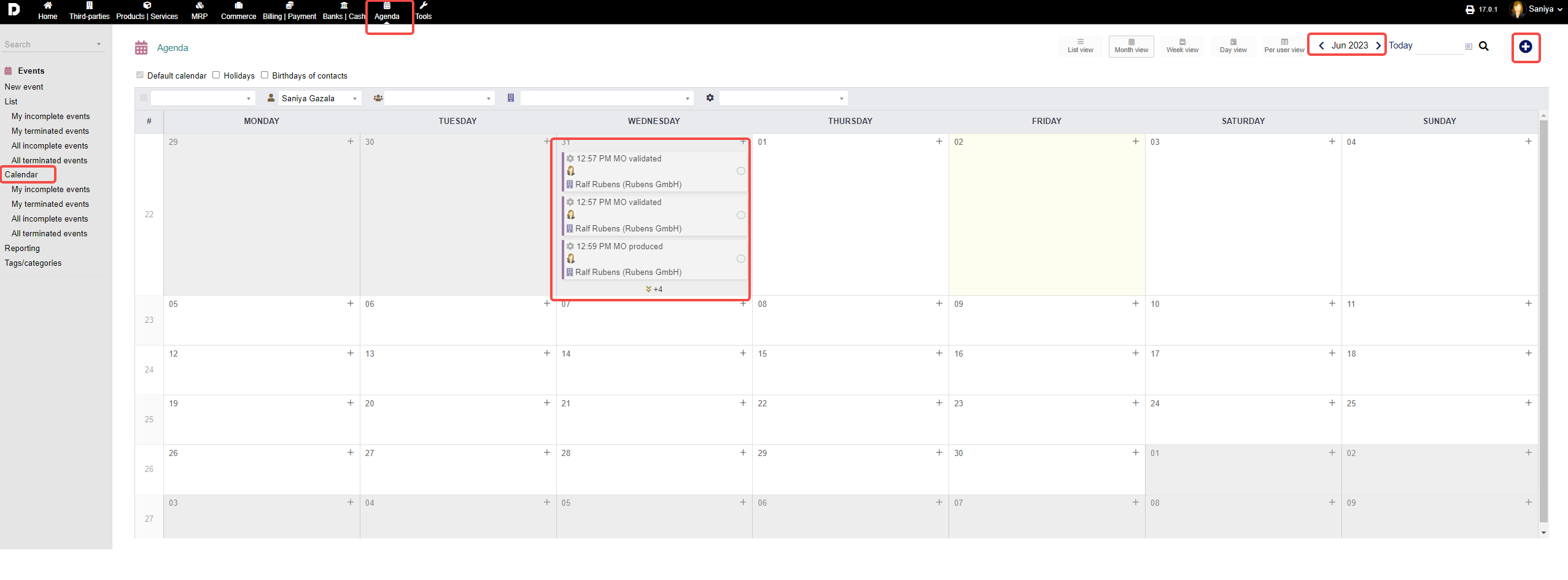
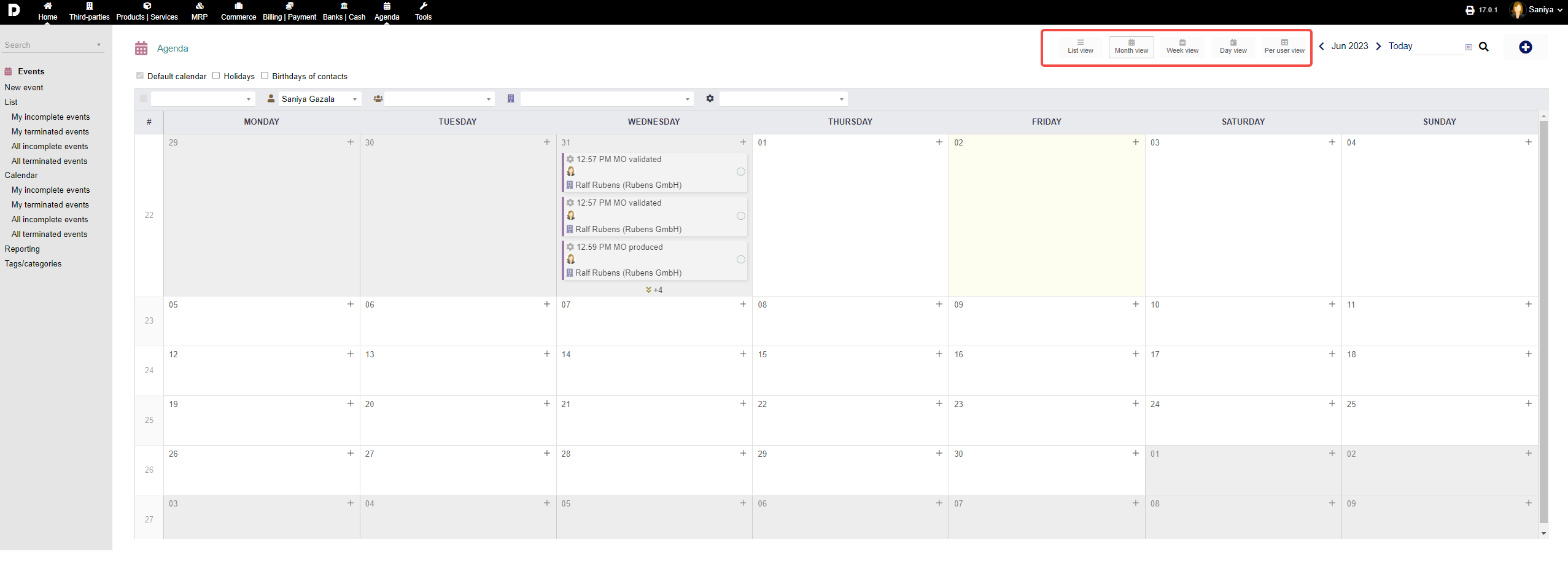
There are different ways to view you events, that are planned by click on the views option mentioned on the top .
Month View : The current image shown below is under "Month view ".
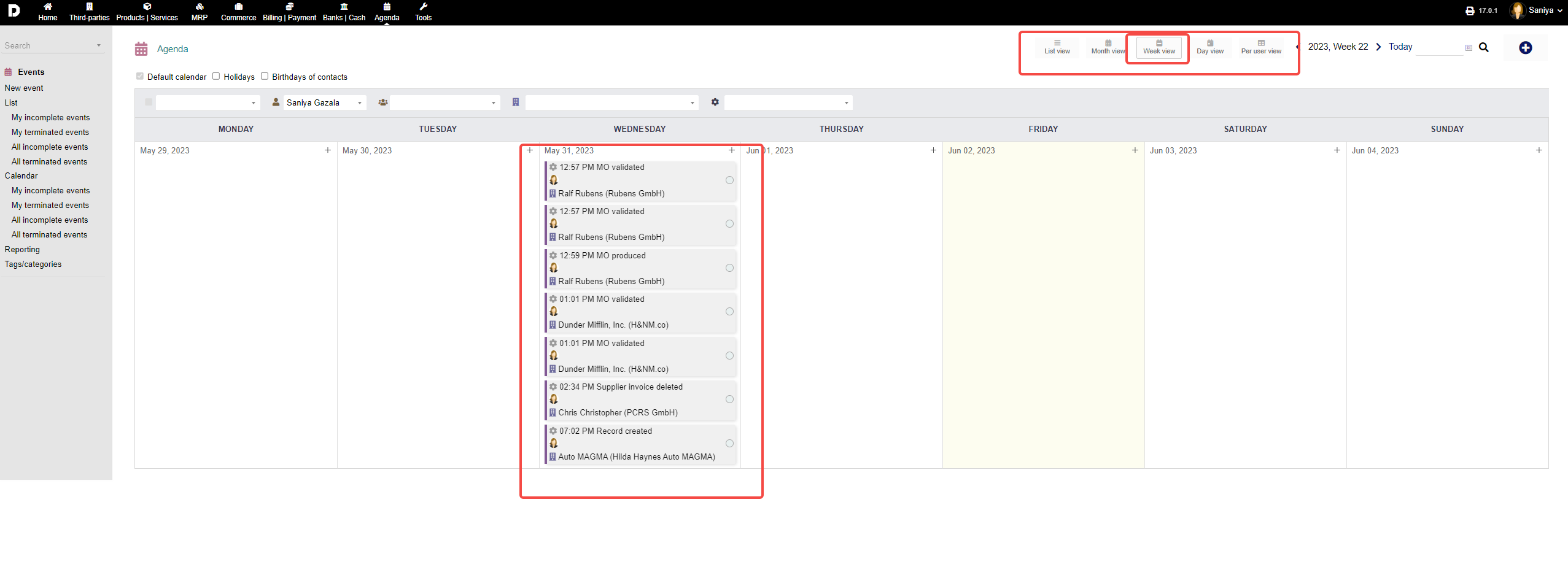
Week View : you can see all the events that are planned for then entire week as shown below :
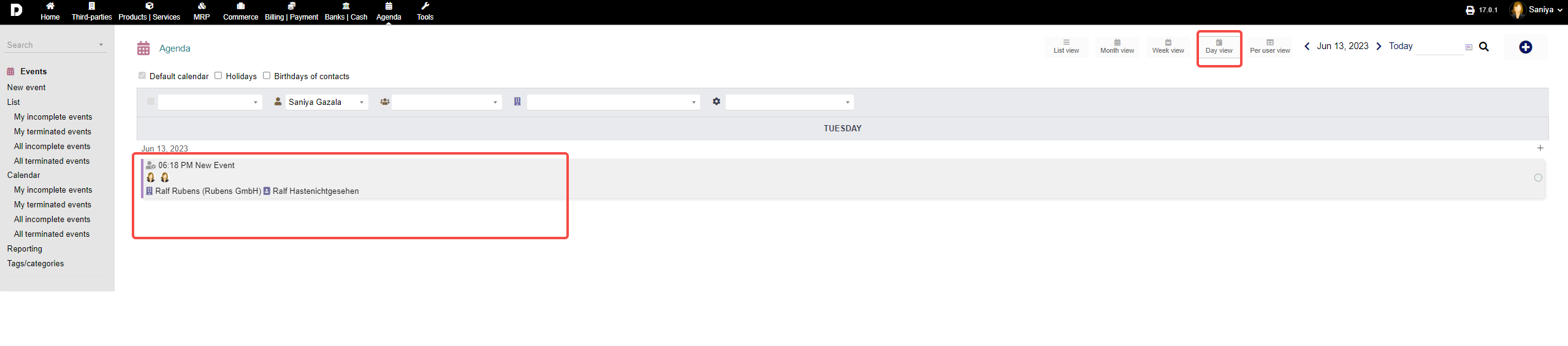
Day View : To create a per day event click on the "Plus" icon from the top-right-corner , Enter the details required and click on "ADD"
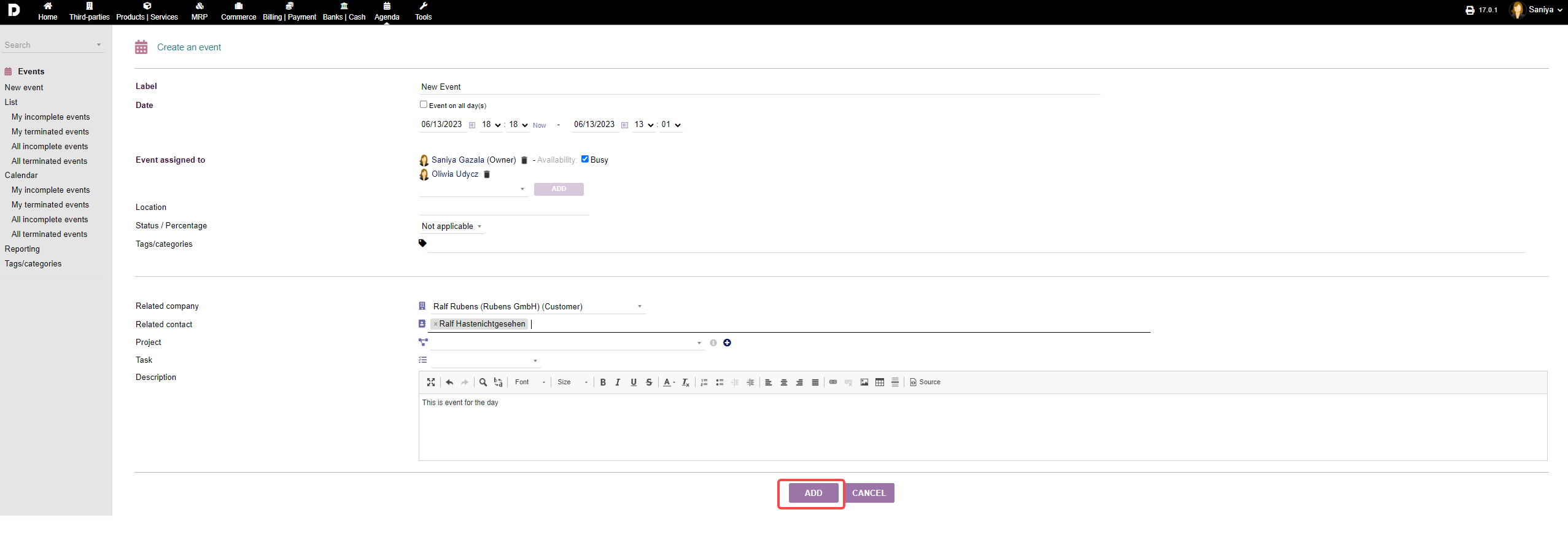 You can see all the events that are planned for particular day as shown below:
All Day Event : To create an event for all days between the "given and end" dates , all you have to do is while creating an event, you need to check box the value " Event on all day" give the dates then click on "ADD" per day event will be added. 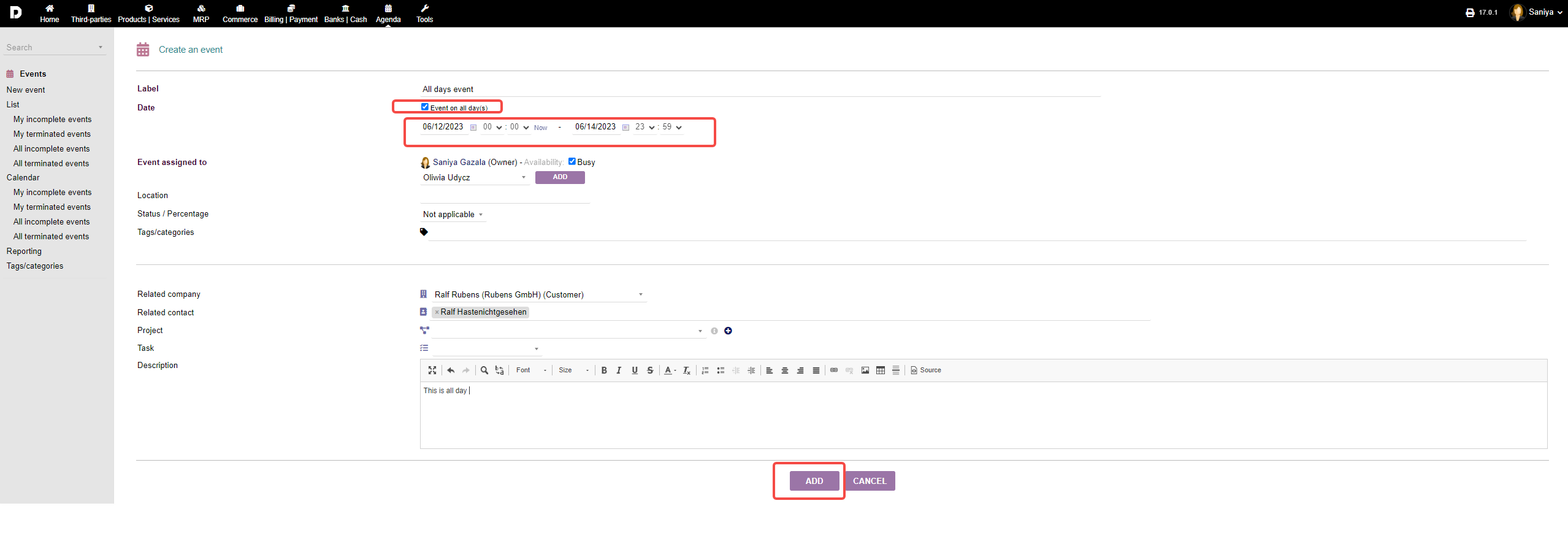
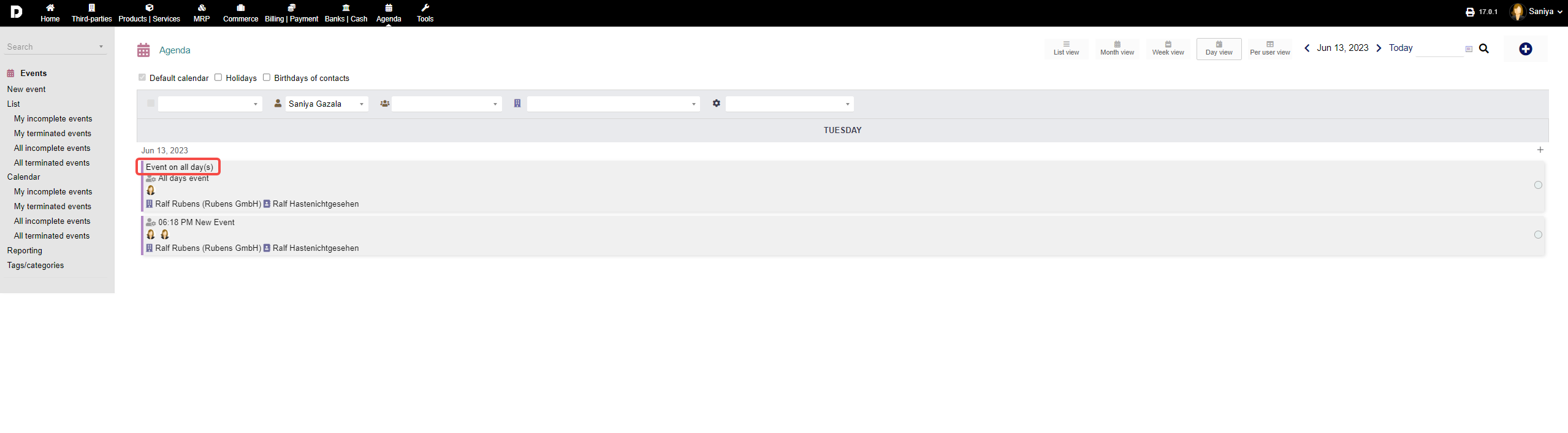
You can view the events added for "Event on all day(s)" by clicking on "Day View" as shown below :
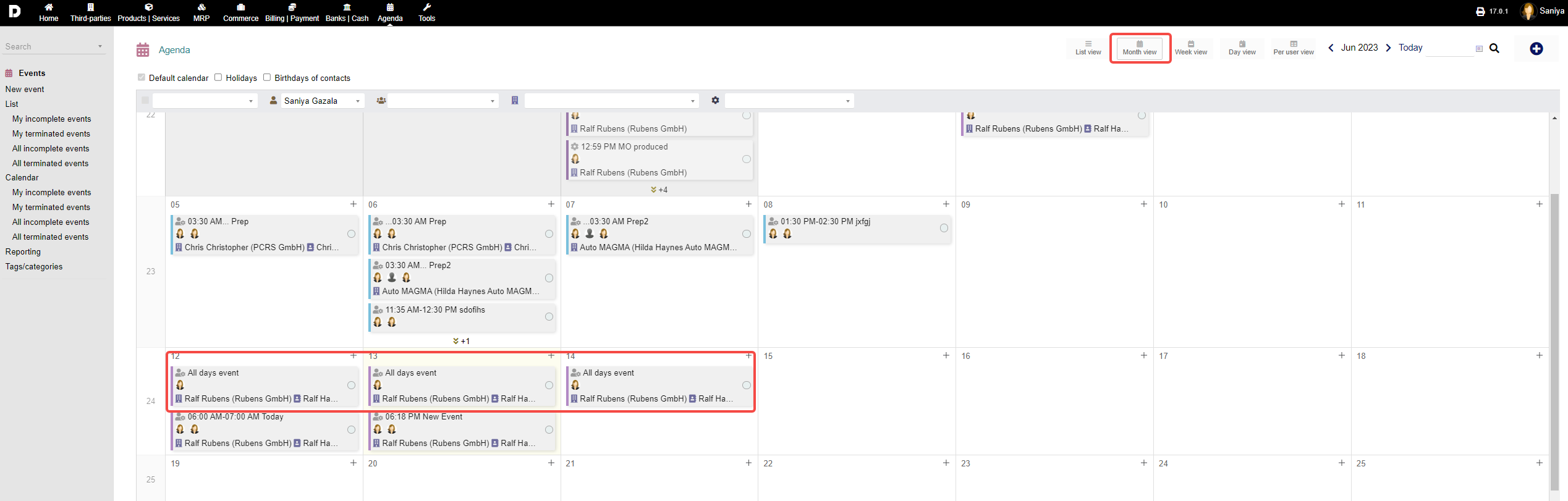
You can view the events in the calendar view by click on "Month view " icon .
Per User view : You can view each users event when clicked on user name .
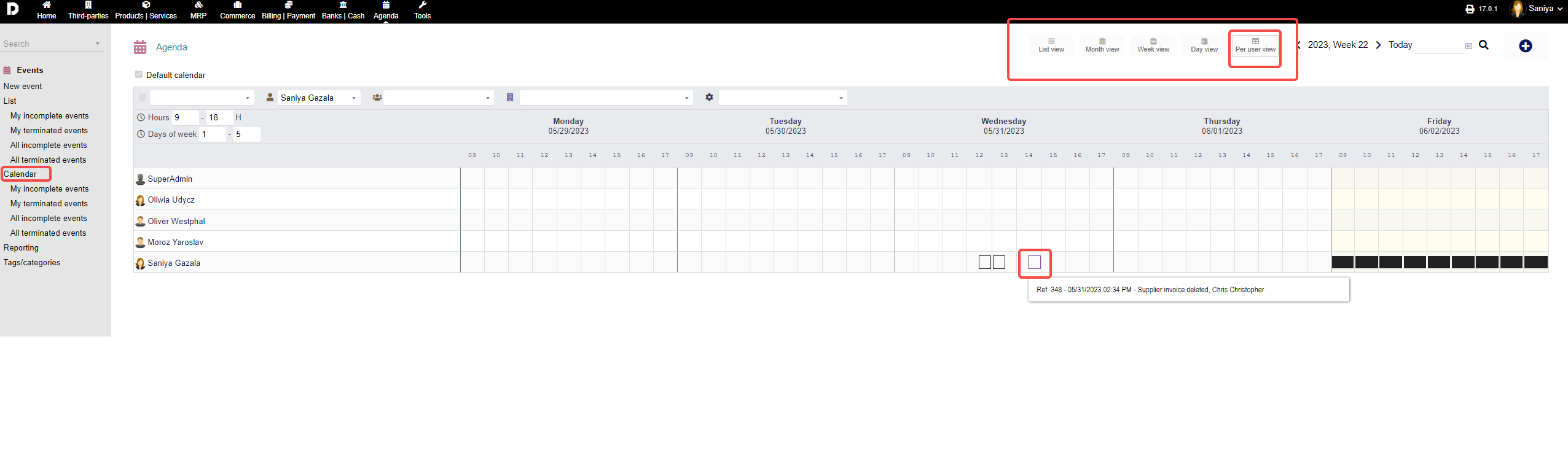
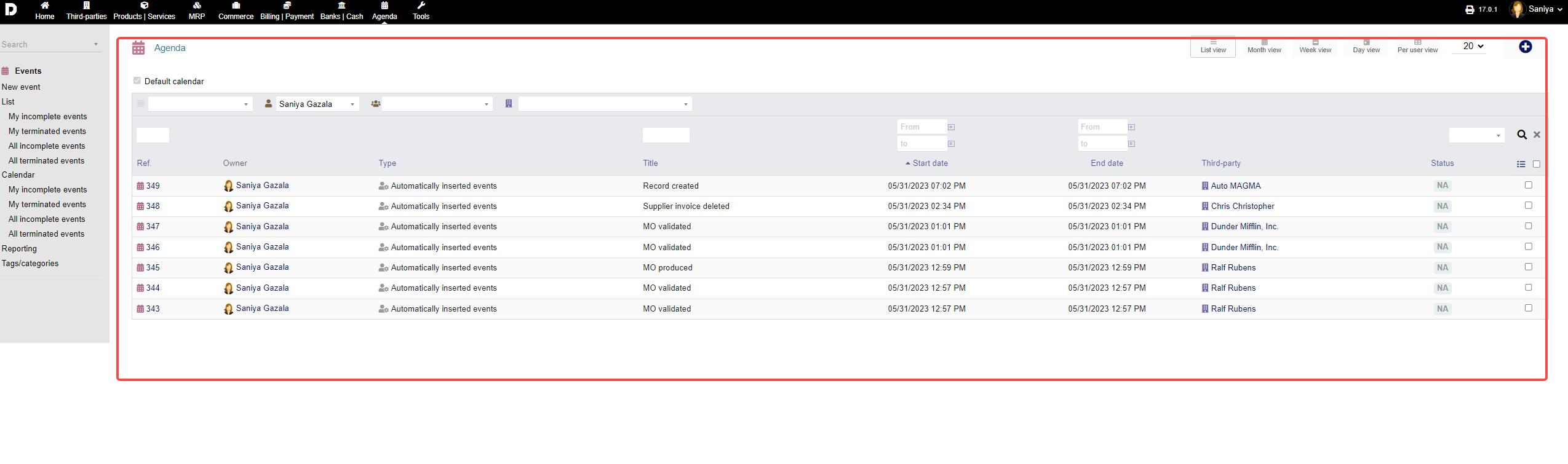
By click on the "Block" present on each day as you can see in the below image it will take you the view page of all the events for that particular user and day.
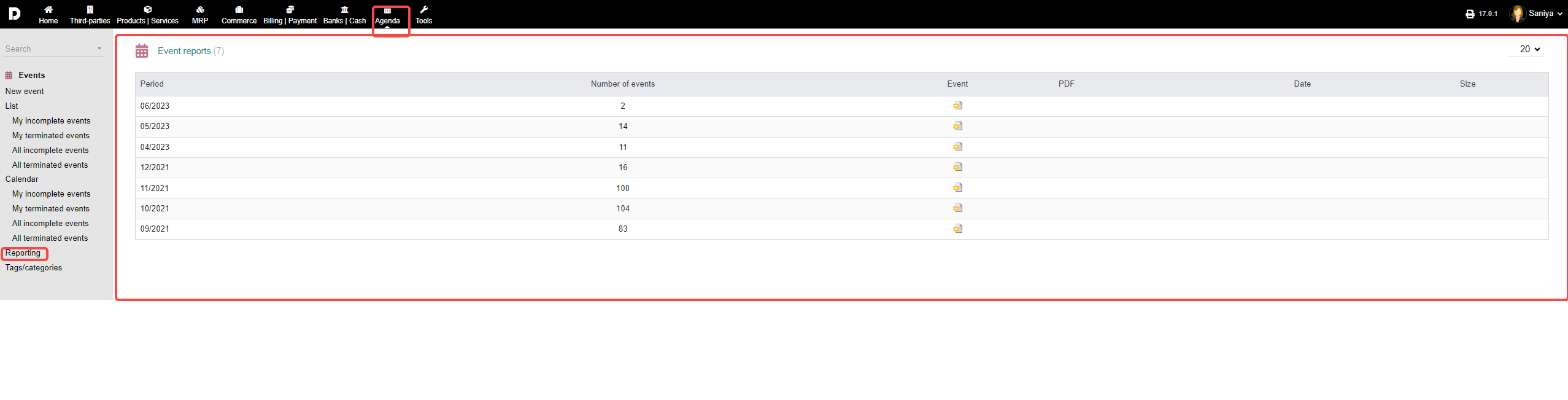
 Reporting : Go to "Agenda->Reporting" you can see all the events report is been generated and listed below you can click on any date and the reported will be downloaded in to you local pc .
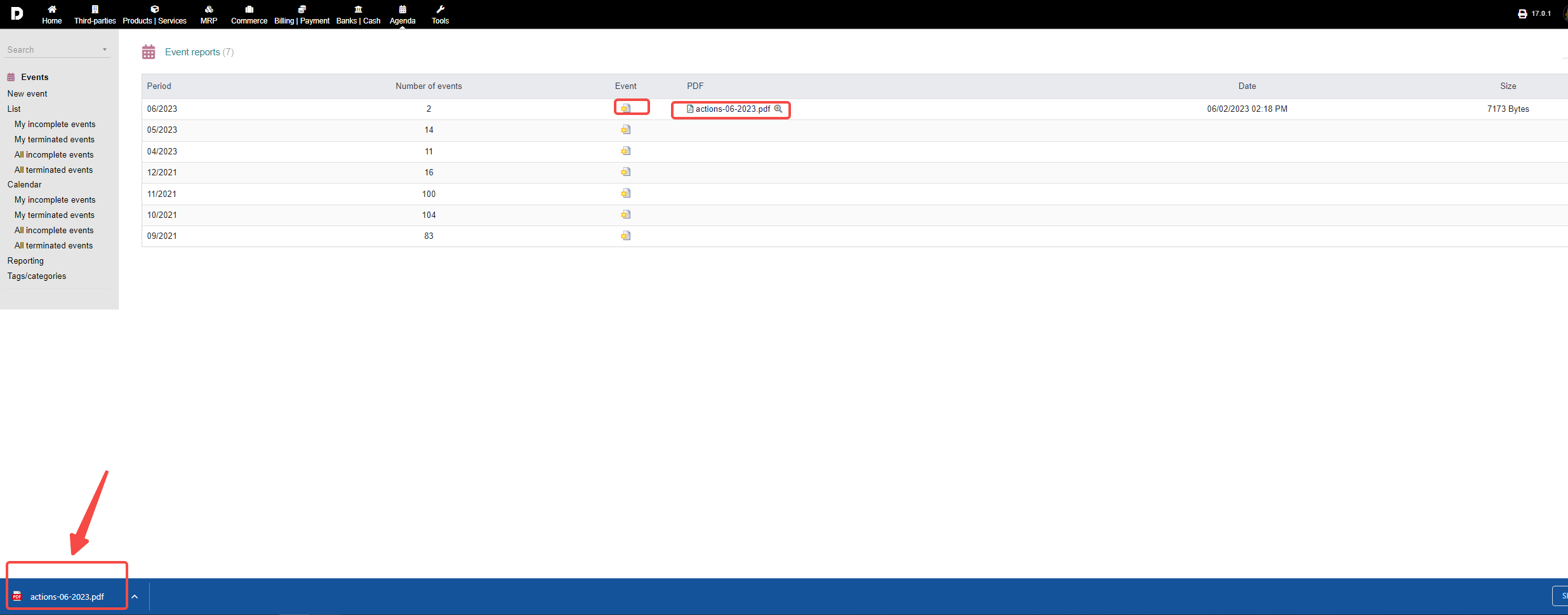
By clicking on any "Events" from the table row , there will be pdf that is generated when clicked on the PDF you can download the event pdf into your local pc
Edit an Event :
You can edit any event which is upcoming and future events but not the past events to do so click on "List of events" from the left menu "Events/Agenda->List" .
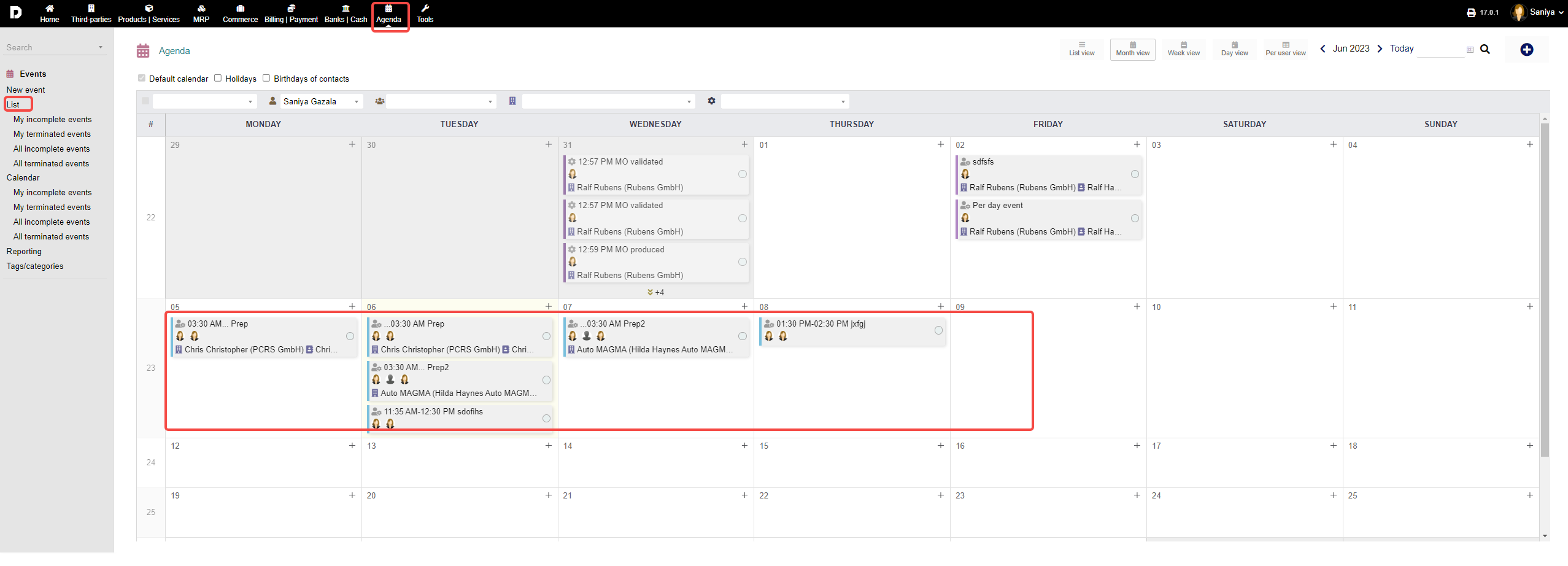
Click on any upcoming event as shown in the image below , and it shall give you the options to "Modify" , "Clone", & "Delete" the event.
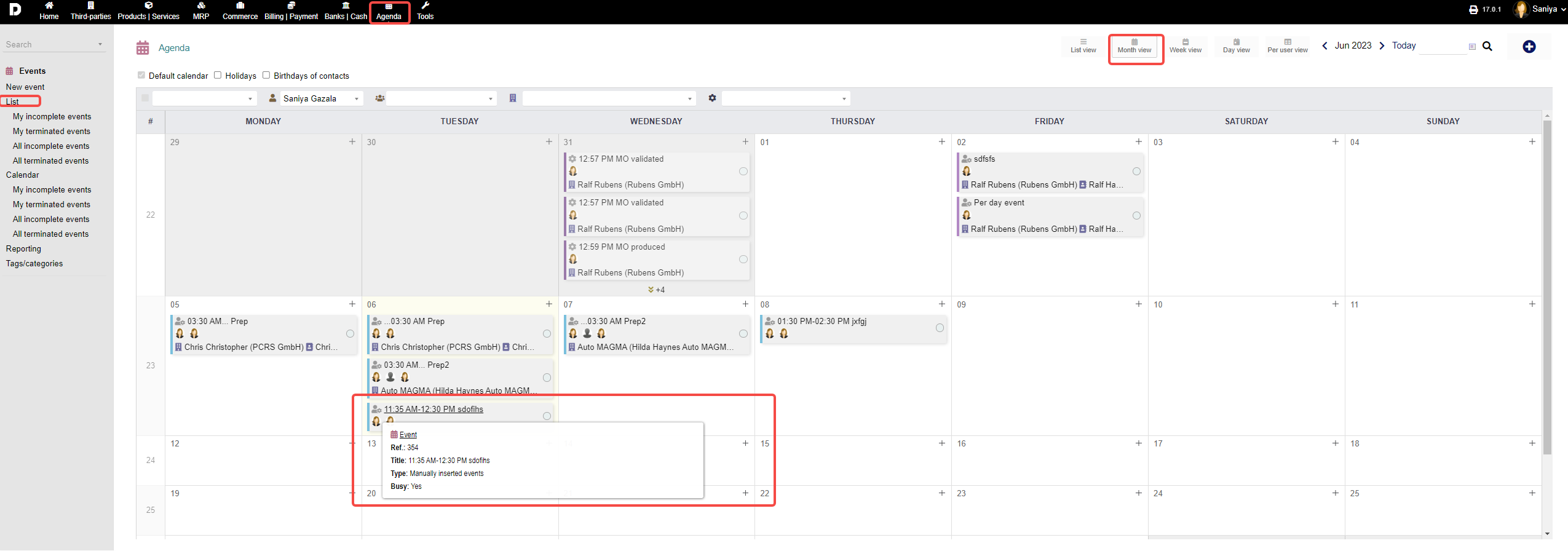
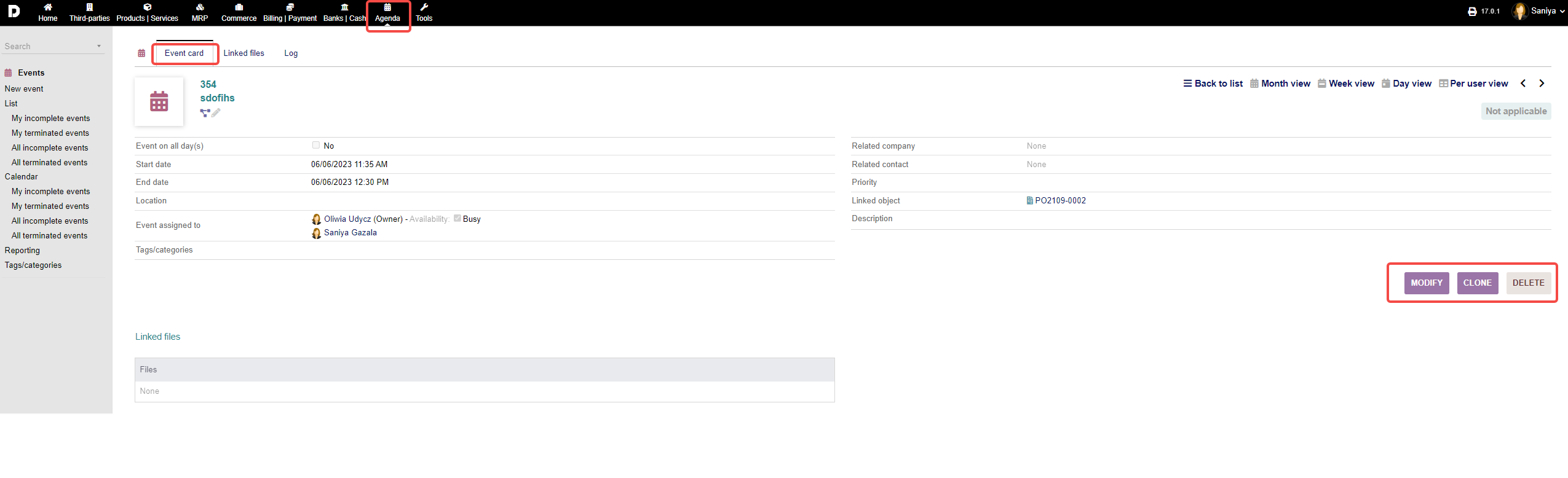
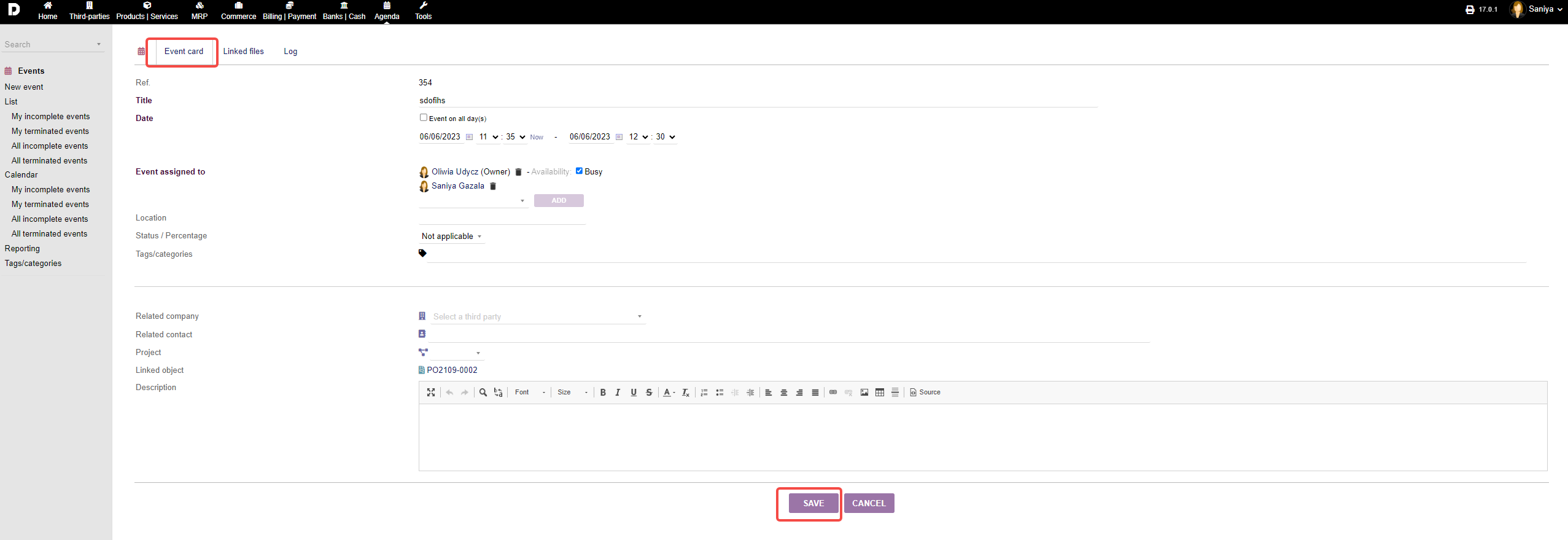
Modify : When you click on "Modify" button you are able to add new details or update the details for upcoming events and "Save" it .
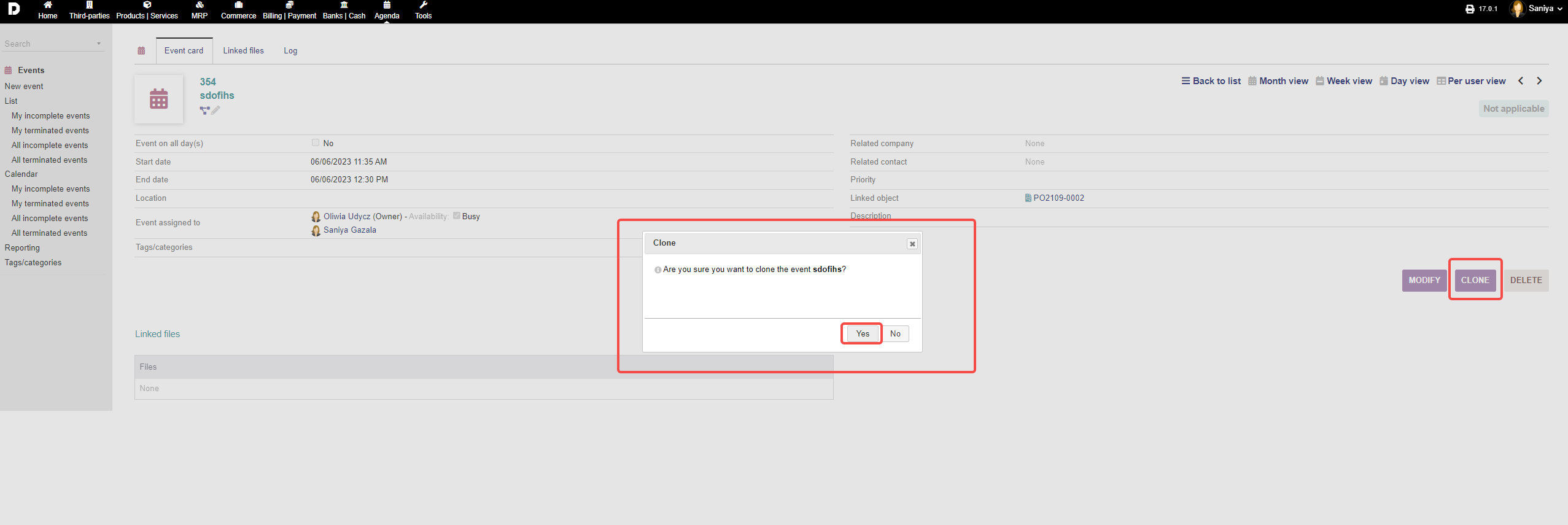
Clone : Clone will help you make an exact copy of the event . Click on "Clone" button. Once you click, a small pop-up appears on the screen, click on "Yes" if you want to make a clone or copy of the event else click on "No" .
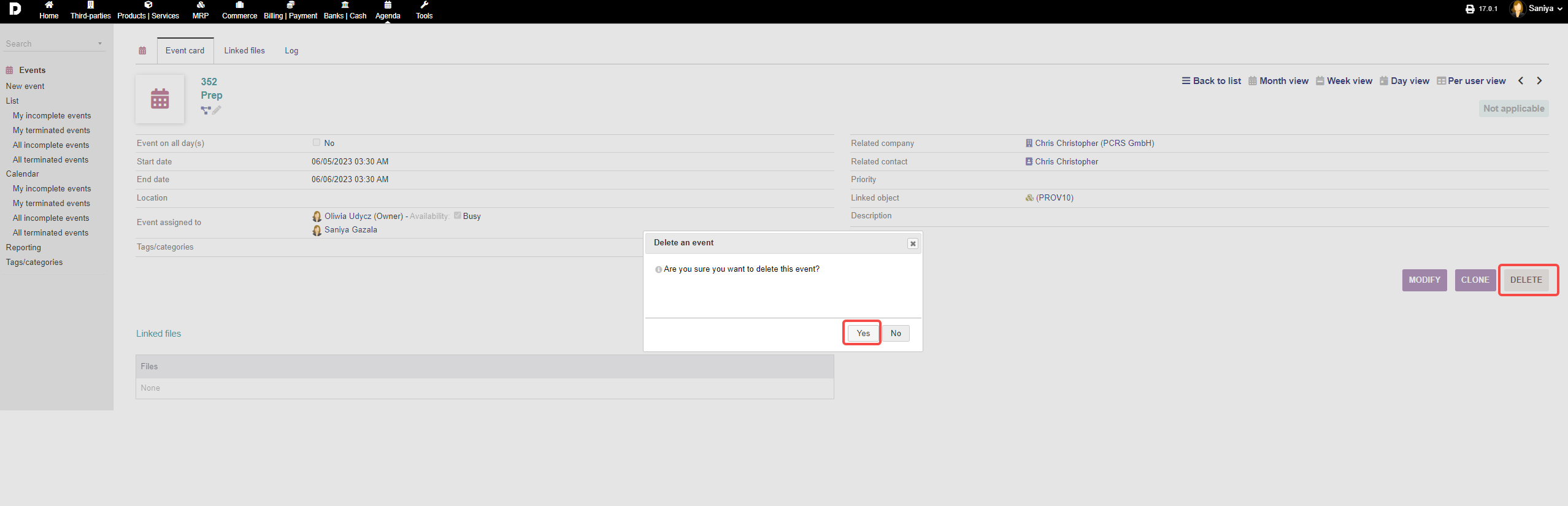
Delete : To delete an event click on "Delete" button and a small pop-up appears click on "Yes" to delete and event .
Additional Tabs:
Linked files : You can link or upload all the documents related to events to know more read "General tabs" .
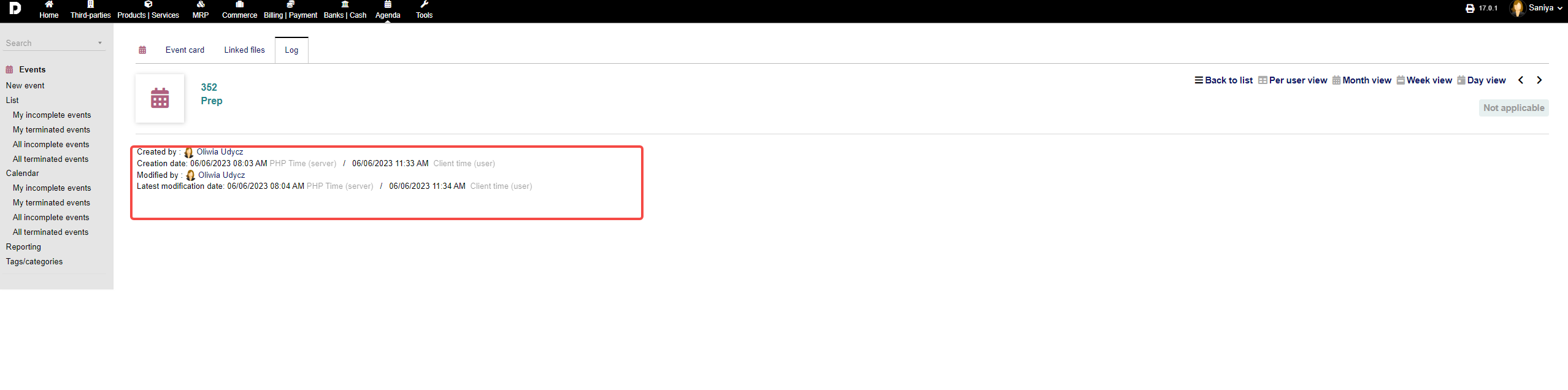
Logs : This tabs consist of all the activities, that took place during the creation of event , or cloning the event or deleting an event any action performed will be captured under "Log" .