Overview:
Vendor Invoice :
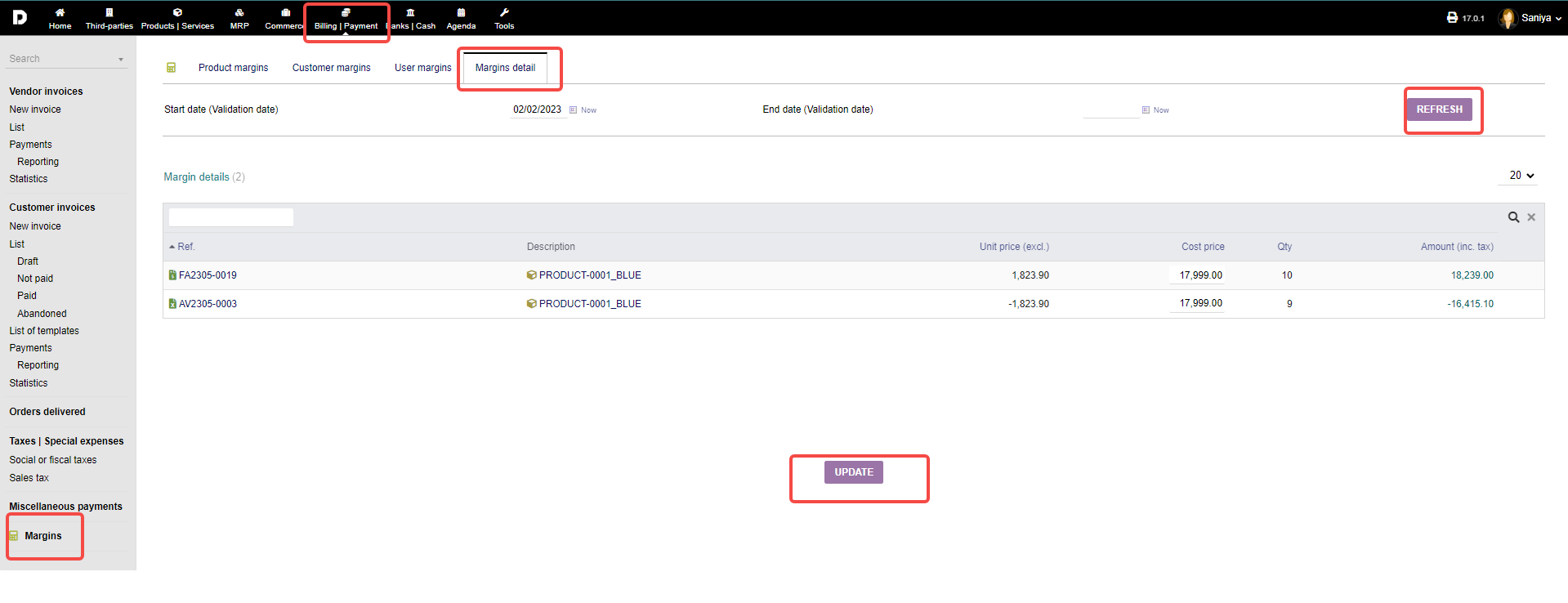
You can see some statics data on the " Billing/Payment " page when clicked on " Billing /payment " menu as shown in the image below :
You can view the "Number of open invoices" , "Last modified invoices" , and the "Drafts invoices".
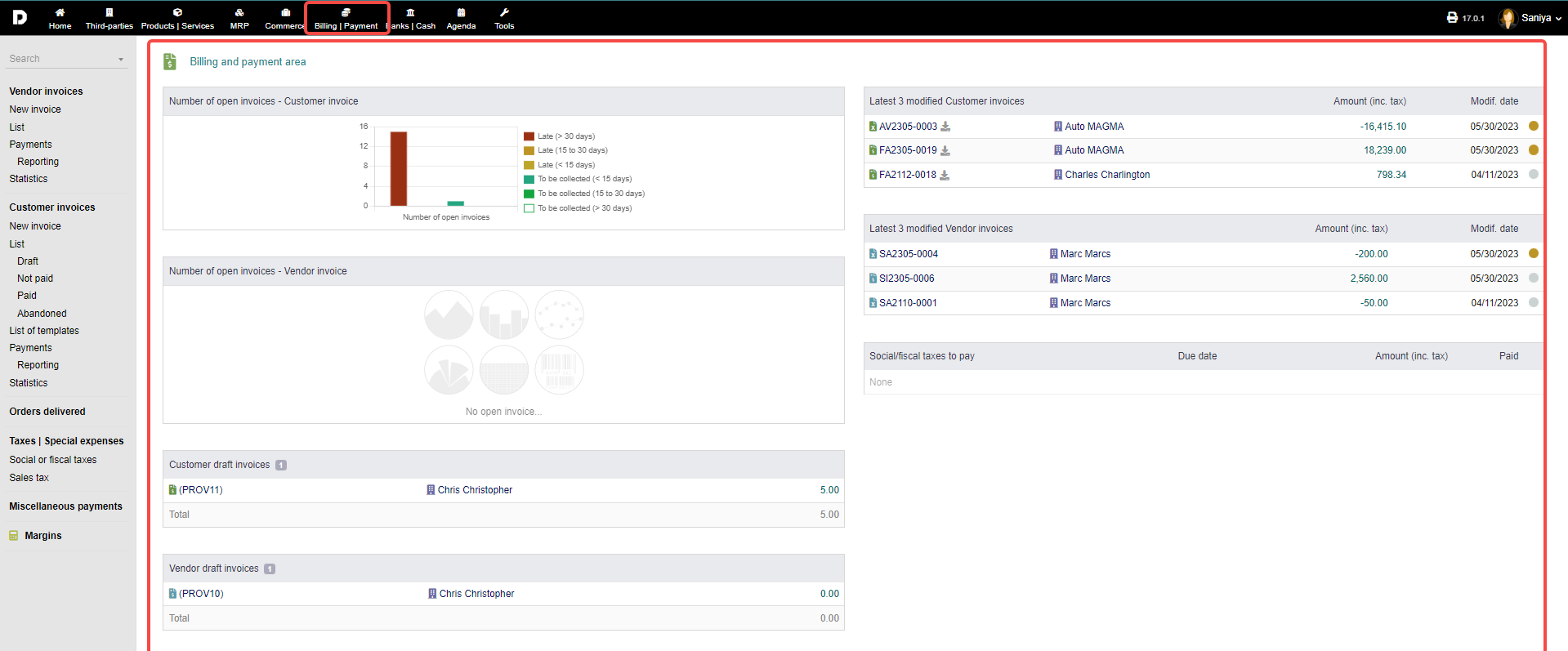
On the left side of the screen you can find more menu options:
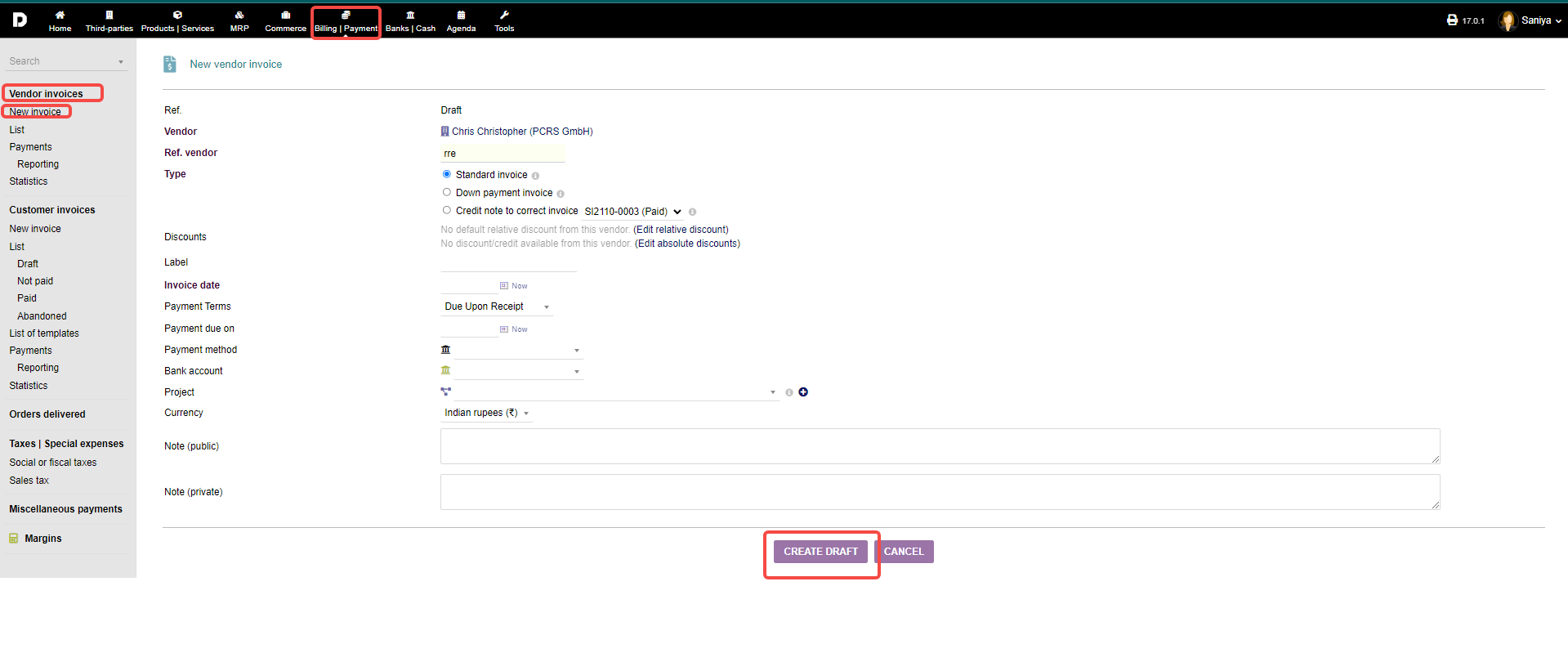
Vendor Invoice : To create a new vendor invoice you need to click on "Billing/payments->Vendor invoice -> New invoice" , this will open a invoice creation page which will allow you to create a "New vendor invoice" . Read "Vendor invoicing" to know more .
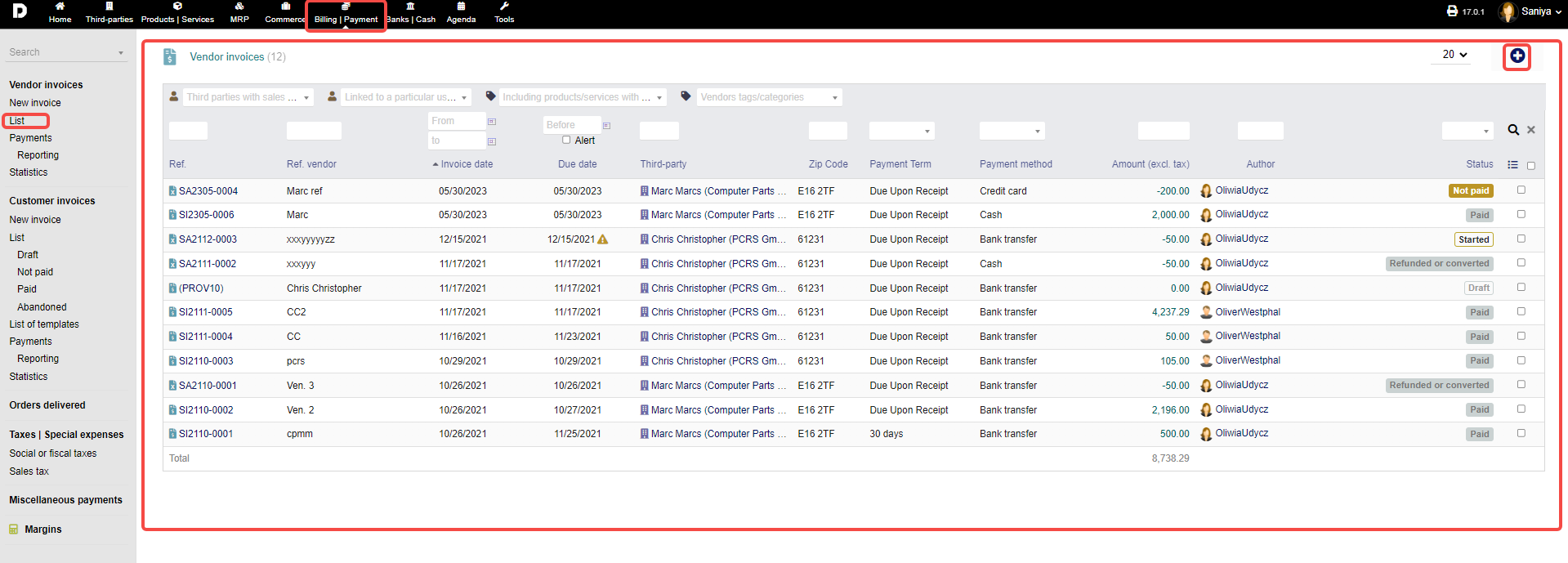
List : Go to "Billing/payments->Vendor invoice -> List" on this screen you can see all the invoices that are created irrespective of any status whether draft , paid , or unpaid .You can create an vendor invoice by clicking on the "Plus" icon present on top-right-corner.
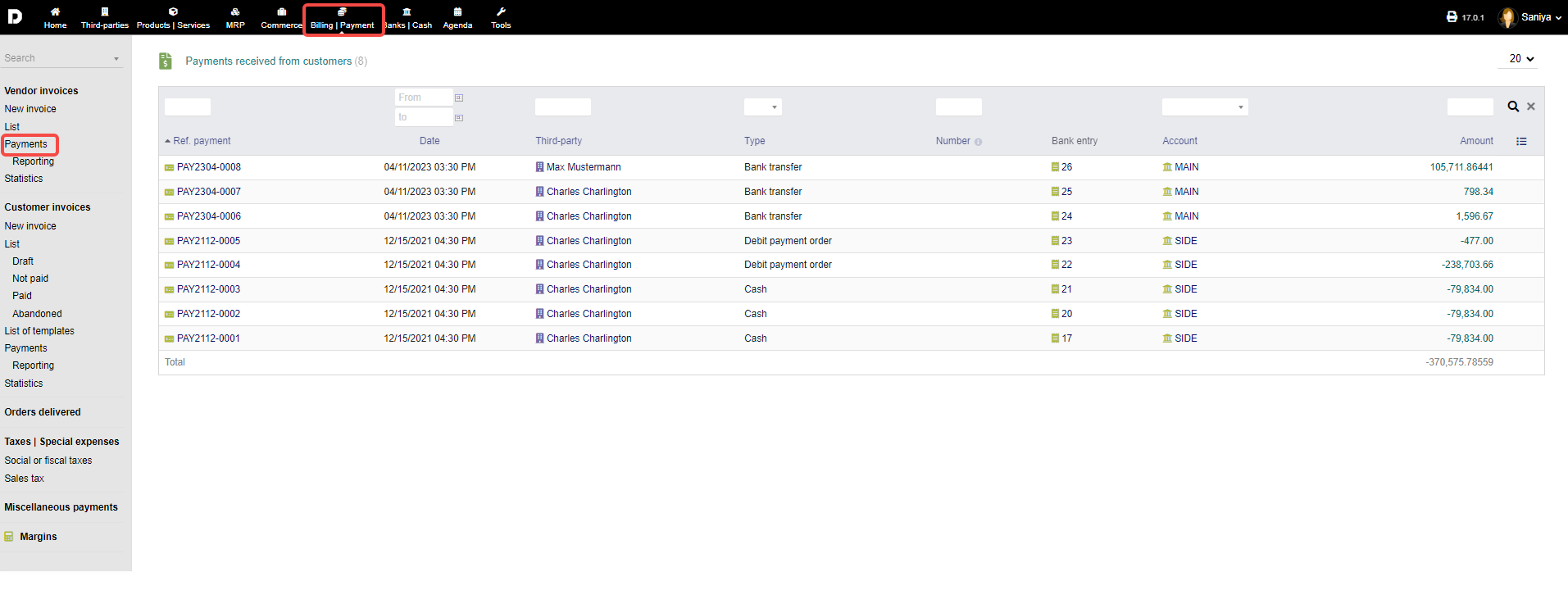
Payments : To view all the payments go to "Billing/payment->Vendor invoice -> Payments" all the payments that took place for vendor invoice will be displayed here as shown in the image below :
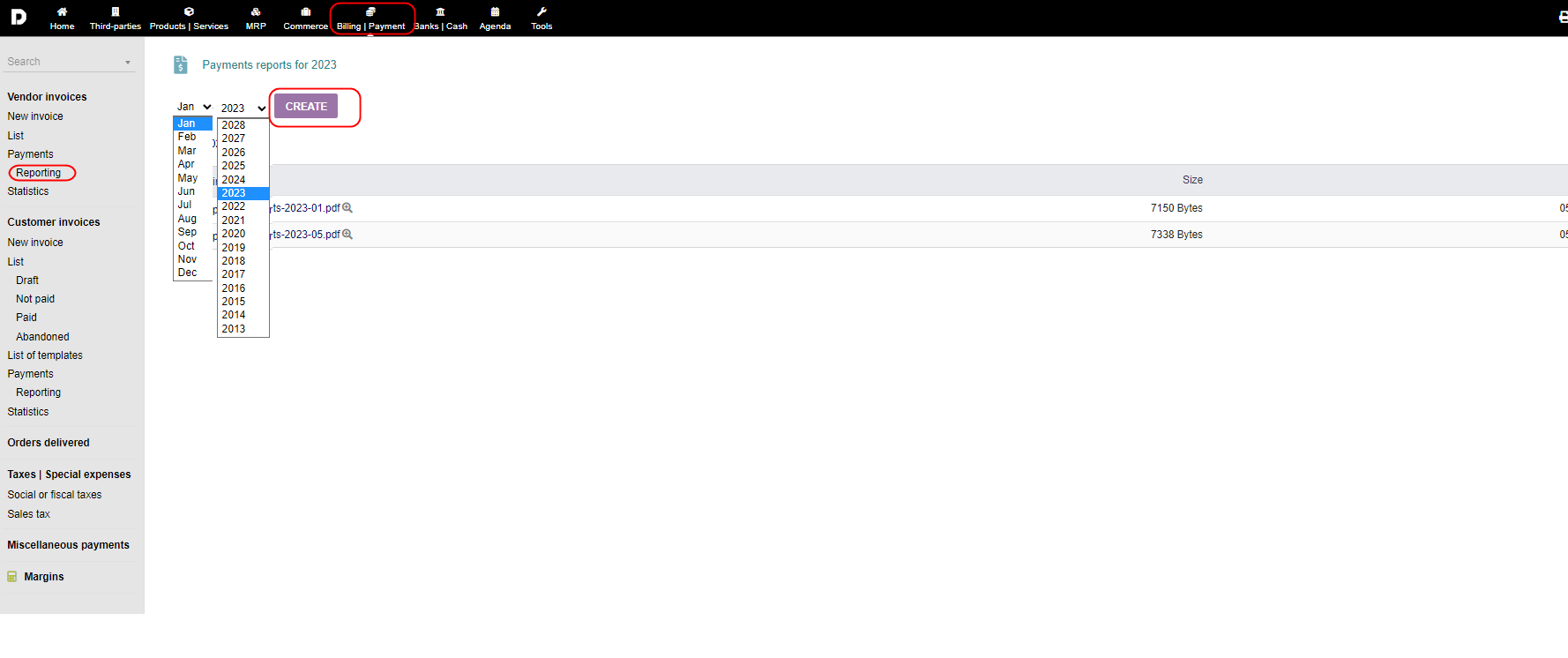
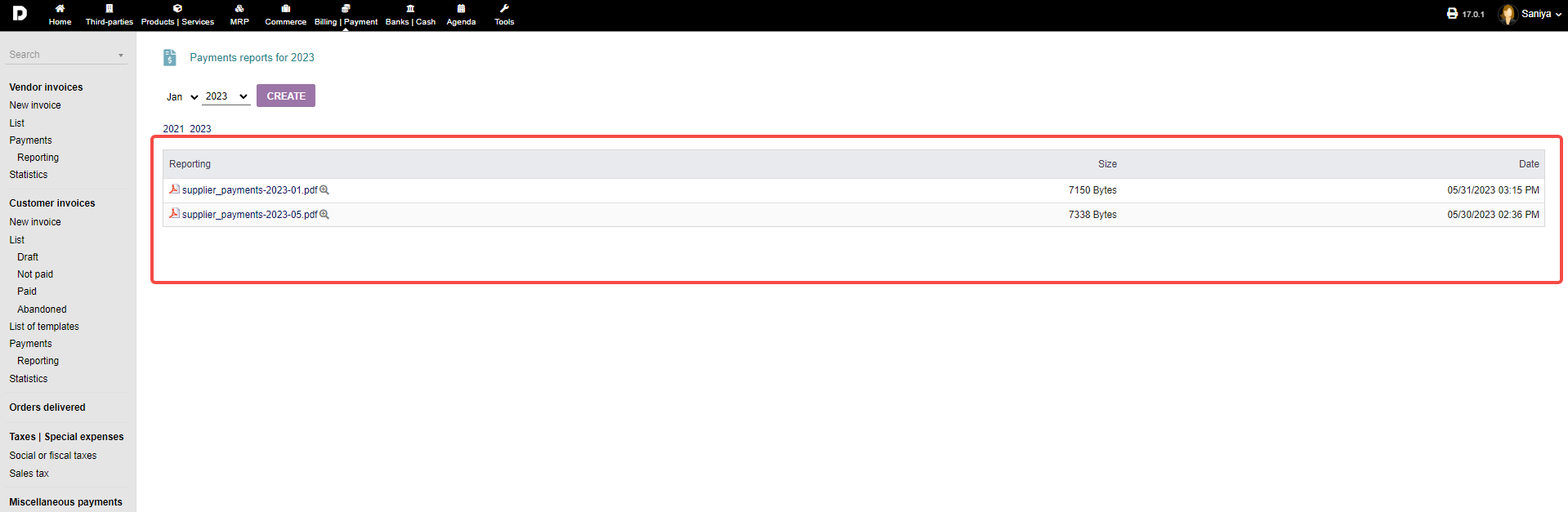
Reporting : Go to "Billing/payment->Vendor invoice -> Reporting" to create or generate report for particular month of the year , you need to select the month and the year from the dropdown and click on "CREATE" . the report will be created and listed below :
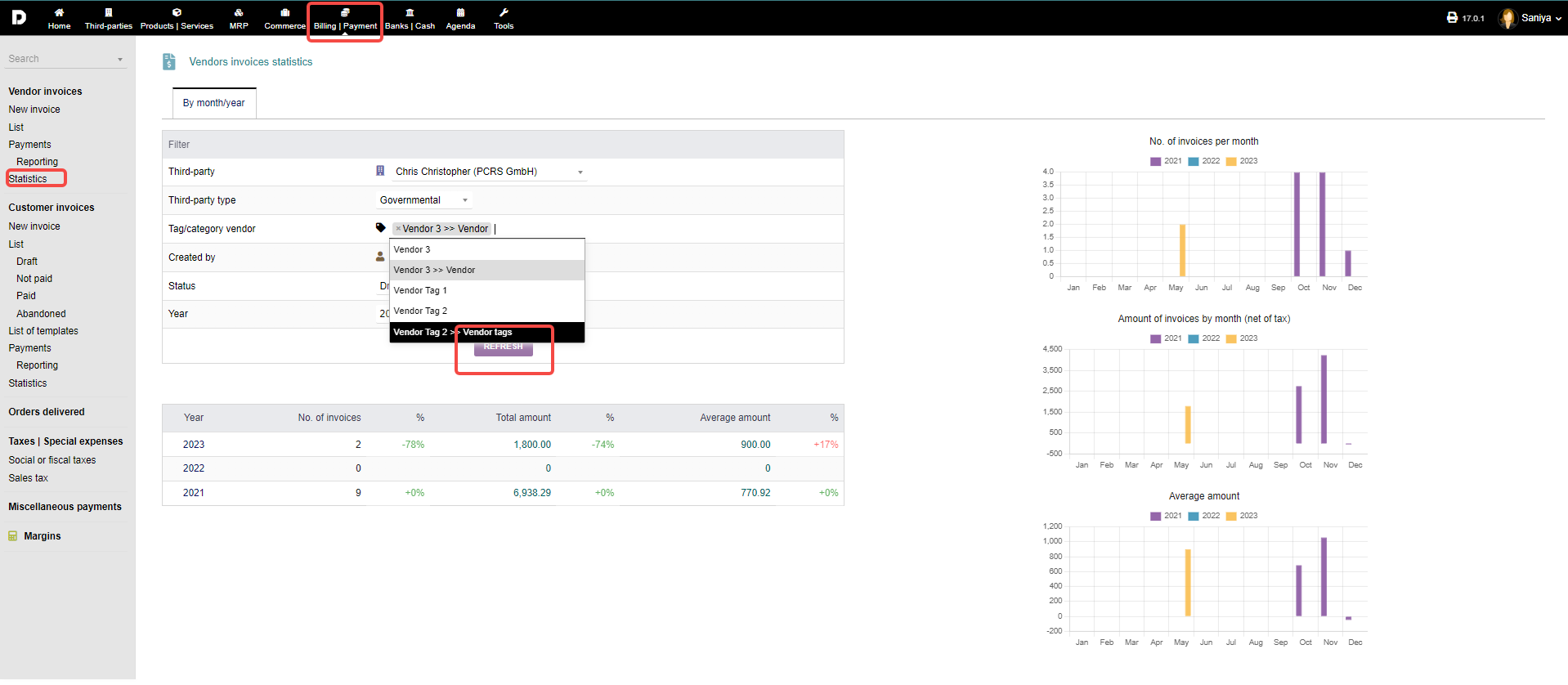
Statistics : Finally, detailed statistics can be had by clicking on "Billing/payment->Vendor invoice -> Statistics". Choose the respective parameters from the drop down menus to your liking and click "REFRESH".
Customer Invoice :
You can see some statics data on the " Billing/Payment " page when clicked on " Billing /payment " menu as shown in the image below :
You can view the "Number if open invoices" , "Last modified invoices" , and the "Drafts invoices".
New invoice : To create a new customer invoice you need to click on "Billing/payments->Customer invoice -> New invoice" , this will open a invoice creation page which will allow you to create a "New customer invoice" . Read "Customer invoicing" to know more .
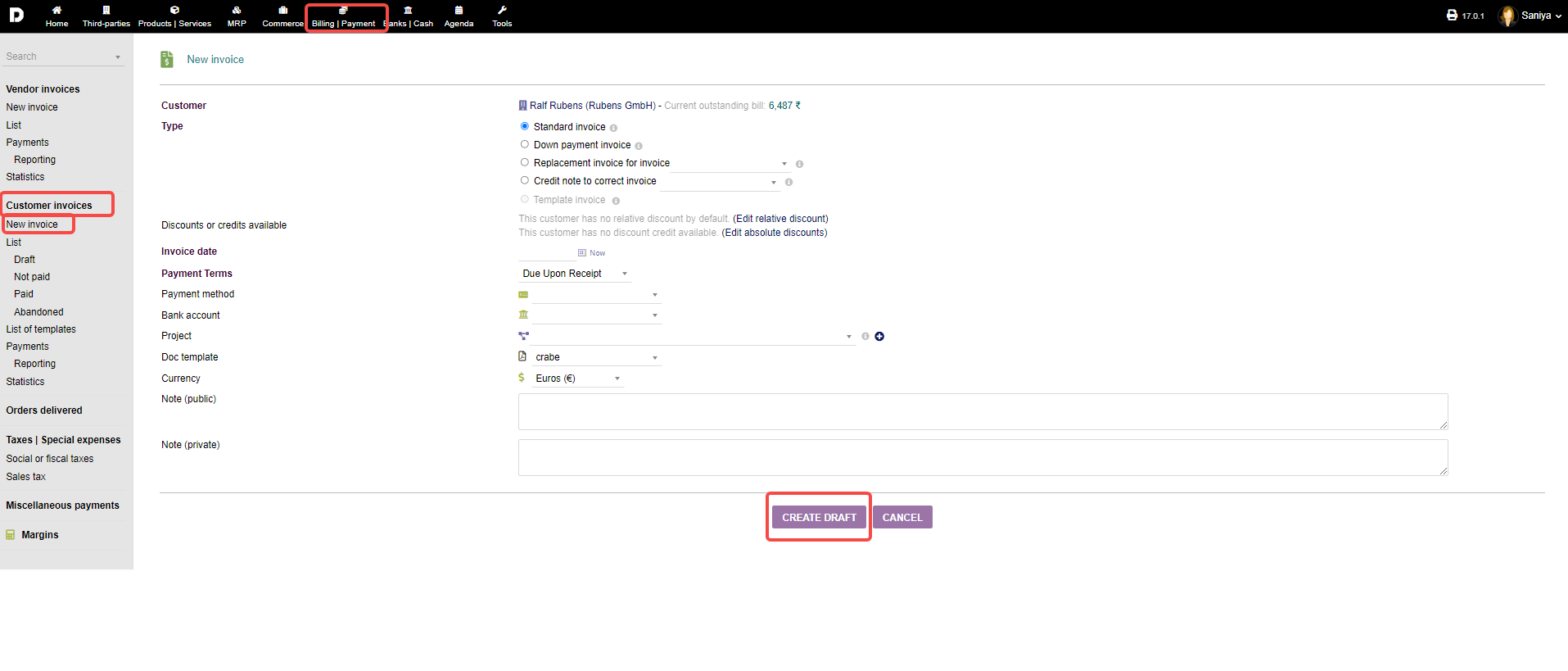
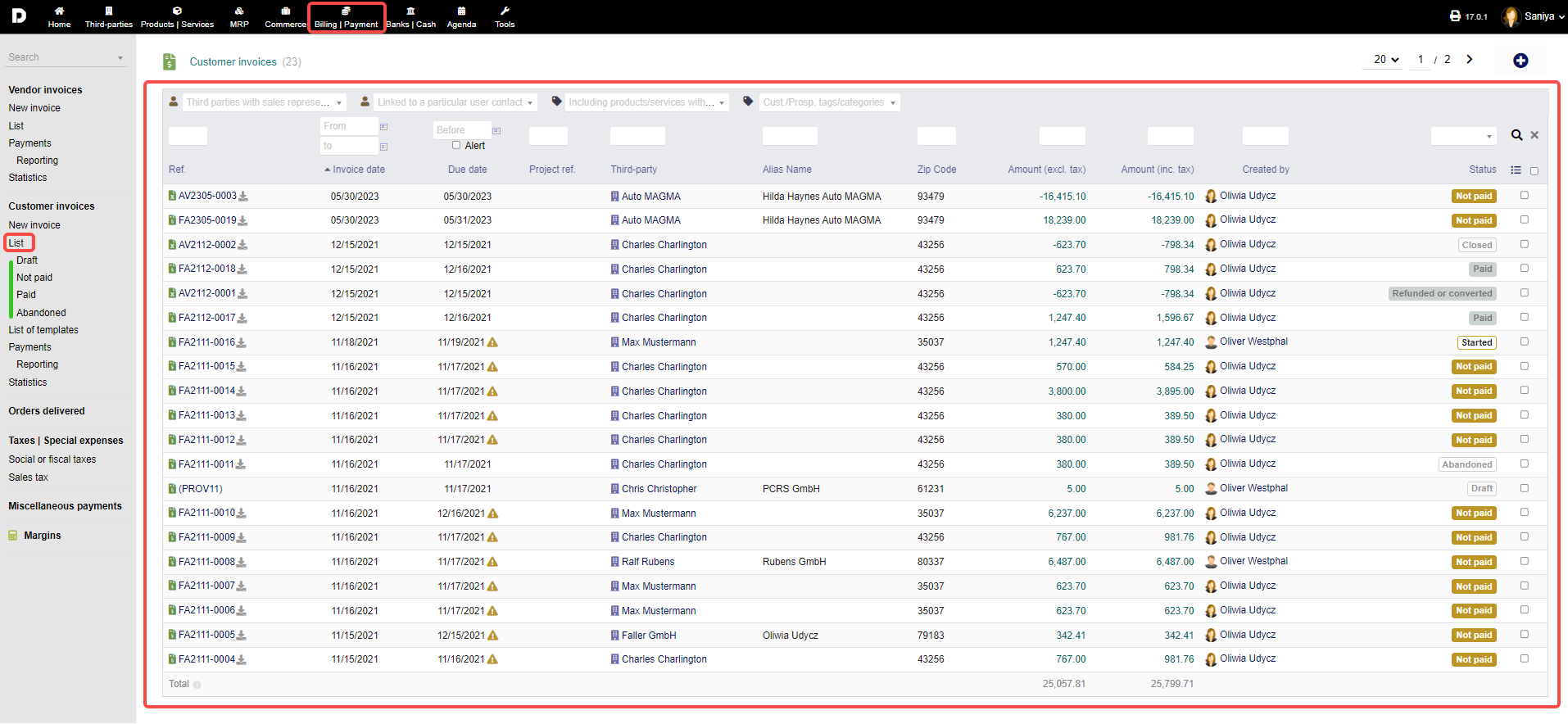
List : Go to "Billing/payments->Customer invoice -> List" on this screen you can see all the invoices that are created irrespective of any status whether Draft , Not paid, or Paid. You can create an vendor invoice by clicking on the "Plus" icon present on top-right-corner.
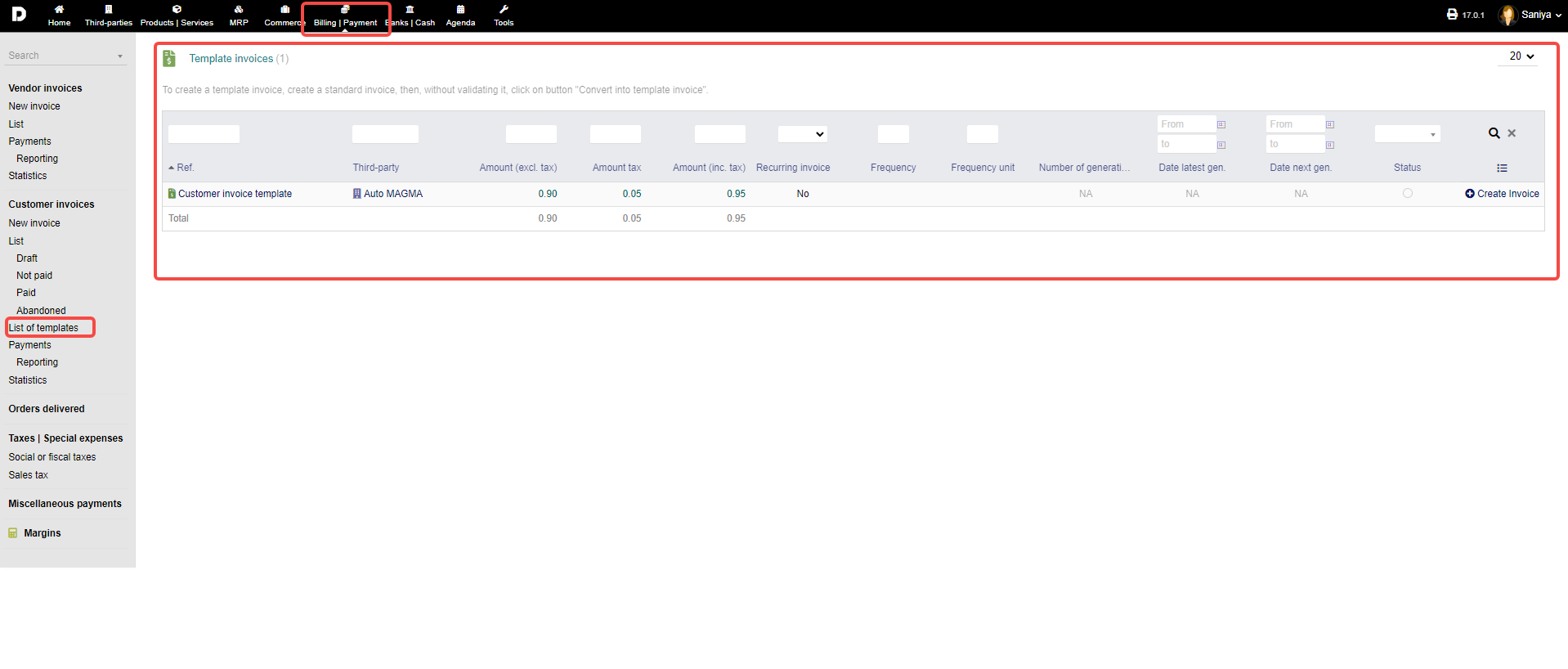
List of templates : already created templates can be viewed under " Billing/payments->Customer invoice -> List of templates".
Create template : Creating an invoice template can be easy and helpful , With the help of created template you can create the following invoices instead of creating it from start or new . To do so click on "Billing/Payments->Customer invoices->List" click on the Draft invoice , once the invoice is open , On the "Customer invoice" tab you need to add a product then you can see "CONVERT INTO TEMPLATE INVOICE" .
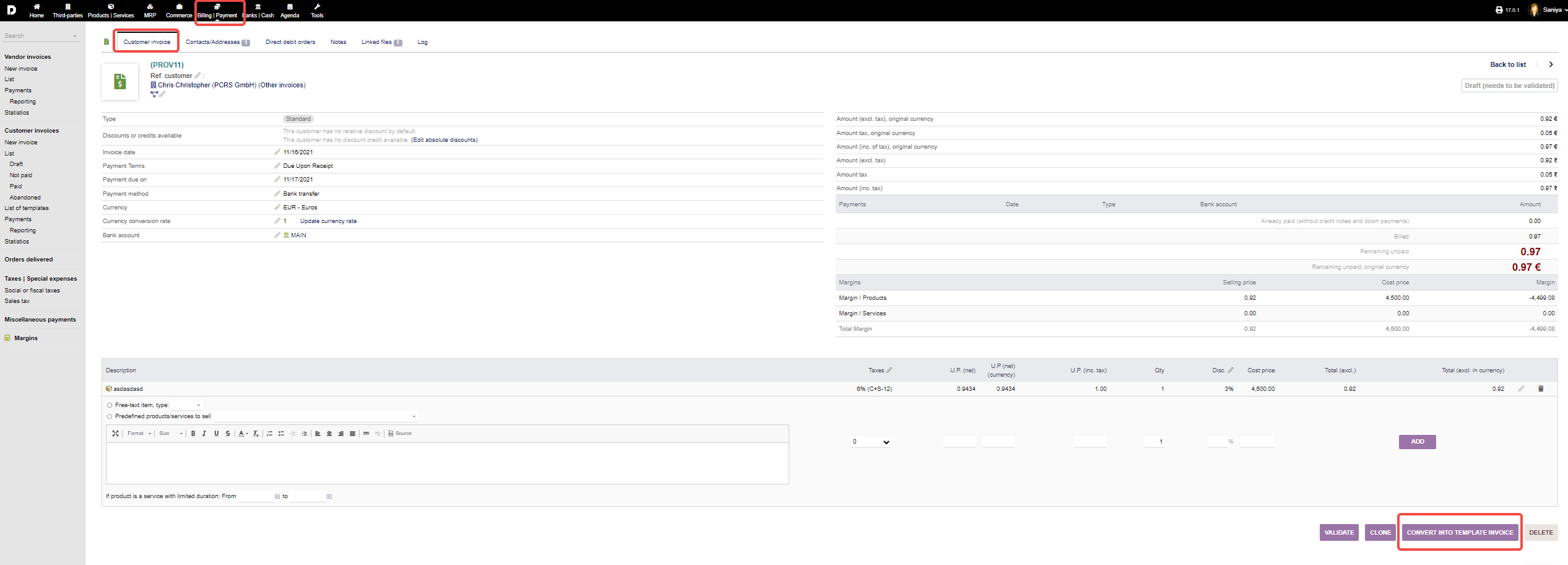
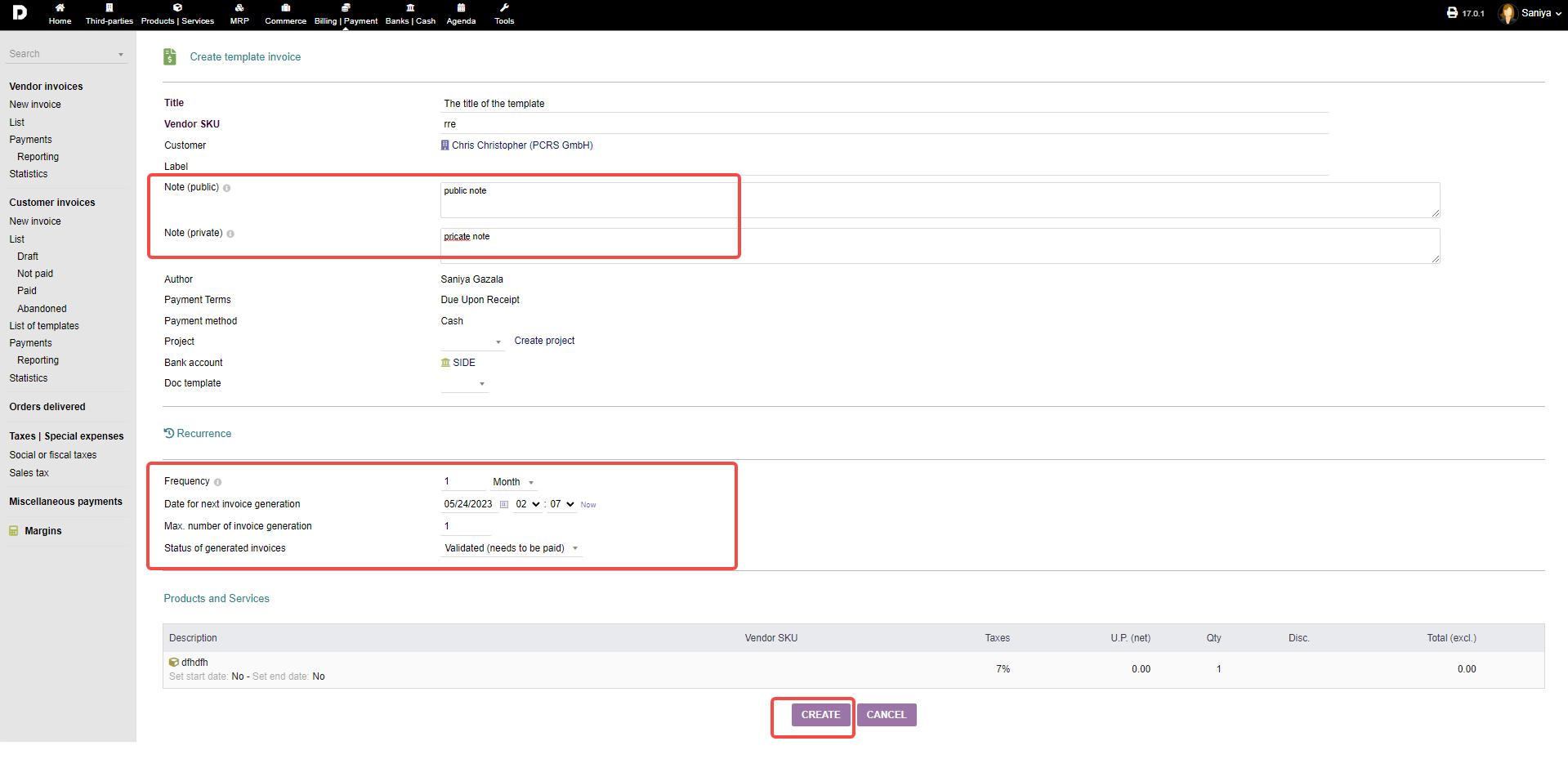
Once you click on "CONVERT INTO TEMPLATE INVOICE" . a new page appears enter the required details such as "Title" , add the notes whether "Public or Private" , If you want to create this template for recurring then at the button you can set up the "Recurring" details and click on "Create". your template will be created.
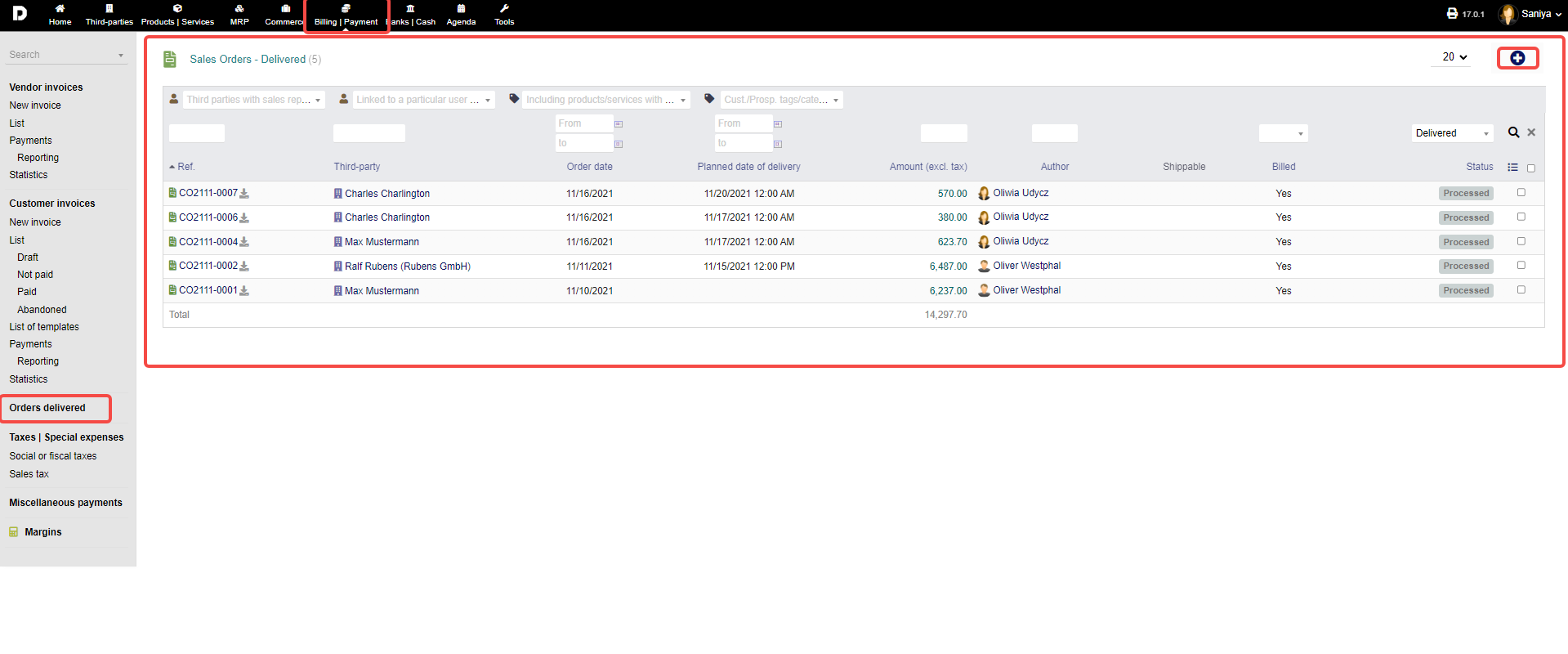
Order Delivered : Go to " Billing/payments->Customer invoice -> Order Delivered". all the sales order that are processed are shown here.
Sales Tax : All the info about sales tax to be added on products and services. Tax payments and refunds will be done here .
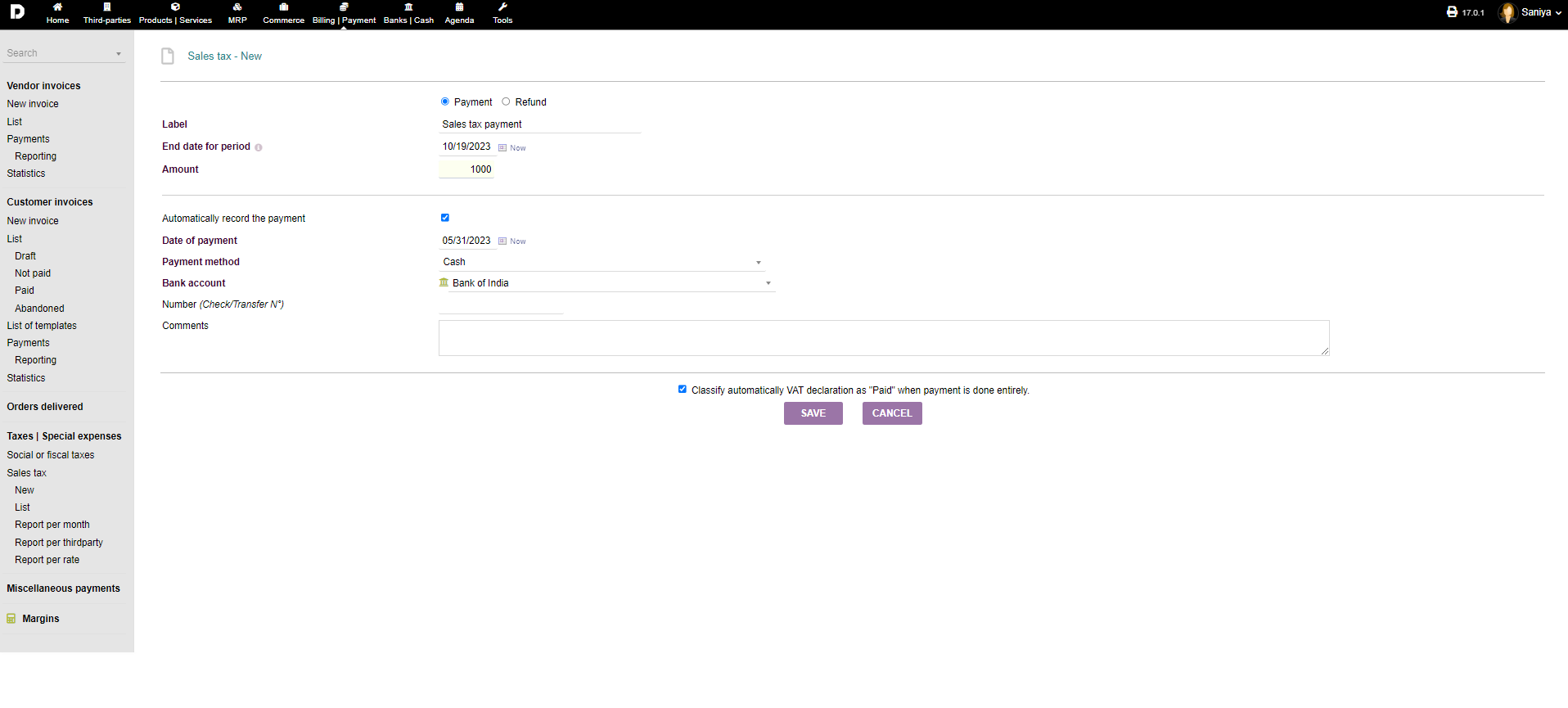
- New : To add taxes on an payments go to "Billing/payments->Sales Tax -> New" this will open area, as shown below, which will allow you to save the tax which can be later applied during payments of any products & services.
Enter the required details and click on "Save" . this will save your tax payment that you created.
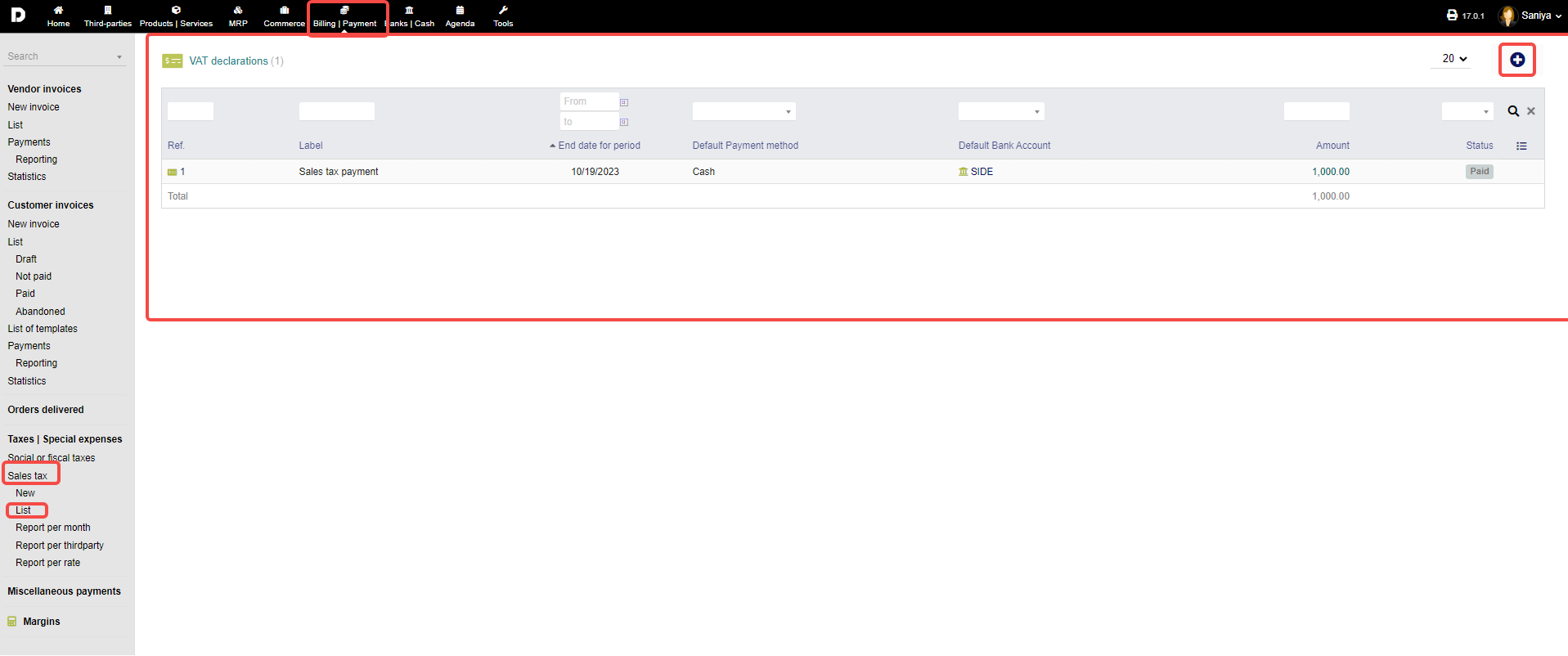
- List : To view the created sales tax go to "Billing/payments->Sales Tax -> List" , This will give you all the taxes list that has been created , you can also create a new sales tax by clicking on the "Plus" icon on top-right-corner of the screen .
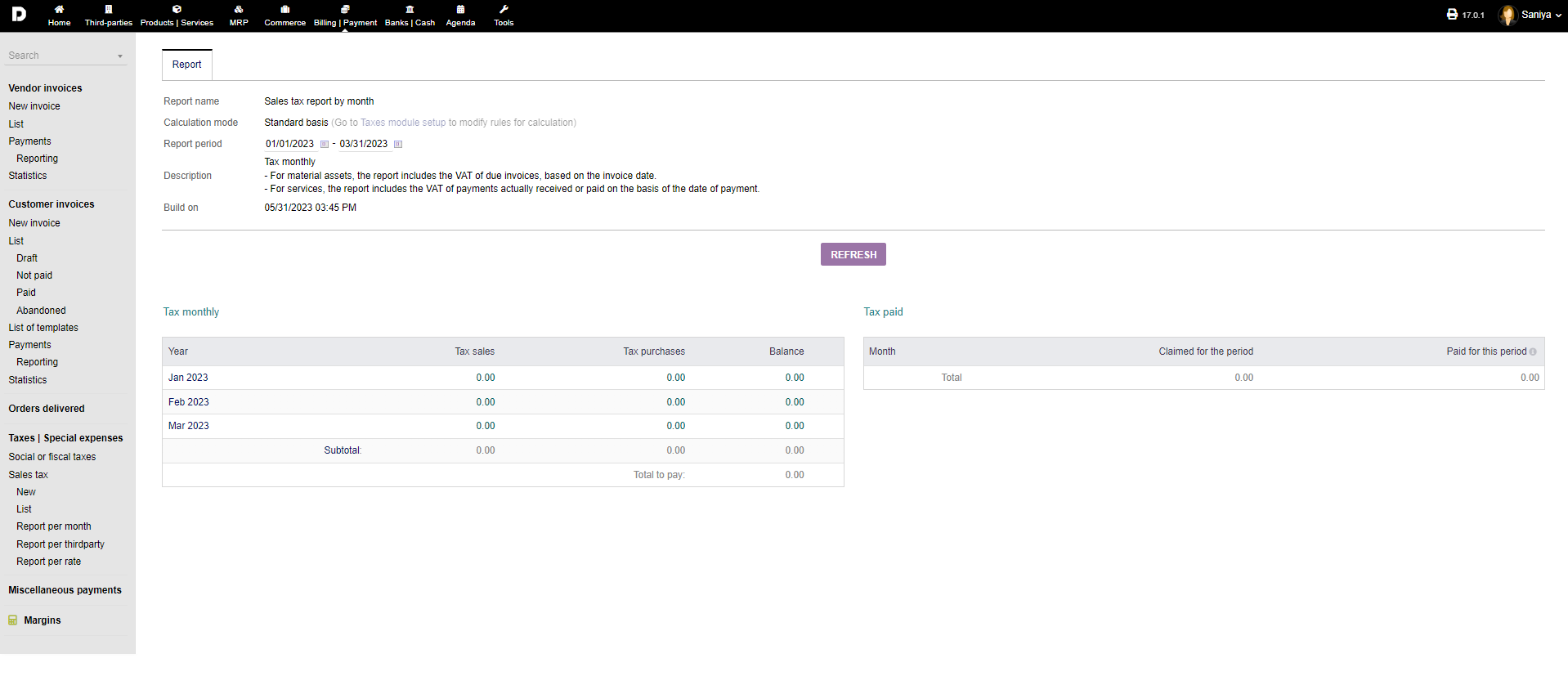
- Report per month : To view the report of every month , report per Third-party and per rate go to "Billing/payments->Sales Tax -> Report per month" .click on "Refresh" button to get all new data . Similarly so the same for "Report per Third-party" and "Report per rate".
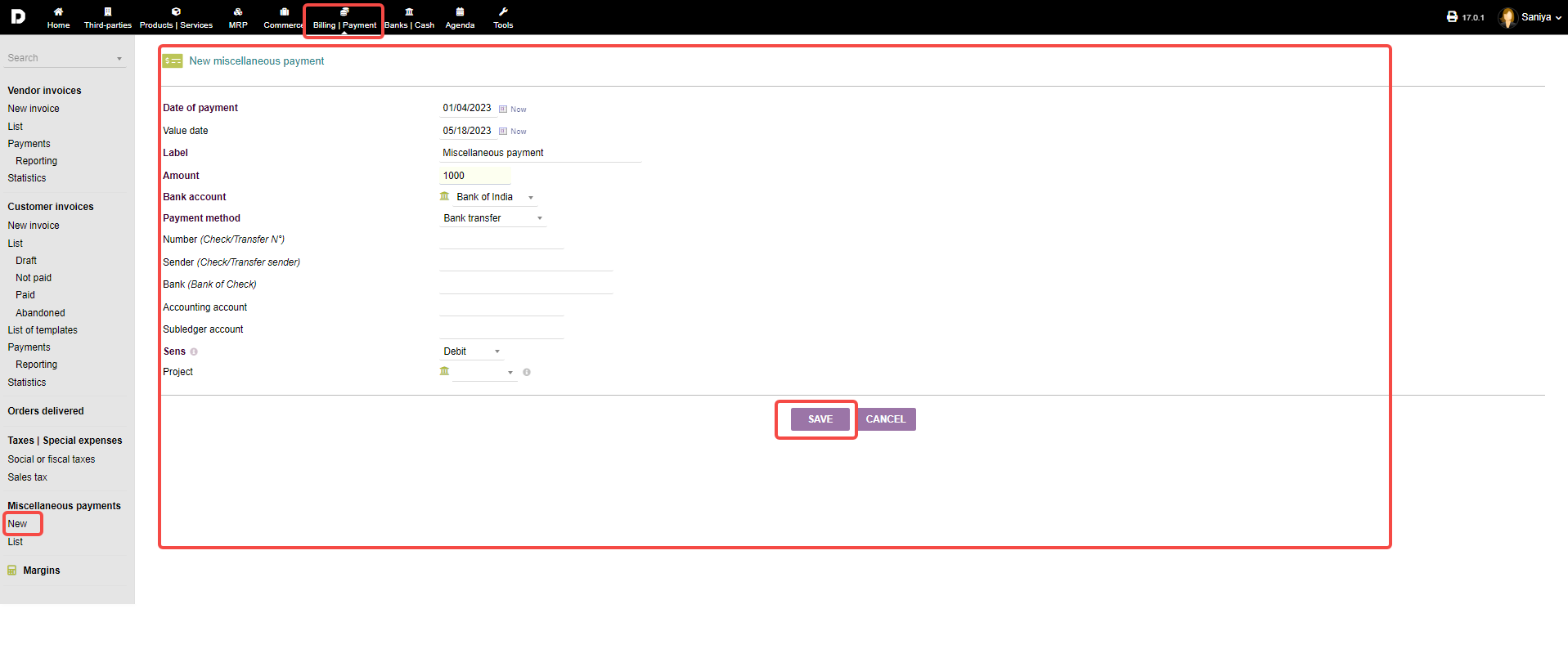
Miscellaneous Payments:
List : Go to "Billing/payment->Miscellaneous payment->List" this will give you all the other expenses record that took place .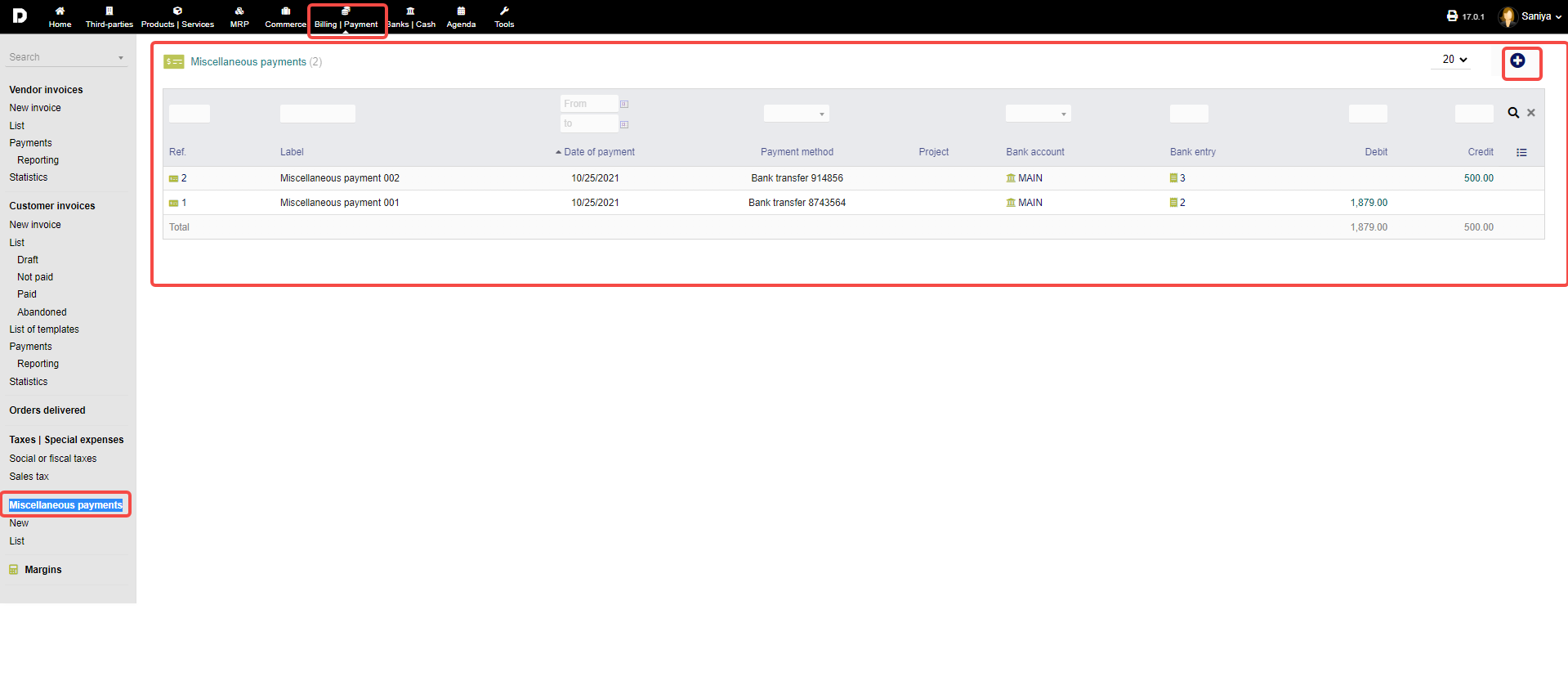
Margin :
On this section you will see all the master data and sales data info such as list of Products added to the system , list of orders placed and processed , list of customers and third party .
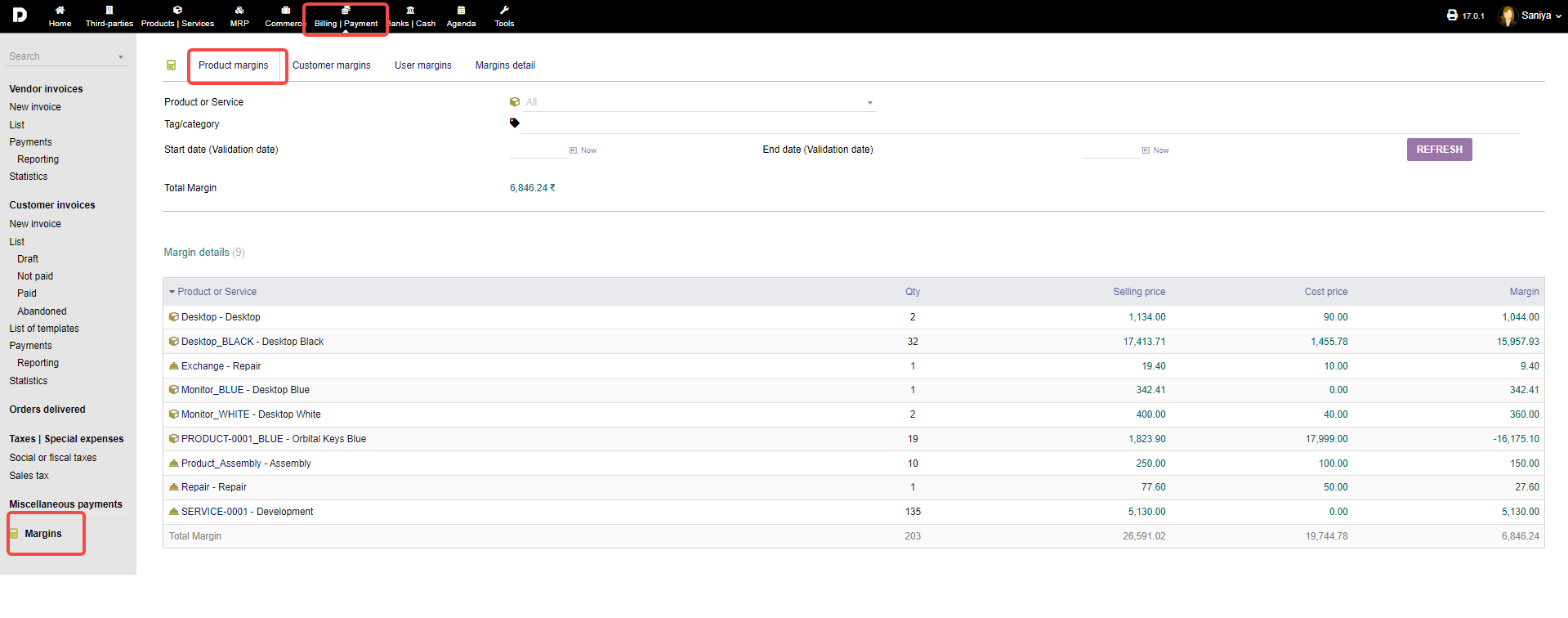
Product margin : Go to "Billing/payments->Margin-> Product margin" , All the products you have added will be listed below as shown in the image : To know all products or new products that are added to your system click on "Refresh" button.
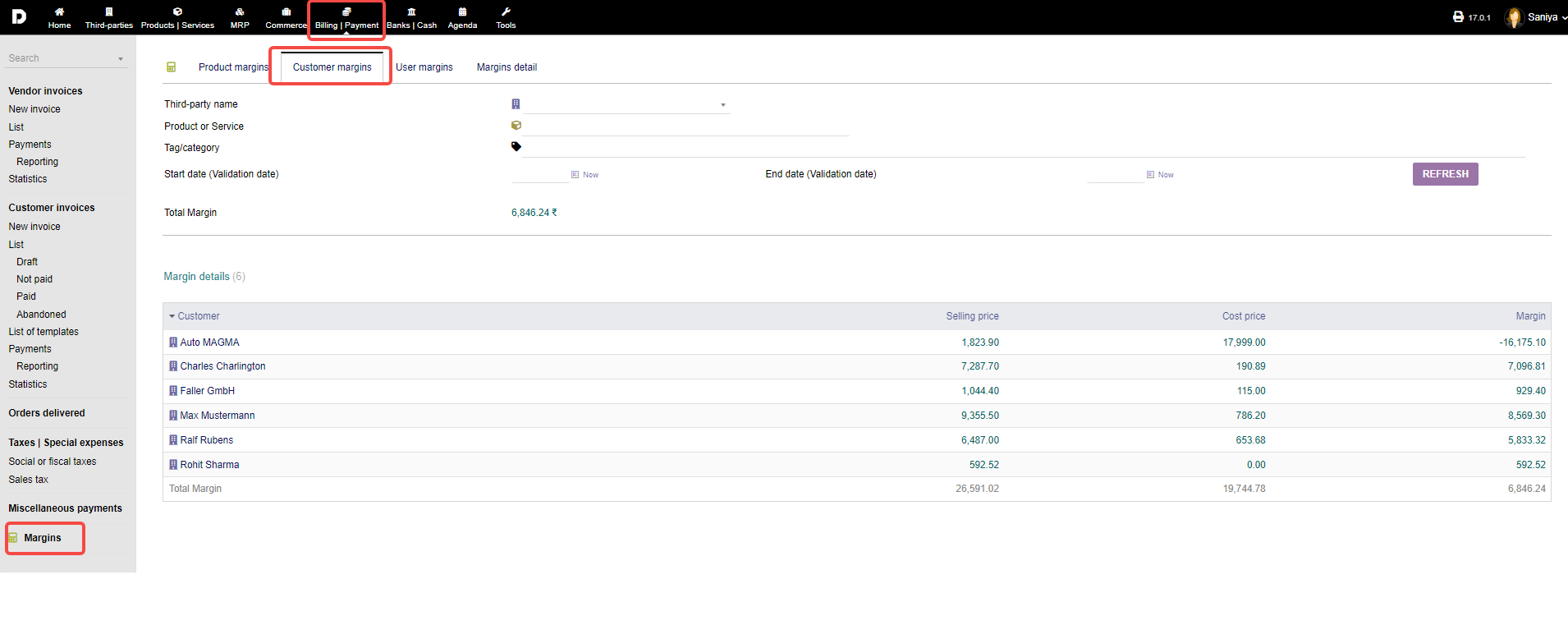
Customer margin : Go to "Billing/payments->Margin-> Customer margin" All the customer you have added will be listed below as shown in the image : To know new customers that are added to your system click on "Refresh" button.
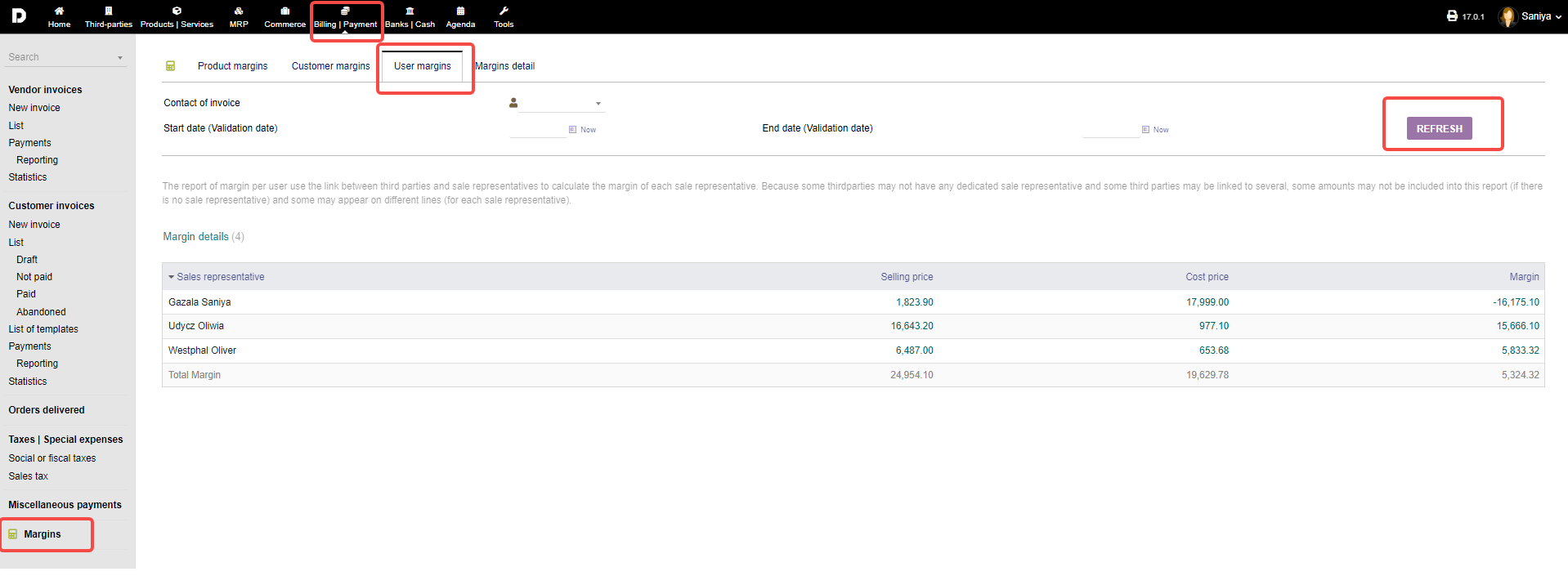
User margin : Go to "Billing/payments->Margin-> User margin" Tab , All the users you have added will be listed below as shown in the image under the "User margin" Tab : To know new User that are added to your system click on "Refresh" button.
Margin details : Go to "Billing/payments->Margin-> Margins details" Tab , With the help of "Start date (Validation date)" you can enter the date and filter the data based on it . Click on particular item for more details , Click on "Refresh" button to load more margins.