Customer invoicing :
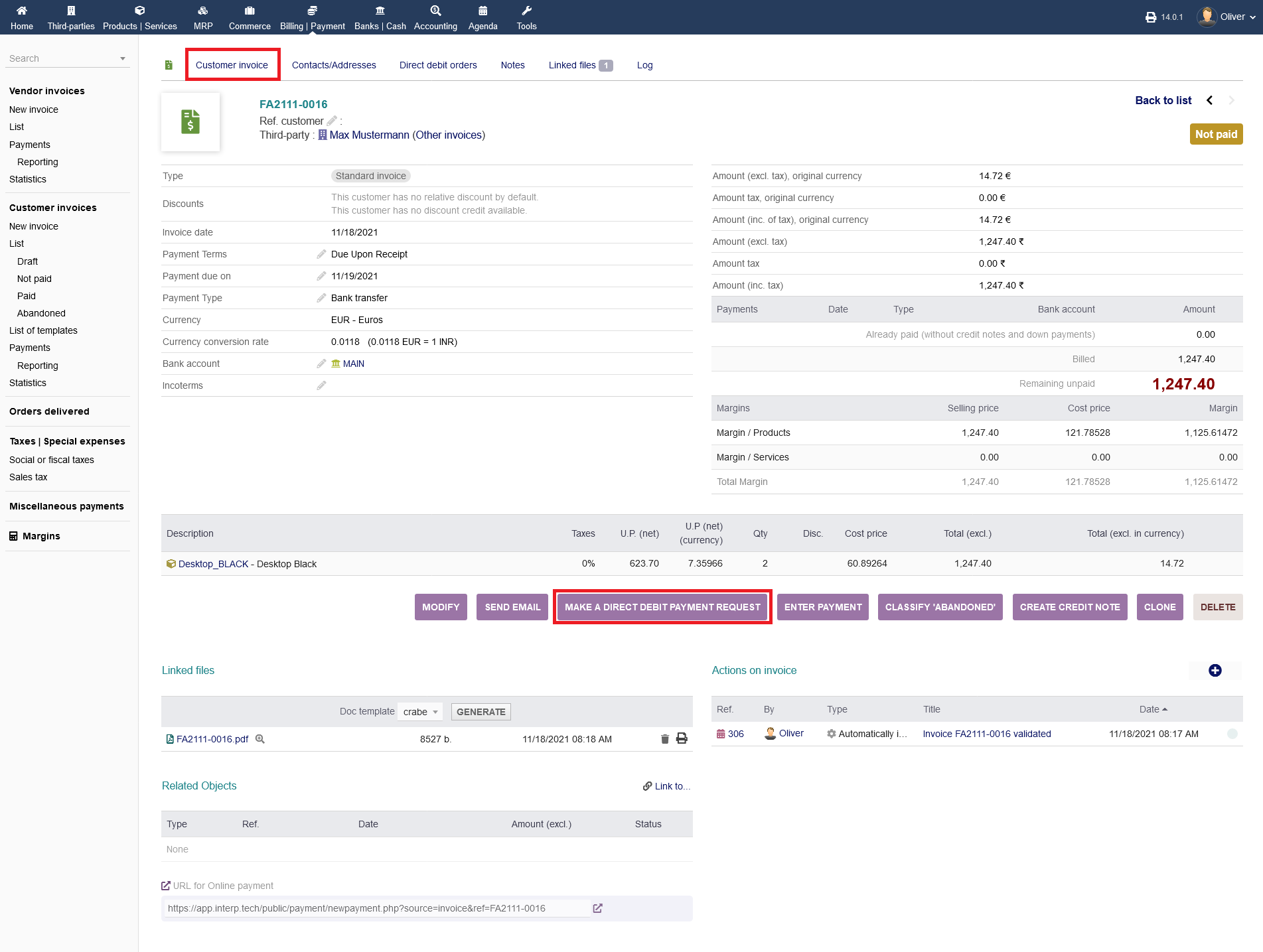
The customer invoicing works essentially similar to vendor invoicing, so not everything will be covered again. There is one difference though, after you have validated the customer invoice draft. There will be an extra option called "MAKE A DIRECT DEBIT PAYMENT REQUEST". That option means, that you can create a request to charge the customers bank account from your side, so the customer does not have to do the payment by him/herself. Click on that option to continue.
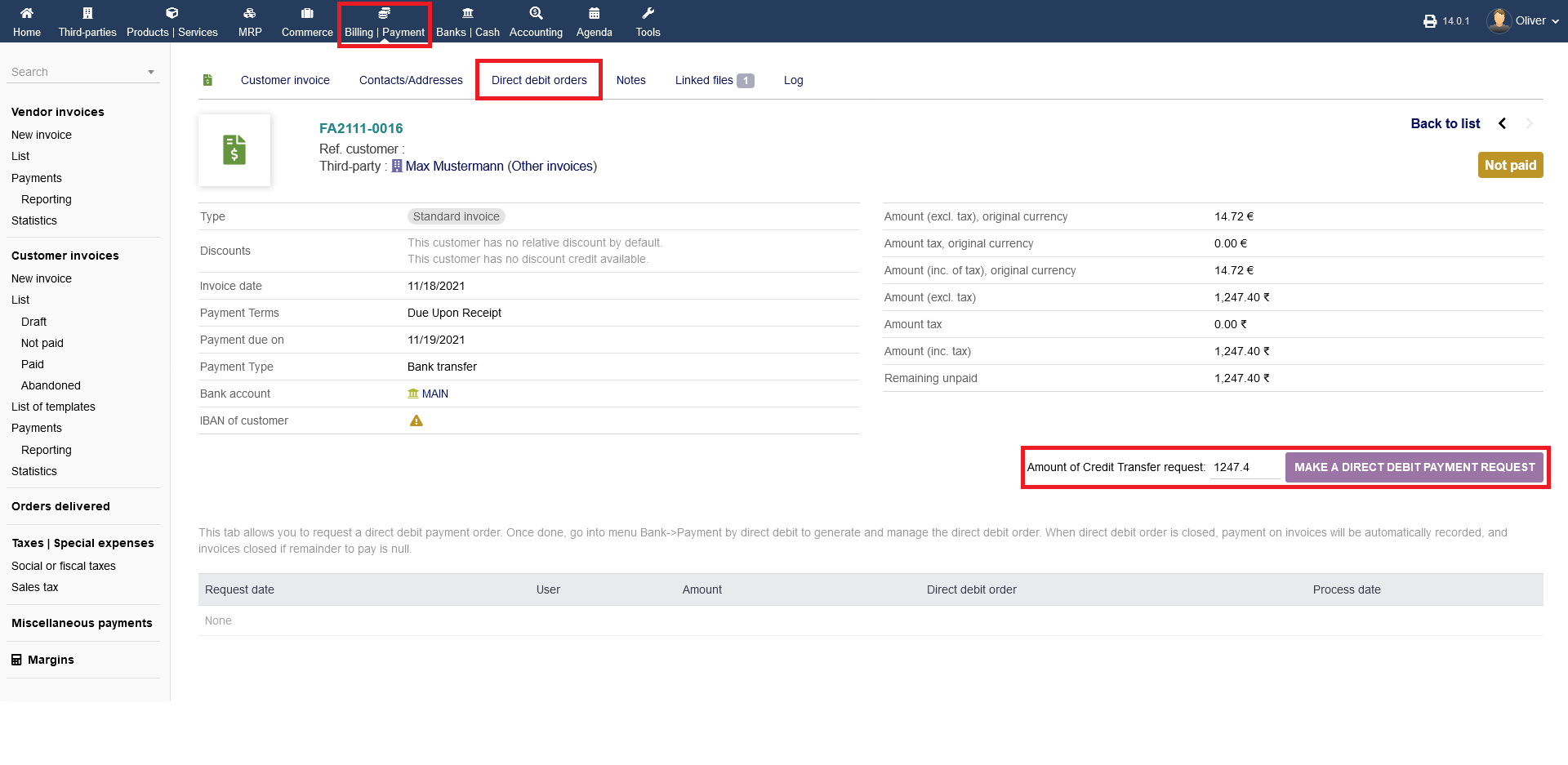
In the following screen, you see the open amount is automatically entered, that needs to be transferred to your bank account. Click on "MAKE A DIRECT DEBIT PAYMENT REQUEST".
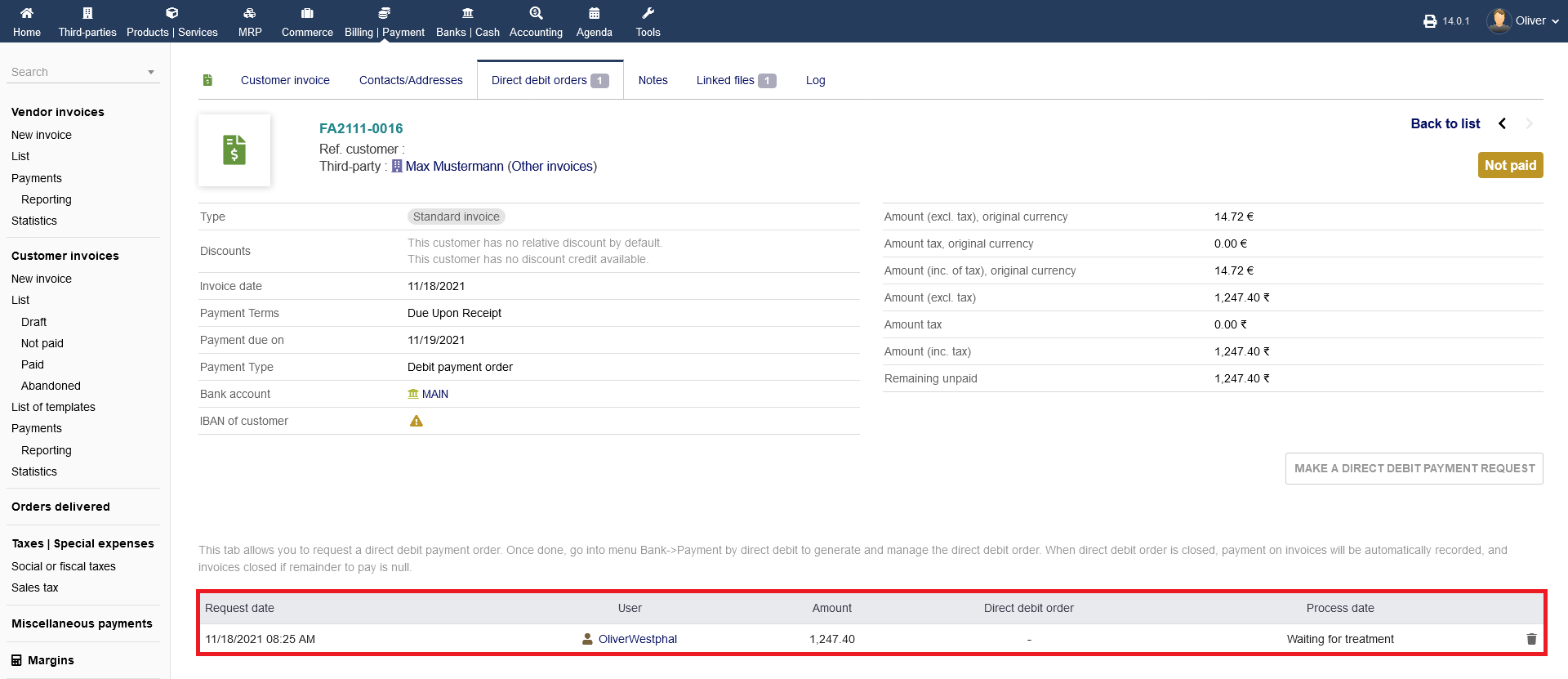
After that, the payment request gets saved as a record in the lower part of the screen. It is waiting for any further process now. To continue with the debit payment process. Go to the documentation on the module "Banks/Cash -> Payment by direct debit".
Invoicing from commercial proposals :
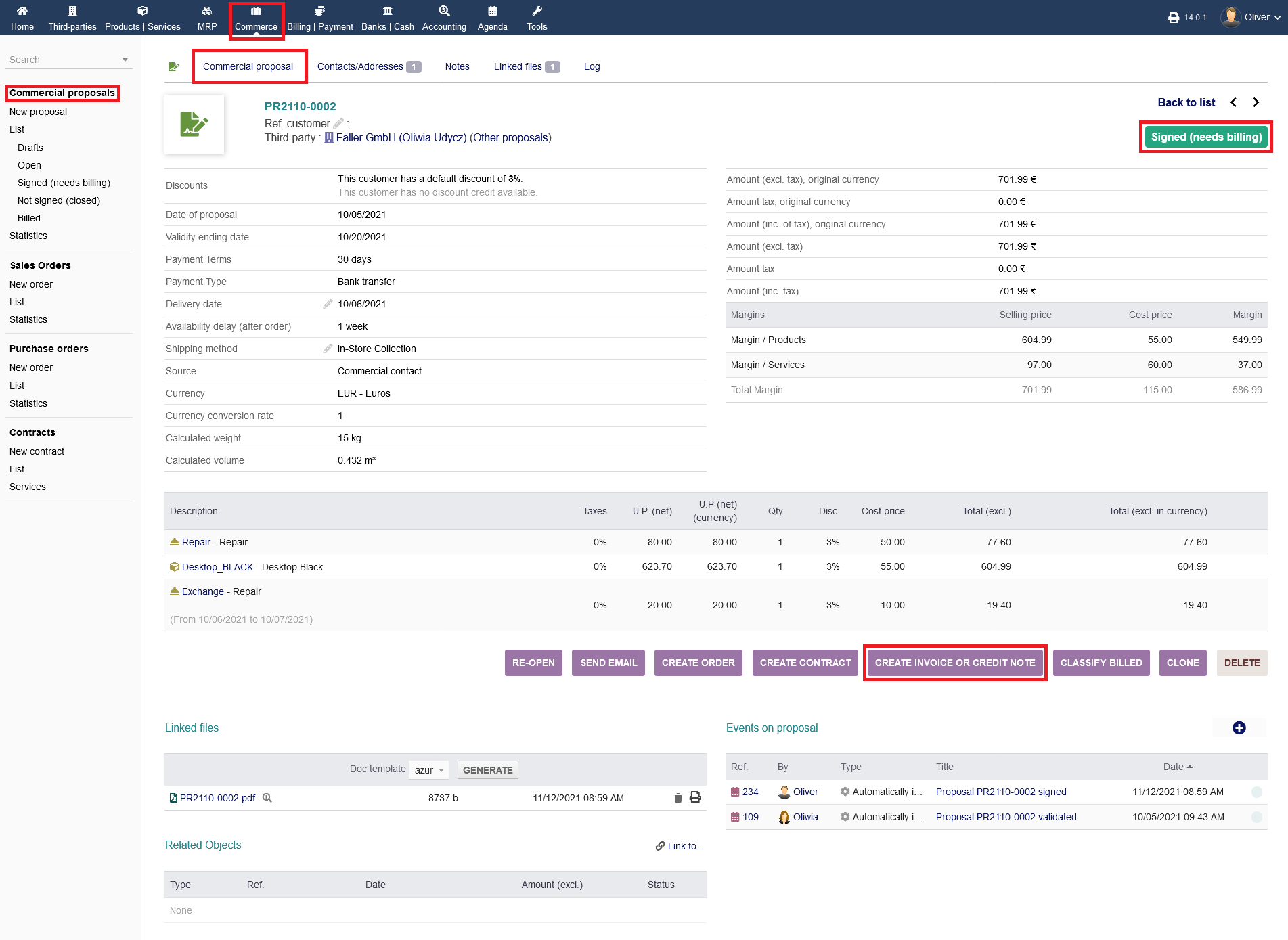
After you set your commercial proposal as signed (for the topic of commercial proposals, (please refer to the respective documentation), click on "CREATE INVOICE OR CREDIT NOTE".
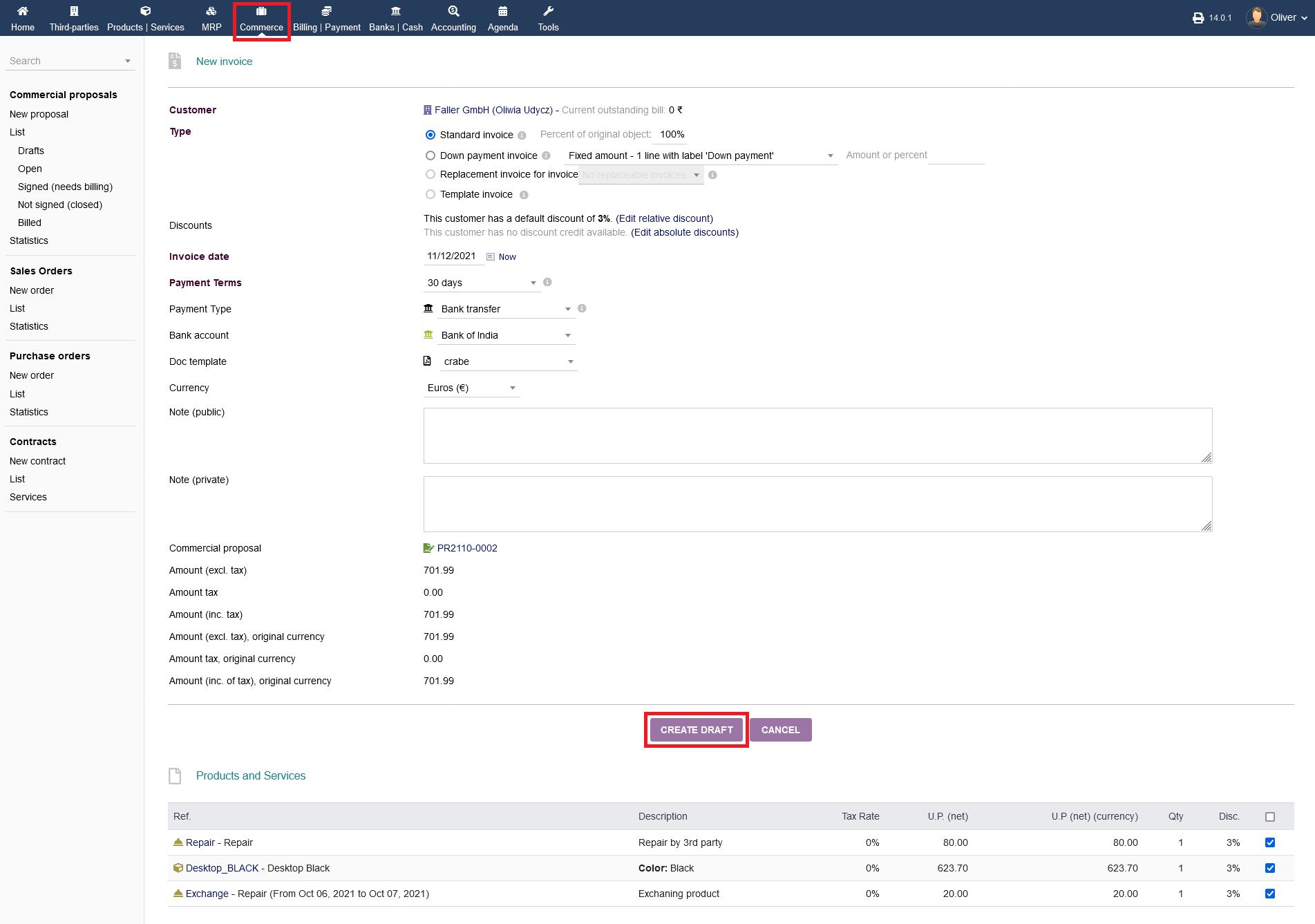
The next screen is familiar to the vendor invoicing but is slightly different. Specify all necessary details, especially the invoice "Type", the "Invoice date", your payment details with your bank of choice, where the amount gets transferred to, the "Currency" and the "Doc template" Click on "CREATE DRAFT".
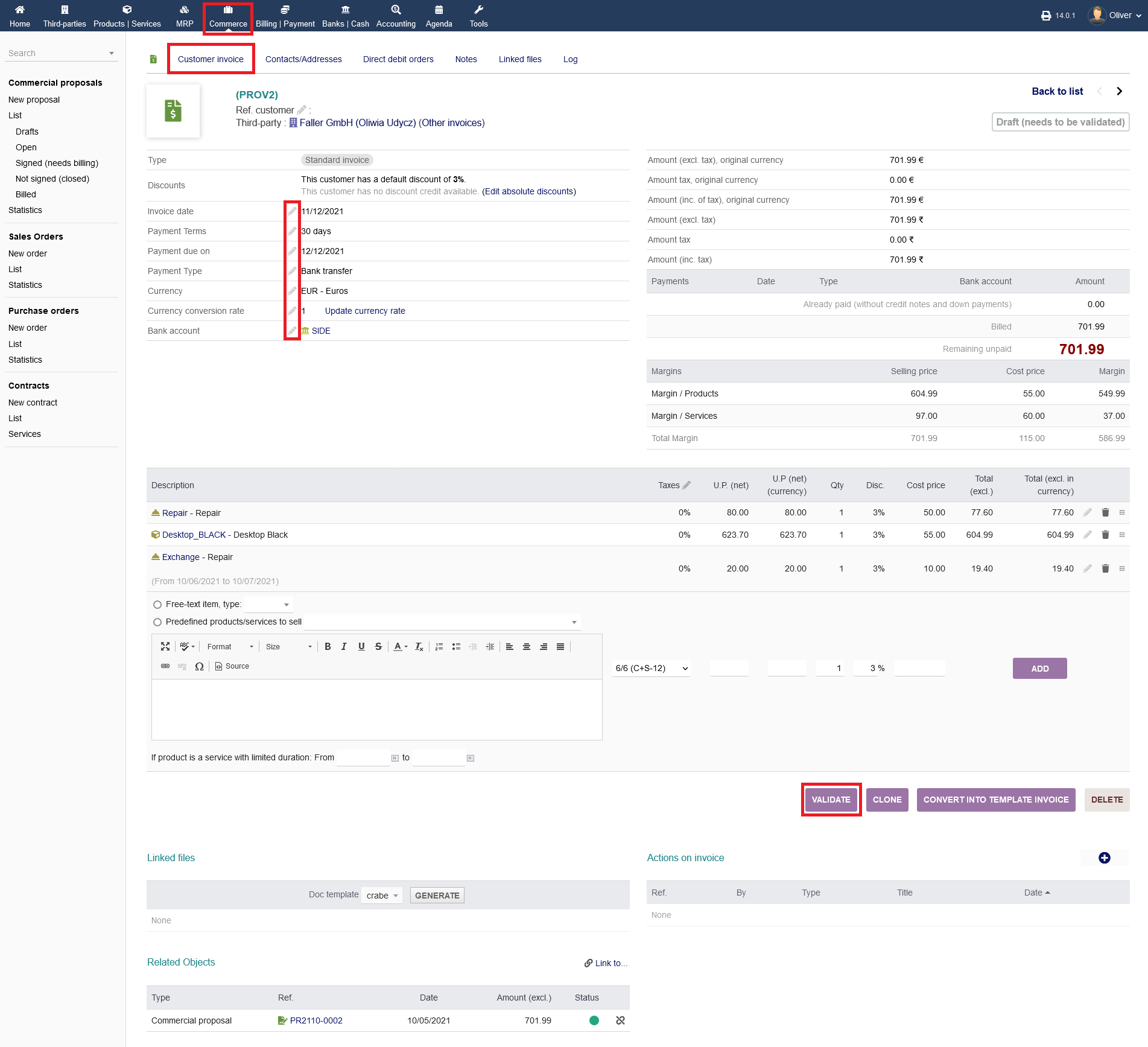
After creating the draft, the invoice needs validation. Go through the draft, if all is correct. You can still change details, by clicking on the "pen" icon. You also can edit or delete the product or service items. If all is correct, click on "VALIDATE".
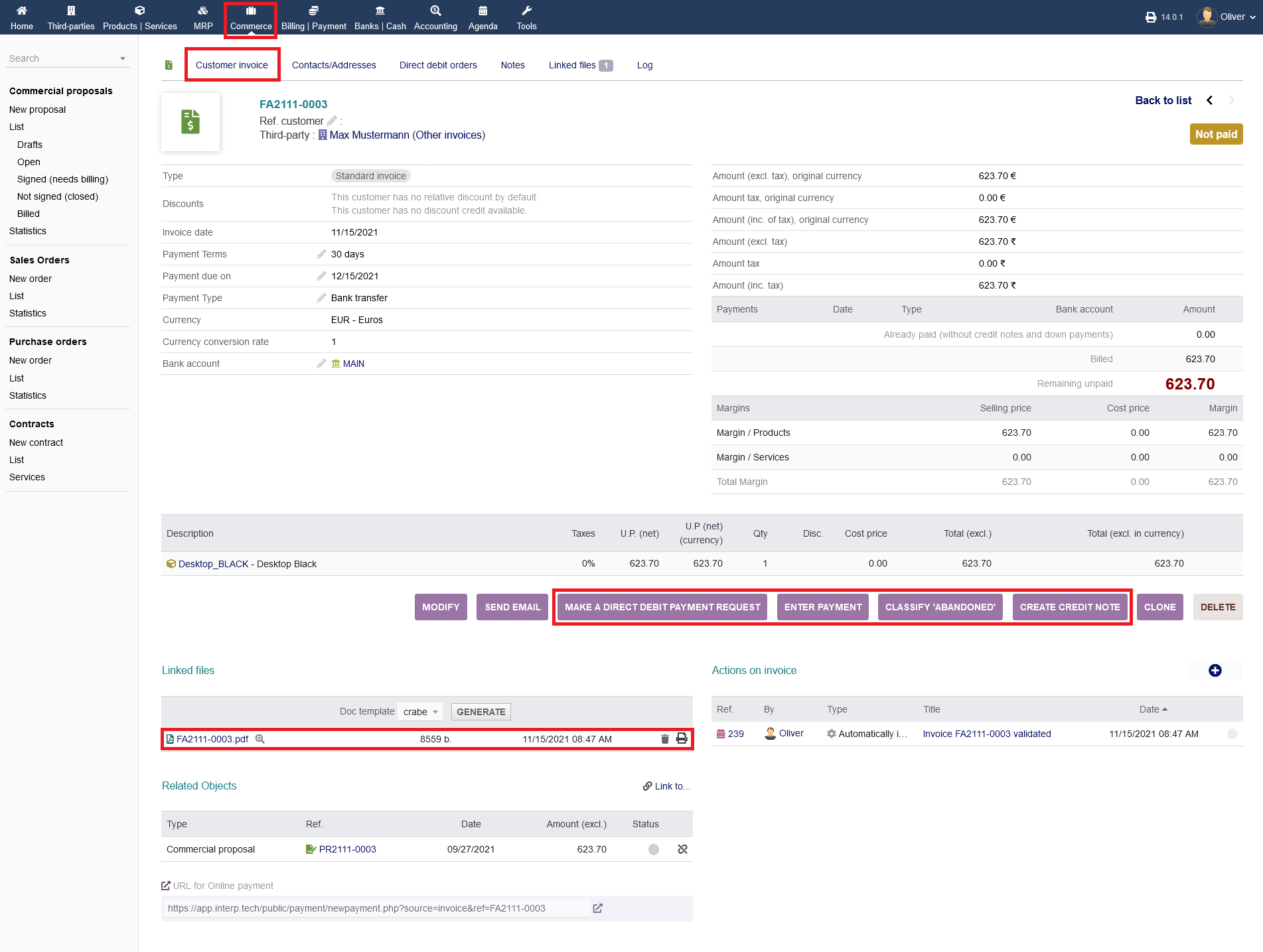
After validating the customer invoice, you can send off your invoice to your customer. You can use the email functionality by clicking on "SEND EMAIL", as usual. Furthermore, you can "MAKE A DIRECT DEBIT PAYMENT REQUEST", "ENTER PAYMENT" if the customer paid already, "CLASSIFY ABANDONED" when the customer did not pay and wont pay anymore. You can also "CREATE CREDIT NOTE". Click the respective button of the option of your choice. These options will are explained here under article "Contract"
Invoicing from sales orders :
You can create an invoice within the sales order process. Click on "CREATE INVOICE" to continue.
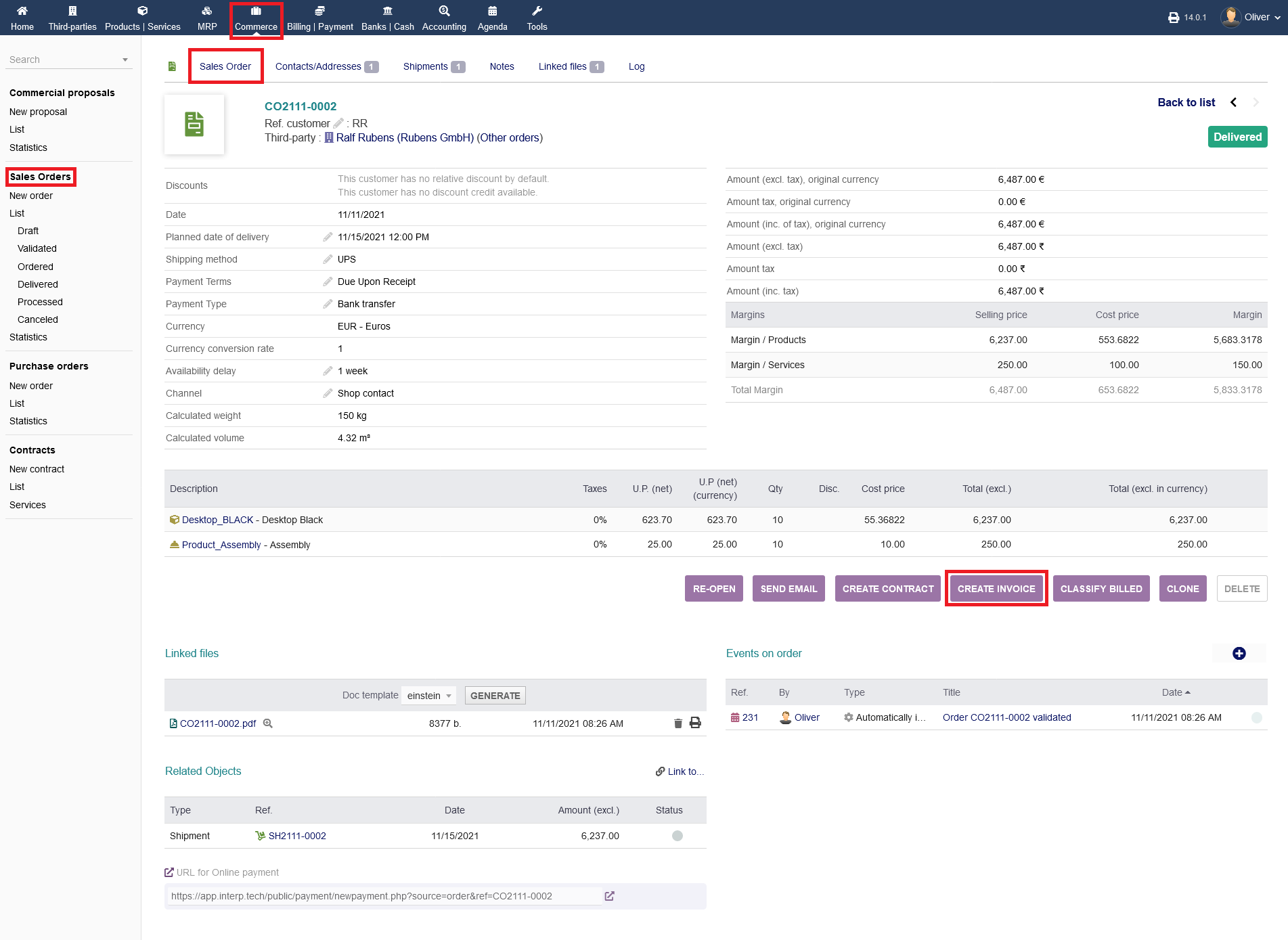
Follow the steps to create an invoice under invoicing
Invoicing of contracts :
Furthermore, you can do invoicing out of a contract process. Note, that you are able to create invoices throughout the entire setup process, as soon as you validated the contract. In the screenshot, we are continuing with invoicing already in the stage, where the contract is still set as "Not running" (the earliest in the process). Again, you can make invoices later too. Choose the respective contract and click on "CREATE INVOICE".
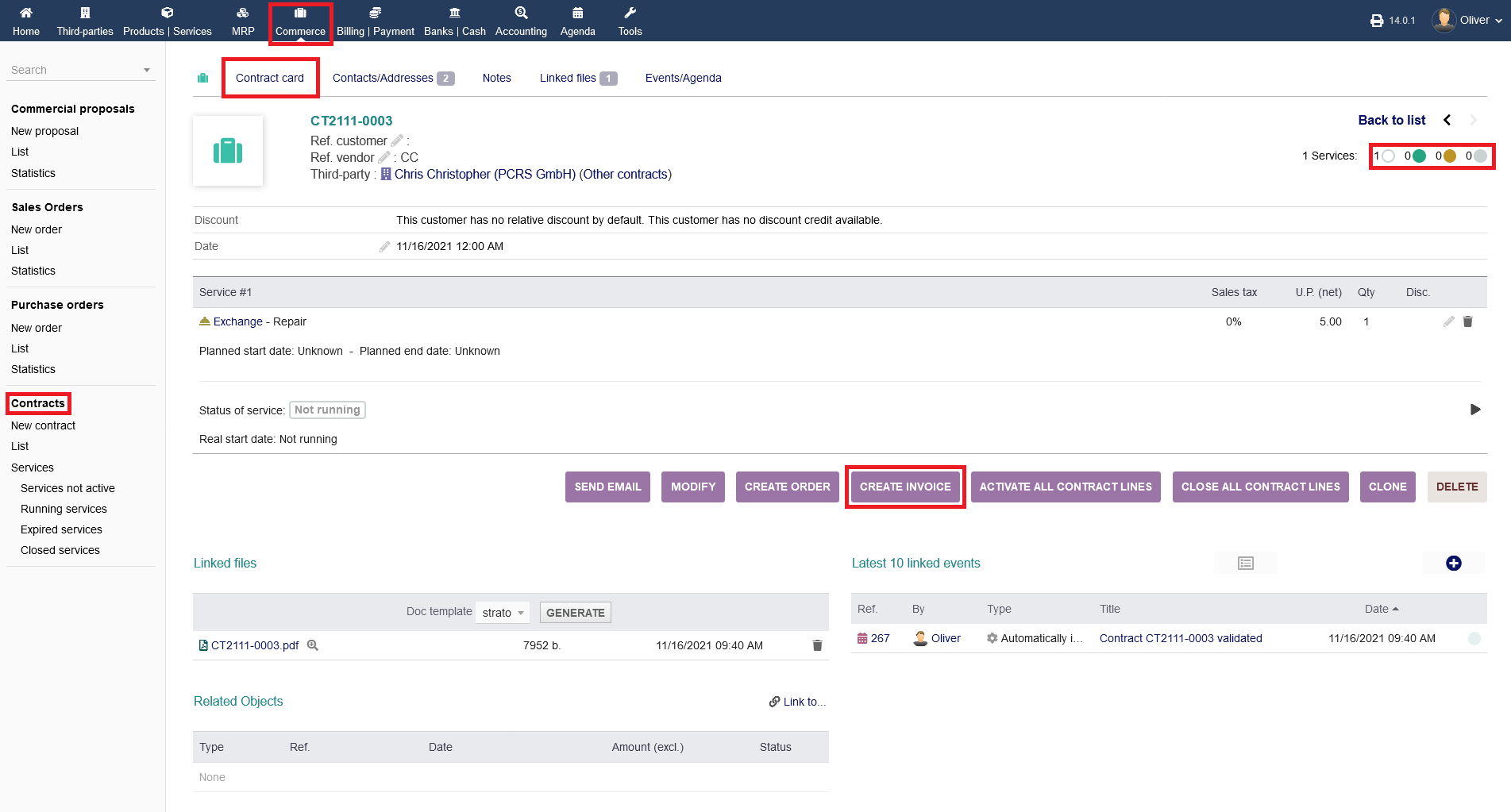
Follow the steps to create an invoice under Invoicing
Create template : Creating an invoice template can be easy and helpful , With the help of created template you can create the following invoices instead of creating it from start or new . To do so click on "Billing/Payments->Customer invoices->List" click on the Draft invoice , once the invoice is open , On the "Customer invoice" tab you need to add a product then you can see "CONVERT INTO TEMPLATE INVOICE" .
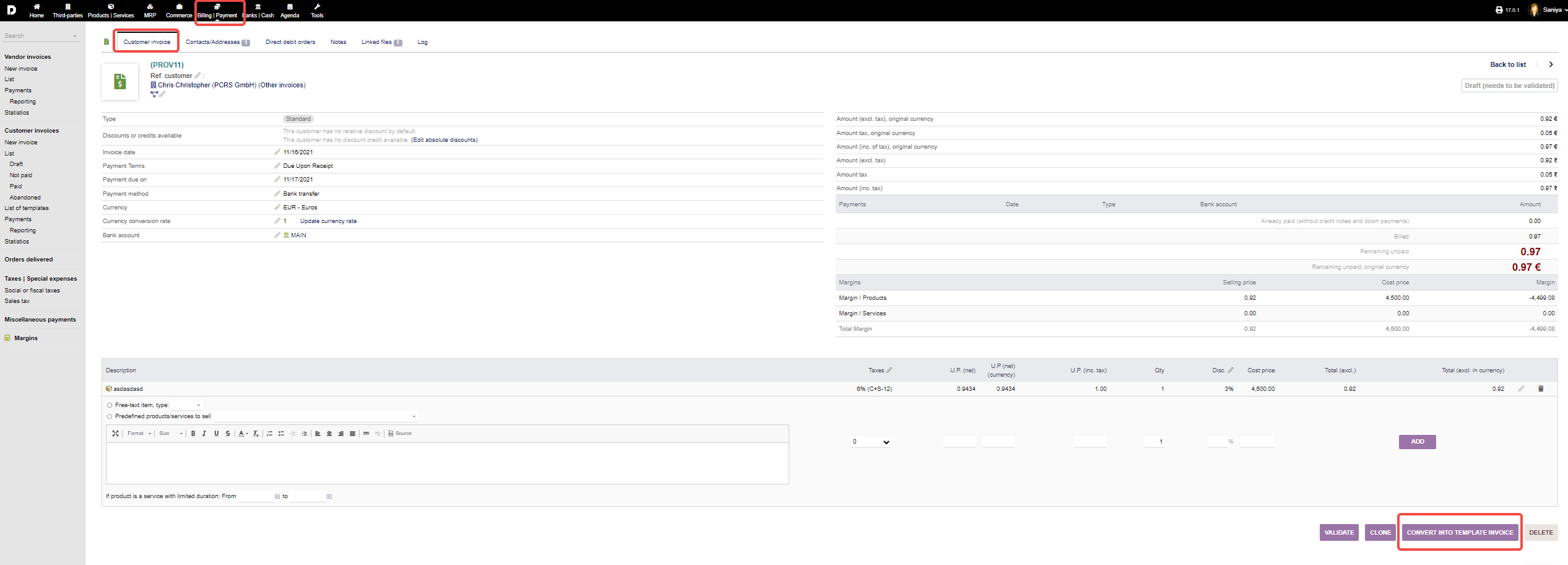
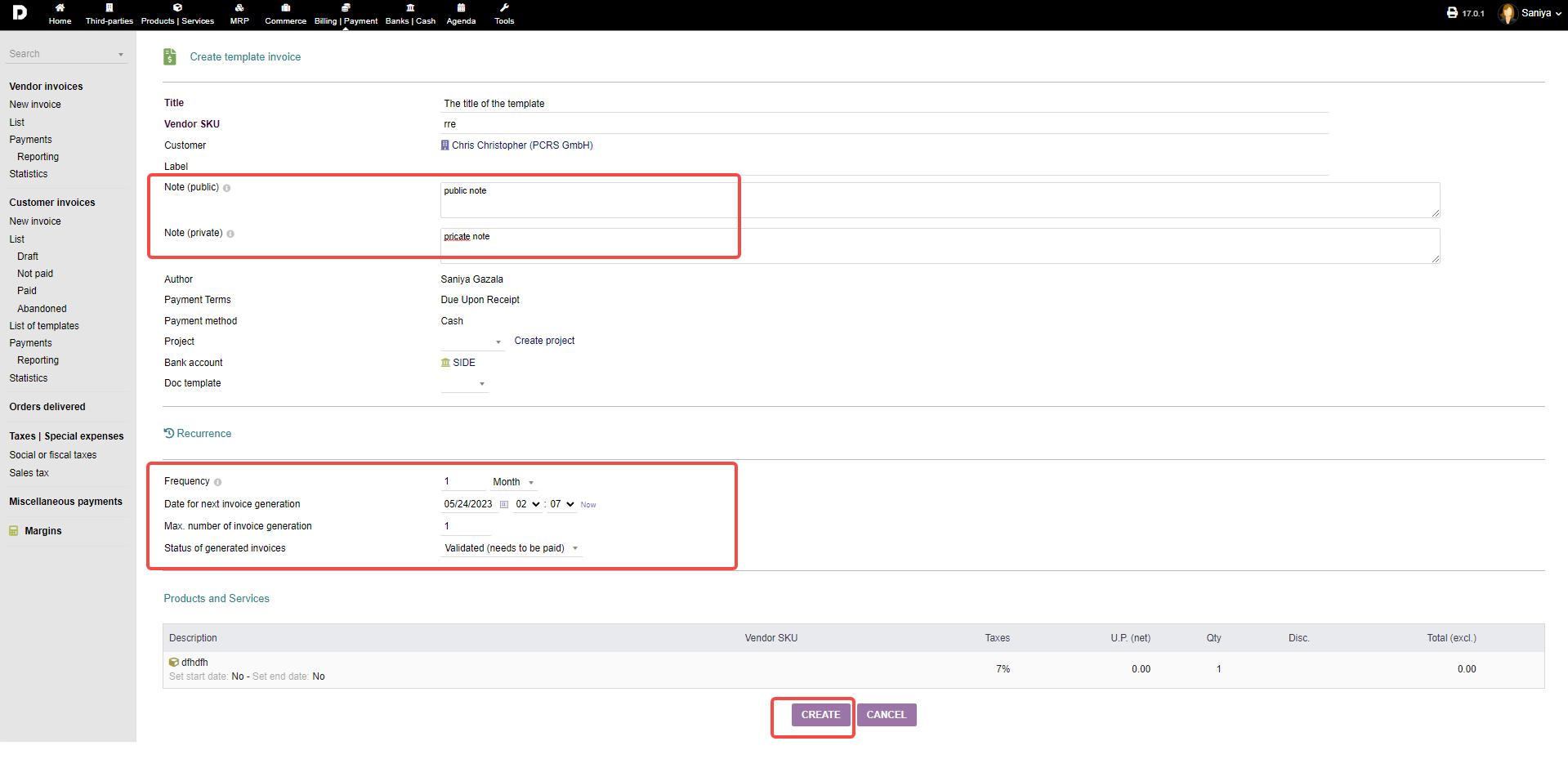
Once you click on "CONVERT INTO TEMPLATE INVOICE" . a new page appears enter the required details such as "Title" , add the notes whether "Public or Private" , If you want to create this template for recurring then at the button you can set up the "Recurring" details and click on "Create". your template will be created.