

Overview:
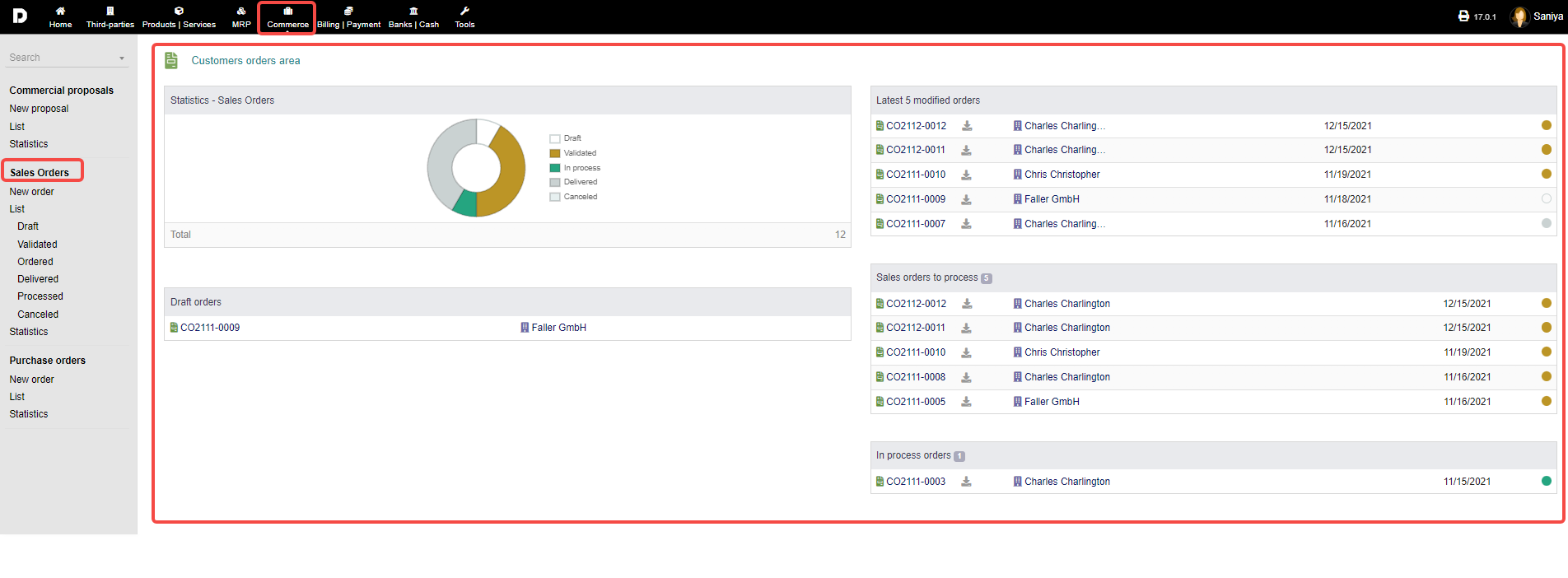
To see the overview of sales order click on "Commerce" from the header menu, then from the left menu items you can click on "Sales order" section .
You can see some statistics on the page along with some data which is been process and completed.
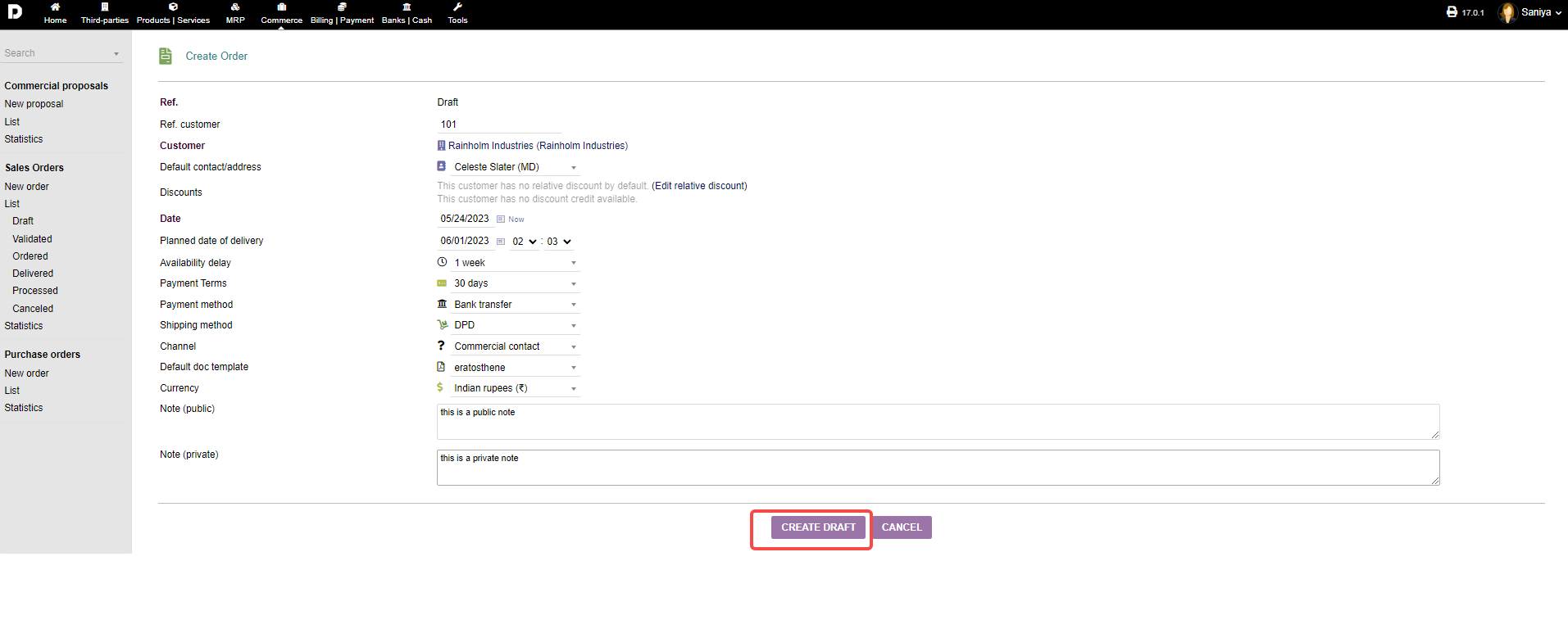
New order : To create a new order you can click on "Commerce -> Sales orders ->New order " from the left menu a page will appear which will allow you to create a order. See how to create an sales order .
List : Click on "Commerce -> Sales orders -> List" to get a list of all order, disregarding their status. As shown below :
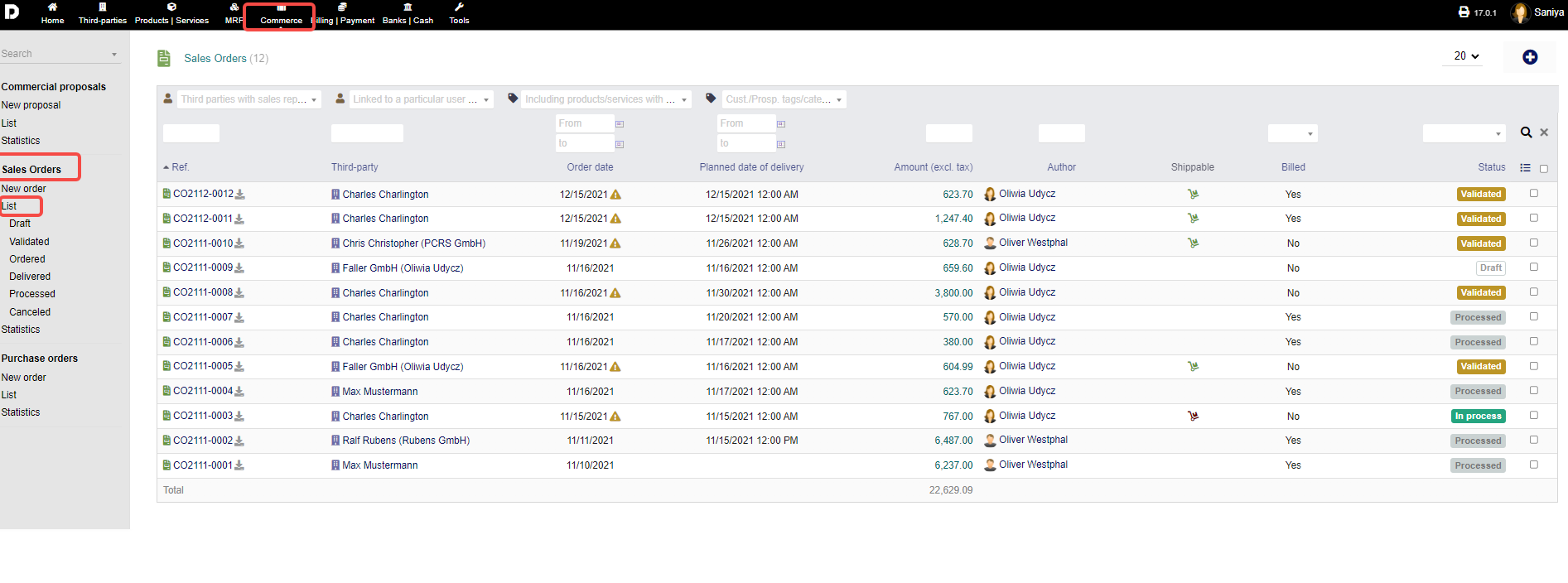
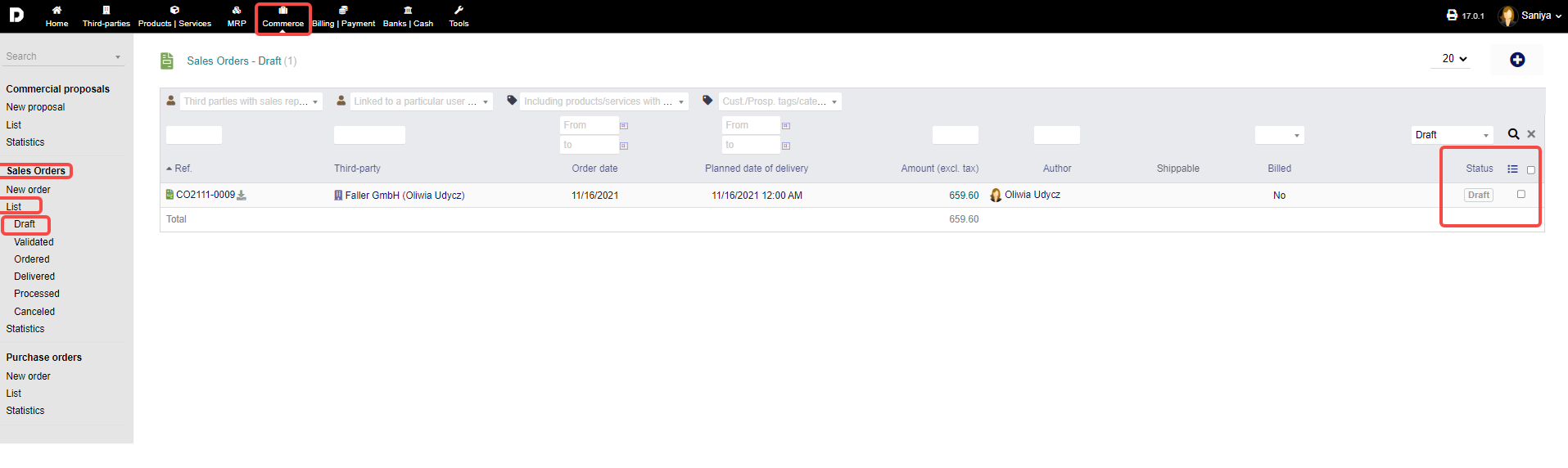
Additionally, you have separate listings as a sub-menu, sorted after status. by click each of the status mentioned from the menu the list is loaded as per the status selected.
eg: When click on "Draft" status all the orders which are drafted are displayed . Based on status selected you can view then separately .
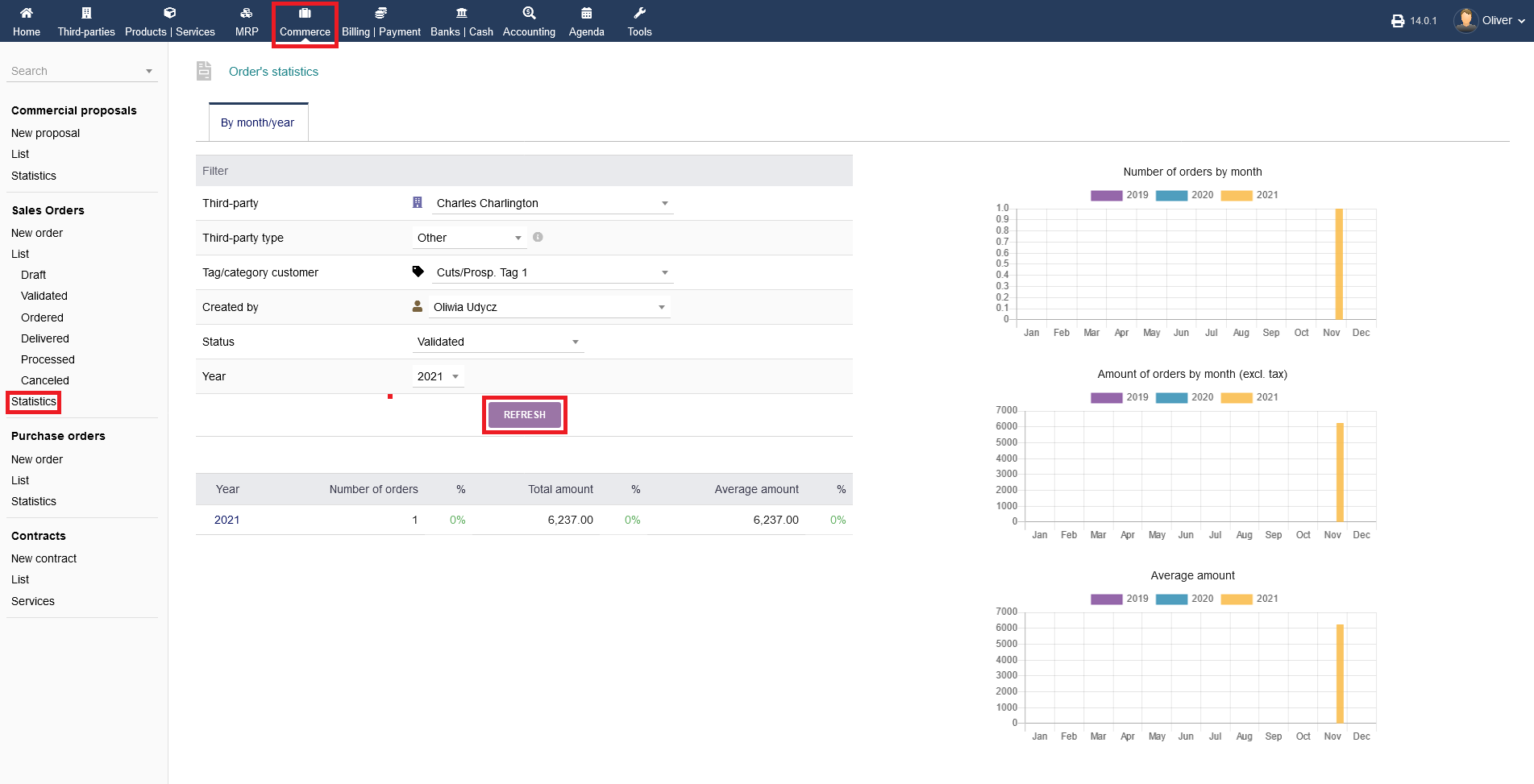
Statistics : Finally, detailed statistics can be had by clicking on "Commerce -> Sales orders -> Statistics". Choose the respective parameters from the drop down menus to your liking and click "REFRESH".
Please note, that you can choose multiple list entries by clicking the radio box on the left side and select a bulk action you want to perform from the drop down menu that appears on top of the listing. Click "CONFIRM" in the end, to perform your chosen bulk action.
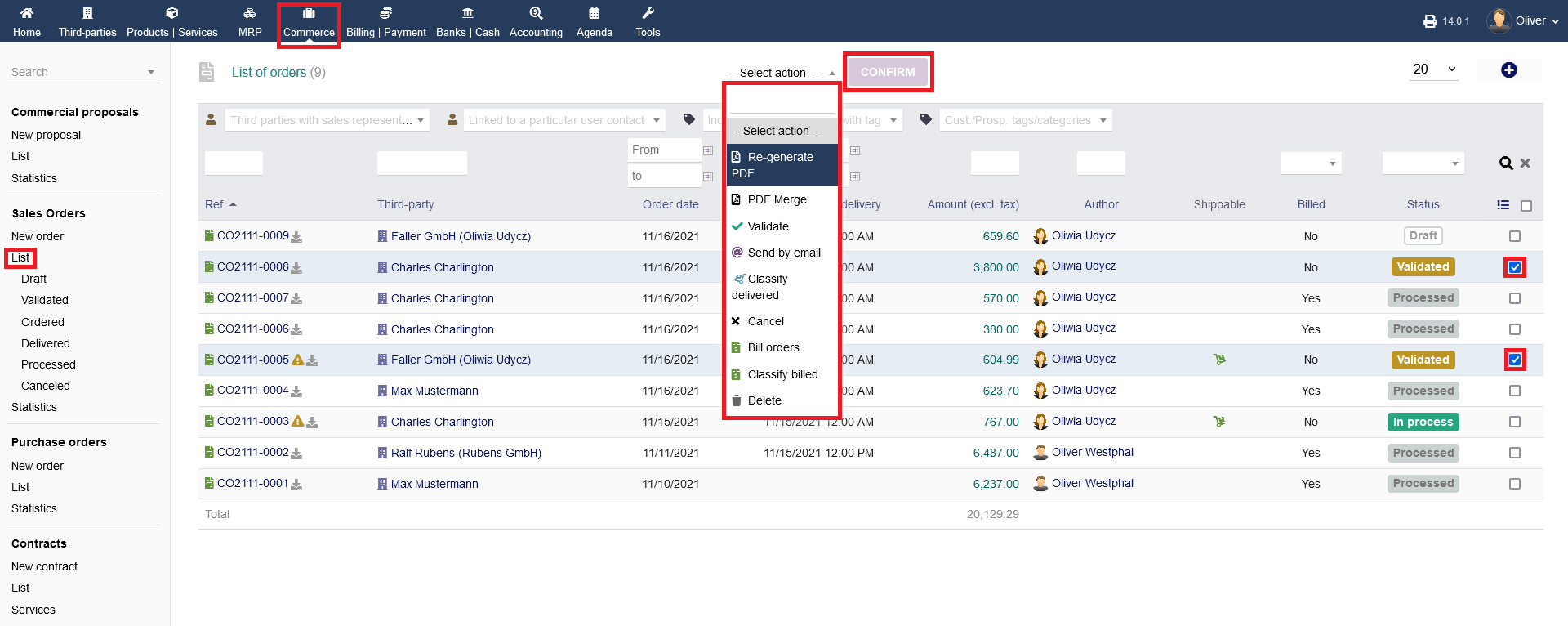
Regarding the statuses that are shown of each order, the draft status is the very first in your process of creating a new sales order.
After you drafted an sales order, you have to validate the draft. It shows as validated as a result. If the shipping needs to be done after validation, the status changes to in process. Note, that the in process status remains for just partially shipped orders, until you ship all or set it as closed/processed, if the order is completed with its partial shipment.
