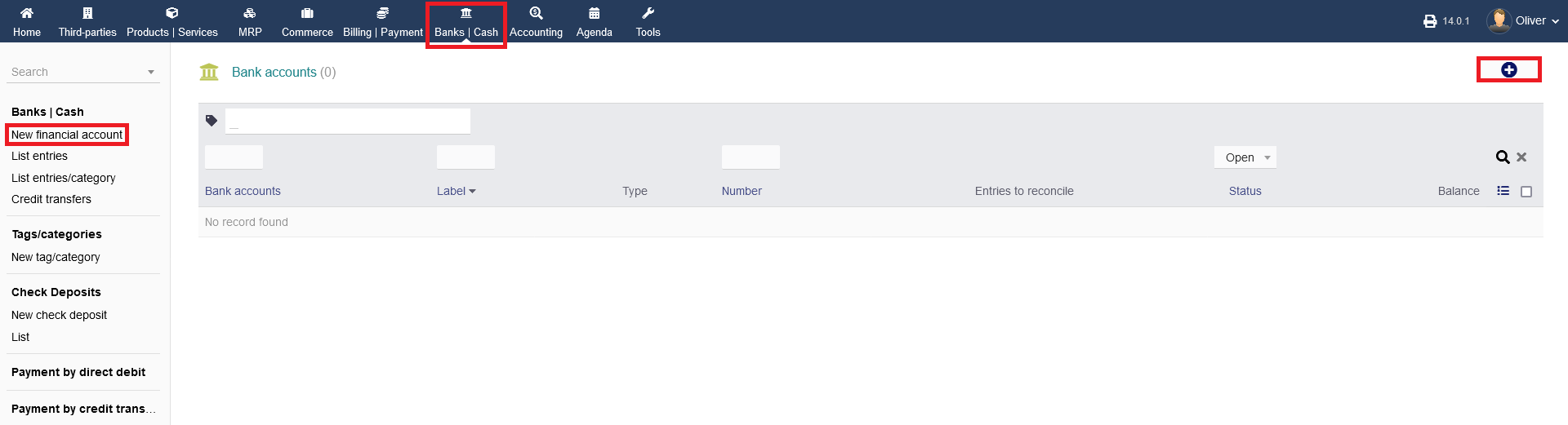
To create a bank account for your company, go to "Banks/Cash" an click the "plus" icon in the top right corner. Alternatively, you can click on "Banks/Cash -> New financial account".
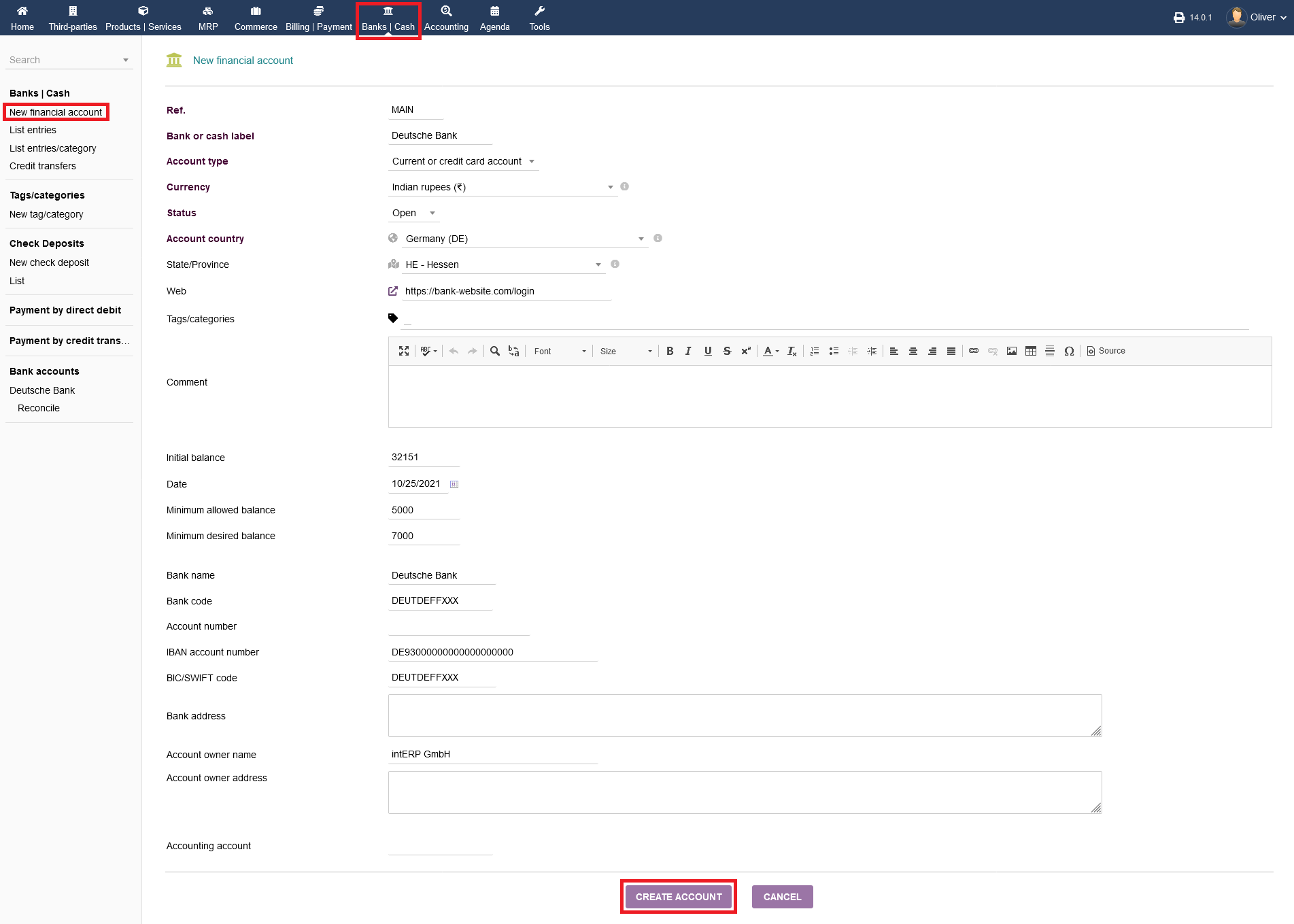
Fill out the following form with all necessary details like Bank information, addresses, names, owners, balance etc. Click "CREATE ACCOUNT" to finish the process.
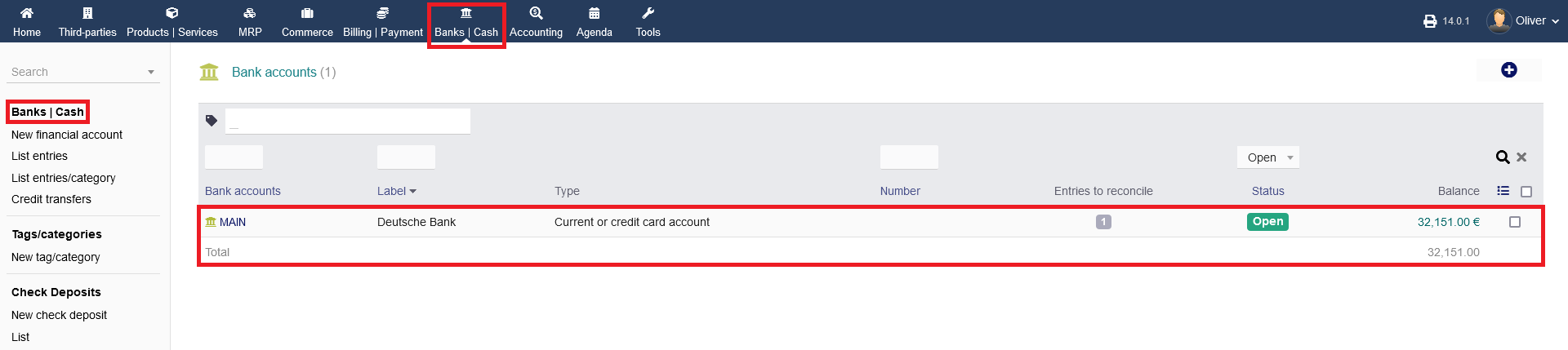
The newly created account should be shown in your aforementioned birds eye overview.
Creating, editing, deleting and searching/sorting of transaction entries
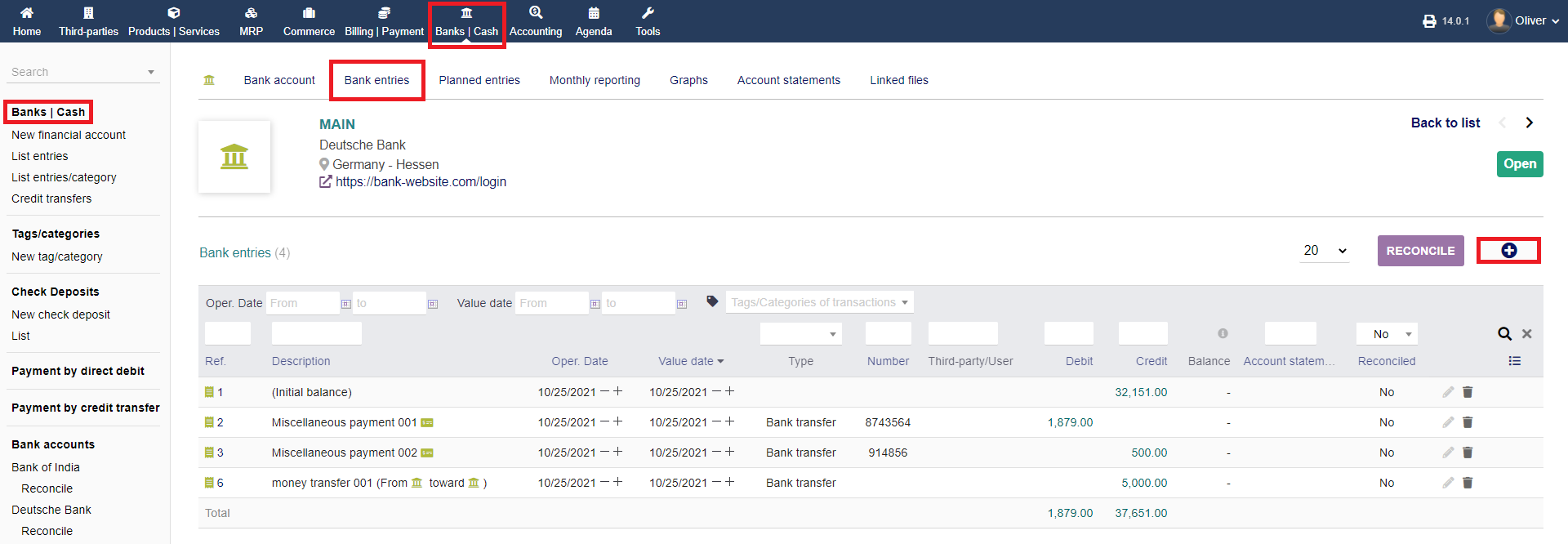
To create a new transaction entry, click on the "plus" icon on the top right corner of the listing table.
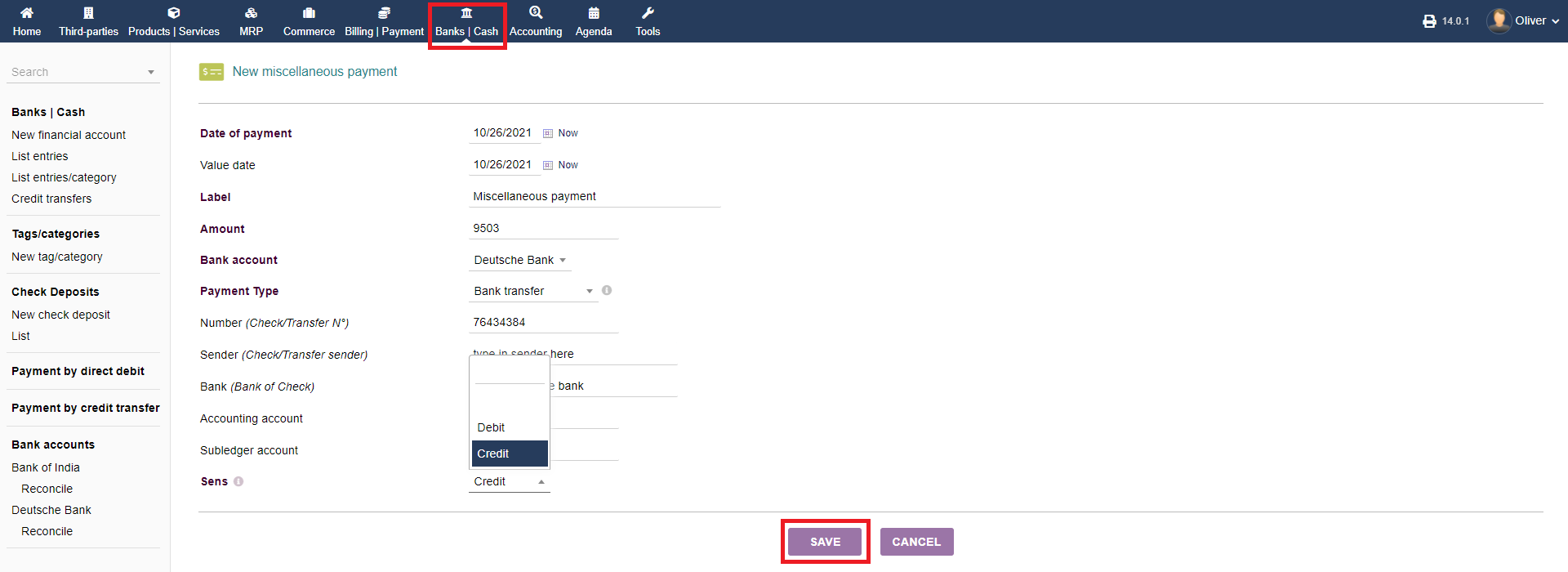
Fill out all necessary details in the next screen, regarding the transaction details. Be aware, that you have to choose either "Debit" or "Credit" under the section "Sens". If this is a transaction where you receive money, choose "Credit". In cases where you paymoney, choose "Debit". Click "SAVE" in the end.
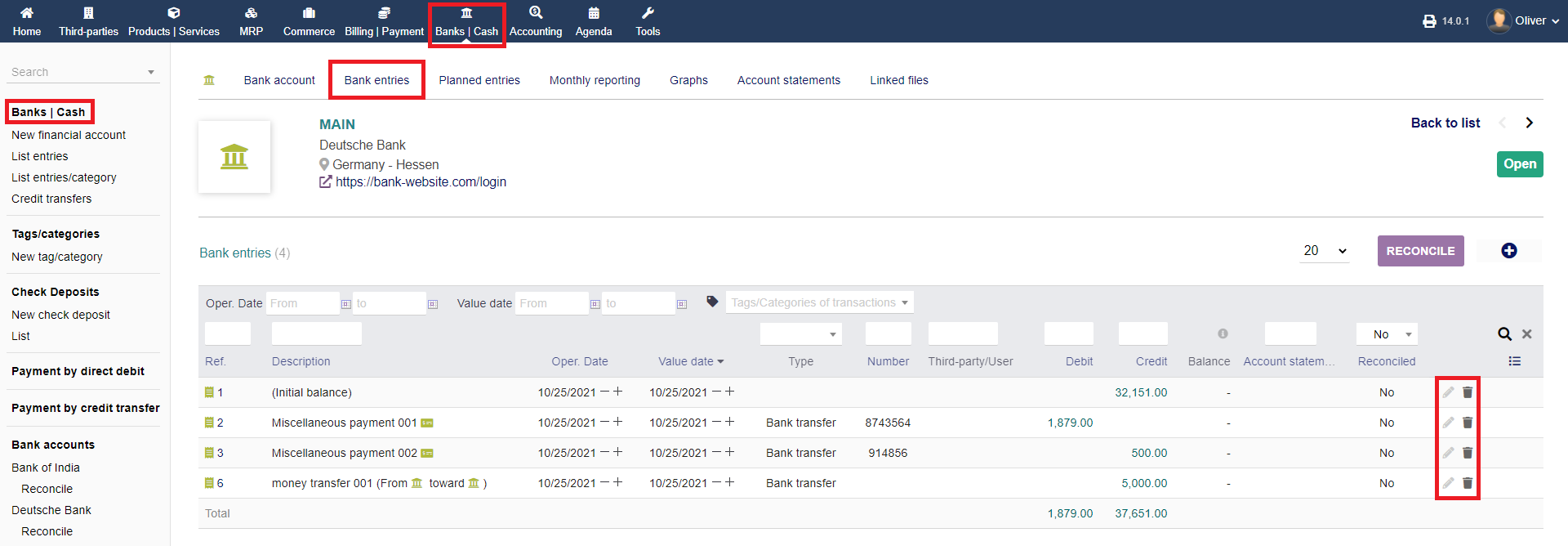
To edit an entry, click the "pen" icon. To delete an entry, click the "trash" icon.
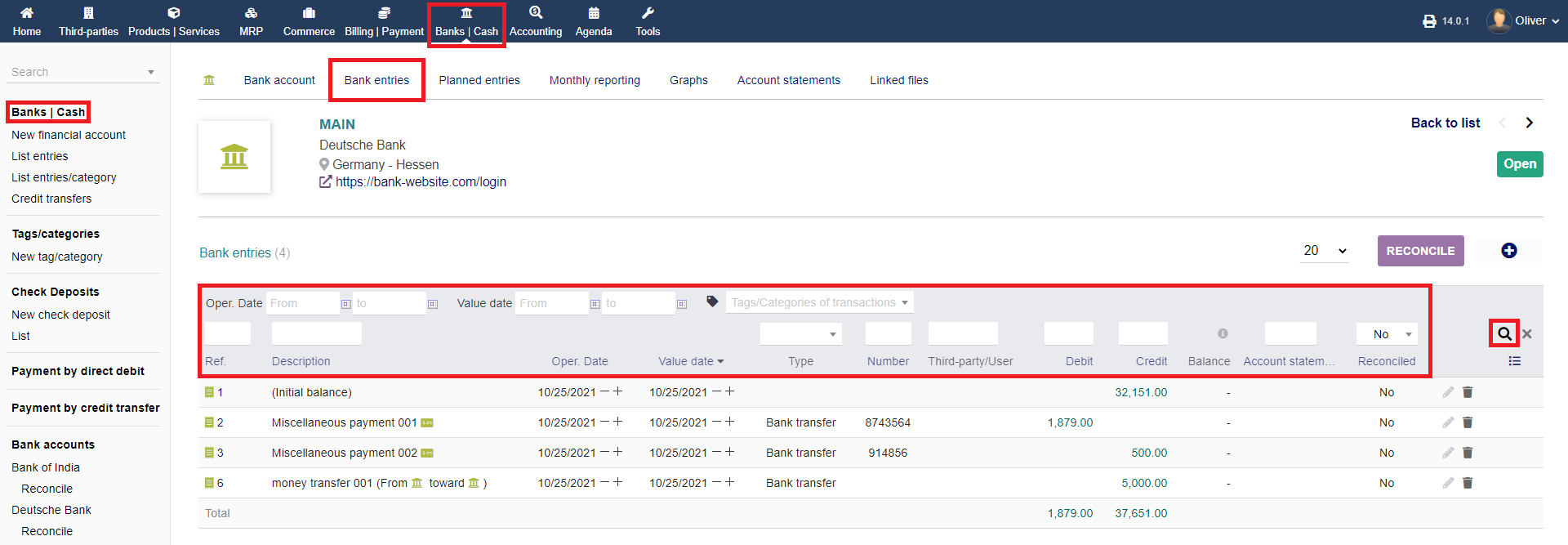
Finally, you can search/sort your entries by selecting your parameter of choice and hitting the "magnifier" icon in the end.
Future options (Bank)
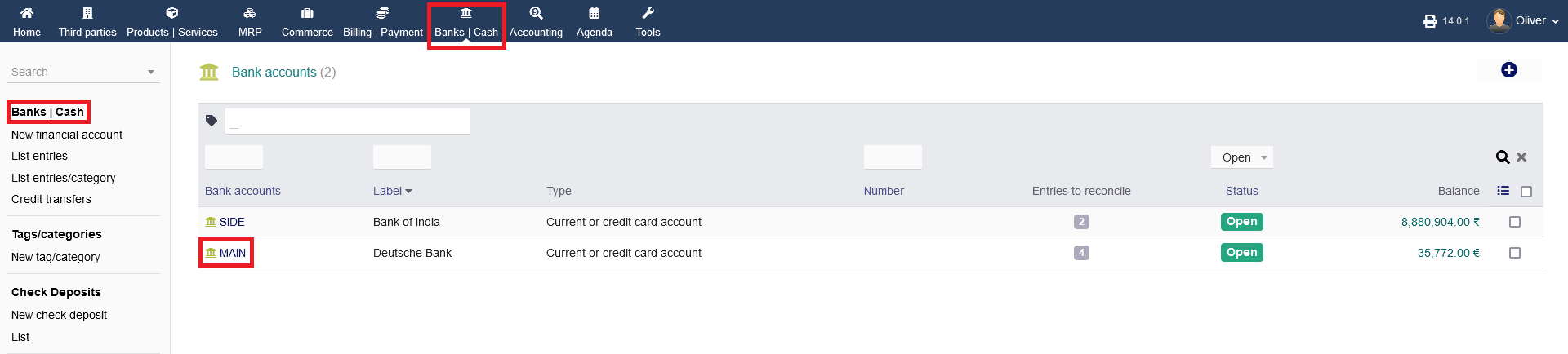
To get into further details and functionalities regarding your bank accounts, click on "Banks/Cash -> Banks/Cash -> BANK NAME".
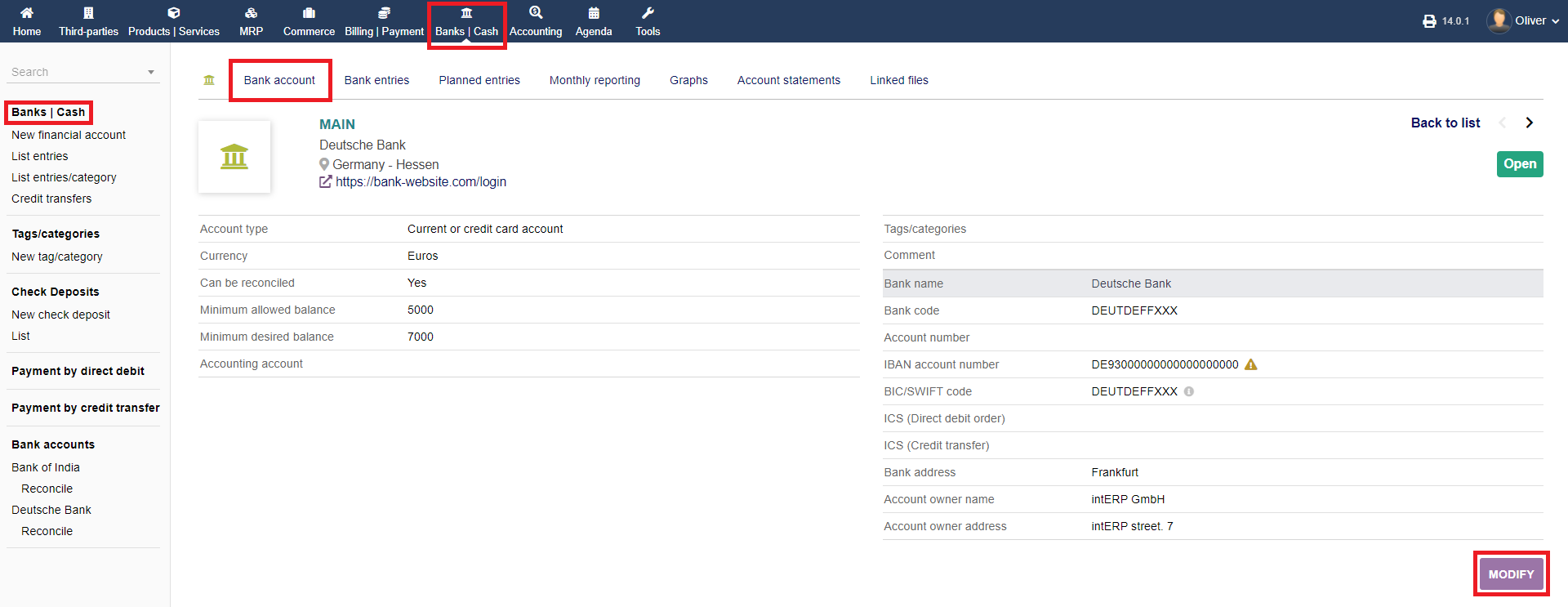
Main bank account details Tab :
First, you see your main bank account details as an overview. You can edit them by clicking on "MODIFY".
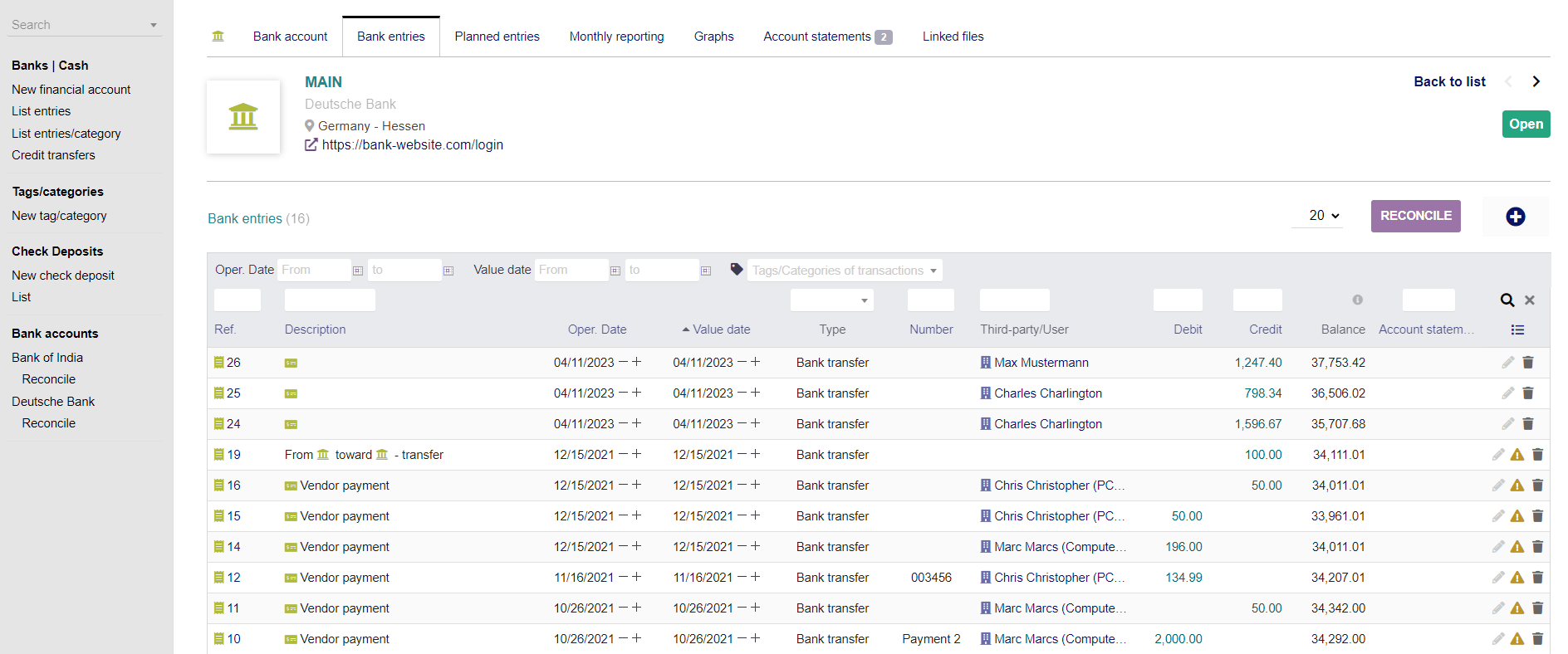
Bank entries Tab :
Any transaction entries will be found under the menu tab "Bank entries". Multiple functionalities can be found here.
Conciliation functionality Button
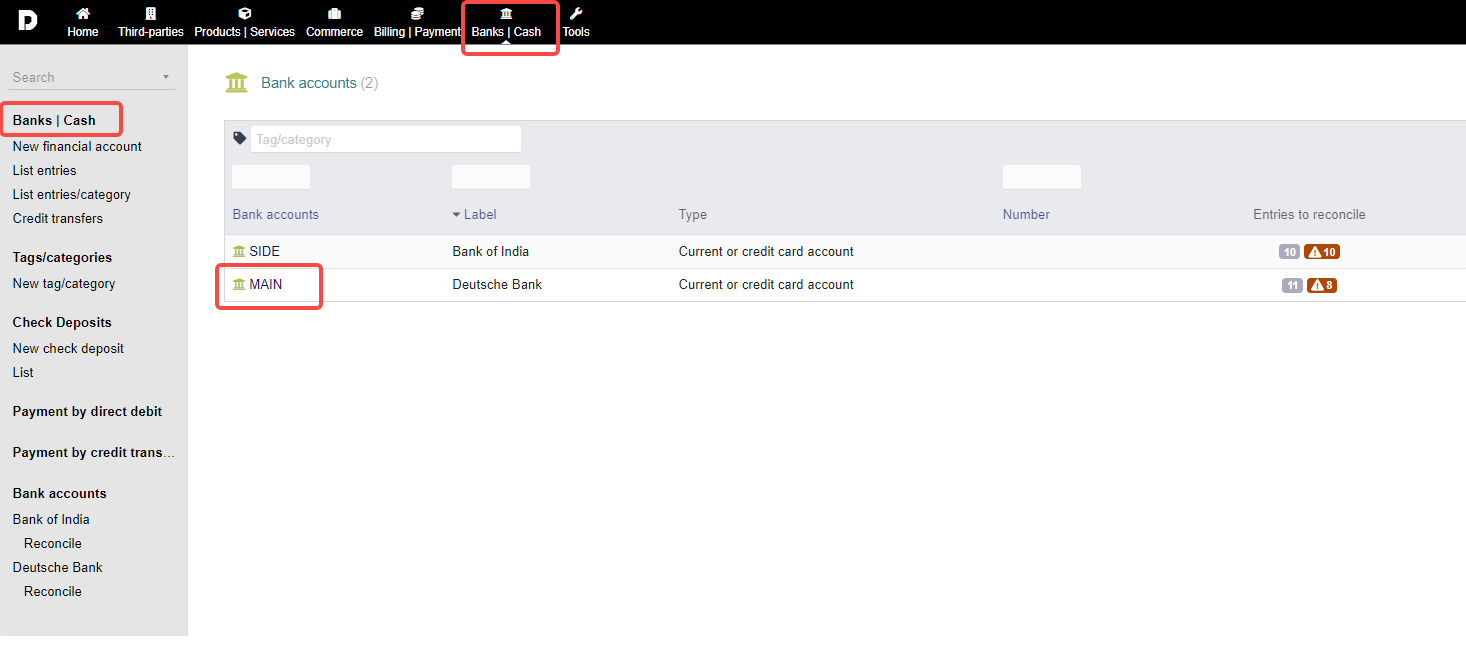
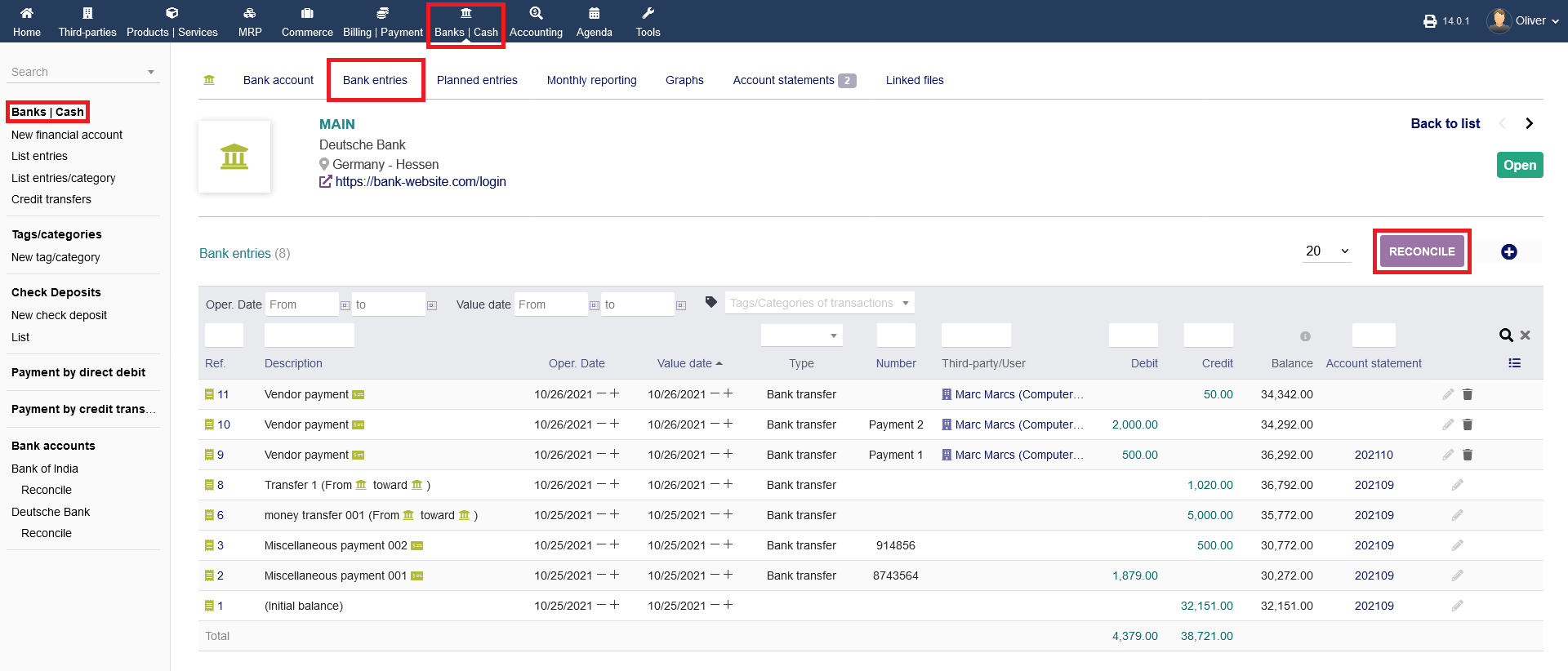
To get to the conciliation functionality, click on "Banks/Cash -> Banks/Cash" and choose a bank account by clicking on the ref. name.
Next, click on "Bank entries" on the respective menu tab. There, you see the button "RECONCILE". Click on it to proceed. You have the same button on the menu tab "Account statements" but pressing it there will redirect you the the "Bank entries" tab.
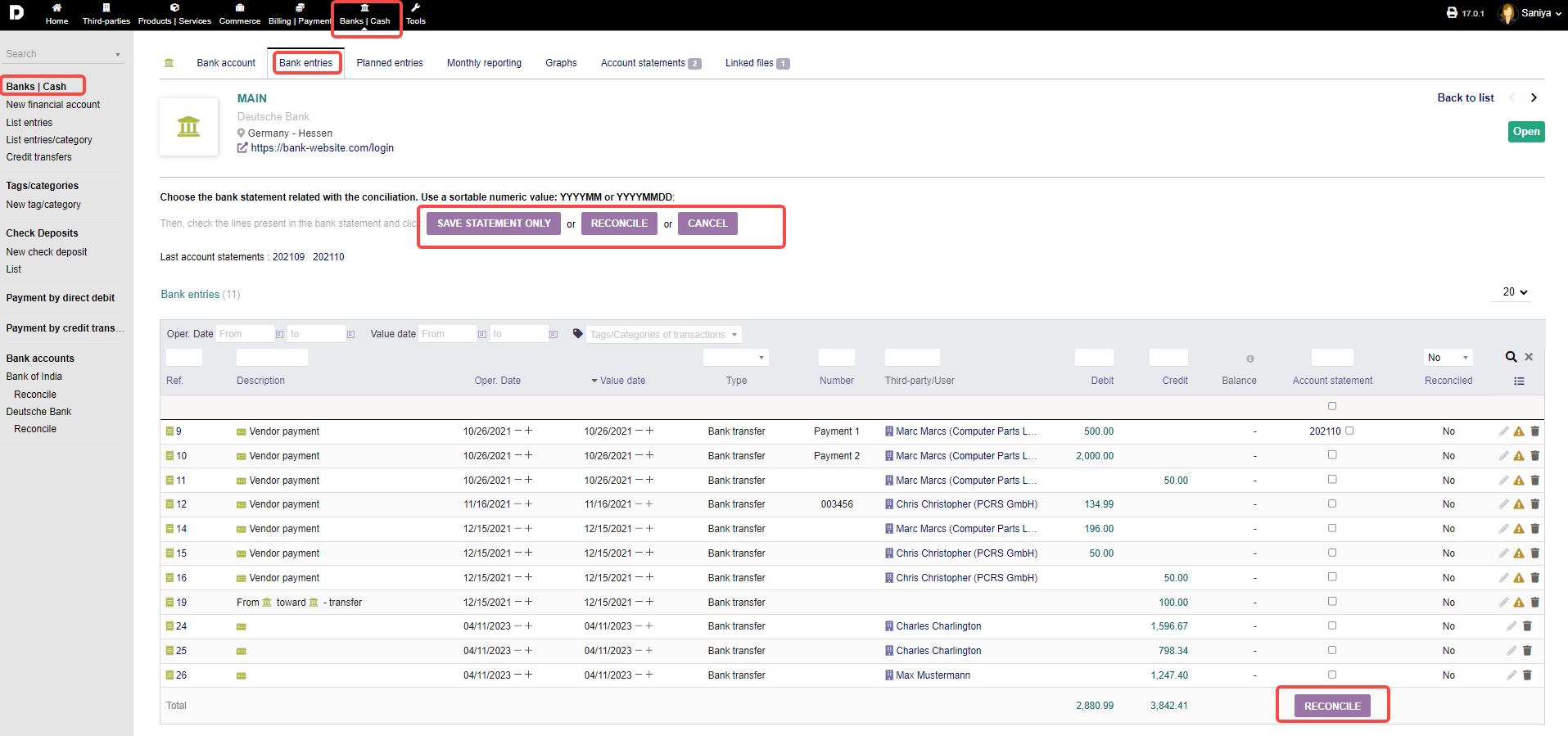
After pressing the button "RECONCILE", you will see an additional menu to choose a bank statement and a numeric value. You can "SAVE STATEMENT ONLY" without reconciling, do the reconciliation by pressing "RECONCILE" or "CANCEL" the process. Additionally, you can choose bank statements from the listing below by clicking the radio box and clicking on "RECONCILE" in the end. Lastly, the same can be achieved by clicking "Reconcile" in the left menu under the section "Bank accounts".
Planned entries Tab :
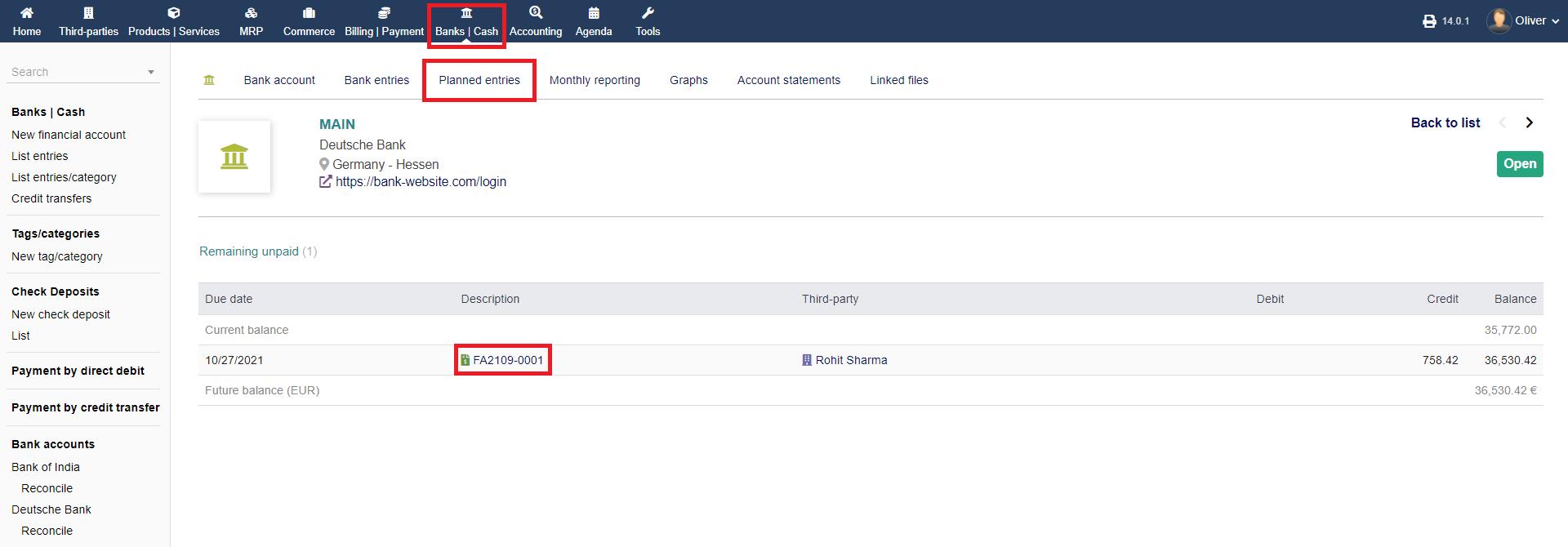
Any planned/open transactions/entries will be listed under the menu tab "Planned entries". There are no explicit functionalities to be found. You can open the invoice of the listed open payments by clicking on the payment reference. There you can set the invoice as payed etc. which will make the planned transaction/entry disappear.
Monthly reporting
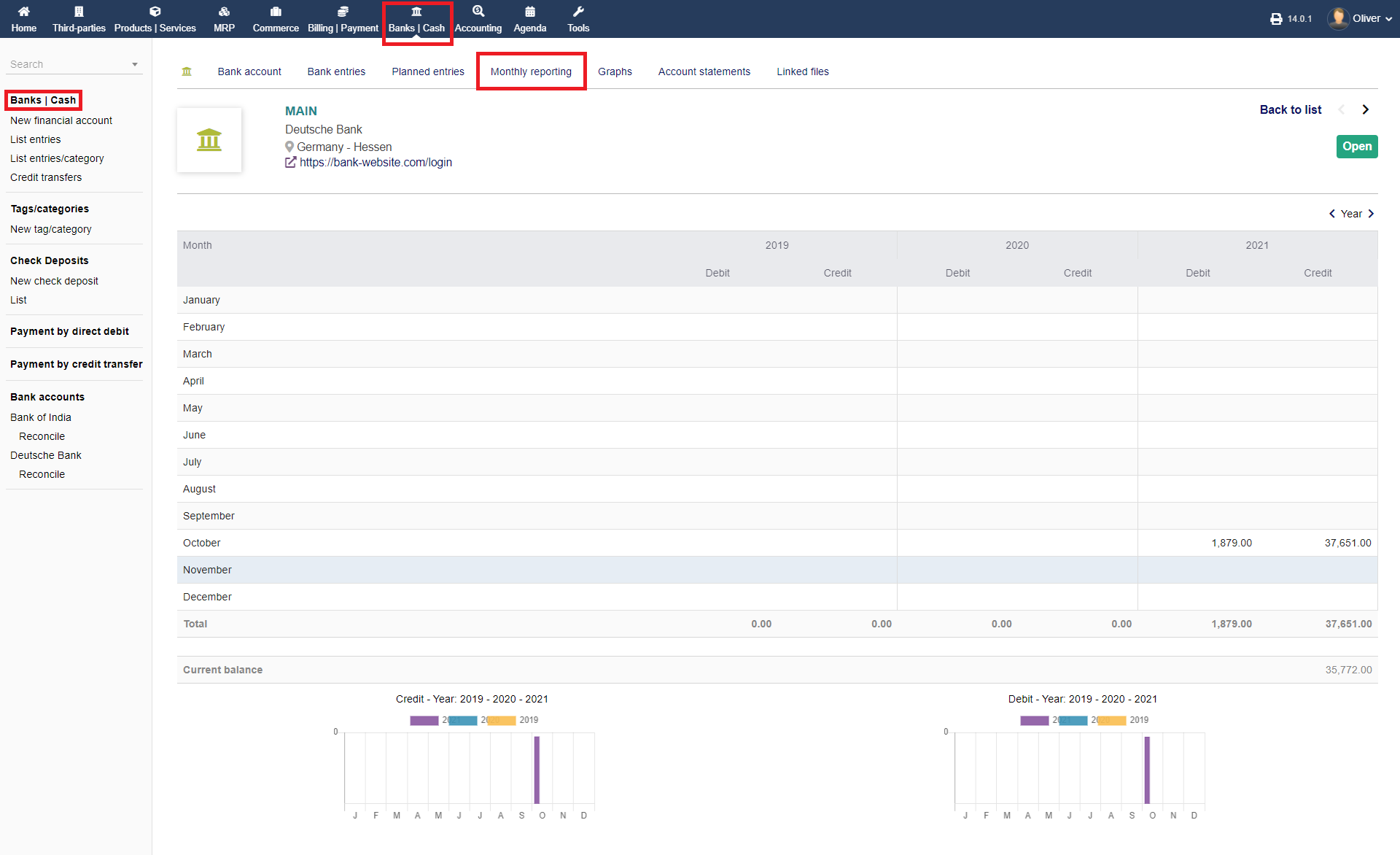
A monthly report of your bank account statistics can be found under the menu tab "Monthly reporting". There are no additional functionalities.
Graphs Tab :
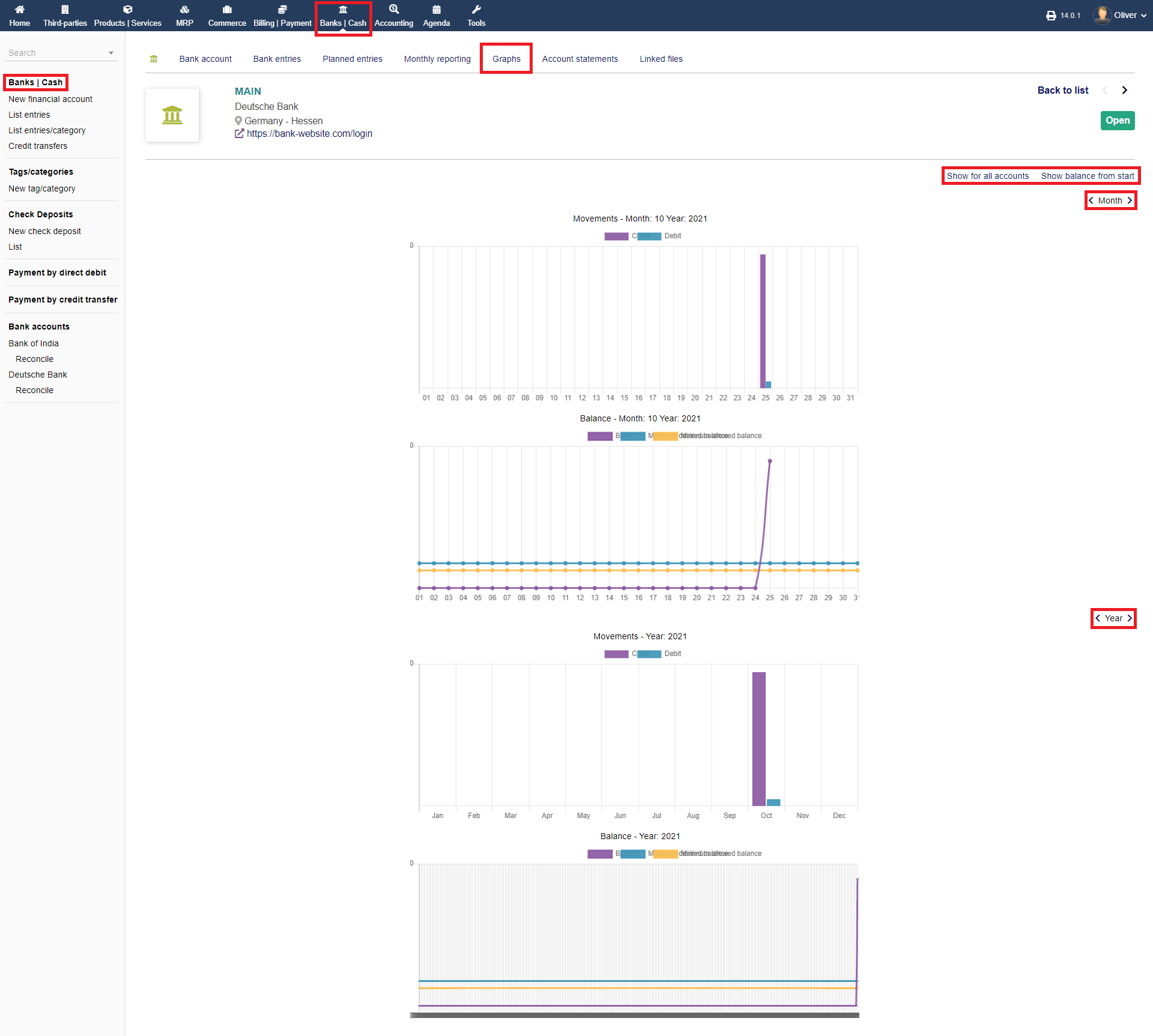
Further statistics shown as graphs can be had under "Graphs". You can choose the graphs to "Show for all accounts" or to "Show balance from start". Below you search for month and year. More functionalities are not present.
Account statements Tab :
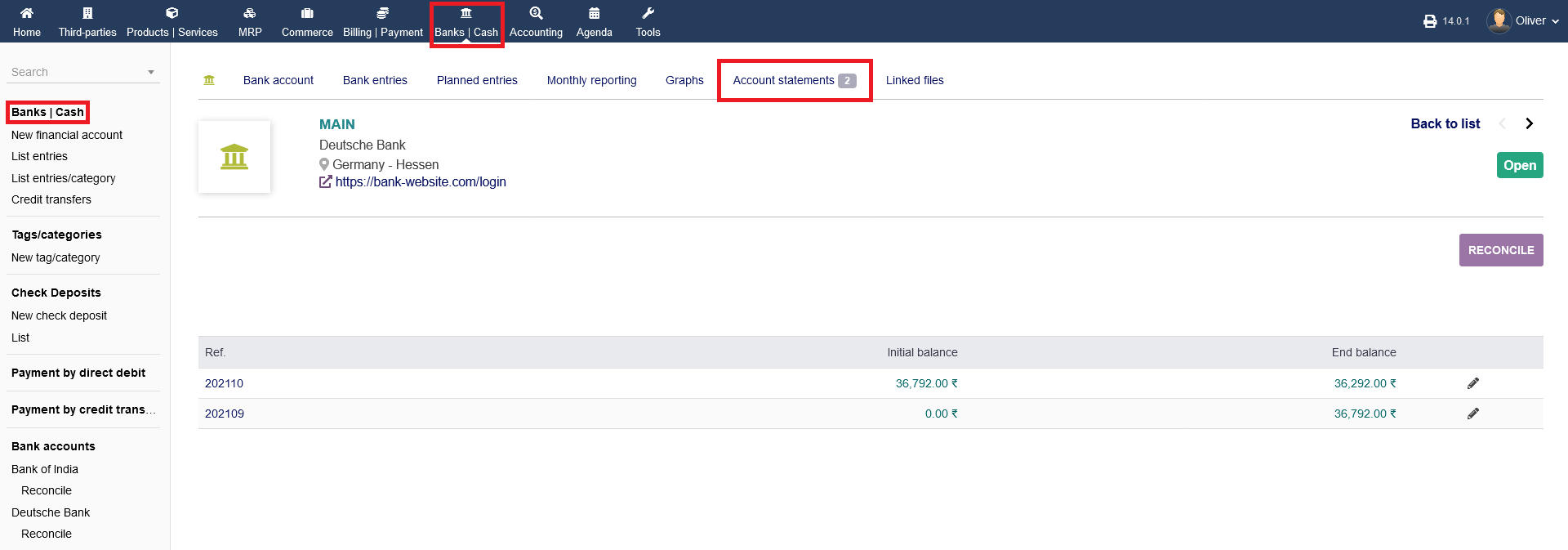
intERP can give you monthly account statements. To get there, click on "Banks/Cash -> Banks/Cash", choose a bank account by clicking on the ref. name and choose "Account statement" from the menu tab. For further details, click on the respective ref. number.
Linked files Tab :
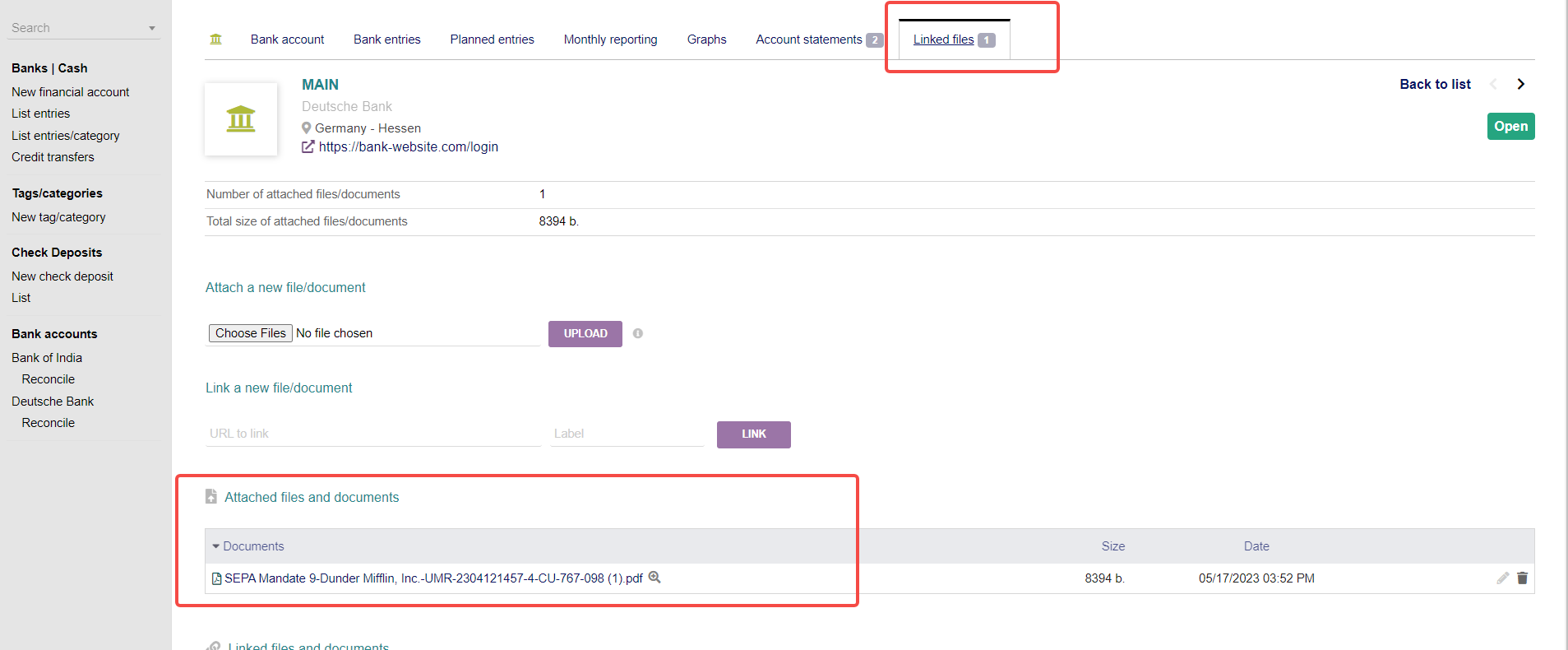
Any liked files can be found under "Linked files".