2.1 Basics
intERP is offering the proposal functionality e.g. "Commercial proposals" within the "Commerce" business transcation module.
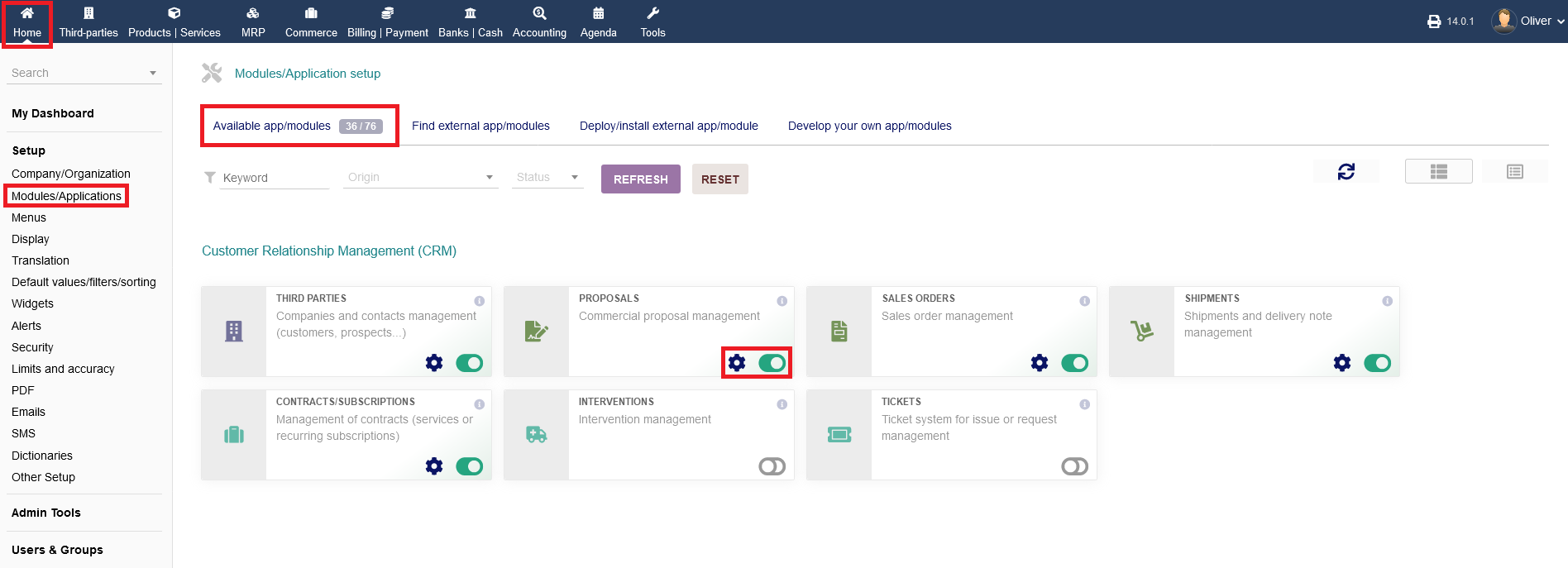
To change any settings regarding the module "Proposals", go to "Setup -> Modules/Applications -> Customer Relationship Management (CRM) -> Proposals" and click on the "gear" icon.
You can activate/disable that module by clicking the toggle switch. Green indicates, that the module is active.
2.2 Miscellaneous
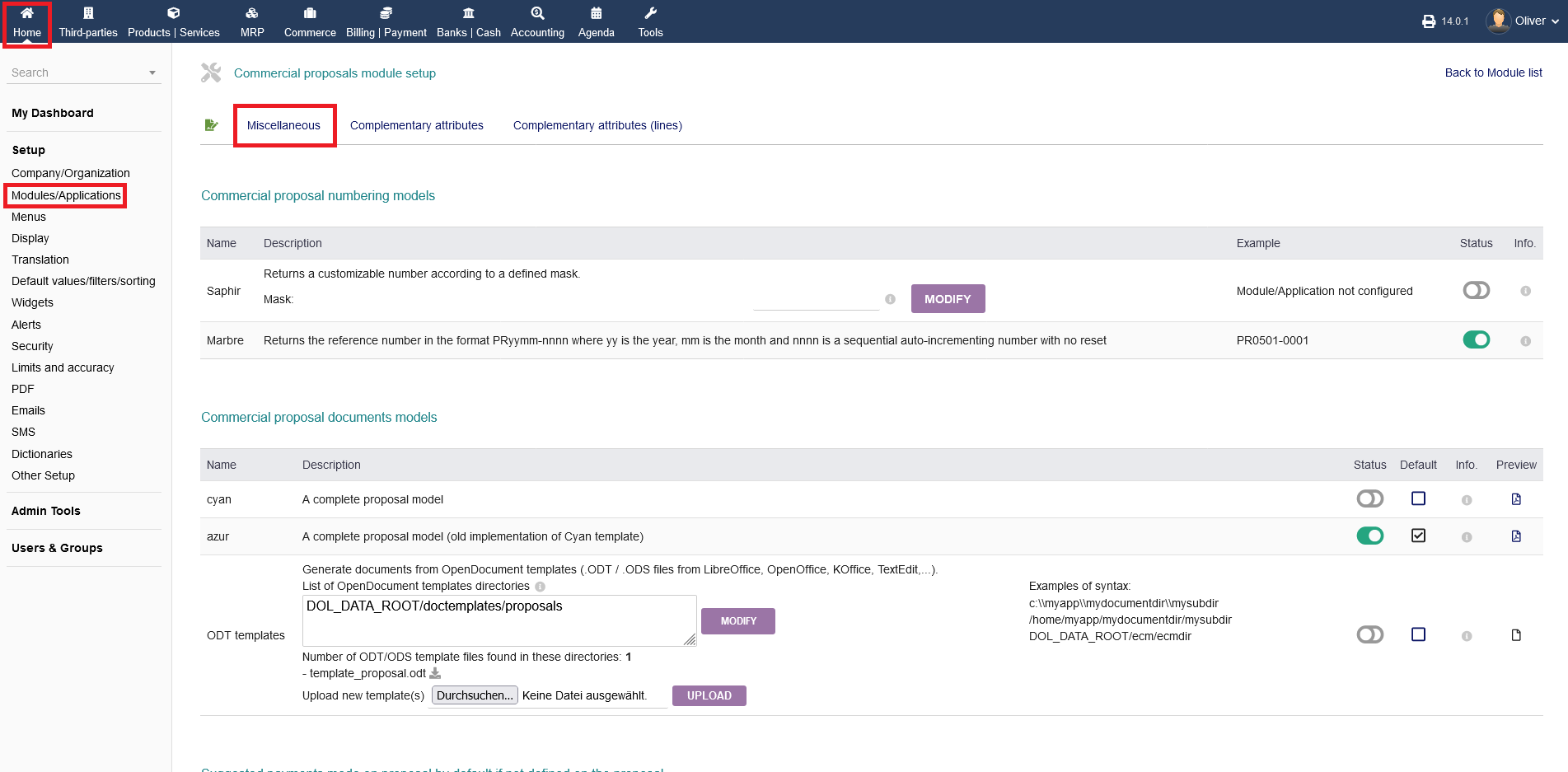
Your main options regarding proposal setting can be found ander the menu tab "Miscellaneous".
2.2.1 Commercial proposal numbering models
You can set two different ways to let intERP generate proposal numbering, under "Commercial proposal numberin models". You can set a custom rule/mask under the option "Saphir" or select the standard pre-defined numbering model under the option "Marbre". To activate or deactivate each option, click on the toggle switch on the right side of the section. If you specifi a custom numbering mask, dont forget to click "MODIFY" in the end or else your mask gets lost. For further explainations/information, click on the grey "info" icons.

2.2.2 Commercial proposal documents models
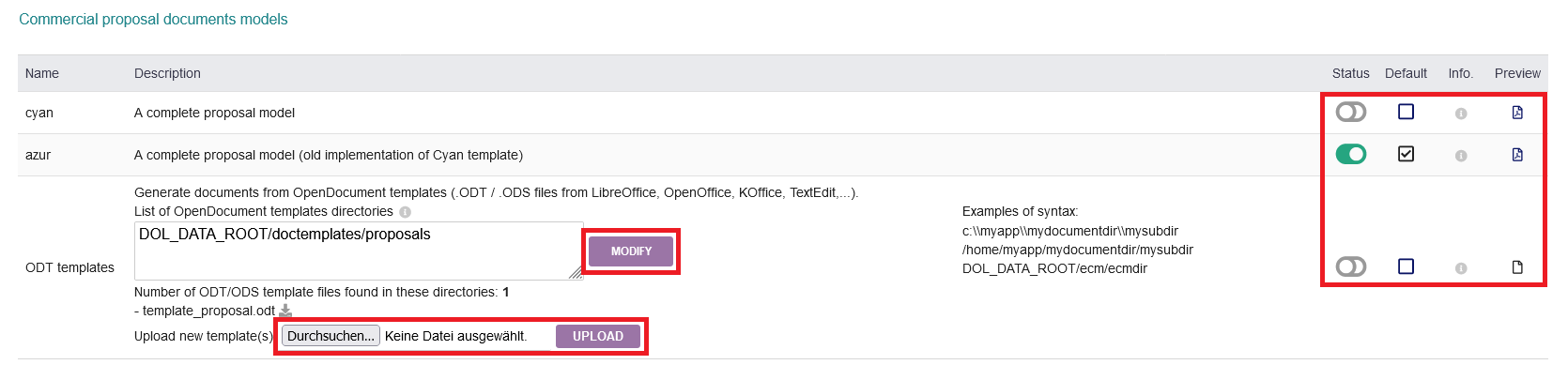
Under "Commercial proposal documents models", you can define either a standard or a custom proposal template. This is following the same template/option procedure as mentioned in the other module configurations. Remember to click on "MODIFY" or "UPLOAD" to execute and finish the respective actions. On the right side of that section, you find your usual options to activate, set as default and preview each template form.
2.2.3 Suggested payments mode on proposal by default if not defined on the proposal
Under the above mentioned section, you can set a default payment mode for your proposals, if it is not defined in the proposal itself otherwise. Further options can be found in the invoices module.

2.2.4 Other options
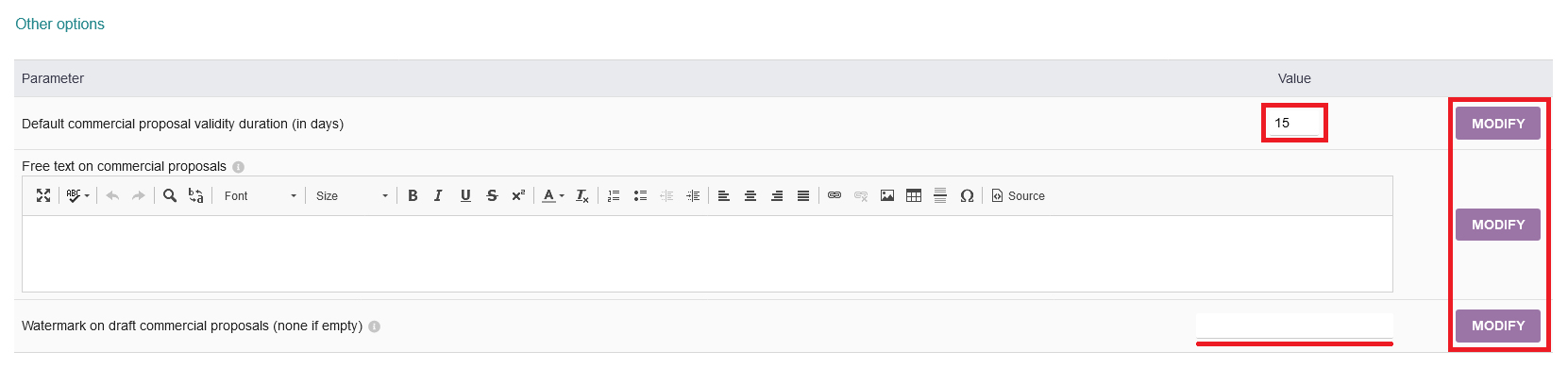
Here, you can set the default duration of the validity of your proposals (specify in days). Additionally, you can add a free text to your commercial proposals, as well as a watermark for proposal drafts. Remember to click on "MODIFY" for each option, so your changes take effect.
2.2.5 Path to documents & Notifications
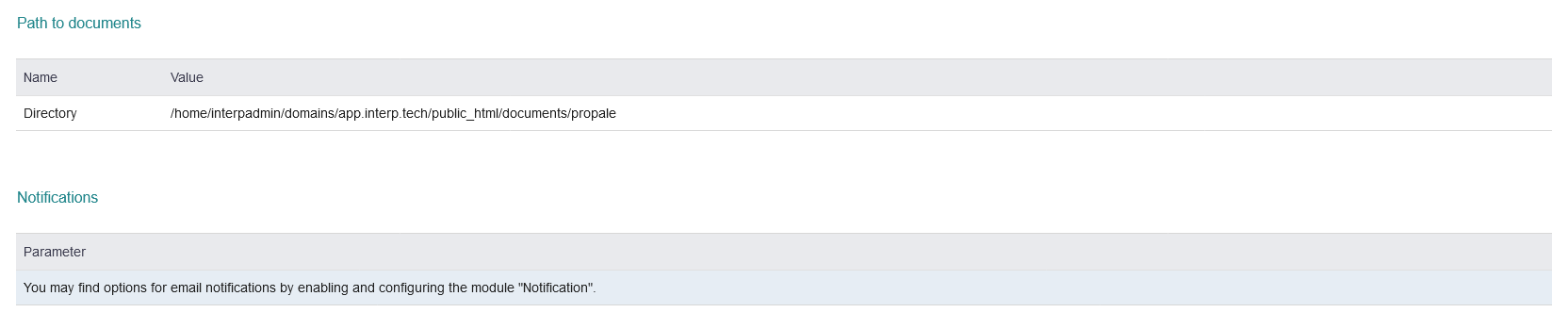
Lastly, you get the parth to your documents directory displayed. Notification options can be found under the module "Notifications".
2.3 Complementary attributes & Complementary attributes (lines)
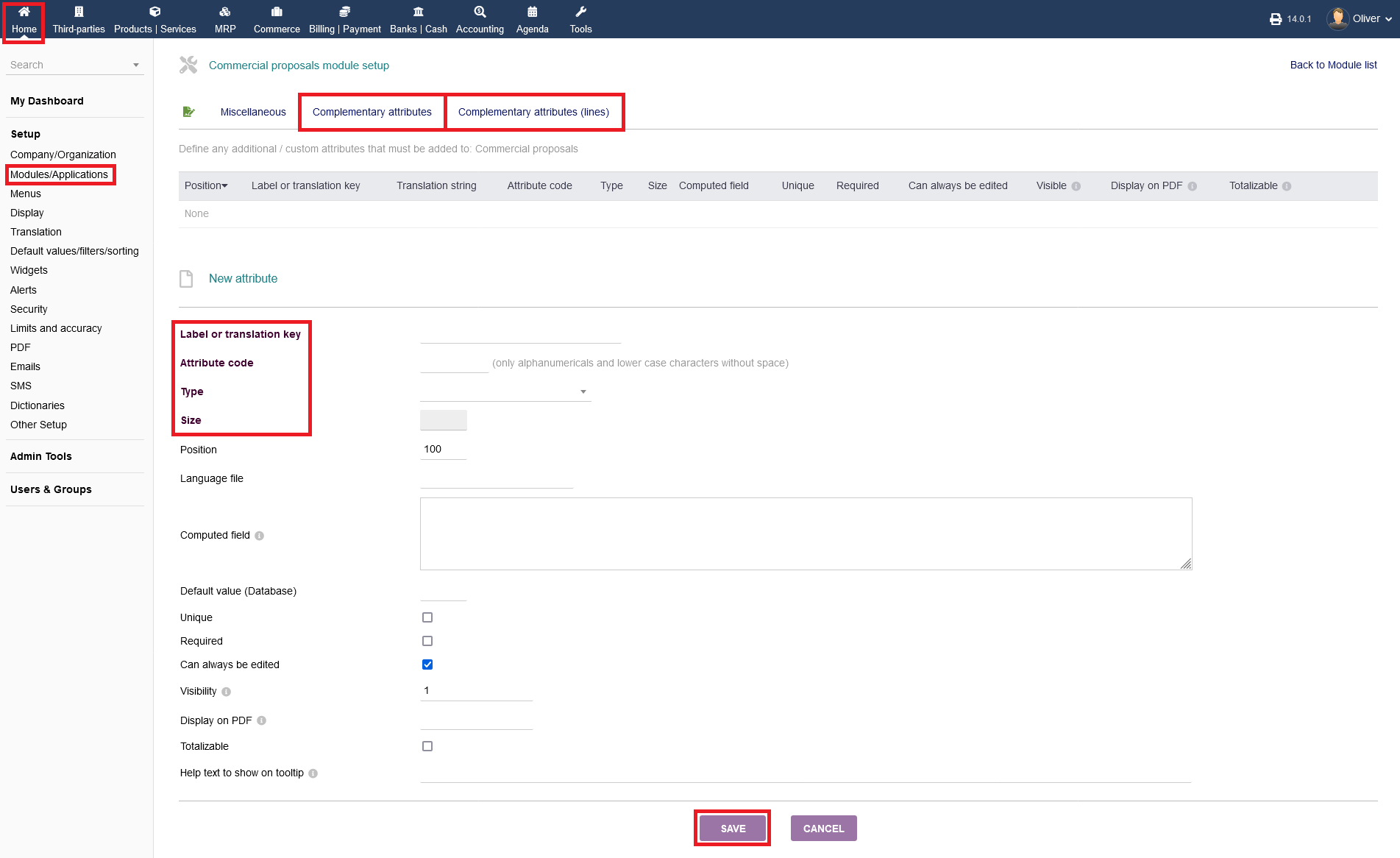
You can set any additional/custom attributes to your commercial proposals under the respective menu tabs. Click on "NEW ATTRIBUTE" to continue to the respective form, to add a new attribute.
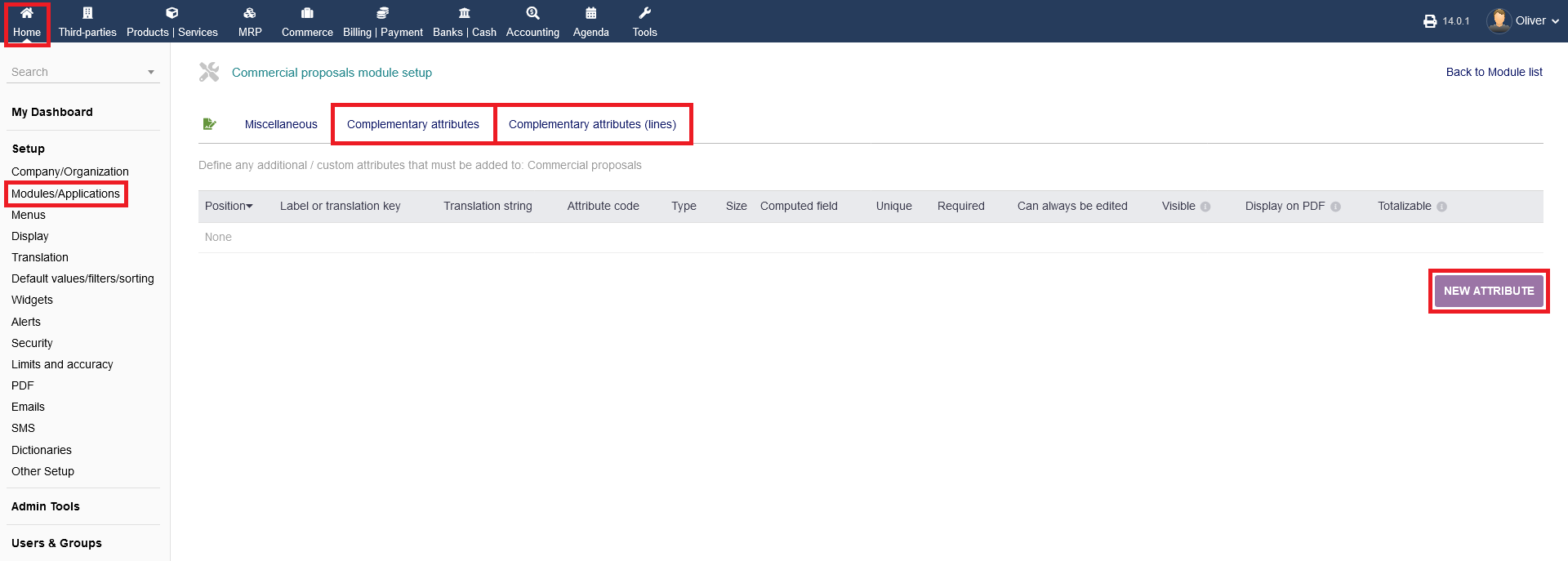
Fill in the necessary details, especially the label, attribute code, type and size. When you are done, click on "SAVE". This procedure is valid for both attributes options in the menu tab.