For the reception of an order, it is necessary to submit a proposal to the supplier and submit a purchase order after the proposal was accepted. For these steps, please go through the respective documentations on "Vendor proposals" and "Purchasing orders". The reception is delivery of your goods, after you ordered products/services from a vendor.
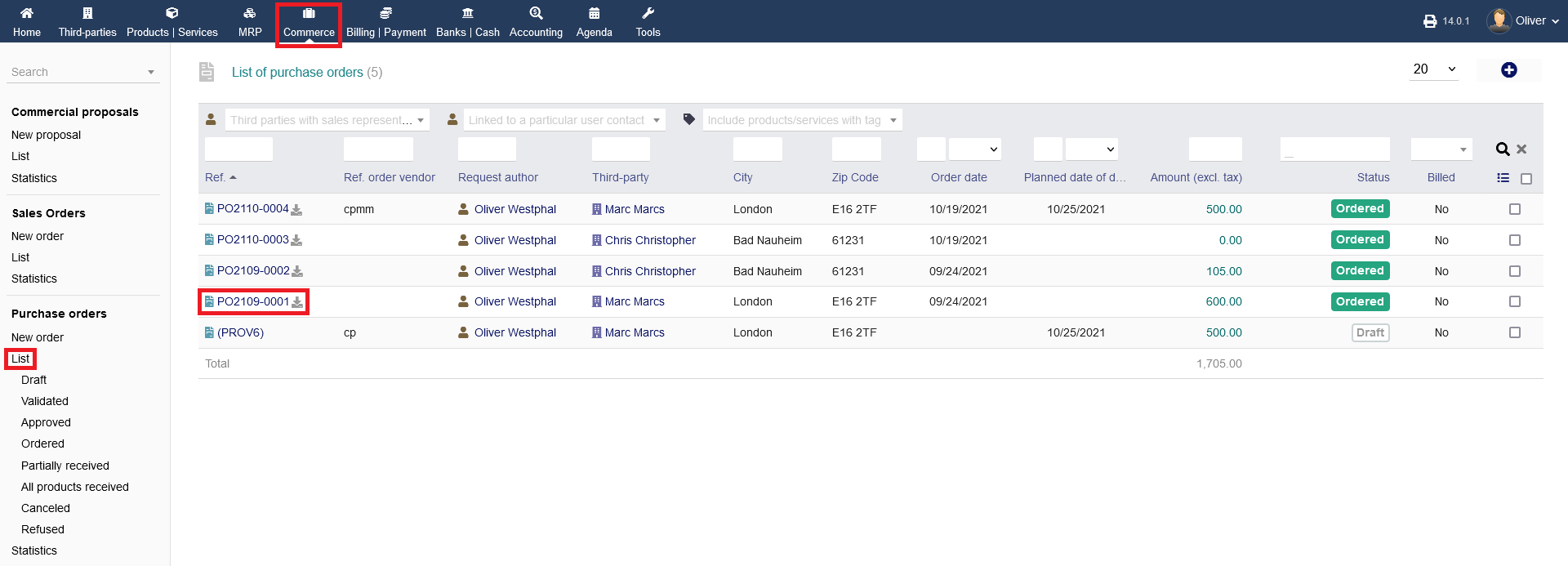
To set an order as received, go to "Commerce -> Purchase orders -> List". Choose your respective order that you received (the status has to show as "Ordered") by clicking on the reference name.
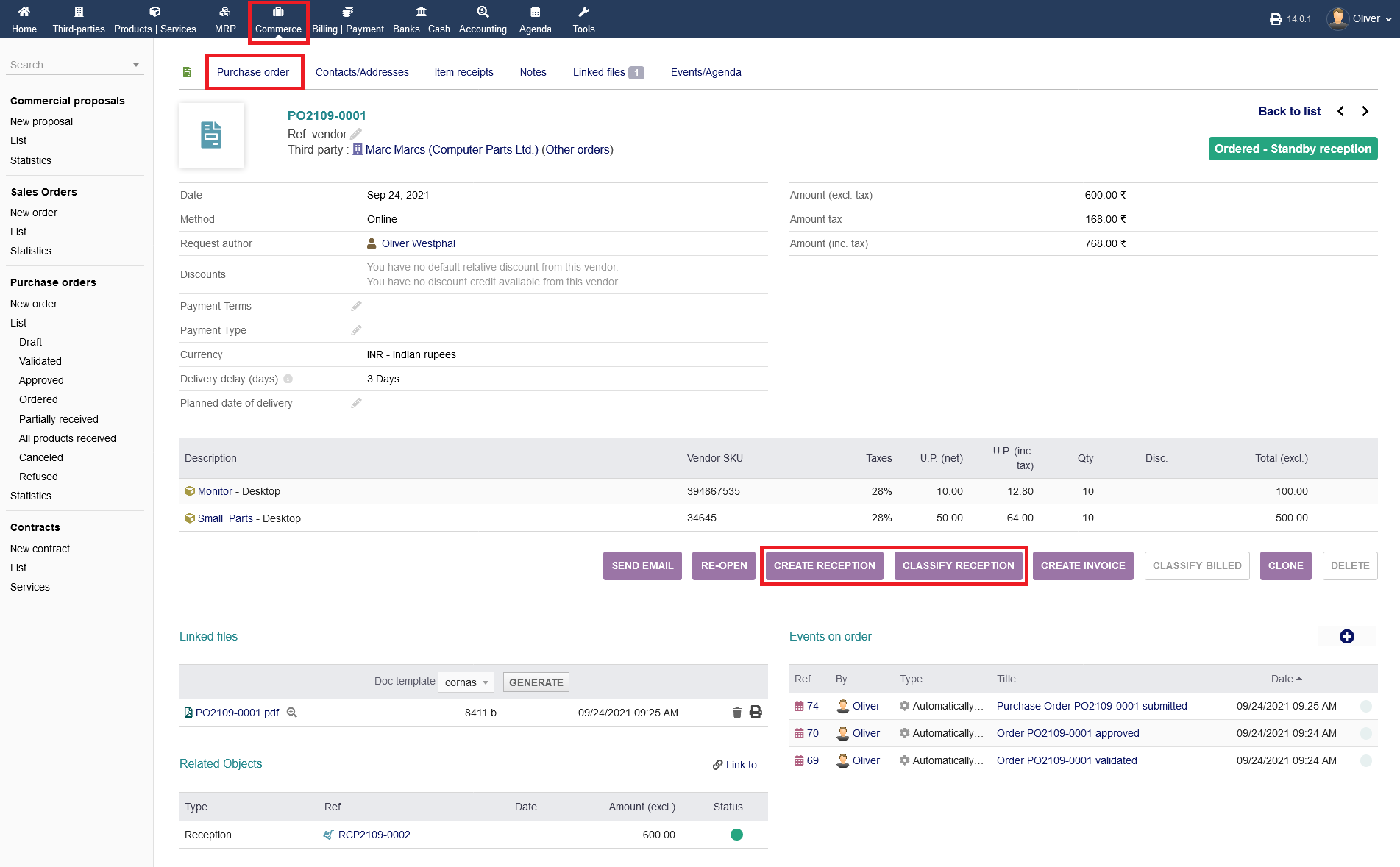
In the following overview, you do have two different options, "CREATE RECEPTION" and "CLASSIFY RECEPTION". This is a two step process, where you first document the item reception by quantity at certain warehouses and second, you close the whole purchasing process. For the first step, to document the item reception by quantity and warehouse, click on "CREATE RECEPTION".
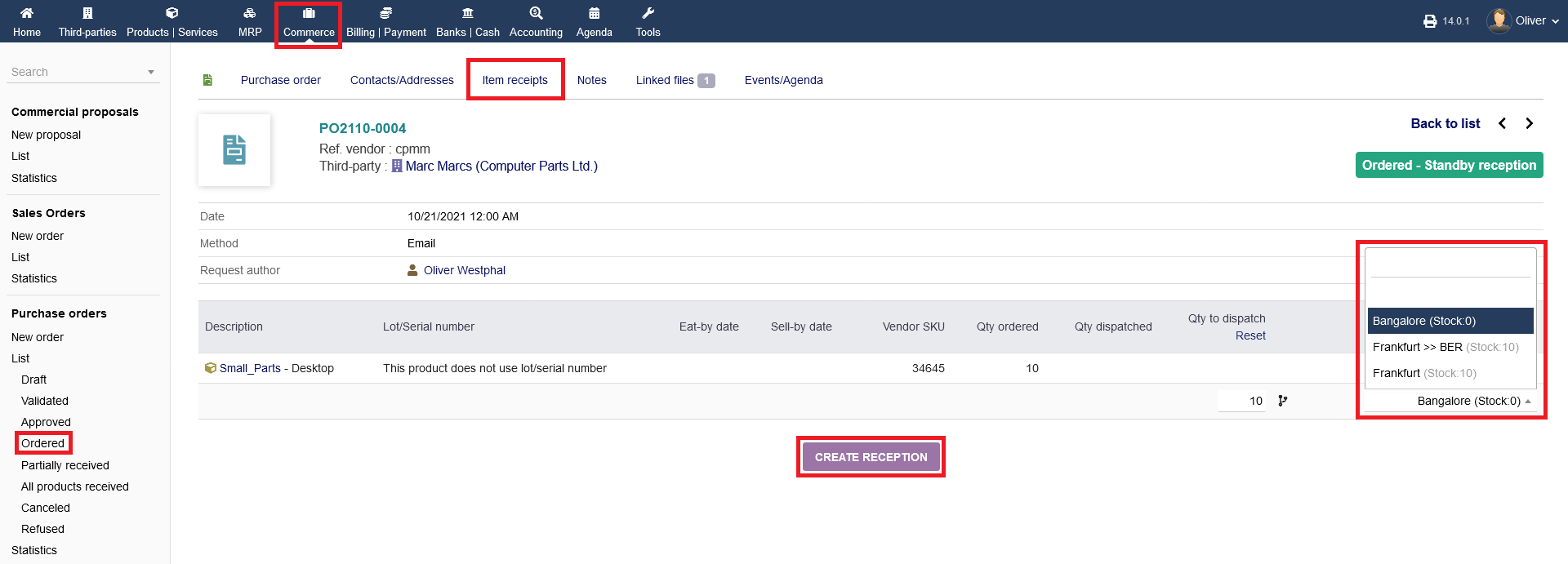
You will see an overview of the goods you ordered in quantity. Select the warehouse, where you want to receive the items from the drop down menu. Click "CREATE RECEPTION" in the end.
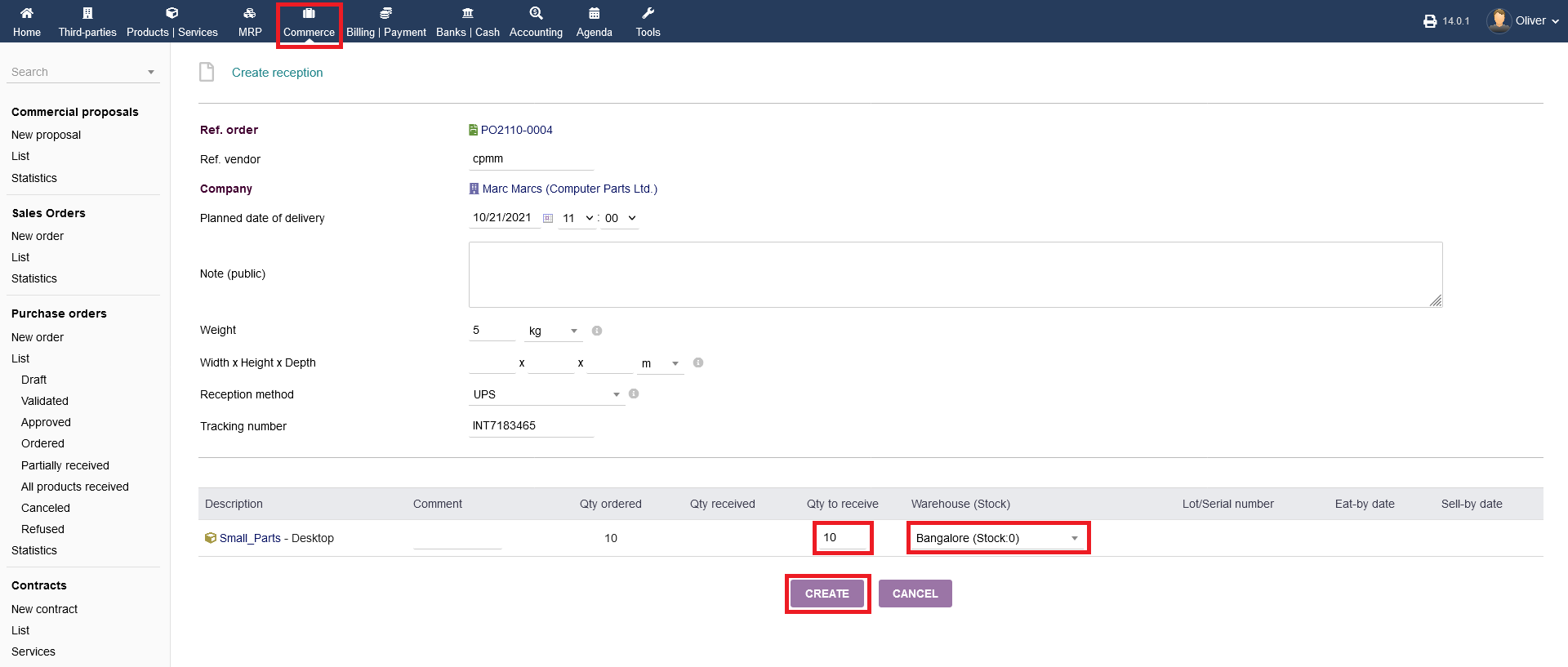
Next, fill out the necessary details in the form and choose the quantity that you supposed to receive. Select a warehouse again from the drop down menu and click "CREATE" in the end.
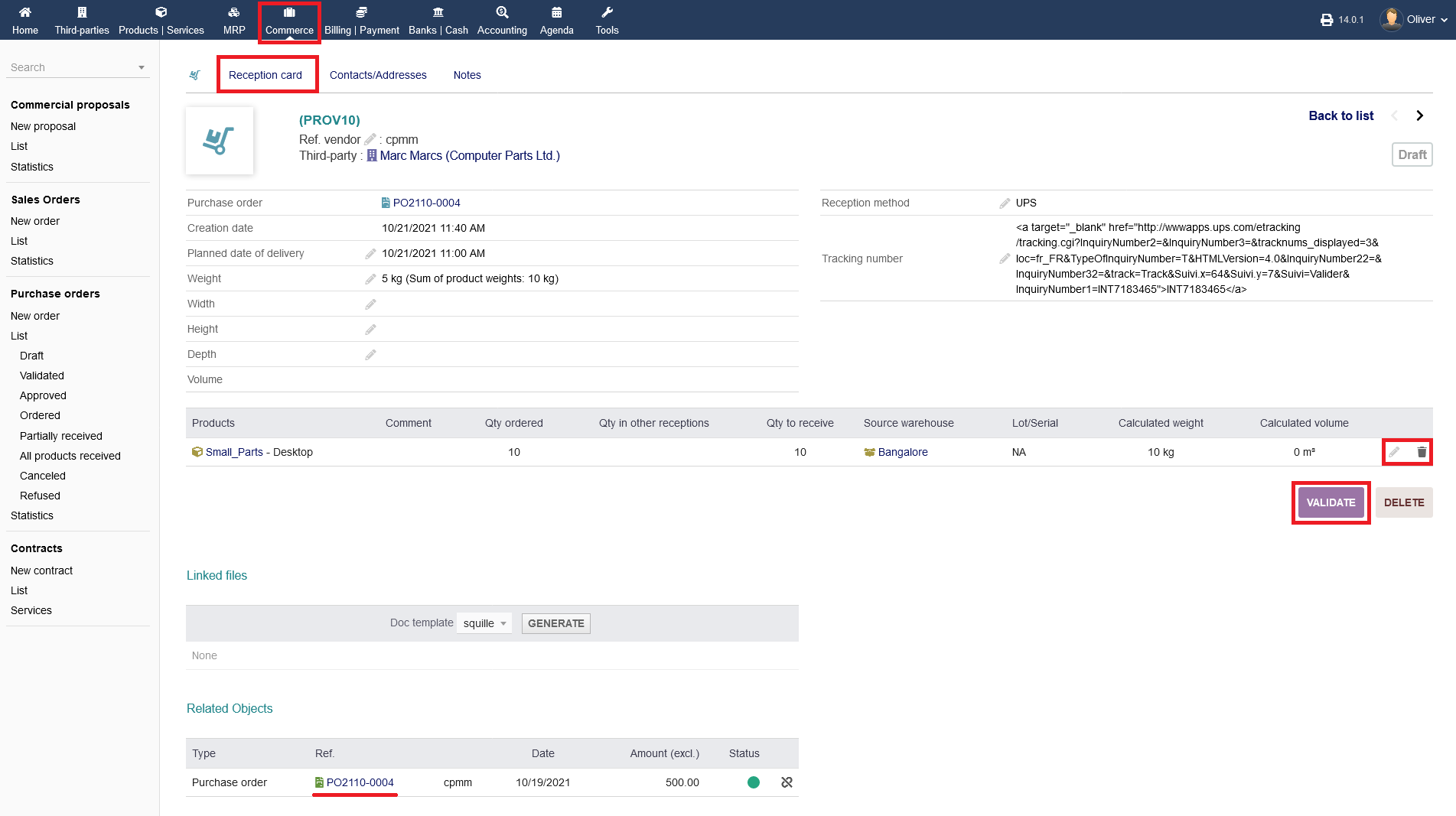
In the following screen you see the summary of your reception that needs validation. Now, your reception is only registered as a draft. Under the section "Products", you see the items you ordered and received by warehouse and quantity. You can edit the products reception by clicking the "pen" icon or delete it by clicking the "trash" icon. On the bottom of the screen you see the corresponding purchase order (you can click on it, to get further information to the order). Click "VALIDATE" to validate the internal reception of your items in quantity at your selected warehouse.
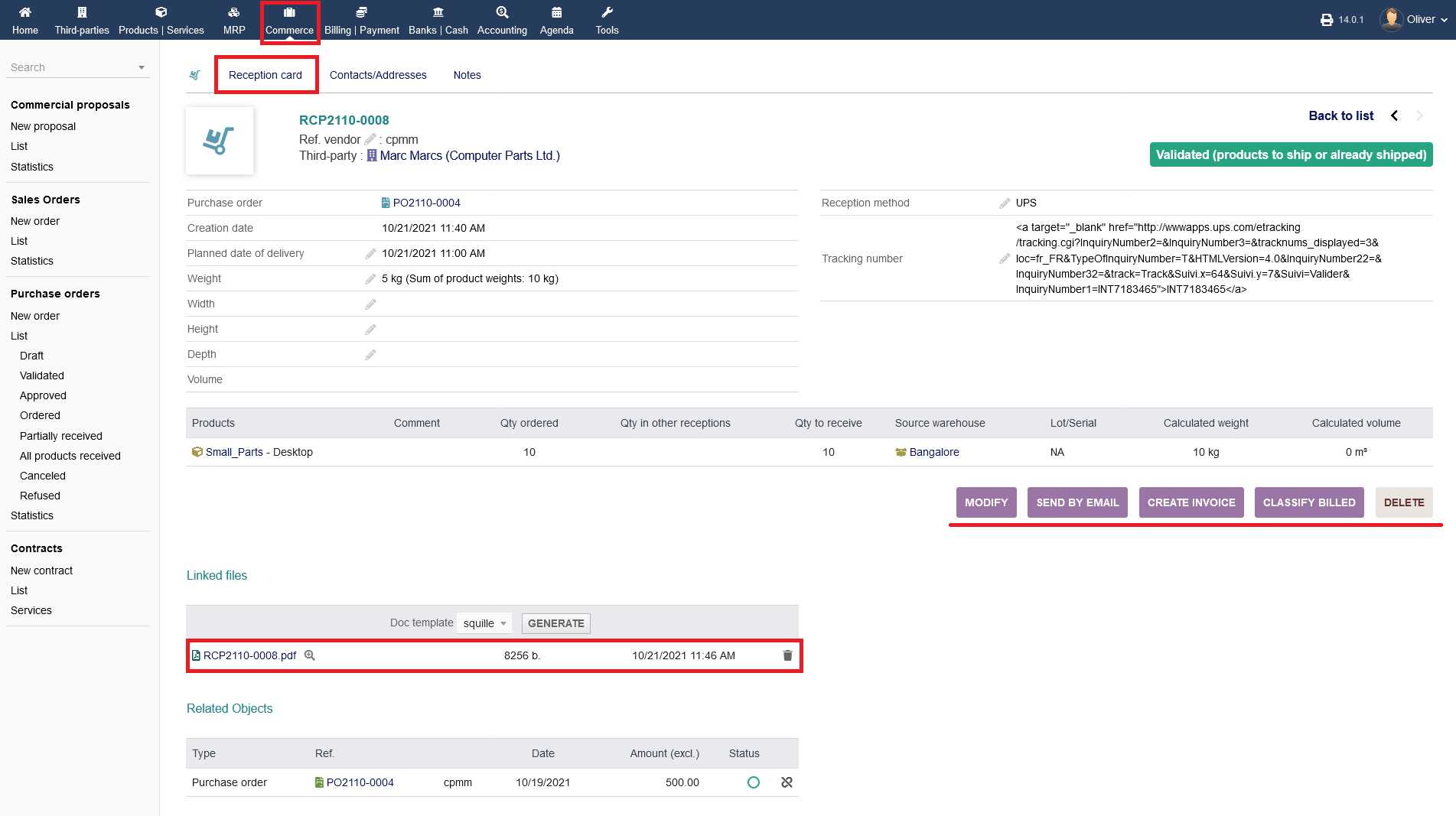
Next, you see another reception overview, where you can get to invoicing by clicking the respective button. On the bottom you see the reception sheet, which you can preview as PDF as usual. Note, that the reception process is done at this point. You need to close the purchasing process in its entity (see next step).
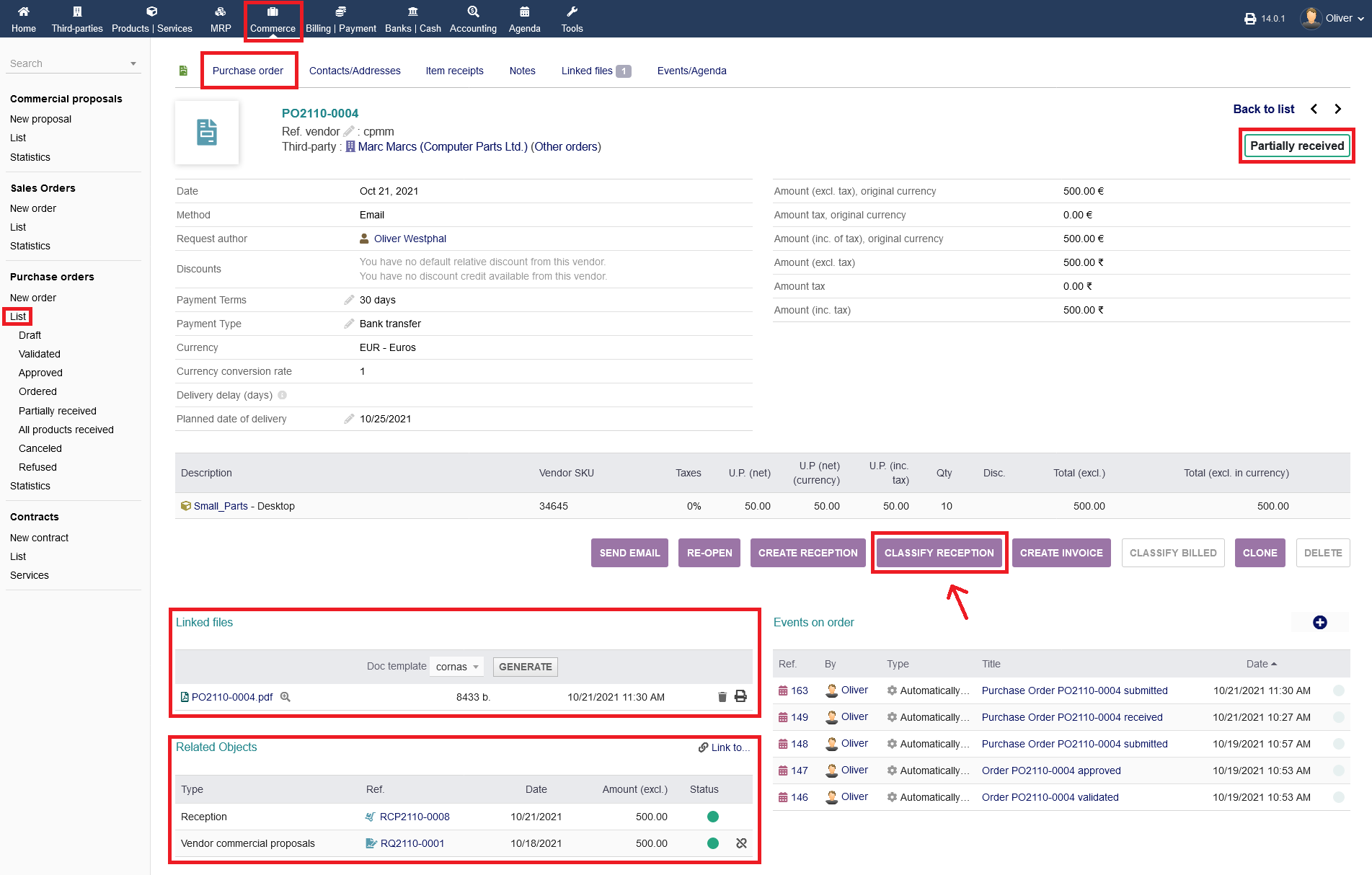
To close the whole purchasing process, go to "Commerce -> Purchase orders -> List" and click on the purchase order reference, where you received your items from. Its status says now "Partially received".
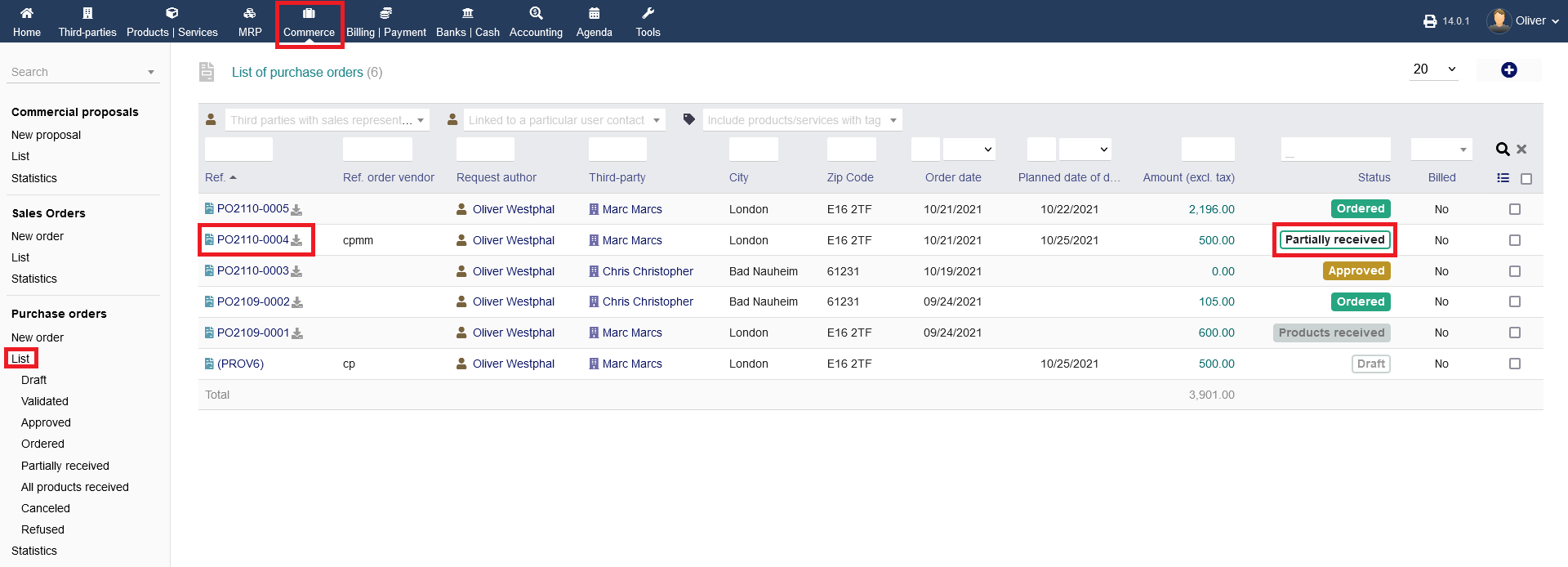
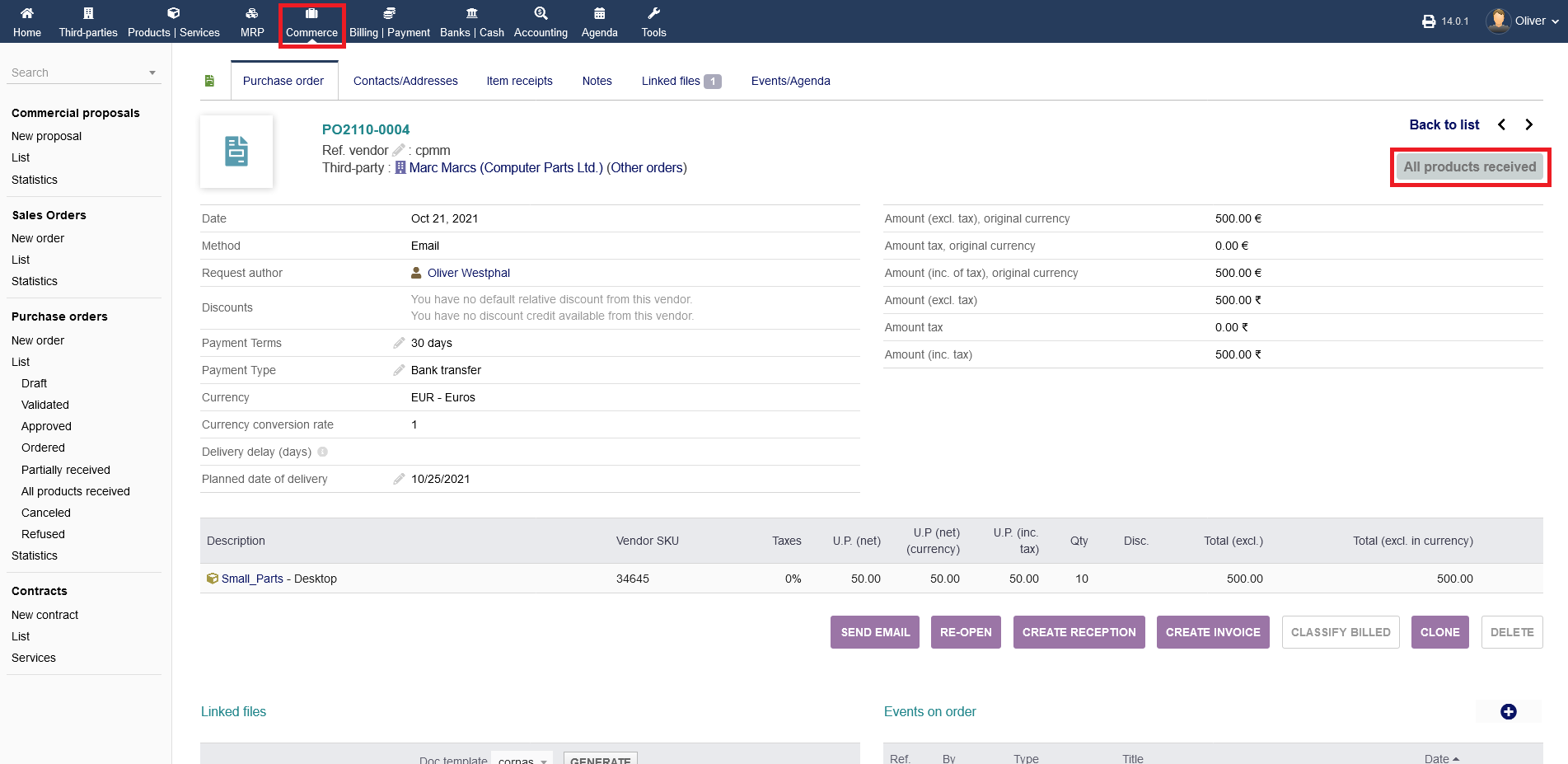
Here, you can see that the order is set as "Partially received". Even though you received the items at your warehouse as in the steps before, you still need to close the ordering process to set the status to "Products received". Only than the whole process is closed. On the bottom of the screen, you see the corresponding purchase order PDF under the section "Linked files", as well as the corresponding vendor proposal and reception process under the section "Related objects". To get the closing process on its way, click now on "CLASSIFY RECEPTION".
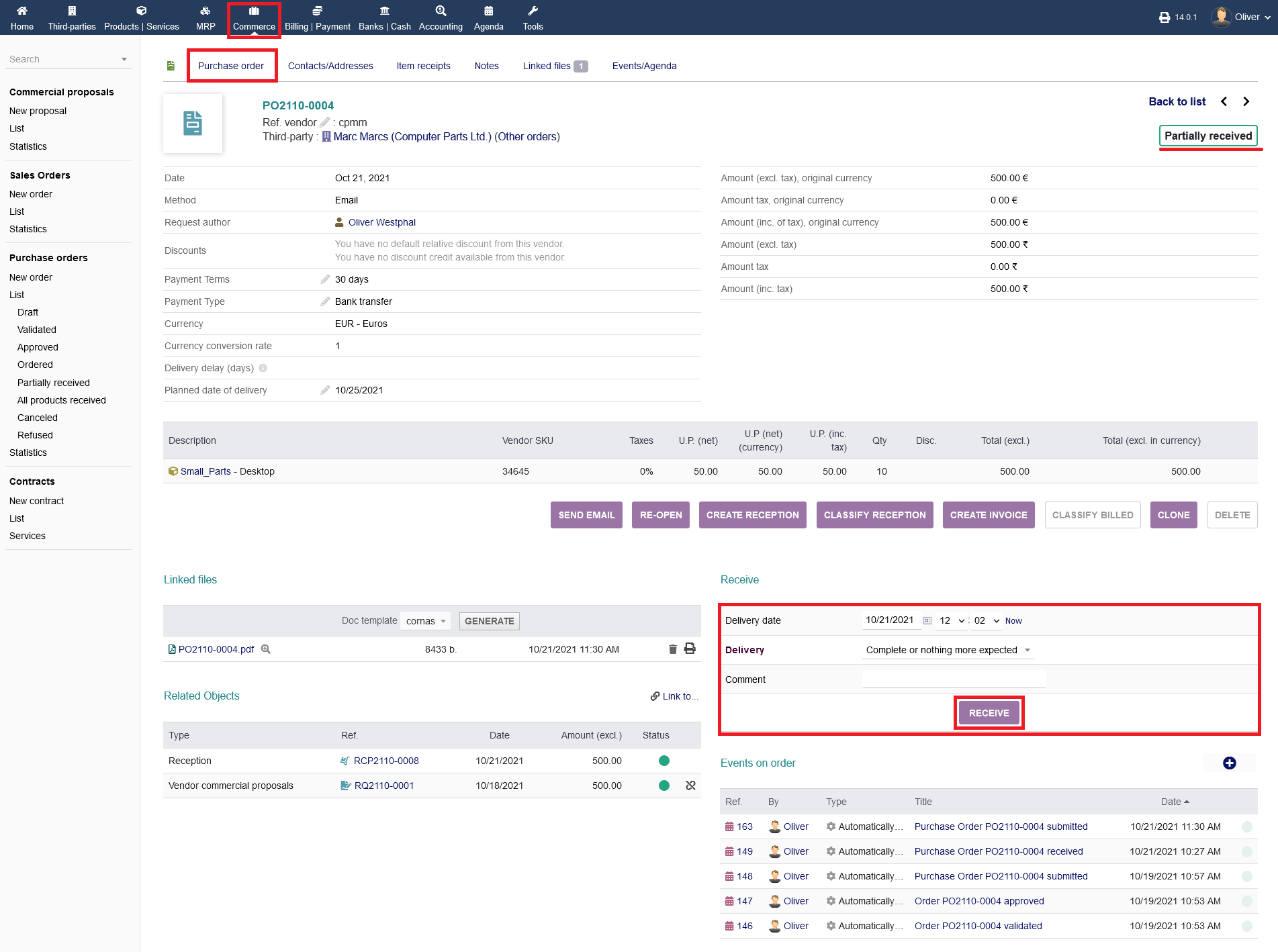
As a last step, you need to give further details of your order. Specify a "Delivery date", the state of the "Delivery" from the drop down menu and click "RECEIVE" in the end.
Now, you should see that your purchasing process is done so far. For the invoicing part, please refer to the respective documentation.