

Creating a manufacturing order:
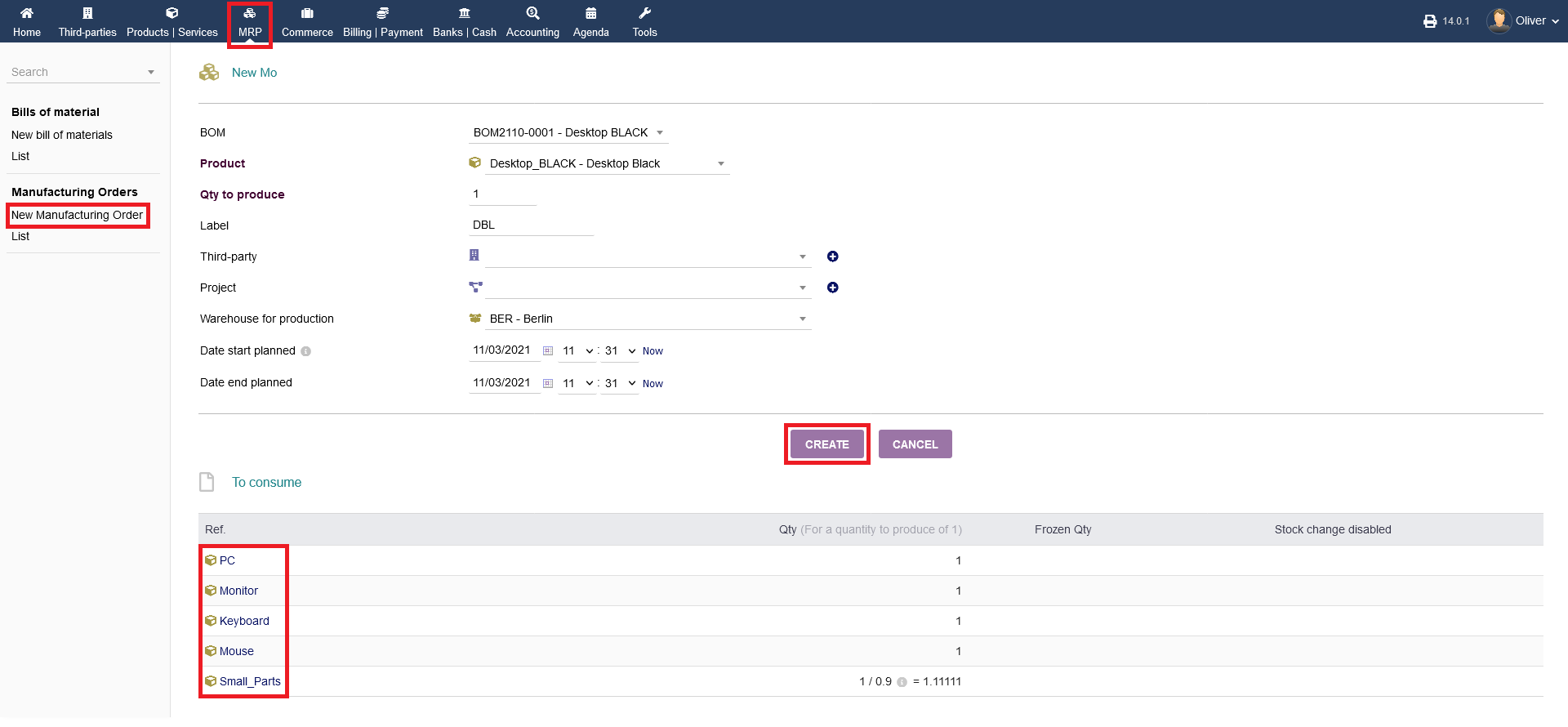
To create a manufacturing order, click on the "plus" icon in the top right corner. A more convenient way is to click on "MRP -> Manufacturing Orders -> New Manufacturing Order"

Fill out the following form, especially the end product with its bill of material (BOM), the quantity of production, the label, the warehouse of production and the dates. On the bottom of the screen, you see the items of components, that are required to produce your good.
Make sure, that you have setup a bill of material for your finished product beforehand, so the data can be pulled from there. Please refer to the respective documentation covering BOM. Click on "CREATE" to create the manufacturing order. The created order will be a draft first.
Validating a manufacturing order:
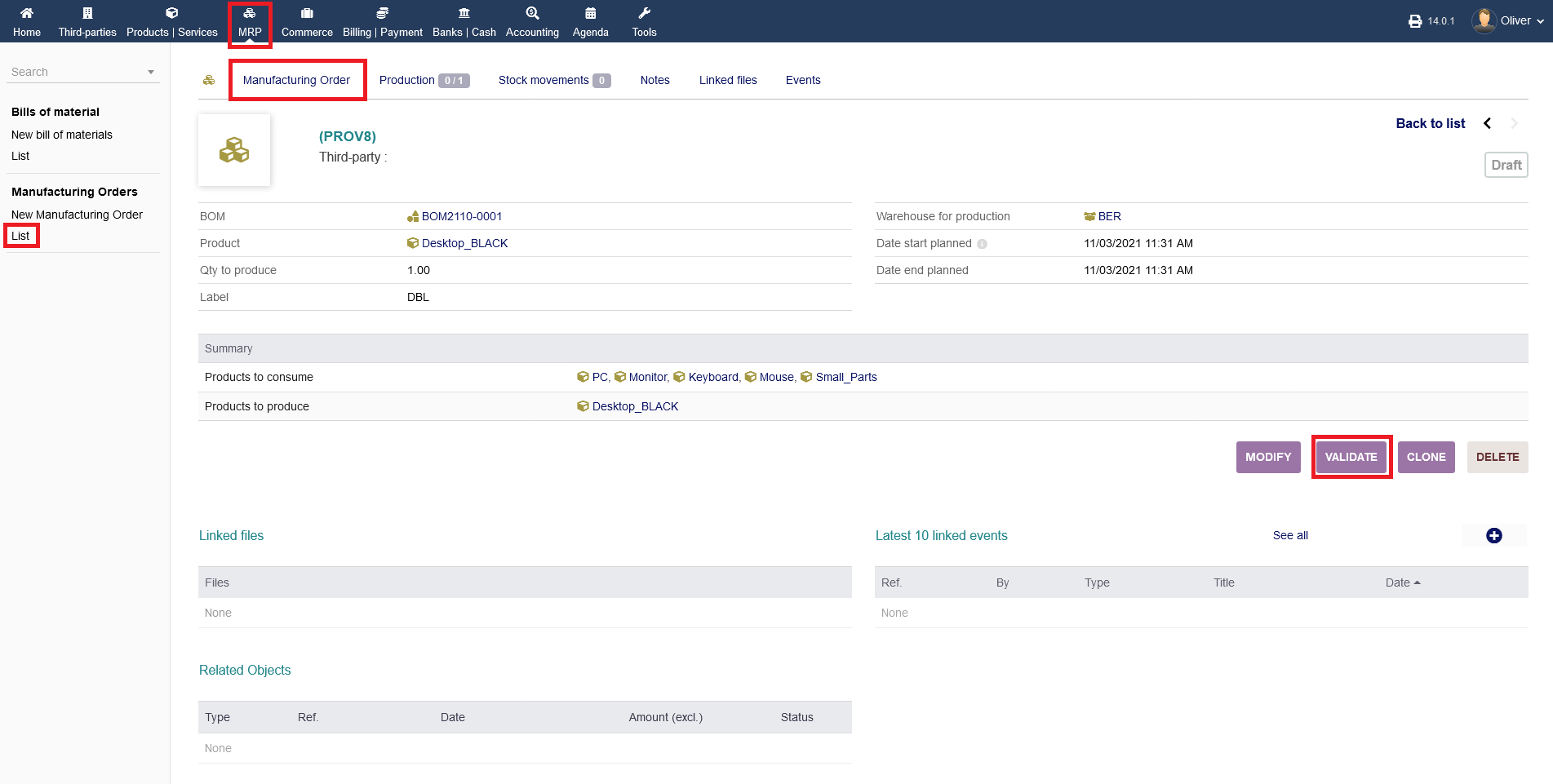
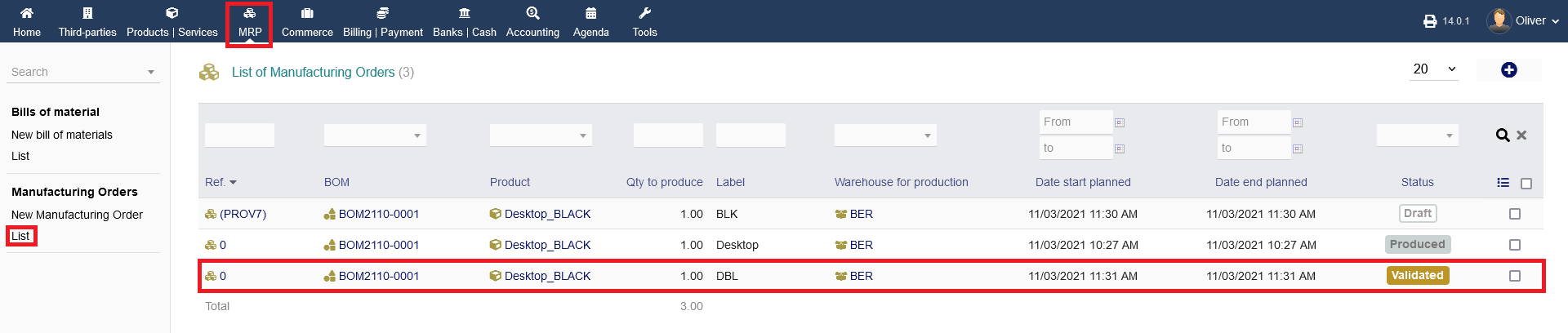
To bring the drafted order a confirmed status, so the production can start afterwards, click on "VALIDATE" in the next overview. If someone else needs to validate that draft, the listing can be found in the overview as mentioned above already.
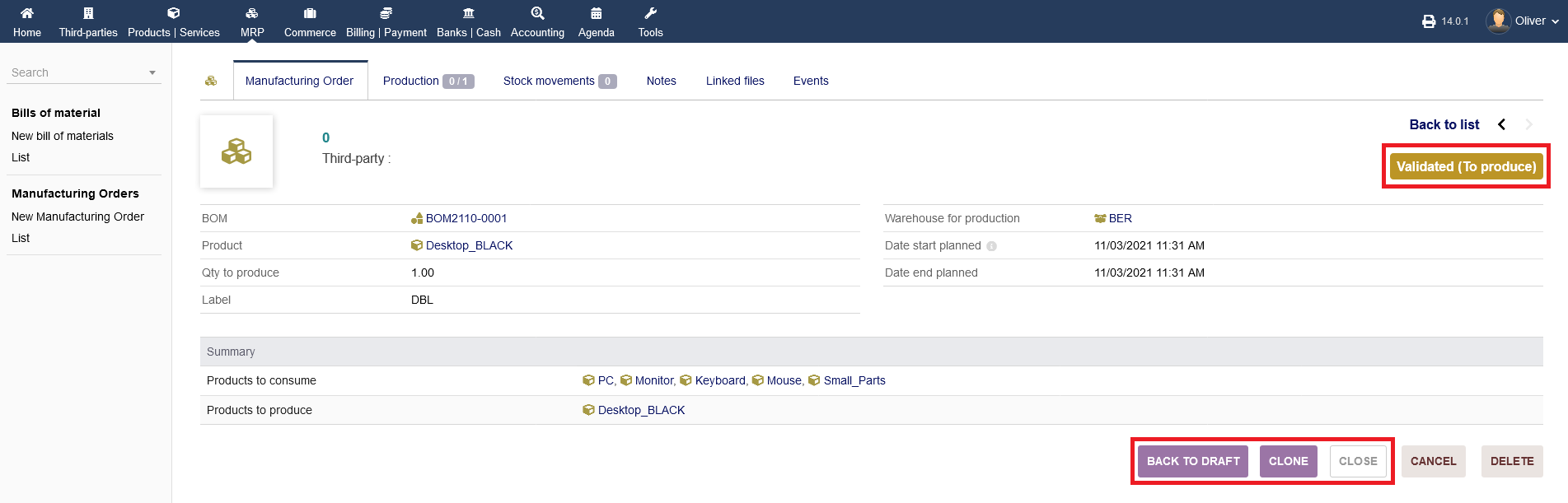
After validation, the options and the status are changing, as indicated in the screenshot. The manufacturing order has been setup completely. From here onwards, you need to do the actual manufacturing.
Manufacturing & closing the manufacturing order process
Now, you want to produce your item. After you have done the actual manufacturing, you want to finalize/close the order. To do that, choose the validated order which you want to close after production. Click on the Ref. name from the header
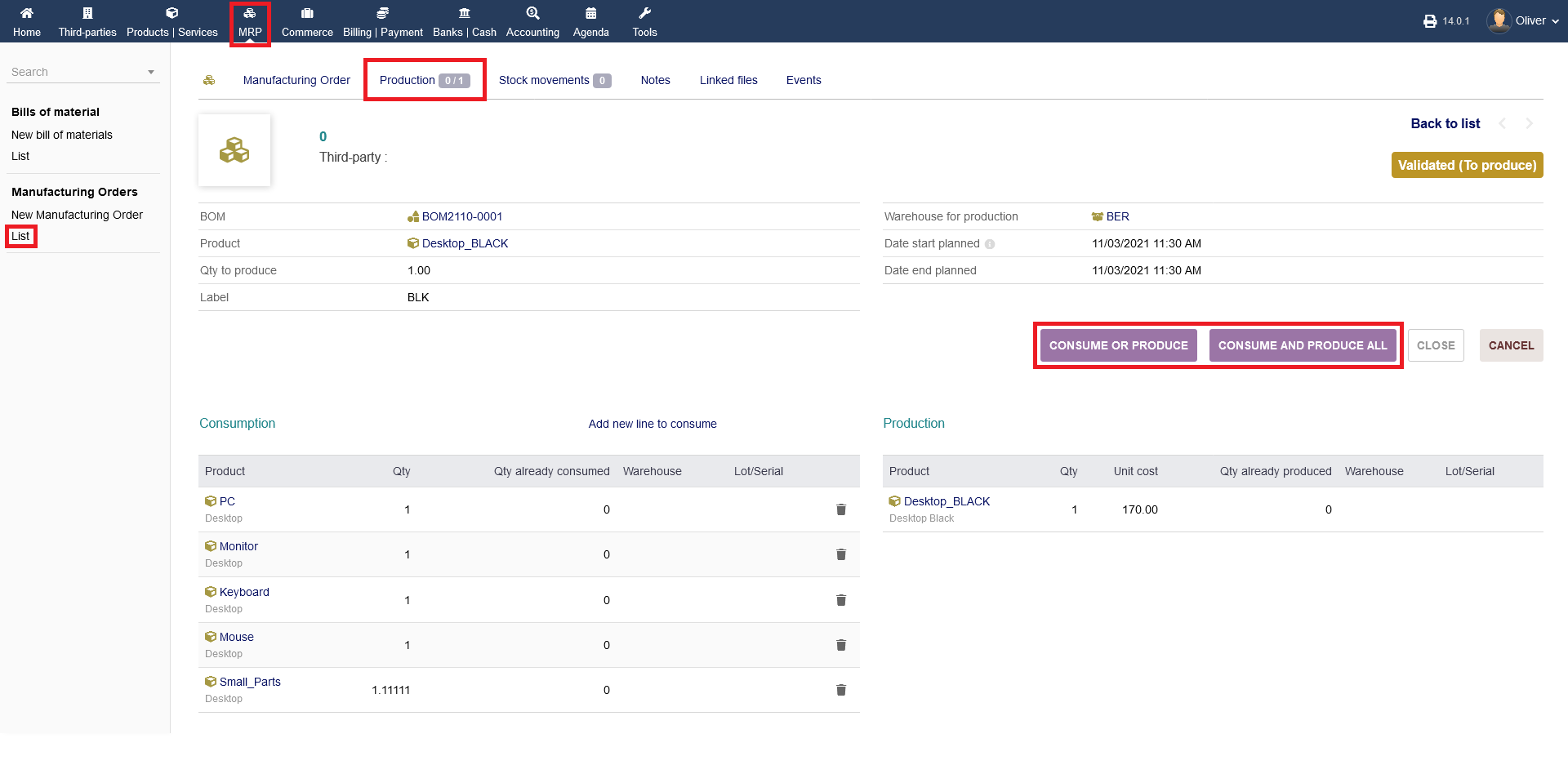
To change the validated status to "In production", click on the menu tab "Production". You will find two important options there.
You can either select "CONSUME OR PRODUCE" or "CONSUME AND PRODUCE ALL". Both options are doing the same thing, basically. The last option does all items at once, in comparison to the first option.
Clicking on "CONSUME OR PRODUCE " will close the process directly, following with the status "Produced". Clicking on "CONSUME AND PRODUCE ALL" does not directly close the process and will remain in the "In Progress" status/phase.
You then need to close that production process in an additional step. For this documentation, we will proceed with the latter option. Again, on the bottom left, you will see the parts that are going to be consumed in the manufacturing process.
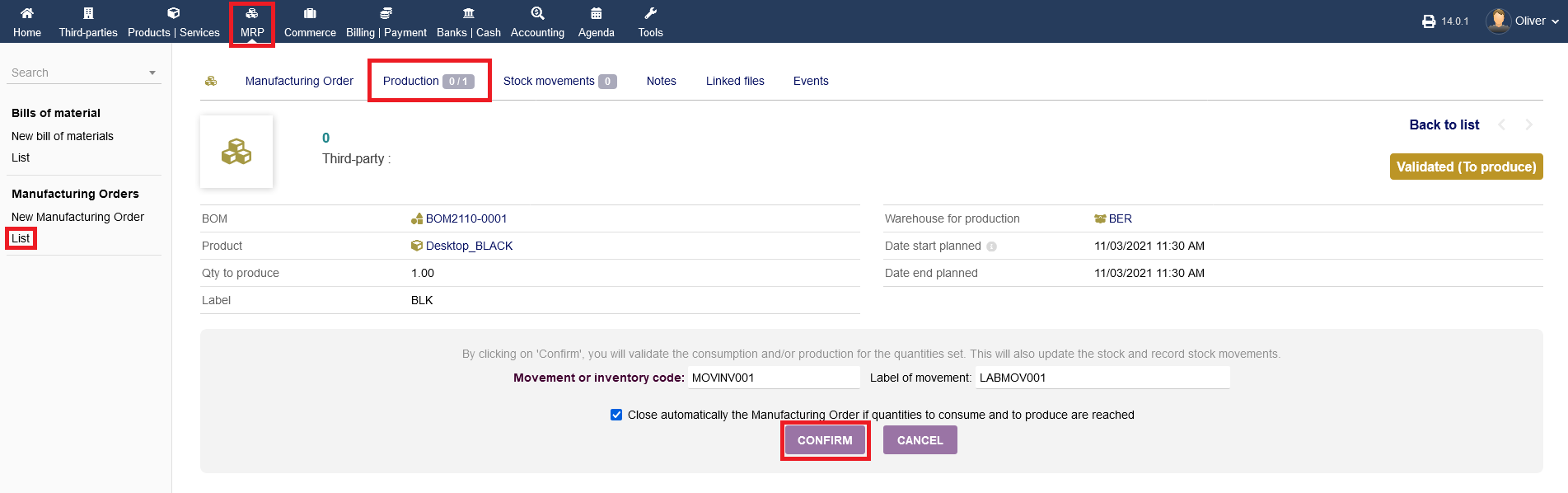
Specify in the following a movement/inventory code, as well as a label of movement. Click "CONFIRM" in the end.
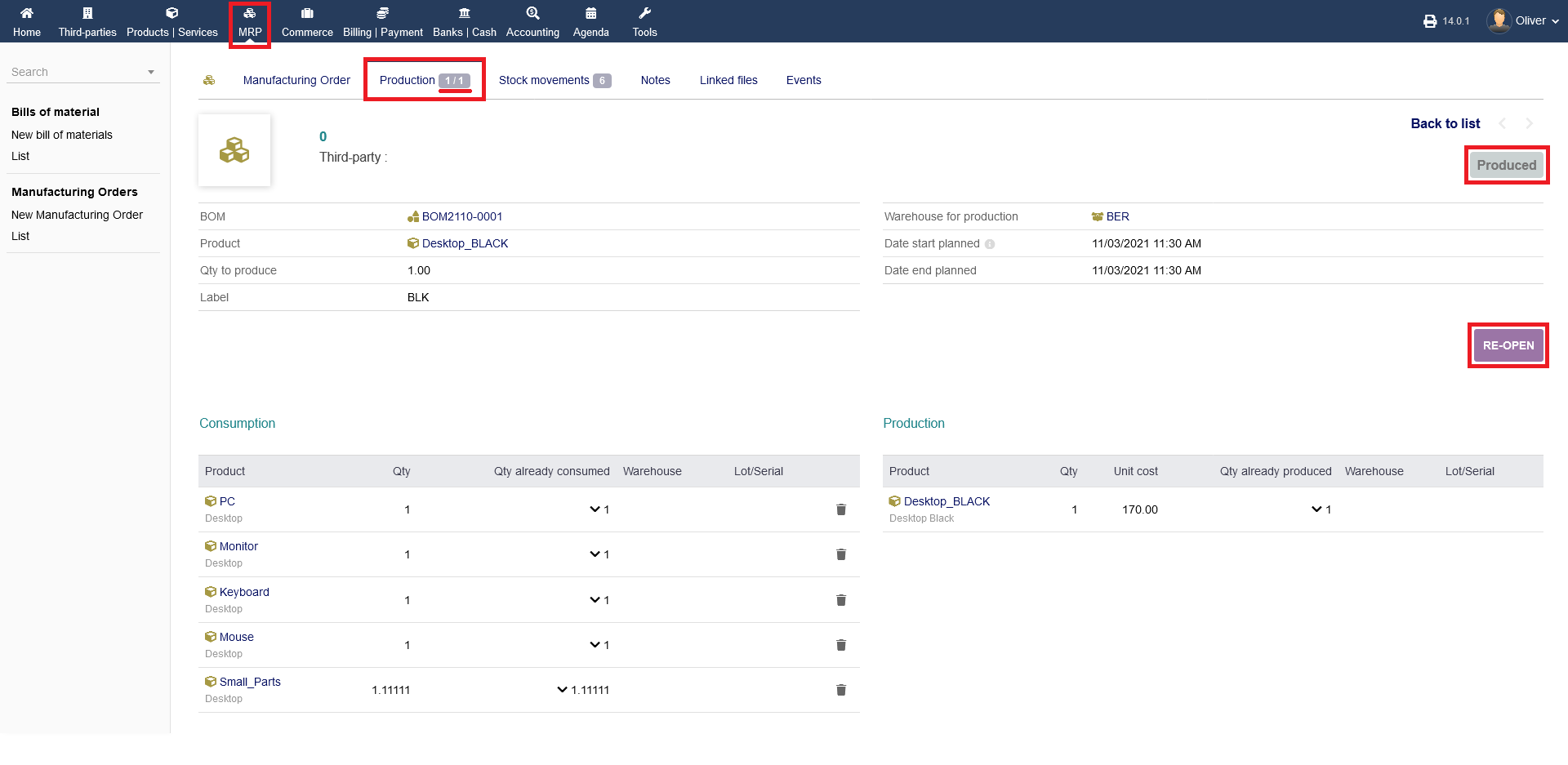
You now closed/finished the manufacturing order process. If necessary, you can "RE-OPEN" the process by clicking the respective button.
Further options for manufacturing order:
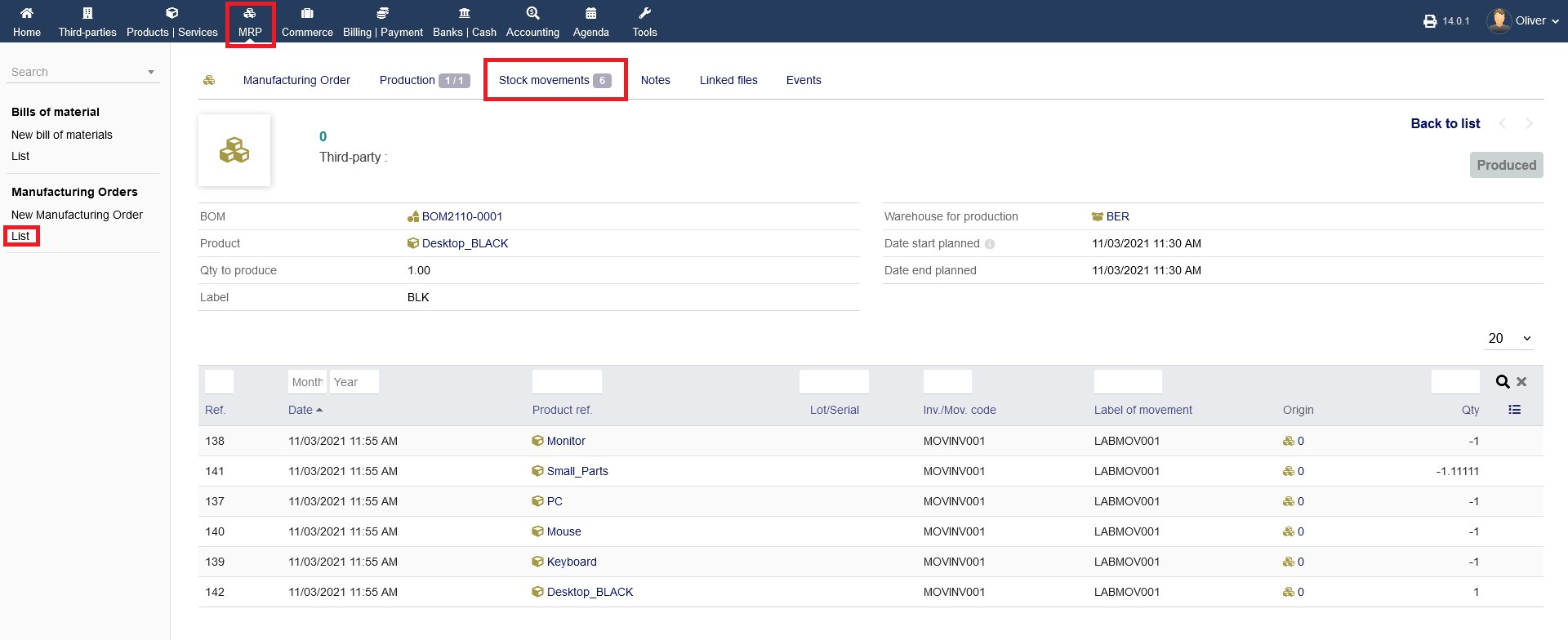
You have some additional options in your manufacturing order card. To get there, go to "MRP -> Manufacturing Orders -> List" and click on the Ref. name of choice.

You will see some menu tab options, whereas "Manufacturing order" and "Production" are already covered above. The option "Stock movements" is showing, what items in your stock got moved for your final product assembly, regarding that specific manufacturing order.
To know how to add "Notes" , upload documents under "Linked Files" and to see the activities done on this manufacturing order under "Events/Agenda" refer "General tab" article.
